

Installing and uninstalling apps is a common task we do on our computers. On the Mac, it can sometimes happen that when you try to uninstall an app, the system reports: “Can’t delete a Mac app because it’s still open“. This is a common problem that many Mac users face, but the good news is that it can be fixed by force closing the app.

In this guide, we’ll introduce you to different ways you can force close an app to uninstall it from your Mac. These solutions include using basic system settings to force close the app, dealing with executable files, restarting your computer, and more. So if you’re ready, let’s get started!
Table of Contents
Fix Can’t Delete a Mac App Because It’s Still Open Error on the Mac
1. Force Stop the Application and Then Uninstall
The reason why a Mac app cannot be deleted is that it’s still open. This is mainly because the app is still running in the background. The Mac system’s uninstall program cannot uninstall apps if they’re open and running in the background. This is why you see a warning message when you try to uninstall the app. You can easily fix this problem by force stopping or quitting the app. You can force quit the app in various ways. These methods are simple and don’t require any technical knowledge.
Apple Menu:

- Click on the Apple logo in the top left corner of your screen.
- Select “Force Quit” from the drop-down menu.
- This will also open up the “Force Quit Applications” window, and you can follow the same steps as above to close the unresponsive application.
- Alternatively, you can also press and hold the Command + Option + Esc keys on your keyboard. This will open the “Force Quit” window.
Dock Method:
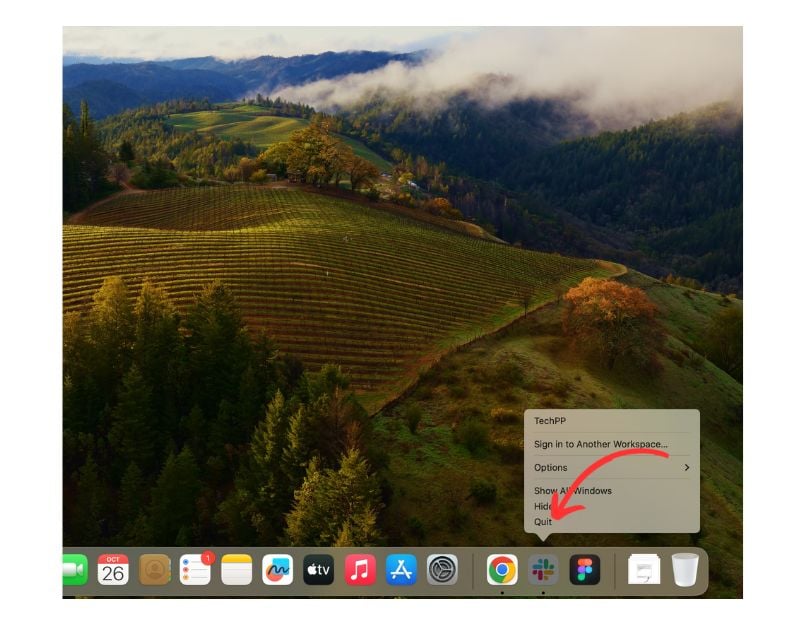
- Find the app you want to uninstall in your Dock if it doesn’t appear. Follow method 2.
- Right-click on the application icon.
- Press and hold the Option key on your keyboard, and “Quit” will change to “Force Quit.” Click on “Force Quit” to close the application.
2. Use Activity Monitor
Step 1: Open Spotlight:
- Press the Command key (Cmd) and the Spacebar key (Space) on your keyboard simultaneously. This will open up Spotlight, a search function on your Mac.
Step 2: Access Activity Monitor:

- In the Spotlight search bar that appears, type Activity Monitor and hit Enter on your keyboard.
Step 3: Find the application:
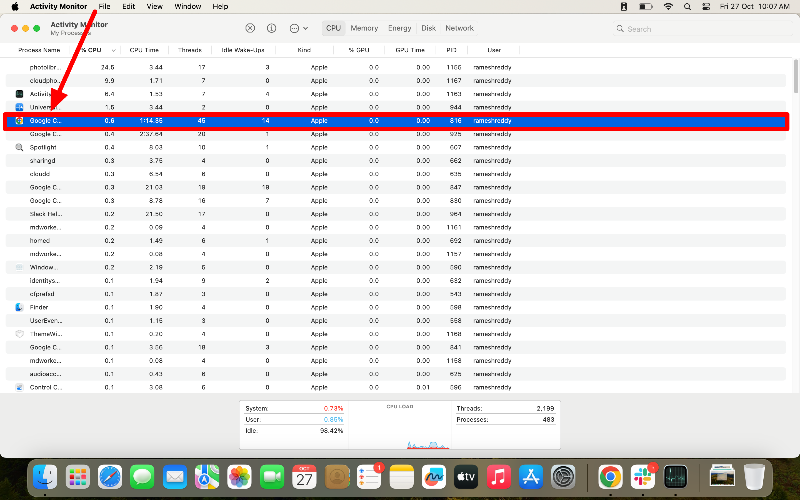
- Look at the list of running apps in Activity Monitor to find the app you want to quit.
Step 4: Initiate Force Quit:
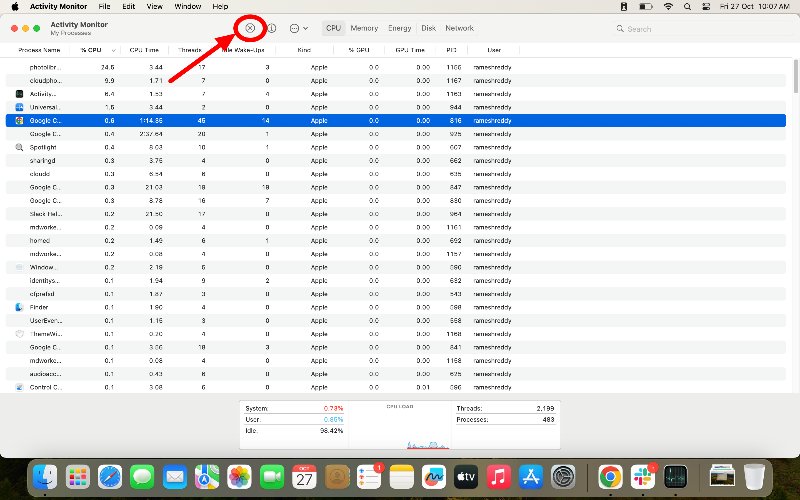
- Once you find the application, click on it to highlight it.
- You’ll see a small X button at the top left corner of the Activity Monitor window. Click on this button.
Step 5: Confirm Force Quit:

- A small window will pop up asking if you want to quit the process.
- Click on the “Force Quit” button to confirm.
Step 6: Open Finder:
- Now, Again, Open the Finder app on your Mac
Step 7 : Go to the Applications Directory:
- In the Finder window on the left-hand side, look for a tab labeled “Applications” and click on it. This will take you to a list of all the programs installed on your Mac.
Step 8 : Locate and Delete the Application:
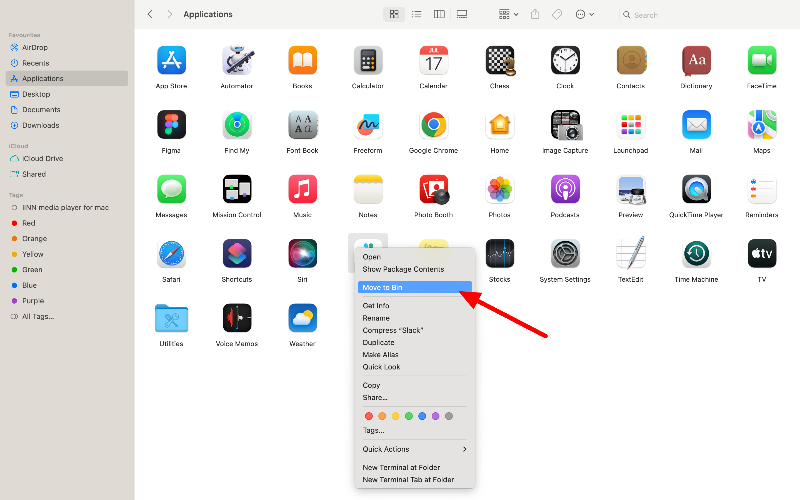
- Scroll through the list of applications until you find the one you want to delete.
- Right-click on the application icon, and select Move to Trash from the menu that appears.
3. Remove the Executable File
Remove the executable file of the app. This will prevent the file from being started. You can delete the file from the app’s package folder.
Step 1: Open Finder
- Click on the Finder icon in the dock at the bottom of your screen to open a new Finder window.
Step 2: Go to the Applications Directory:
- In the Finder window, look for an “Applications” tab on the left side “and click on it. This will take you to a list of all the programs installed on your Mac.
Step 3: Access Application Package Contents:

- Find the application you want to uninstall, right-click on it and select “Show Package Contents” from the menu that appears.
Step 4: Navigate to the macOS Folder:

- In the “Package Contents” folder, double-click on the folder named “Contents” to open it, and then open the MacOS folder.
Step 5: Locate and Delete the Unix Executable File:
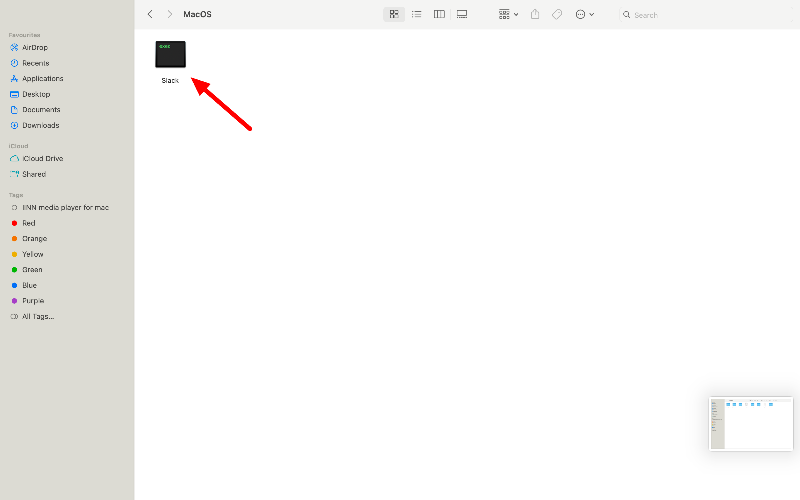
- Look for a file in the “MacOS” folder with the same name as the application. This file is the Unix executable file for the application.
- Right-click on this file, and select “Move to Trash” from the menu that appears to delete it.
Step 6: Open the Activity Monitor and force quit the application:
- Open Spotlight by pressing Command + Space on your keyboard, type “Activity Monitor, ” and hit Enter.
- Find and click on the application in the Activity Monitor to highlight it.
- Click on the small X button at the top left corner of the Activity Monitor window, and then click “Force Quit” on the pop-up window to confirm.
Step 7: Delete the Application from the Applications Folder:
- Go back to the “Applications” folder in Finder.
- Right-click on the application and select “Move to Bin” from the menu that appears to delete the application.
4. Uninstall Apps Using Third-Party Uninstallers
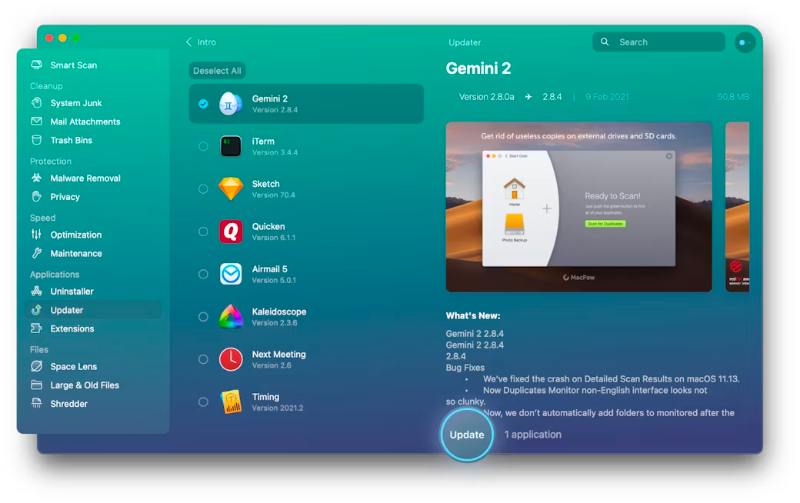
If these two methods don’t work, try uninstalling the app using third-party apps. These apps will help you remove the app from your Mac and all files associated with the app. There are many options for uninstallers. After testing, we found CleanMyMac X and App Cleaner to be the best options. With these apps, you can uninstall the apps you want to delete from your App Store.
5. Restart Your Mac

If none of the steps work, restart your PC. Restarting your PC will stop the processes running in the background and close the running applications. This is the most effective way to fix the problem, unless the app opens automatically when your PC restarts. To fix this, right-click on the app, hover over Options and uncheck “Open at login” or go to System Preferences > Users & Groups > Login Items, and uncheck any apps you don’t want to open at startup.
FAQs about App Deletion on macOS
1. Why can’t I delete an app on my Mac?
You can delete the app on your Mac for many reasons. This may be because the app you want to uninstall is a system app, you don’t have permission to uninstall the app, there is a hard disk error or malware is causing an error. In this case, the problem is most likely that the app is currently open or processes related to the app are running in the background. You can simply force stop the application and uninstall the app from your Mac.
2. How can I prevent this issue in the future?
You can prevent these issues by identifying the apps running in the background and closing them before uninstalling. You can also restart your Mac to stop the process running in the background that may be preventing the app from uninstalling.
3. Is it safe to use third-party uninstallers?
Yes, it is safe to use third-party installers to uninstall apps; however, make sure that your app is trustworthy and reputable.
4. What should I do if I can’t find the app in the Activity Monitor?
Make sure you have scrolled through the entire list of apps and processes in the Activity Monitor. Sometimes the app is listed under a different system process name. Tabs such as CPU, Memory, Power, Disk and Network. Check each tab to see if the app appears there. If you still can’t find it, use a third-party tool like MacKeeper to scan your Mac and find the app.
5. What should I do if the ‘App still open’ alert keeps popping up on my Mac?
It is very unlikely that the app will reappear after following the steps. If the problem still occurs, it is possible that malware on your Mac or a malfunction is causing the problem. To fix the problem, you can reset your Mac or contact Apple Support.

