

The iPhone might be best known for its understated design, smooth performance, app ecosystem, and excellent cameras. Still, there are several features in Apple’s iconic phone that are often missed because they are not as hyped as others are and are also not right out there in your face, often lying submerged in the Settings ocean.

One of these is the ability to play white noise, such as rain, a flowing stream or the ocean. These can have a calming effect on one’s mind in times of stress and can also help one focus better – ANC is all very well to keep sound out, but sometimes one wants some comforting sound to soothe one’s frayed nerves.
The iPhone can not only play these sounds but has been able to do so for a while – the feature came to it with iOS 15. But as it is not highlighted at all, not many users know that their iPhone can not just support hectic smartphoning but also actually be the source of some sonic calm.
And you do not need to download any app for this. All you need is an iPhone running iOS 15 or later to use this feature. What’s more, playing white noise on iPhone is not locked to Apple devices and will work on any headphones that you have connected to your iPhone. We tried it with AirPods as well as Pixel Buds Pro, and it worked perfectly fine.
Guide to Get White Noise on iPhone
So, if you are looking to get some audio zen from your iPhone, just follow these simple steps:
Turn the option ON from Settings.
- Go to Settings, the source of most of the iPhone’s secrets.
- Now it gets interesting. You do not go to Sounds and Haptics; instead, you choose Accessibility.
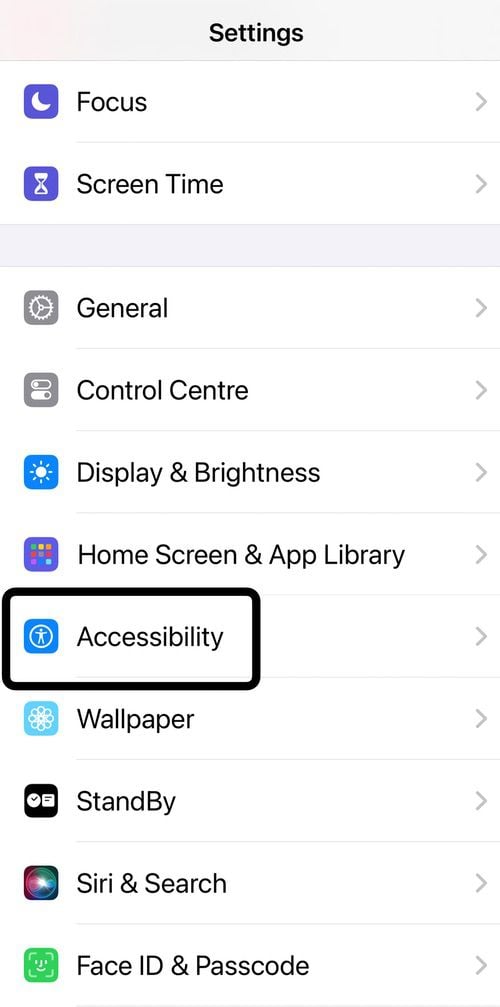
- Continuing on your curiously un-intuitive path, scroll down all the way to Audio/Visual and tap on it.

- No scrolling is needed here. Just choose Background Sounds. It will be turned OFF by default.

- In the Background Sounds section, first switch on Background Sounds by tapping on it. The sound selected by default (Rain in most cases) will now start playing on your iPhone’s speaker or on any connected earphones.

- Not all of us are fans of rain, so if you want to have a different calming sound, tap on the Sound option.
- You will now have a total of six sound options to choose from – Balanced Noise, Bright Noise, Dark Noise, Ocean, Rain, and Stream.
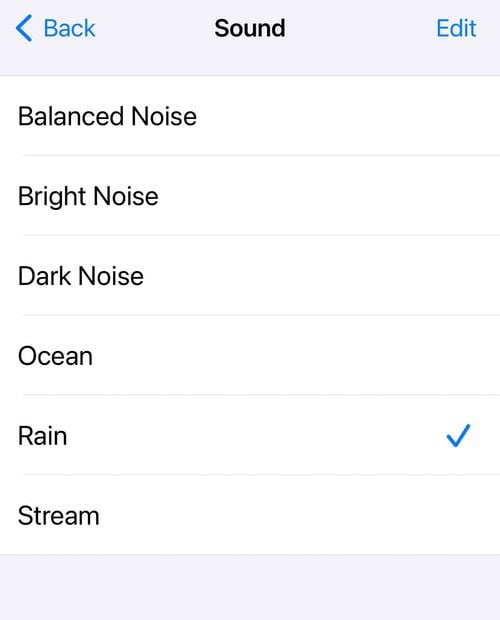
- It now remains for you to specify the maximum volume levels of the Background Sound of your choice. You can change the volume within this by using the good old volume buttons on the phone. That’s it.
Make the sound of rain a simple step away: Add a setting to the Control Center
Of course, it would be too tedious and time-consuming to keep heading to Settings to switch Background Sound on and off, so if you are often in need of sounds that soothe, we suggest adding the option to your Control Center. This way, audio calm is literally a swipe down on the display. Just follow these steps:
- Open Settings. Relax. The path is going to be much more intuitive this time around.
- Scroll down to Control Center
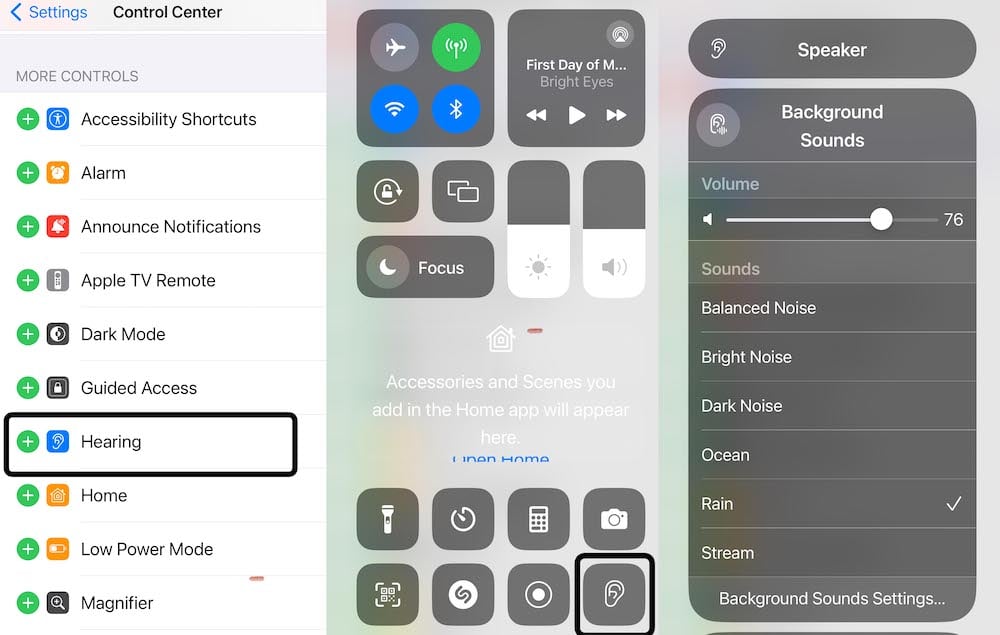
- In the More Controls section, choose Hearing. It will have an ear-shaped icon.
- To access Background Sounds, simply access the Control Center and tap the Hearing icon. And voila, you will have your Background Sounds options right there!
Let it rain, even if the media is playing or people are talking
A neat touch in the Background Sound feature on the iPhone is that you can keep it running even when you are playing other media or if you are using your earphones in transparency mode to hear external sounds. So, for instance, you might want to hear the sound of the rain as you go for a stroll in the local park while keeping transparency mode on to ensure you do not miss the greetings of your friends and other passers-by. Or you may want to hear the bubbling stream even when you are listening to your favorite song or piece of instrumental music.
Well, you can do so. Here is how:
- Go to the Background Sounds settings, whether through the Control Center (just tap on the Ear icon and then choose Background Sounds Settings).
- In the Background Sounds window, switch on the Use When Media Is Playing option. Now, the sounds will play even if other media are playing or if you have your earphones in transparency mode.

- When you switch on this option, we recommend adjusting the volume at which the background sounds will play using the Volume with Media option. Keep the volume low, or the sound of the ocean or the rain will drown out all others! The iPhone helpfully lets you hear samples at different volumes to give you a better idea.

