

Quick Answer
To uninstall bloatware on your Mobile, use the ADB (Android Debug Bridge) tool. It is available for both Windows and Mac. Using this tool, you can uninstall pre-installed apps, system apps, and third-party apps along with the app’s data. You can also use the ADB tool to uninstall apps on non-Chinese smartphones.
As a smartphone reviewer, I use and test many smartphones. One of the biggest concerns, especially from Chinese brands, no matter which price segment they are in, comes with many third-party pre-installed apps (referred to as bloatware). While some apps can be useful, others might be a privacy nightmare, and few constantly push notifications and recommend unwanted suggestions.

Few brands allow you to delete pre-installed apps, while others don’t, limiting you to only disabling them, which still consumes system storage. Fortunately, there is a popular and easy method you can use to delete bloatware from any Android smartphone without rooting the device. It works for any Android smartphone, including non-Chinese brands like Samsung, Pixel, etc. It is easy to use, even for beginners. Before going to the steps, here are the pre-requirements for removing bloatware.
- Android smartphone.
- Package viewer app: You can download it from the Play Store and install it on your Android smartphone.
- PC or Mac.
- Android Debug Bridge (Download here: Windows | Mac)
- USB cable to connect your mobile phone to the PC or Mac.
Table of Contents
How To Remove Bloatware From Your Smartphone
S/no | Step | Action |
|---|---|---|
1 | Enable Developer Mode on your Mobile | Go to Settings > About Phone > Tap Build Number multiple times until Developer Mode is enabled. |
2 | Turn on USB Debugging | In Settings > Developer Options, enable USB Debugging. |
3 | Connect your mobile to Laptop | Use a USB cable to connect your phone to the laptop, set the connection to File Transfer. |
4 | Find App Package Names | Use the Package Viewer app on your phone to identify package names of apps to remove. |
5 | Remove Apps via ADB | Ensure ADB in installed on your PC. - Open Command Prompt and use command: adb devices, adb shell, pm uninstall -k --user 0 [package name]. -On Mac: Use Terminal with ./adb devices, ./adb shell, pm uninstall -k --user 0 [package name]. |
Enable Developer Mode on Your Android

First, you should enable the developer mode on your Android. You can enable it using the build number on any device, but the steps may differ depending on your Android version and the UI.
- Step 1: Go to Settings on your Android smartphone and About and Software information. If you don’t find the build number, you can use the search and type “Build Number” and then follow step 2.
- Step 2: Find the Build number and tap on the developer option. ‘You are now a developer’.
Turn on USB Debugging

- Step 1: After enabling the developer options, go back to the Settings and find the developer options. It is usually found under the additional options or in a few Android skins you can directly access from the main settings menu. If you cannot find it, you can use the search bar and type “Developer options.” If you still don’t find it, ensure developer options are enabled on your device. You can follow step 1 again.
- Step 2: Now, Open the developer settings, scroll down, and enable the USB Debugging option.
Connect your Smartphone to your laptop

- Step 1: Use the USB cable and connect your phone to your laptop.
- Step 2: Set the USB preferences to File Transfer.
- Step 3: Select Always Allow and hit OK.
Find the App Package Names

- Step 1: Open the Package Viewer app on your phone.
- Step 2: Find the app you want to remove, click on the app, and note down the app’s package name, most likely the first line of the package name.
Remove the Apps Using ADB on Windows
If you are using Windows, you can use the ADB tool to remove bloatware on your Android.
- Step 1: Ensure Adb ( for Windows ) is installed on your device.
- Step 2: Open the file manager and go to This PC.

- Step 3: Click on your device name to enter your phone’s root folder.

- Step 4: Now, click the path above, remove the path type CMD, and press enter.

- Step 5: It opens the Command prompt Window.

- Step 6: Now, Enter the following command: adb devices and hit enter. It will show you the serial number attached to your device. If you see an adb not found error. Follow the steps below to easily fix.

Fix: adb not recognized error

If Android Studio is not installed or the path is not defined on your device, you will most likely encounter the “‘adb’ is not recognized as an internal or external command operable program or batch file” error. You can easily fix this by installing Android Studio and setting a path. Watch the video for the detailed step-by-step process. Once you fix the error, you can follow the same process: go to the CMD and enter the command. This time, you should be able to see the list of devices attached without any errors

- Step 7: After viewing the list of devices connected. Now type the adb shell command and press enter.

- Step 8: Type the following command: pm uninstall -k –user 0 [enter the package name], and click on enter. For example, pm uninstall -k –user 0 com. Netflix.media.client

- Step 9: That’s It. You will see a success message, and the app is removed from your smartphone.

Remove Bloatware Apps Using a Mac
Similar to PC, you can use the ADB tool on your Mac and remove bloatware on your Android smartphone. However, the process is slightly different.
- Step 1: Download the Android SDK platform tools file for macOS using this link.
- Step 2: Extract the files and save them in an easy-to-access location.

- Step 3: Now open your Android smartphone and enable USB debugging. Follow the above methods to enable USB debugging on your smartphone.
- Step 4: Using the USB cable, connect your Android smartphone to the Mac and set USB preferences to File transfer. Click on the allow option on your Mac and also allow it on your smartphone if it asks for permission.
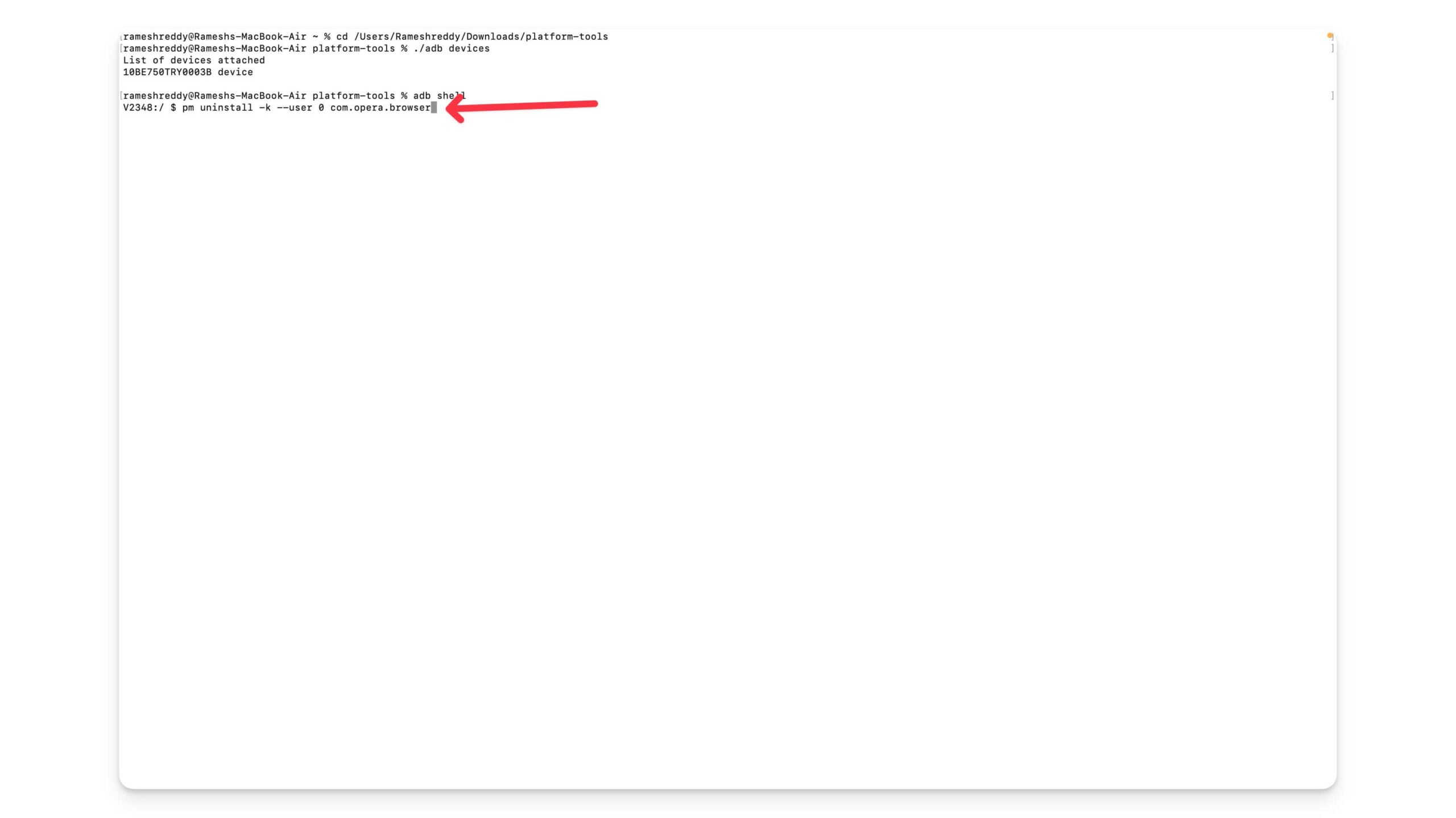
- Step 5: Now open the Terminal on your Mac and navigate to the extracted adb folder. (adb directory). For instance, if you saved and extracted the folder into downloads enter the following command: cd /Users/name of your device/Downloads/platform-tools

- Step 6: Now enter the following command: ./adb devices and hit enter.

- Step 7: Now, you will see the list of devices connected to your Mac.

- Step 8: Now enter the adb shell and press enter. If you face any error like zsh: command not found:adb, follow the steps below to easily fix the issue. Unlike Windows, it may take a few more steps to fix the error on Mac.


Fix the zsh: command not found:adb Error on Mac

Follow the video above and install Home Brew on your Mac. Be patient and carefully follow the steps described in this video. After you install Home Brew on your Mac. Open the Terminal on your Mac and Enter the following command: brew installs android-platforms-tools and hit enter. Wait for the tools to download. Now, navigate to the platform-tools folder and follow the steps from step 8. Enter the command: adb shell

- Step 9: You can see a dollar symbol. Now, get the app package name

- Step 10: Now open your smartphone and find the app package name. You can download and install the Packager name viewer app from the Play Store. Open the app and select the app you want to install, tap on it, and remember the file path
- Step 11: Enter the following command: pm uninstall -k –user 0 [package name]. for instance, pm uninstall -k –user 0 com.opera.browser and press enter.

- Step 12: You will see a success message, and the app will be removed from your mobile phone.

- Follow the same processor for other apps and remove them from your Android smartphone.


Final Thoughts: Uninstall Unwanted Apps on Your Android Smartphones
Those are the two easy methods you can use to uninstall bloatware on your Android smartphone using ADB without root. Using these methods, you can uninstall bloatware, system apps, and any apps you have installed on your Android smartphone. Ensure that you do not uninstall core system apps, as this can later impact your smartphone’s functionality. You can distinguish which apps to remove by following the steps to get package names and uninstall the apps. If you encounter any issues, you can comment below, and we will be happy to help you.
FAQ’s about Removing Bloatware on Android
What should I do if the adb devices command doesn’t recognize my phone?
Ensure USB debugging is enabled on your smartphone and has no issues with the USB connection. Also, make sure ADB is properly installed on your Mac or PC. To check, open the Terminal on your Mac and Command Prompt on your PC and type the following command: adb version
Are there any risks associated with uninstalling certain system apps?
Yes, strictly ensure you don't until the critical apps on your smartphone. You can go to the apps section on your mobile, and here, system apps are usually marked or listed separately from user-installed apps. Alternatively, you can also see the adb tool to list system apps and user-installed apps. You can use adb shell pm list packages -s to list system apps and adb shell pm list packages -3 to see user-installed apps on your smartphone.
Can I use this method to remove bloatware on non-Chinese smartphones as well?
Yes, this method works for any Android smartphone, including flagships, foldable smartphones, and more from other non-Chinese smartphones.
Does using ADB to uninstall an app also remove the app’s data?
By default, the command "pm uninstall -k --user 0" command does not completely remove the app's data. If you want to remove the app and its data, You can use the following command: pm uninstall --user 0 [package name]. You can view more information from here.

