

Quick Answer
To enable smooth scrolling in Google Chrome, open Chrome and go to chrome://flags, search for “Smooth Scrolling,” set it to Enabled, and relaunch the browser. The steps are the same on both PC and phone via the flags page, giving smoother, less jerky page scrolling.
Google Chrome is one of the most widely used and most popular web browsers, whether for desktops or smartphones. Its ease of use, user interface, and all the features it offers make it an exciting choice among the multitude of browser options. However, the number of features that Google Chrome offers is a long list, but the one that will make your browsing experience smooth is called Smooth Scrolling.

If you have ever noticed your Chrome browser jumping between sections of a page rather than gliding through them, Smooth Scrolling is what fixes that. It makes the page roll down gradually instead of snapping to each position, giving the whole browsing experience a much more polished feel. In this guide, we’ll show you how to enable or disable Smooth Scrolling in Google Chrome on a PC and smartphone, along with a few other handy ways to get the same result.
Table of Contents
What is the Google Chrome Smooth Scrolling feature?
Google Chrome offers a smooth scrolling feature that is designed to improve how web pages scroll. Instead of re-rendering the page at each step as you scroll, Chrome animates the transition between positions so the page glides instead of jumping. The result is a more fluid experience when you use a mouse wheel, trackpad, or swipe gesture on your phone.
To get a bit technical, Chrome’s smooth scrolling feature works by targeting a consistent frame rate close to 60 frames per second (FPS) during scroll events. At 60 FPS, each frame takes about 16 milliseconds to render, which is fast enough that the motion appears continuous to the human eye. When this target is not met, you get the familiar choppy or stuttering effect.
It is worth noting that the feature is not a speed boost. The page itself loads at the same speed. What changes is how the scroll animation is handled by the browser. On most modern devices, this works without any side effects. On older or low-powered devices, however, the additional rendering work can occasionally cause a slight lag or even a crash, in which case disabling the feature is the better call.
Benefits of Enabling and Disabling Smooth Scrolling
Before you go ahead and enable the feature, it helps to know what you actually get out of it and when you might want to turn it off.
Benefits of enabling Smooth Scrolling:
- The scrolling animation becomes fluid and continuous rather than abrupt and jumpy
- Reading long articles or web pages feels less straining on the eyes
- Touchpad and trackpad scrolling feels significantly more responsive
- Swipe-based scrolling on phones feels more natural and polished
- The overall browsing experience feels faster, even though the underlying page speed is unchanged
Benefits of disabling Smooth Scrolling:
How to enable or disable the Google Chrome Smooth Scrolling feature?
Smooth scrolling can not only be experienced on a PC or laptop, but you can also activate this function on your smartphone. Below, we have listed the steps you can take to either enable or disable the Google Chrome smooth scrolling feature on your PC or smartphone.
On a PC/laptop
- Launch Google Chrome on your PC.
- In the address bar, type chrome://flags, and press Enter on your keyboard.

- Enter smooth scrolling in the search field and press enter.
- Next to the Smooth Scrolling feature, you will see a down arrow next to Disabled. Tap on it and select Enabled to enable the feature, or select Disabled to disable the feature.
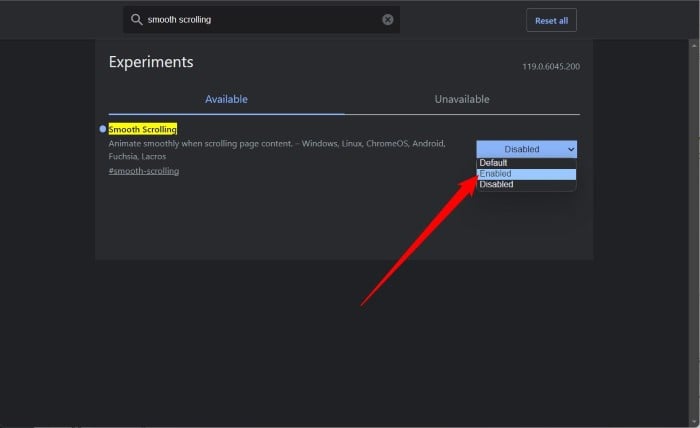
- At the bottom, you will see a notification asking you to restart the Chrome browser for the changes to take effect. Click on the Relaunch button.

Your browser will restart, and the function will also be activated. If you are not happy with the Google Chrome Smooth Scrolling feature, you can disable it using the same steps as above. If you cannot see the feature, you need to make sure that the Google Chrome browser is updated to the latest version.
On a smartphone
- Open the Google Chrome browser on your smartphone.
- In the address bar, type chrome://flags and press Enter.

- In the search field, type smooth scrolling. Next to the flag, tap on the Default button which will reveal some more options.

- Select Enabled to turn on the feature or Disabled to turn off the feature.
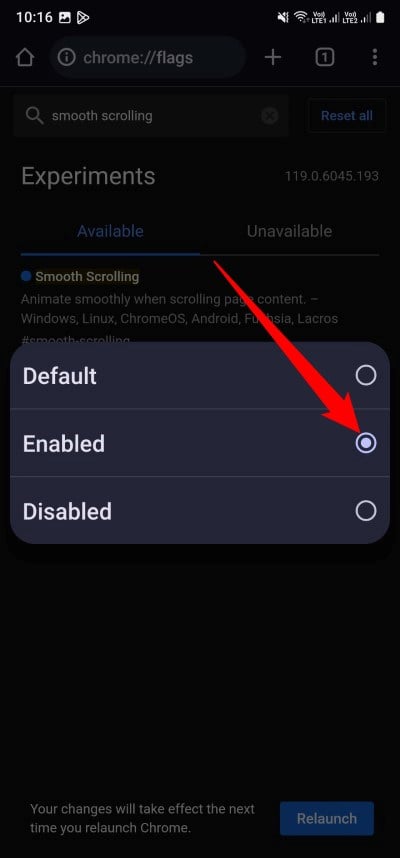
- Relaunch the web browser by tapping on the Relaunch button at the bottom of the Chrome browser page.

By following the steps above, you can enable smooth scrolling in your Google Chrome browser and enjoy a better user interface response when scrolling on a web page.
Enable Smooth Scrolling using a third-party extension
The option to activate Google Chrome Smooth Scrolling is fairly simple and can be done via the browser. However, with the Chrome browser, you can use extensions to extend the browser’s feature list. There are a variety of extensions that you can use to add other features to Google Chrome besides smooth scrolling.
We have a recommended extension that you can use to enhance and enable smooth scrolling in Google Chrome. Find out how to use it here:
- Open the Google Chrome browser.
- Visit the Chrome Web Store.
- Search for Chromium Wheel Smooth Scroller.
- Click Add to Chrome and choose Add Extension.

- Once the extension is installed, click on the extensions menu, click on the three-dot icon next to the extension, and choose Options.

- You will find different options to tweak for both the mouse as well as keyboard, which are listed below:
- Step size
- Smoothness (Forepart)
- Smoothness
- Acceleration Sensitivity
- Acceleration by Travel Distance
- There are Misc options as well, which give you the option to change the Bouncy Edge, Device Recognition, and Logging.

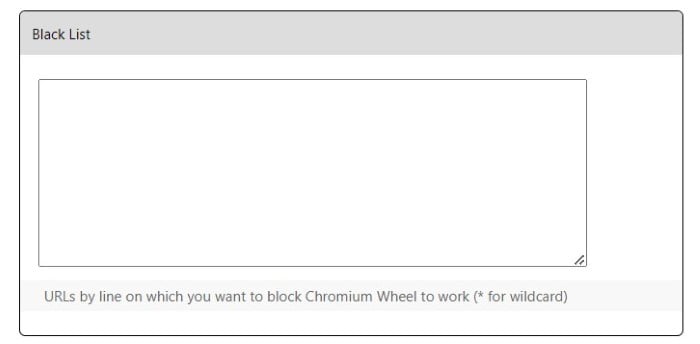
- Down below, you get a Black List section, where you can enter the URLs where you would like to disable the smooth scrolling feature.
That’s it. Now, you can use Smooth Scrolling on your PC with some additional features that will help you have a more intuitive experience. The extension is good and is used by over 90,000 users, so it’s worth a try.
How to Enable Smooth Scrolling in Other Browsers
If you use multiple browsers, the good news is that most modern browsers support smooth scrolling as well.
Mozilla Firefox
Firefox has smooth scrolling built in and turned off by default on some platforms. To enable it, open Firefox and click the menu icon in the top-right corner. Select Settings, scroll down to the Browsing section, and check the box next to Use smooth scrolling. The change takes effect immediately without a restart.
Microsoft Edge
Edge is built on the same Chromium engine as Chrome, so the process is almost identical. Type edge://flags in the address bar, search for Smooth Scrolling, and enable the flag. Restart Edge for the changes to take effect.
Safari
On macOS, Safari handles smooth scrolling at the operating system level through the macOS scroll acceleration settings. There is no separate flag or toggle inside Safari itself. If scrolling feels choppy on a Mac, checking System Settings and adjusting the mouse or trackpad scroll speed is the recommended approach.
Opera
Opera, also a Chromium-based browser, supports the same opera://flags method. Search for Smooth Scrolling, enable it, and relaunch the browser.
Enable Smooth Scrolling on a Website Using CSS
If you are a web developer or run a website, you can enforce smooth scrolling for all visitors of your site without requiring them to change any browser settings. The CSS scroll-behavior property handles this natively in all modern browsers.
All you need to do is add the following to your stylesheet:
html {

  scroll-behavior: smooth;

}
This one line tells the browser to animate any scroll action on the page, including anchor link navigation. It works in Chrome, Firefox, Edge, and Safari without any JavaScript. For more granular control, you can also use the scroll-behavior property on individual scrollable elements rather than the entire page. You can read more about this on the MDN Web Docs page for scroll-behavior.
Troubleshooting Smooth Scrolling in Chrome
Smooth Scrolling Not Working in Chrome? Here’s How to Fix It
In most cases, enabling the flag and relaunching Chrome is all you need. But if smooth scrolling is still not working or has stopped working after an update, here are the most common causes and fixes.
1. The flag is not showing up in chrome://flags
As mentioned above, this usually means Chrome has already applied smooth scrolling as a default behavior. You do not need to enable it manually. Try scrolling on a few different websites to check if it already feels fluid. If it does not, try the extension method instead.
2. Energy Saver mode is on
Chrome’s built-in Energy Saver mode limits background activity and can also dial back the rendering quality of animations, including scroll animations. To check, go to chrome://settings/performance and turn off Energy Saver. Then test whether scrolling feels smoother.
3. Hardware acceleration is disabled
Chrome uses GPU acceleration to render smooth scroll animations. If hardware acceleration is off, scrolling will appear choppy regardless of the flag. To enable it, go to chrome://settings, click System, and turn on Use graphics acceleration when available. Relaunch Chrome after making the change.
4. The browser is outdated
Chrome updates frequently, and some flags or behaviors change between versions. If you are not on the latest version, go to chrome://settings/help to check for updates and install them.
5. A conflicting extension is interfering
Some browser extensions that modify page rendering or scrolling behavior can interfere with Chrome’s native smooth scrolling. Try disabling extensions one at a time via chrome://extensions to find the culprit. If an extension is causing the issue, the Chromium Wheel Smooth Scroller extension listed earlier in this guide is a reliable replacement that gives you full control over the scroll behavior.
FAQs about Google Chrome Smooth Scrolling
1. Does using Smooth Scrolling on Google Chrome make it lag and use more resources?
Smooth scrolling works by animating scroll events at a target frame rate of around 60 FPS, which does involve some rendering work from your CPU and GPU. On modern devices, this overhead is negligible and you will not notice any slowdown. On older or low-end devices, however, it can occasionally cause slight lag. If Chrome feels slower after enabling the flag, disabling it is the right move.
2. How to fix the Smooth Scrolling feature that isn’t working for me?
Start by checking whether the flag is enabled in chrome://flags. If you cannot find the flag at all, Chrome may have already applied smooth scrolling natively. Also check that Energy Saver mode is turned off at chrome://settings/performance, and that hardware acceleration is enabled under chrome://settings > System. If none of those help, the Chromium Wheel Smooth Scroller extension is a reliable alternative.
3. I don’t see the Smooth Scrolling feature in Google Chrome.
If the flag is missing, it most likely means your version of Chrome no longer exposes it because the behavior has been standardized internally. Update Chrome to the latest version via chrome://settings/help and test whether scrolling already feels smooth. If you still want more control over the scroll experience, use the extension method described above.
4. What is the difference between smooth scrolling on and off?
With smooth scrolling off, the page jumps between fixed positions each time you move the mouse wheel or swipe. With smooth scrolling on, the page glides through those positions with an animated transition. The difference is most noticeable on long-form pages like articles and documentation.
5. Is smooth scrolling better for your eyes?
For most users, smooth scrolling is easier on the eyes because the continuous motion reduces the visual jarring of abrupt jumps. However, users with motion sensitivity or vestibular conditions may find it disorienting and prefer to keep it disabled.
Wrap Up
Smooth Scrolling is one of those small quality-of-life tweaks that makes a real difference once you have it enabled. Whether you go through the Chrome flags page, enable it from the extension, or apply it at the browser settings level, the result is a noticeably more comfortable browsing experience. If you ever run into issues, the troubleshooting steps above should help you sort it out quickly.
While you’re at it, there are plenty of other Chrome flags and settings worth exploring. Check out our guide on the best Chrome flags to enable and our tips on how to make Google Chrome faster on PC and mobile to get the most out of your browser.

