

Quick Answer
To enable vertical tabs in Google Chrome, update to version 146+, then right-click any tab and select “Show tabs vertically.” If the option isn’t visible, go to chrome://flags, enable “vertical tabs,” then turn it on in Settings → Appearance.
Google Chrome has finally added vertical tabs. If you have used vertical tabs on Microsoft Edge, Firefox, or Arc, you already know what a difference it makes when you have a lot of tabs open. Tabs stop shrinking into tiny unreadable strips and sit neatly on a sidebar where you can actually read each tab title.
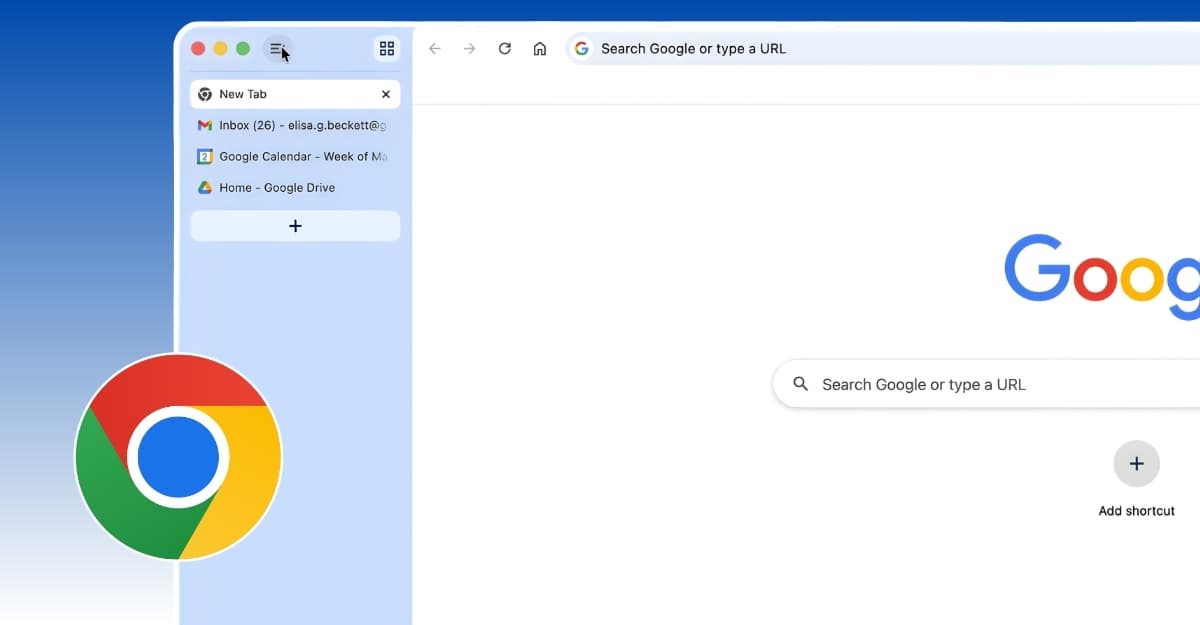
Chrome is very late to this. Most major browsers have had vertical tabs for years. But better late than never.
This feature started rolling out in Chrome 146, which was released in March 2026. If you are already on Chrome 146 or later, you can enable vertical tabs in just a couple of clicks. If you do not see the option yet, you can force it using Google Chrome flags.
This guide covers both methods step by step.
Table of Contents
How to Enable Vertical Tabs on Google Chrome:
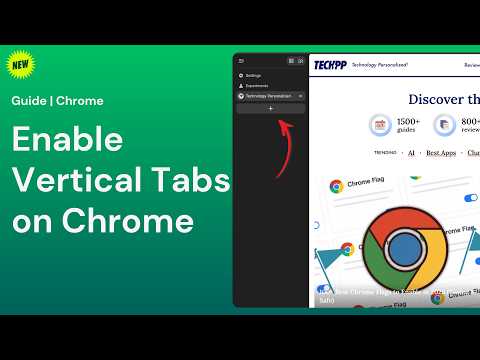
Before proceeding with the steps, you first need to update your Google Chrome to version 146 or later. If you are already on version 146 or higher, you can skip directly to the enable steps below. If you are excited and you don’t see it here, don’t worry; you can enable it using the Google Chrome flags.
First, update your Google Chrome to the latest version:
Step 1: Open Google Chrome.
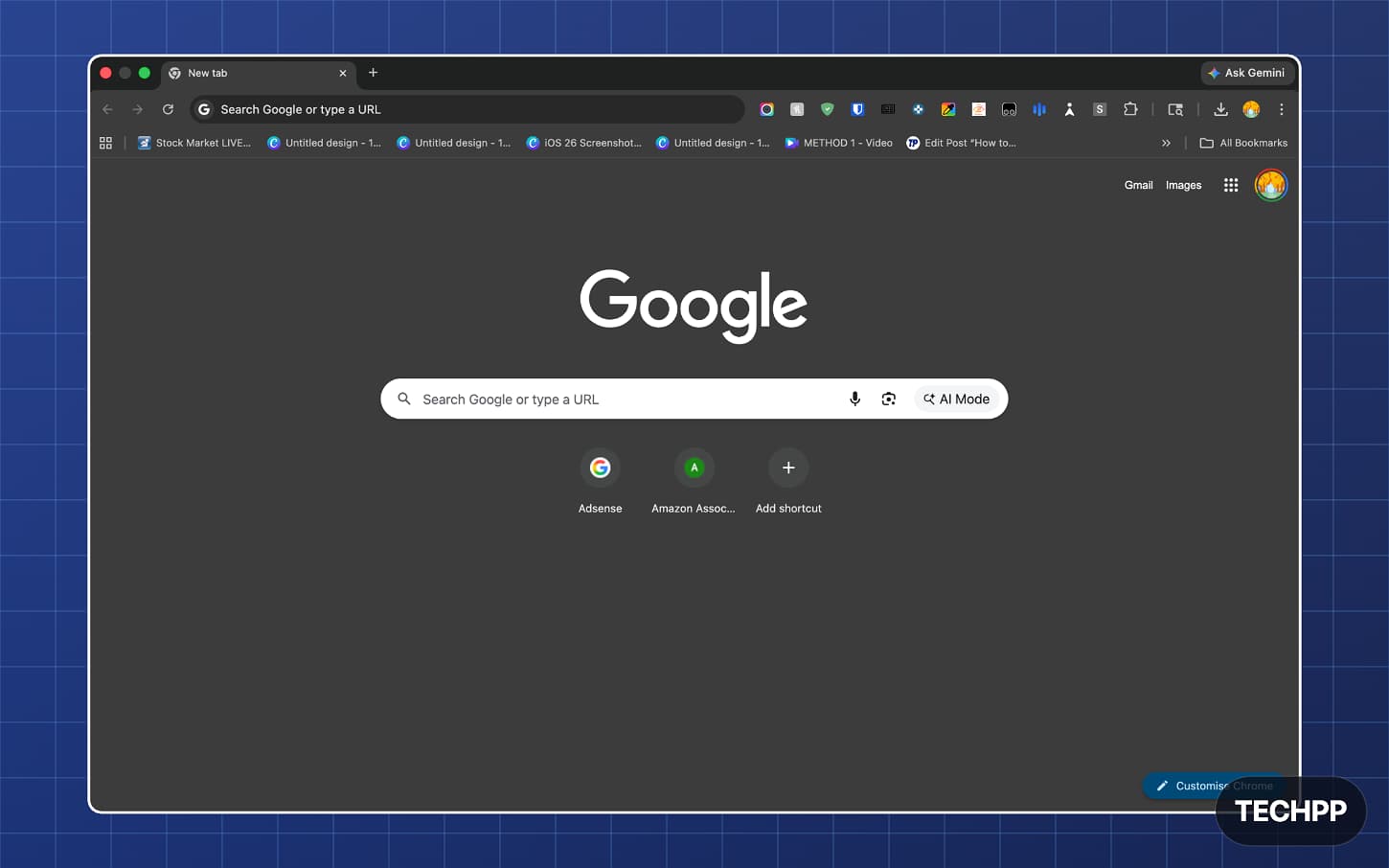
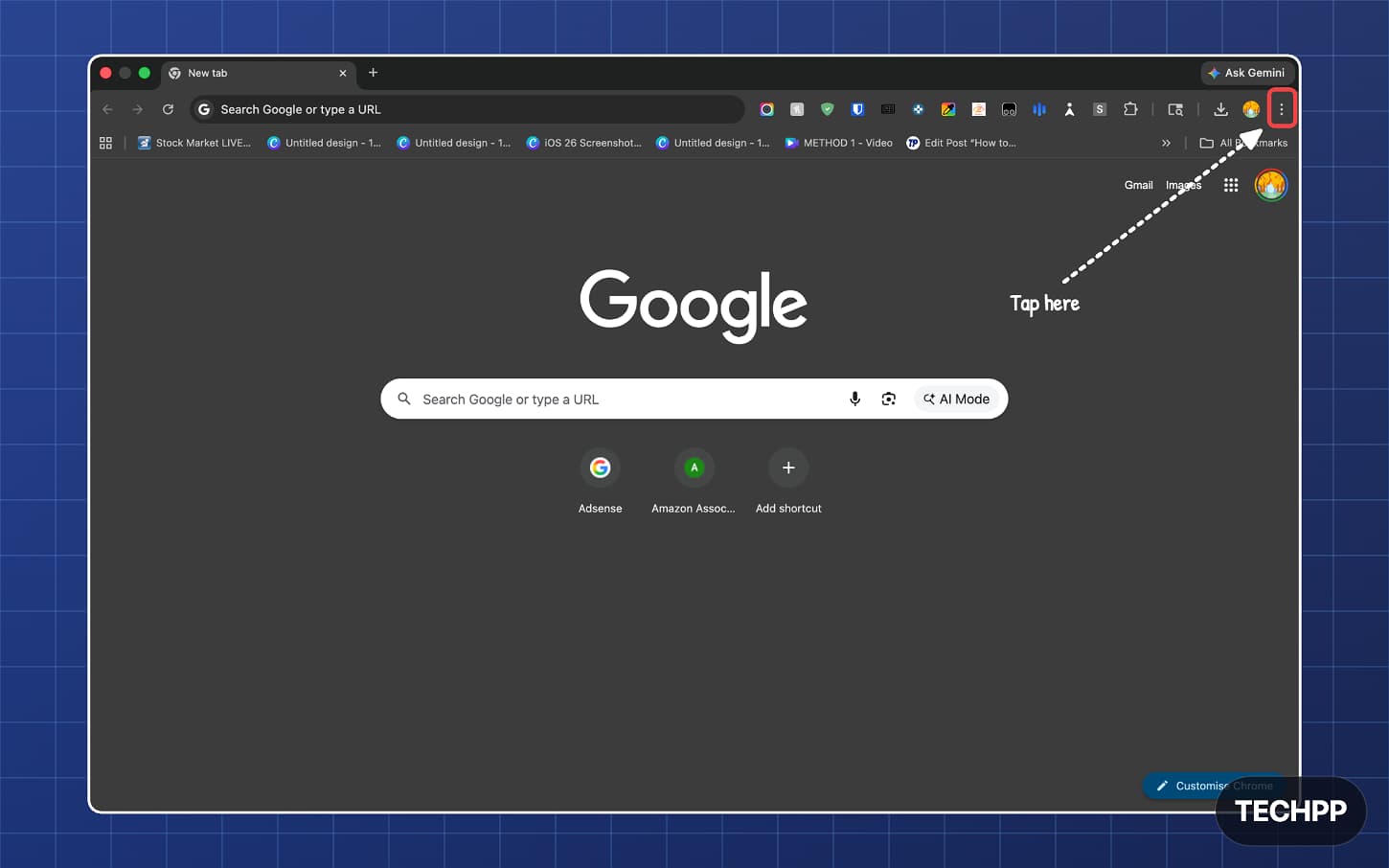
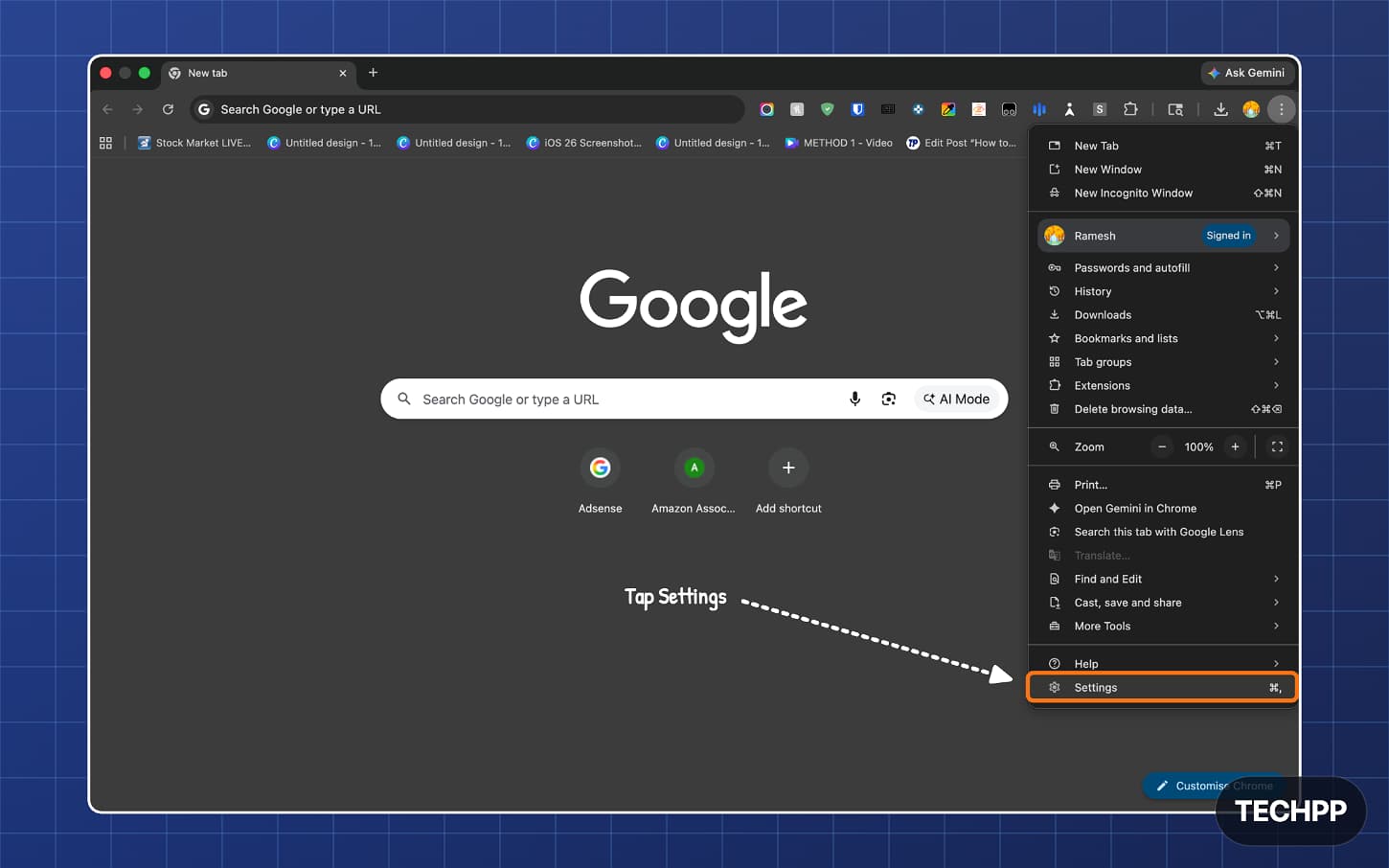
Step 2: Click on the three-dot menu in the top right corner.
Step 3: Click on the Settings.
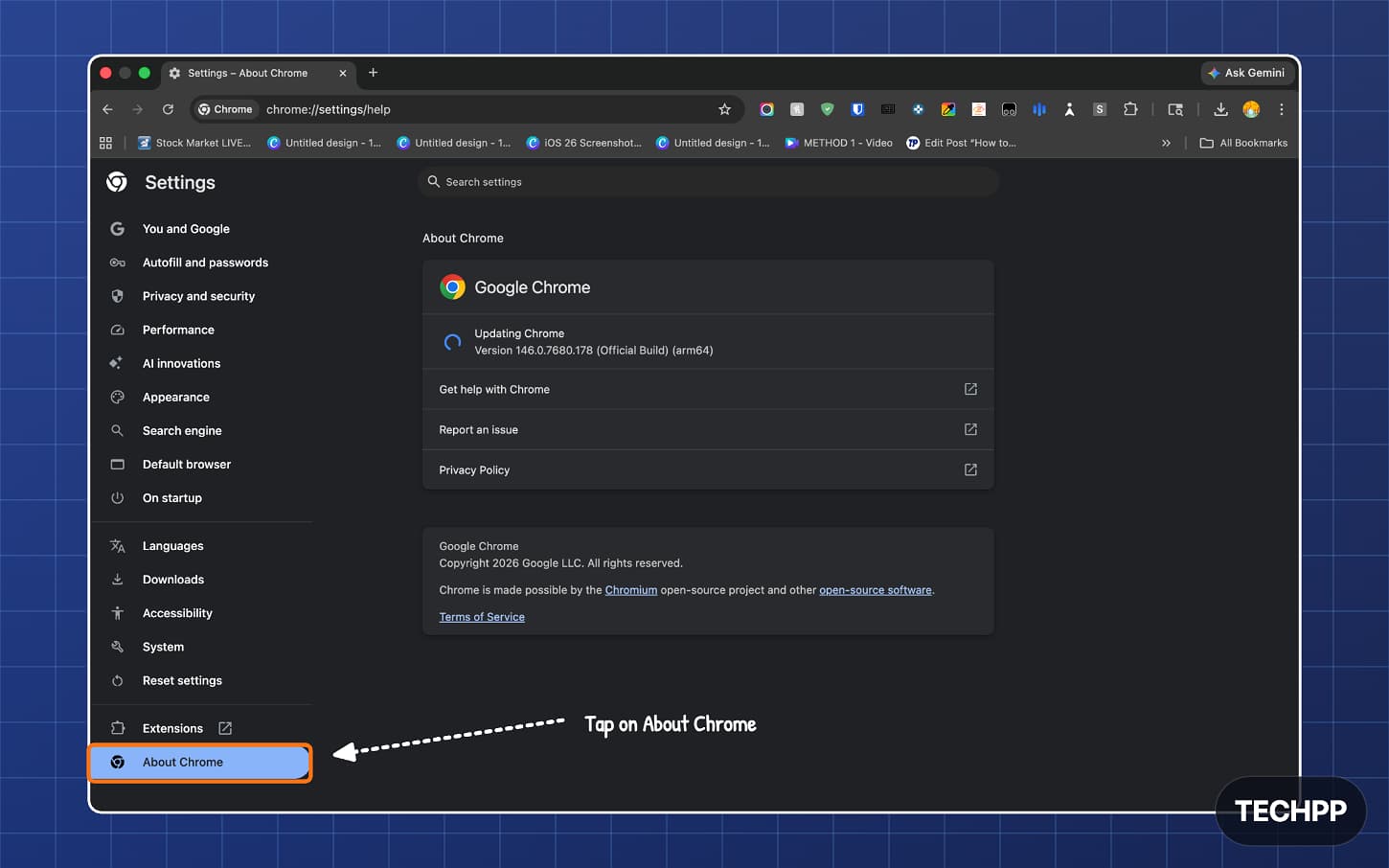
Step 4: Now, from the sidebar, click on About Chrome.
Step 5: If there is an update available, your Google Chrome will start downloading it. Wait for some time, and then you will see a Relaunch option. Tap on it.
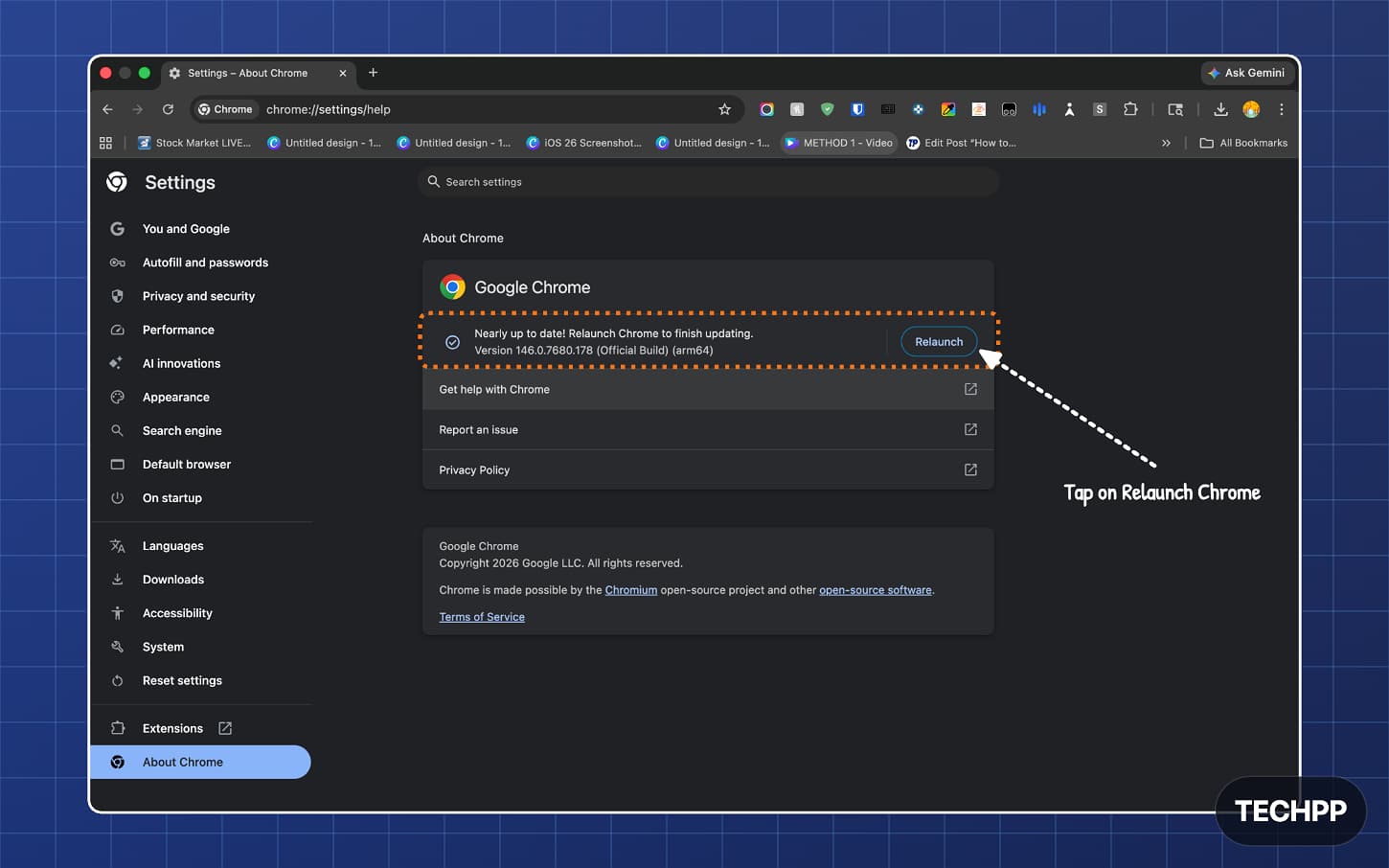
And that’s it. Once you have updated Google Chrome, you can enable vertical tabs if they are available to you.
Steps to enable vertical tabs on your Google Chrome
Step 1: Open Google Chrome and open any tab.
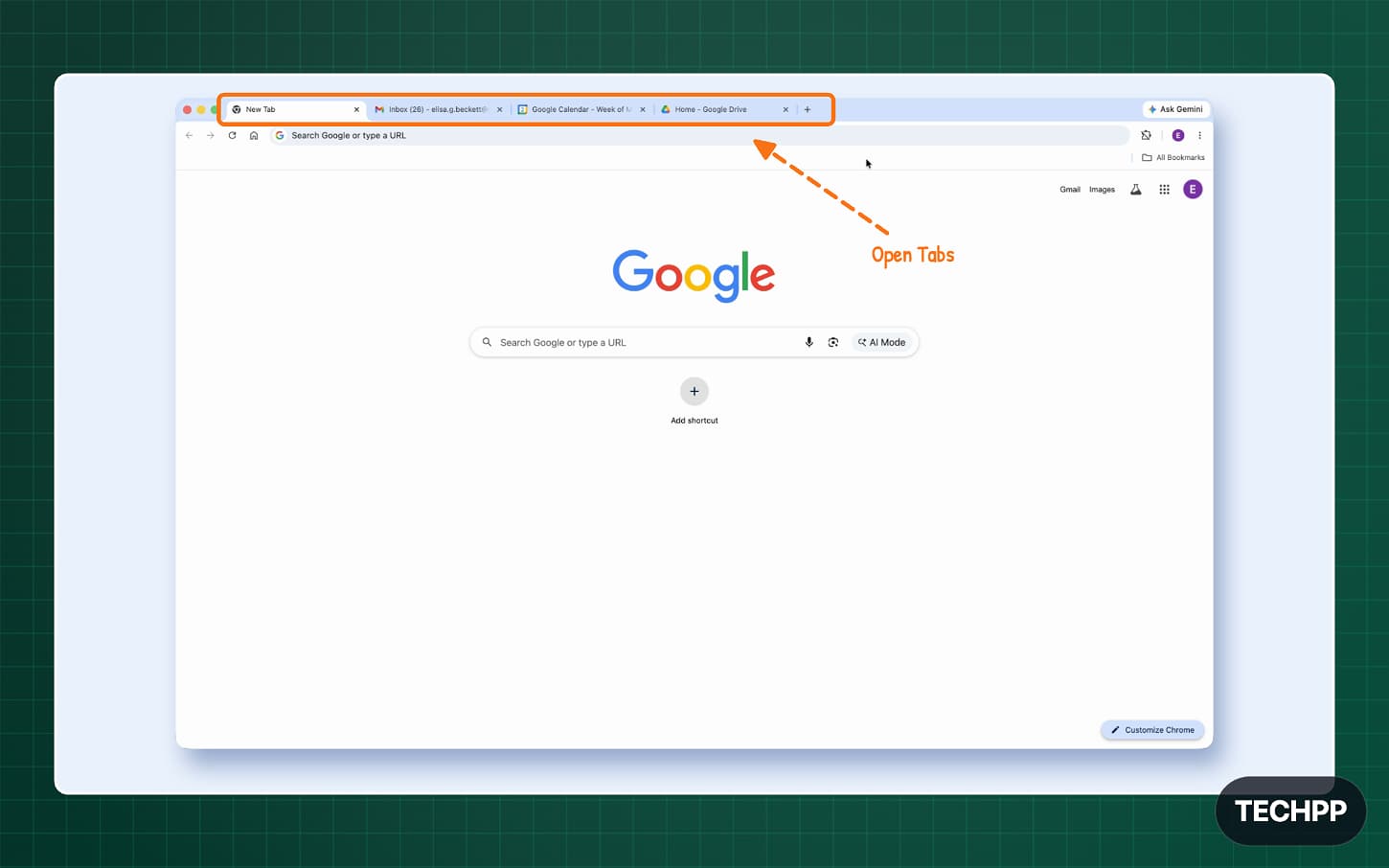
Step 2: Right-click on any tab and select the Show Tabs Vertically option.
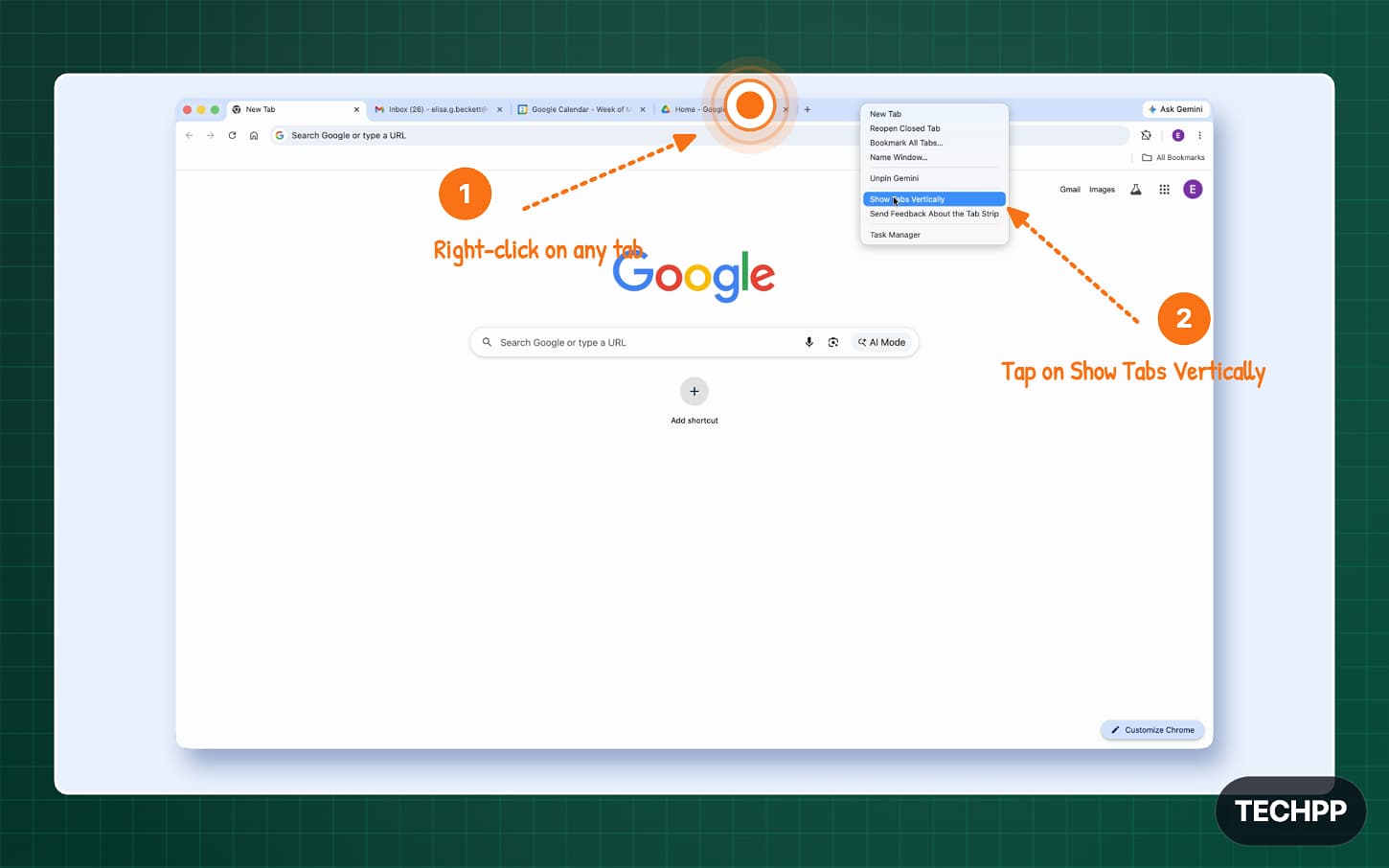
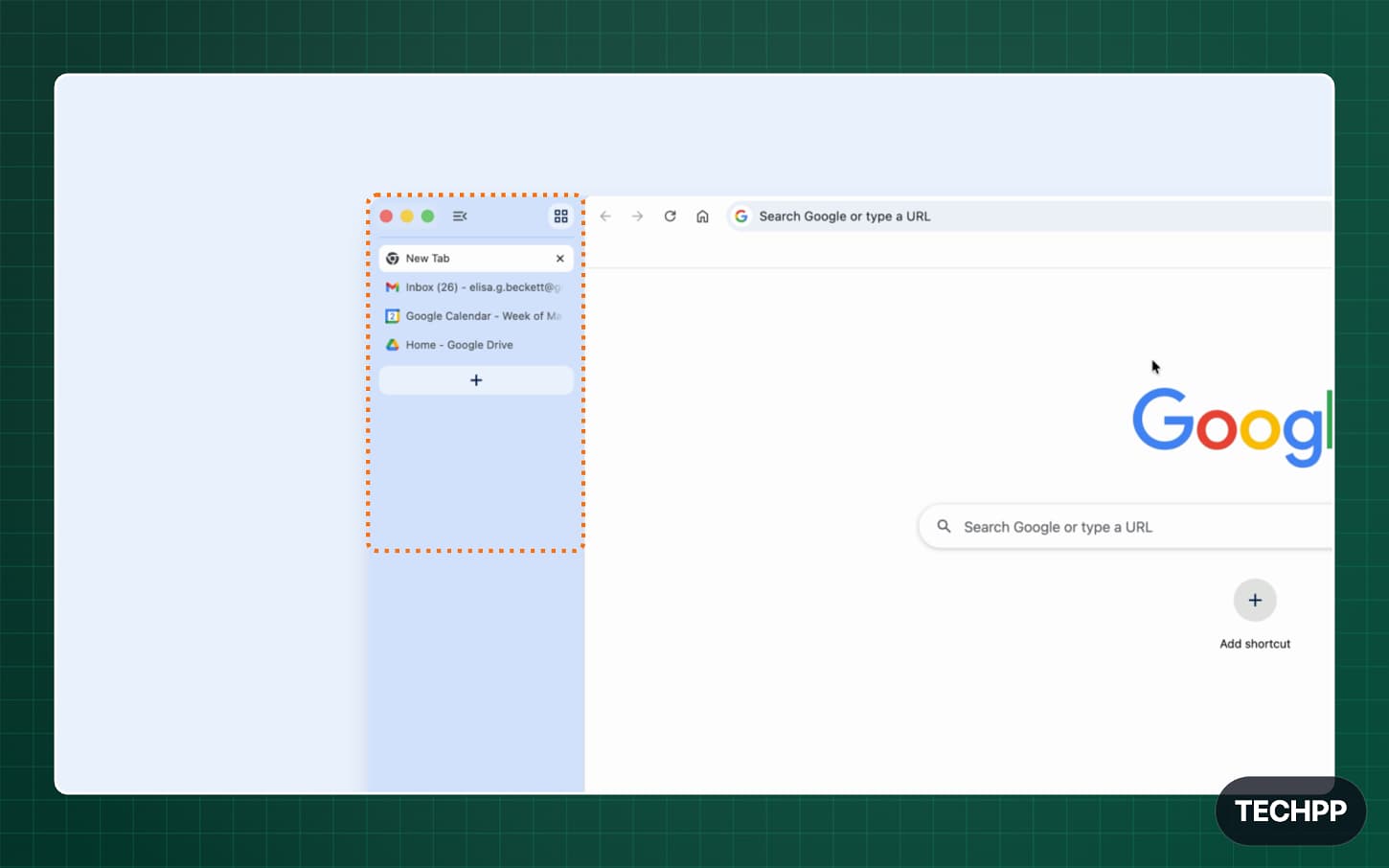
Step 3: That’s it. Now that you’re vertical, all the horizontal tabs you need will be moved to the vertical sidebar. If you want to disable this, tap on the menu option and tap on show tabs vertically.
How to Enable Vertical Tabs on Google Chrome Using Flags
If you don’t see this feature yet, you can enable it using Google Chrome Flags. To do this, follow these steps:
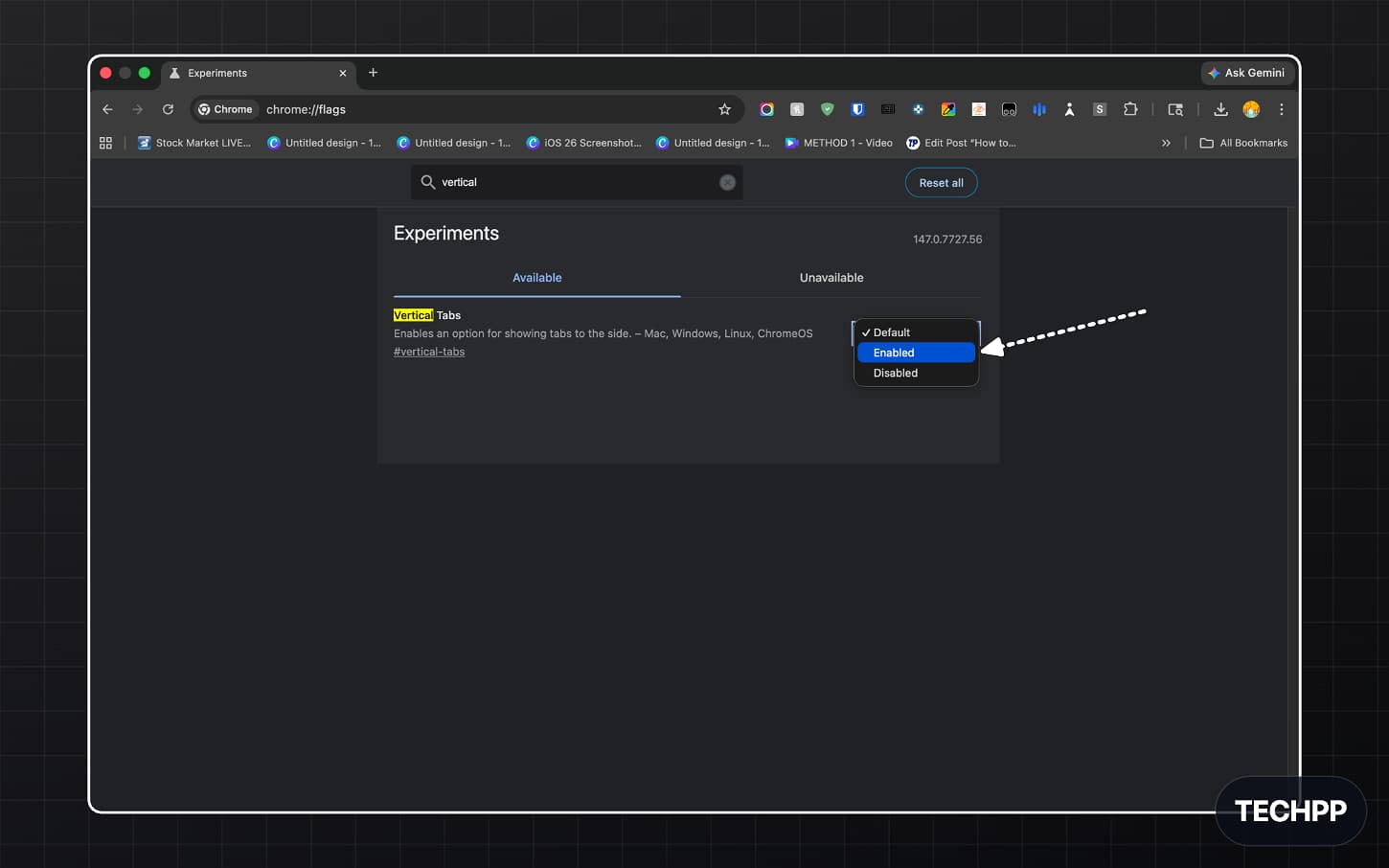
Step 1: Go to the Google Chrome Flags homepage. chrome://flags/
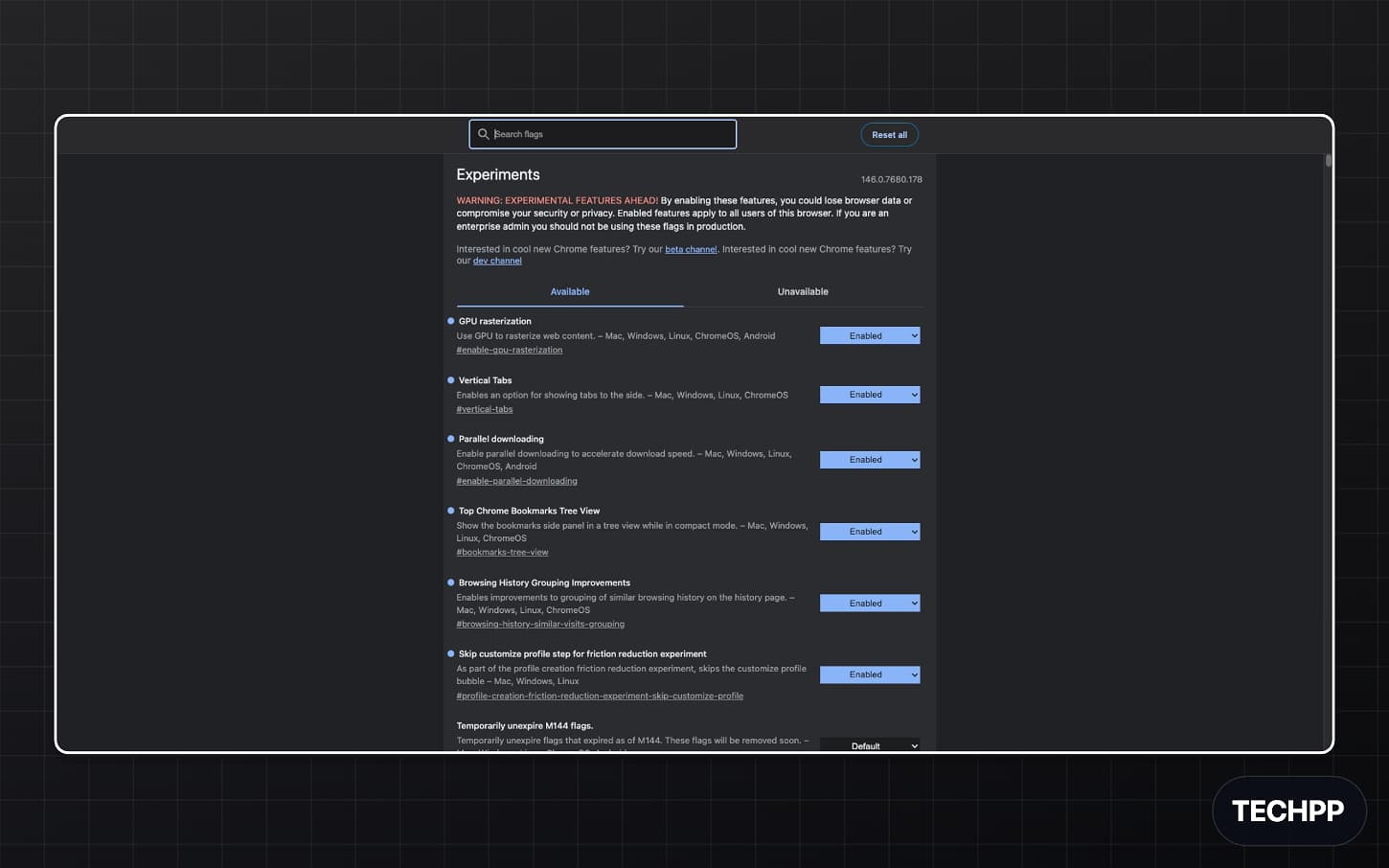
Step 2: Search for “vertical tabs”
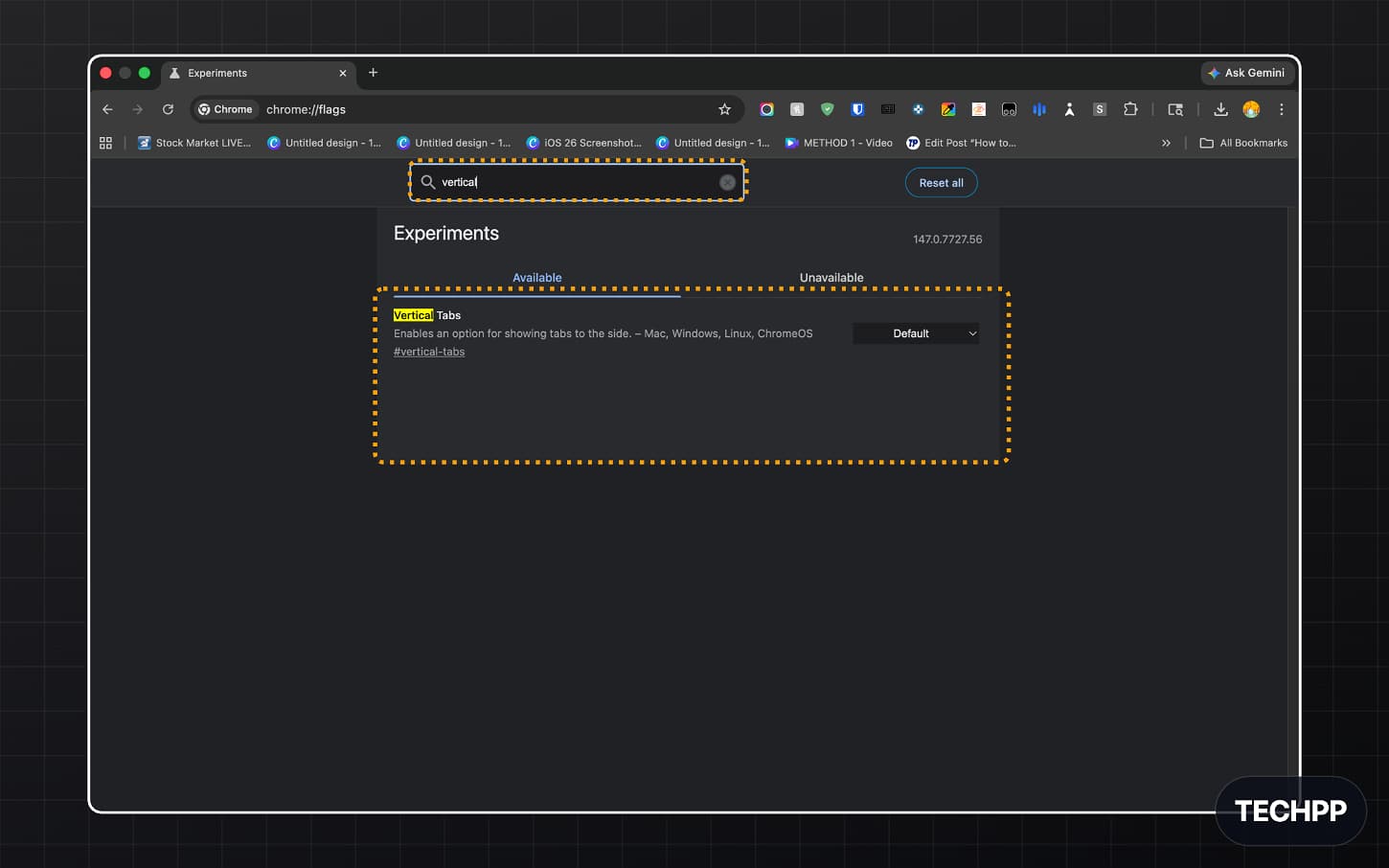
Here is the direct link: chrome://flags/#vertical-tabs
Step 3:. Tap on the Default button and select Enable.
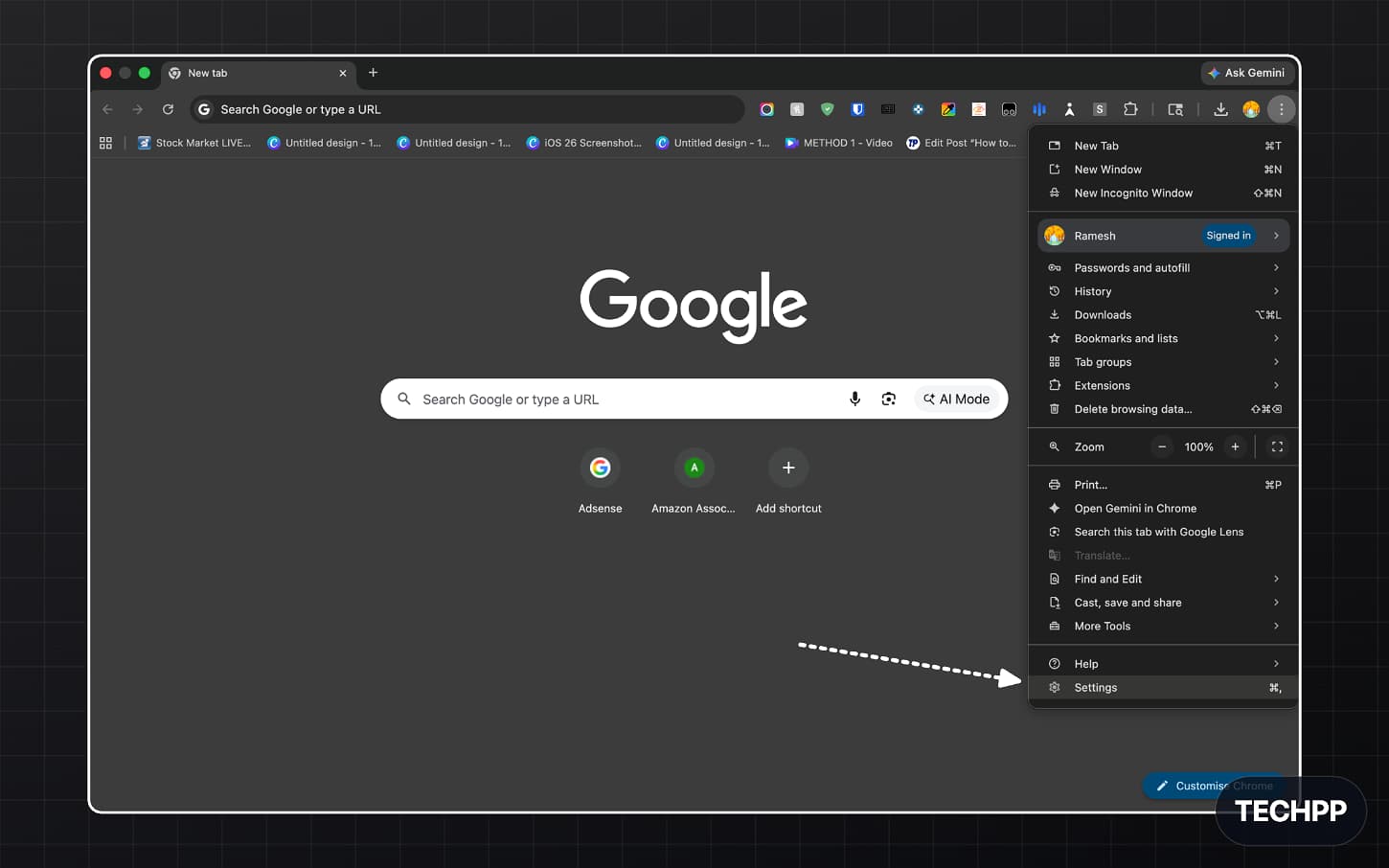
Step 4: Go back to the home page, click the three-dot menu, and tap Settings.
Step 5: Now, from the sidebar, click on “Appearance.”
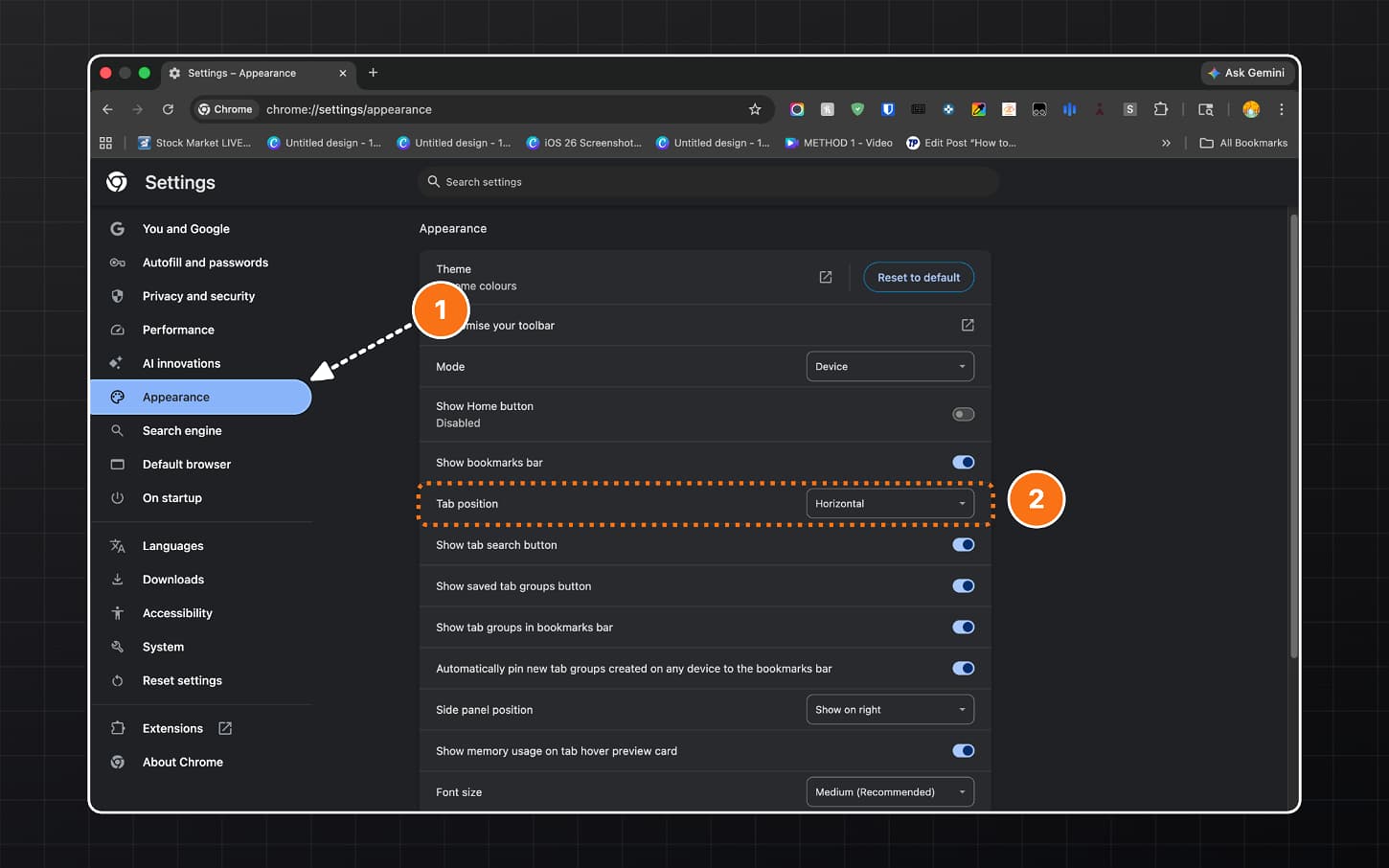
Step 6: Now you will see a new option called “Google Chrome Vertical Tabs.” Click on it and select the Vertical option.
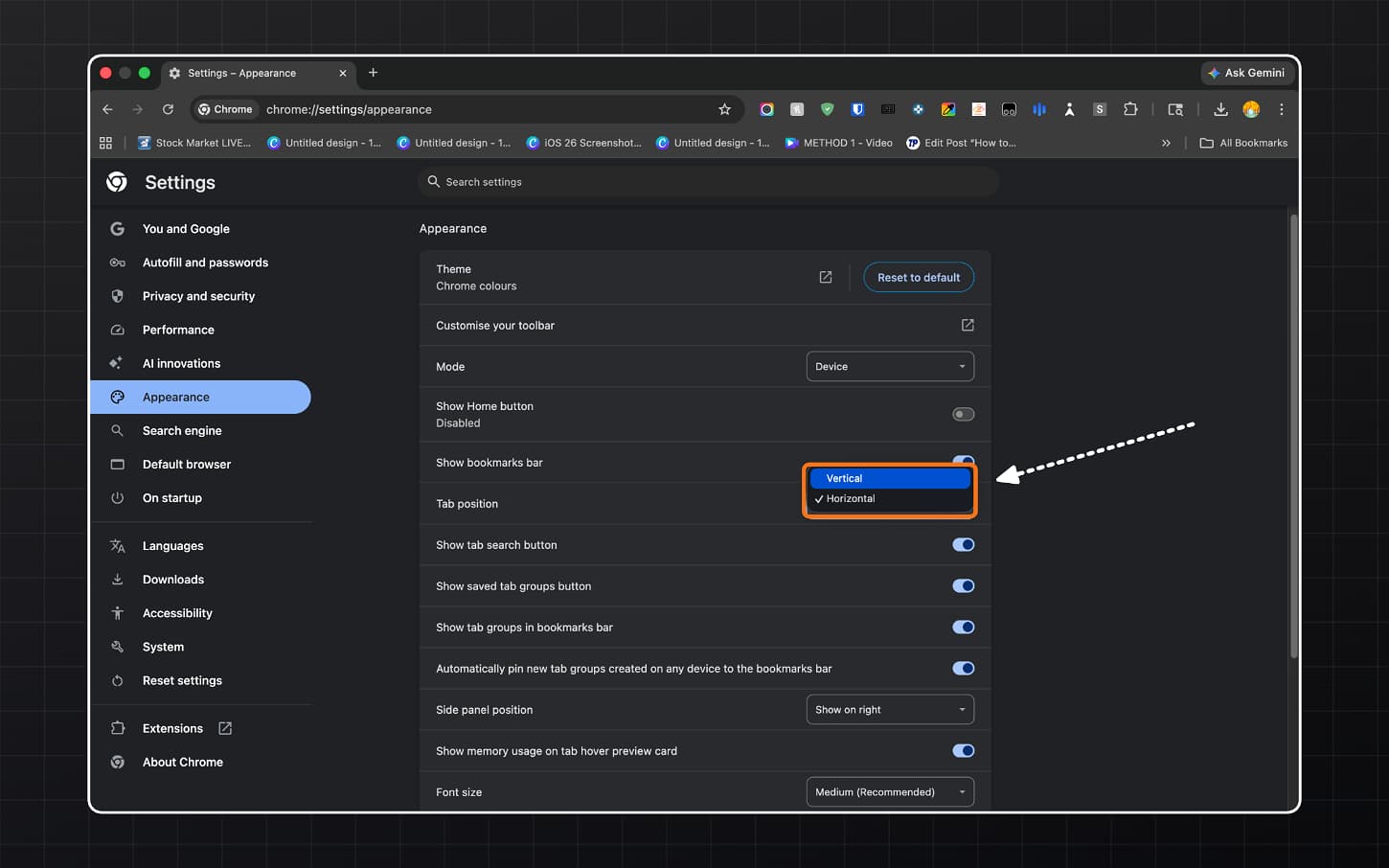
That’s it! When you enable all your Google Chrome flags, they will now start showing on the sidebar vertically.
Unlike the stable method, you don’t need to right-click on the tabs to enable this. If you want to disable the feature, you can come back to the same settings and turn this setting off.
How to Collapse and Expand the Vertical Tab Sidebar
One of the most useful things about vertical tabs in Google Chrome is that you can collapse the sidebar when you need more screen space.
To collapse the sidebar, click on the small arrow icon at the top of the vertical tab panel. When you collapse it, the sidebar shrinks and only shows the favicon of each tab. You will not see the full tab title anymore.
To expand it again, click on the same arrow icon, and it goes back to showing full tab titles.
This is especially useful if you are working on a small screen or you want more horizontal space for the webpage you are reading.
How to Use Tab Groups with Vertical Tabs
Vertical tabs in Google Chrome work with tab groups. So if you already use tab groups to organize your tabs, you do not need to give that up.
When you have vertical tabs enabled, your tab groups appear in the sidebar with the same color labels and group names you already set. You can still collapse and expand a group by clicking on the group name. All your grouped tabs stay organized exactly the same way, just in a vertical layout instead of horizontal.
If you want to create a new tab group in vertical mode, right-click on any tab in the sidebar and select Add tab to new group. It works the same as it does in horizontal mode.
Keyboard Shortcuts to Know
Chrome does not have a dedicated keyboard shortcut to toggle between vertical and horizontal tabs right now. You still need to right-click the tab bar to switch. But there are a few useful shortcuts that work well with the vertical layout.
Here are the ones worth knowing:
- Ctrl + T: Open a new tab
- Ctrl + W: Close the current tab
- Ctrl + Tab: Switch to the next tab
- Ctrl + Shift + T: Reopen the last closed tab
- Ctrl + 1 through Ctrl + 8: Jump to a specific tab by position
- Space bar or Enter on a tab group header: Collapse or expand a tab group
These shortcuts work exactly the same whether you are using vertical or horizontal tabs.
Why Did Chrome Take So Long?
This is a fair question. Microsoft Edge added vertical tabs back in 2021. Firefox, Vivaldi, and Arc had them even earlier. Chrome, which is the most used browser in the world by a wide margin, was the last major browser to add something this basic.
The reason is that Google has historically been conservative about changing Chrome’s core interface. The horizontal tab bar has been part of Chrome since it launched in 2008. Changing something that hundreds of millions of people use every day is not a decision Google makes quickly.
But browser competition clearly played a role here. Arc became popular largely because of its sidebar-first design. Microsoft Edge pushed vertical tabs as one of its headline productivity features. A lot of Chrome users started switching or at least trying other browsers just for this feature. Google eventually had to respond.
The good news is that Chrome’s implementation is clean and works well. It is not as feature-rich as Arc or Vivaldi’s tab management, but it covers everything most users actually need.
List of all other browsers that support vertical tabs
Google Chrome isn’t the only one that supports vertical tabs; in fact, it is very late to the party. Many browsers already support vertical tabs, and some of them even feature it as their best feature.
Here are all the browsers that support vertical tabs:
- Microsoft Edge: Edge was one of the first major browsers to bring vertical tabs to the mainstream. It added the feature in 2021 and has since made it one of its most promoted productivity features. You can also pin the sidebar and set it to auto-collapse.
- Brave: Brave added vertical tabs as a built-in option in its settings. You can switch between horizontal and vertical layouts from the browser’s appearance settings without needing to use any flags.
- Vivaldi: Vivaldi has had vertical tabs for a long time and offers the most customization of any browser on this list. You can set the tab bar position to left, right, or bottom, change the tab width, and even stack tabs in accordion groups.
- Firefox: Firefox officially added vertical tabs in version 135, released in early 2025. It also hides the horizontal tab bar automatically when you switch to vertical mode, which gives you a cleaner look than most other browsers.
- Arc: Arc was built around vertical tabs from day one. The entire browser is designed around a sidebar-first experience. It does not have a horizontal tab bar at all. If you have tried Arc, the Chrome implementation will feel familiar but more minimal.
Chrome’s New Vertical Tabs Are Here
Using vertical tabs might feel hard in the beginning because suddenly switching from horizontal to vertical is hard for your brain to retrain. If you found this guide useful, you will probably also like our guide on the best Chrome flags to enable right now. There are a few other hidden features in Chrome 146 that are worth turning on, and that guide covers all of them.
If vertical tabs do not show up even after following these steps, drop a comment below with your Chrome version number and your operating system. I will help you sort it out.
FAQs on Enabling Vertical Tabs on Google Chrome


