

The iPhone is characterized by its exceptional software experience, which makes it a preferred choice among smartphone users. Nevertheless, like any other electronic device, the iPhone can occasionally cause problems, such as a frozen screen.

If you find yourself facing a frozen screen issue on your iPhone, don’t worry. We’re here to assist you by providing some working solutions to address the problem and offering tips to prevent screen freezing in the future, too.
Additionally, we’ve also described the possible reasons for iPhone screen freezing and provided you with a comprehensive understanding of the problem and effective solutions. Take your time to read through the article, as it’ll help you solve the problem and give you the knowledge you need to avoid similar problems.
Table of Contents
iPhone Screen Freeze: Possible Causes
Before you look into solutions for a frozen iPhone screen, it’s important to understand the possible reasons for this problem. Familiarizing yourself with these factors will help you pinpoint the cause of your iPhone freezing.
1. Software Glitches: Screen freezing can be caused by software errors, bugs in the iOS operating system, or the use of outdated apps.
2. Memory Overload: Running numerous apps at the same time can overload the iPhone’s memory and cause the screen to freeze.
3. Insufficient Storage Space: If the iPhone’s available storage is limited, it may have trouble performing tasks efficiently, causing the screen to freeze.
4. App Compatibility Issues: Some apps may not be compatible with the current iOS version or contain bugs that cause the screen to freeze.
5. Outdated iOS Version: Using an outdated iOS version may cause performance issues and screen freezing as it may not be optimized for the latest hardware and apps.
6. Overheating: Prolonged exposure to direct sunlight, intensive gaming sessions, or charging during use can cause the iPhone to overheat and the screen to freeze.
7. Battery Issues: A low battery level, especially on older iPhones, can cause the screen to freeze. A damaged battery or a faulty charging system can also contribute to freezing.
8 Ways to Fix Frozen iPhone
So far, you’ve figured out the reasons for your frozen iPhone. Now, let’s look at eight possible solutions to fix the problem. Take a look at each solution and decide which one works best for your situation. These suggestions should help you solve the problem.
Force Quit App
If your iPhone is frozen, a helpful solution is to force quit apps. Especially if the problem occurs with a specific app, swipe up from the bottom and then on the problematic app to remove it from the list.

For iPhones with a home button, double-click the home button and swipe up on the problematic app. After you have returned your iPhone, try to find out if everything is working smoothly or not. If you have identified a problematic app, you should uninstall it and then explore further troubleshooting steps for that app.
Position your iPhone on charge
One evening, about a year ago, I went to the market to buy a few things. When I took out my iPhone to pay after buying the goods, I noticed that my phone was overheated. Despite several attempts to unlock the phone, the display stopped responding. I tried repeatedly to open the phone, but each attempt was futile. In my panic and frustration, I decided to pay cash and go home.
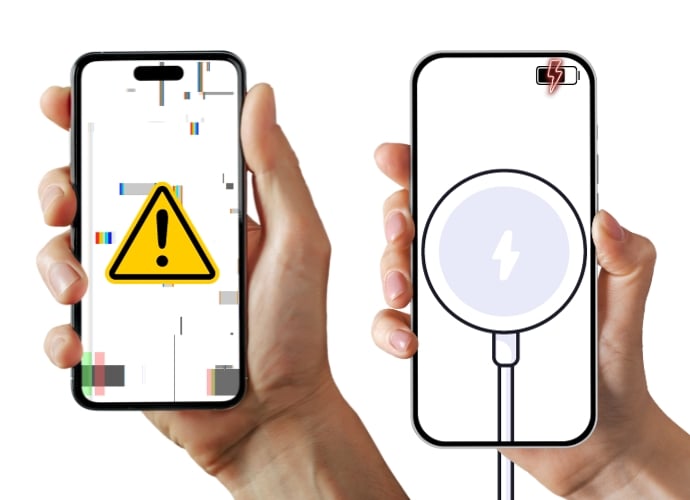
I somewhat absent-mindedly plugged my iPhone into the charger when I arrived home. After a few minutes, to my surprise and delight, my iPhone was working normally again. Later, I came across articles with similar experiences and discovered that some people had solved similar problems by simply charging their iPhones.
Having experienced this incident myself, I recommend charging your iPhone for a while, whether wirelessly or with a cable, if you find yourself in such a situation. It is possible that your device will return to normal, as it did for me.
Force Restart Your iPhone
A simple reboot can often solve many problems with electronic devices, and your iPhone is no exception. However, if your iPhone’s screen is frozen and you can’t restart your phone using the normal method, a force restart could be the solution whether you have an iPhone 8 or newer model, an iPhone 7 or 7 Plus, or an iPhone 6 or older model. Simply follow the steps that apply to your iPhone model, and you can restart your device.
Force Restart iPhone 8 and Later Models
- Tap the volume up button, then quickly tap the volume down button.
- Right after releasing the volume down button, press and hold the side button until a black screen with the Apple logo appears.
- Release the side button as soon as the Apple logo shows up, and your iPhone will restart.
Force Restart iPhone 7 and iPhone 7 Plus
- Press and hold the volume down button and the power button simultaneously.
- Continue holding until you see the Apple logo.
- Wait for a while, and your iPhone will restart.
Force Restart iPhone 6s and Earlier Models (including first-generation iPhone SE)
- Press and hold the home button and the power button simultaneously.
- Continue holding until the Apple logo appears.
- Wait for a while, and your iPhone will restart.
iOS Update Via iTunes
If your iPhone is frozen, updating your iOS can be a helpful solution. Of course, the usual method of updating your iPhone won’t work in this situation, but there is a solution. You can use Apple iTunes on your Windows or Mac device to bring your iPhone back to normal.
Even if you have downloaded iTunes to your Windows or MacOS device in the past but haven’t used iTunes in this situation, it’s unfortunately not a solution for you. This is because when you connect your iPhone to iTunes, you need to sign in with your Apple ID on your PC, which isn’t possible if your iPhone is frozen.
However, if you already have the iTunes app on your Windows or Mac laptop and have already connected your iPhone, you’re in luck! Follow these simple steps to restore your iPhone and solve the frozen screen problem.
- Connect your iPhone to your Windows or Mac PC using the cable.
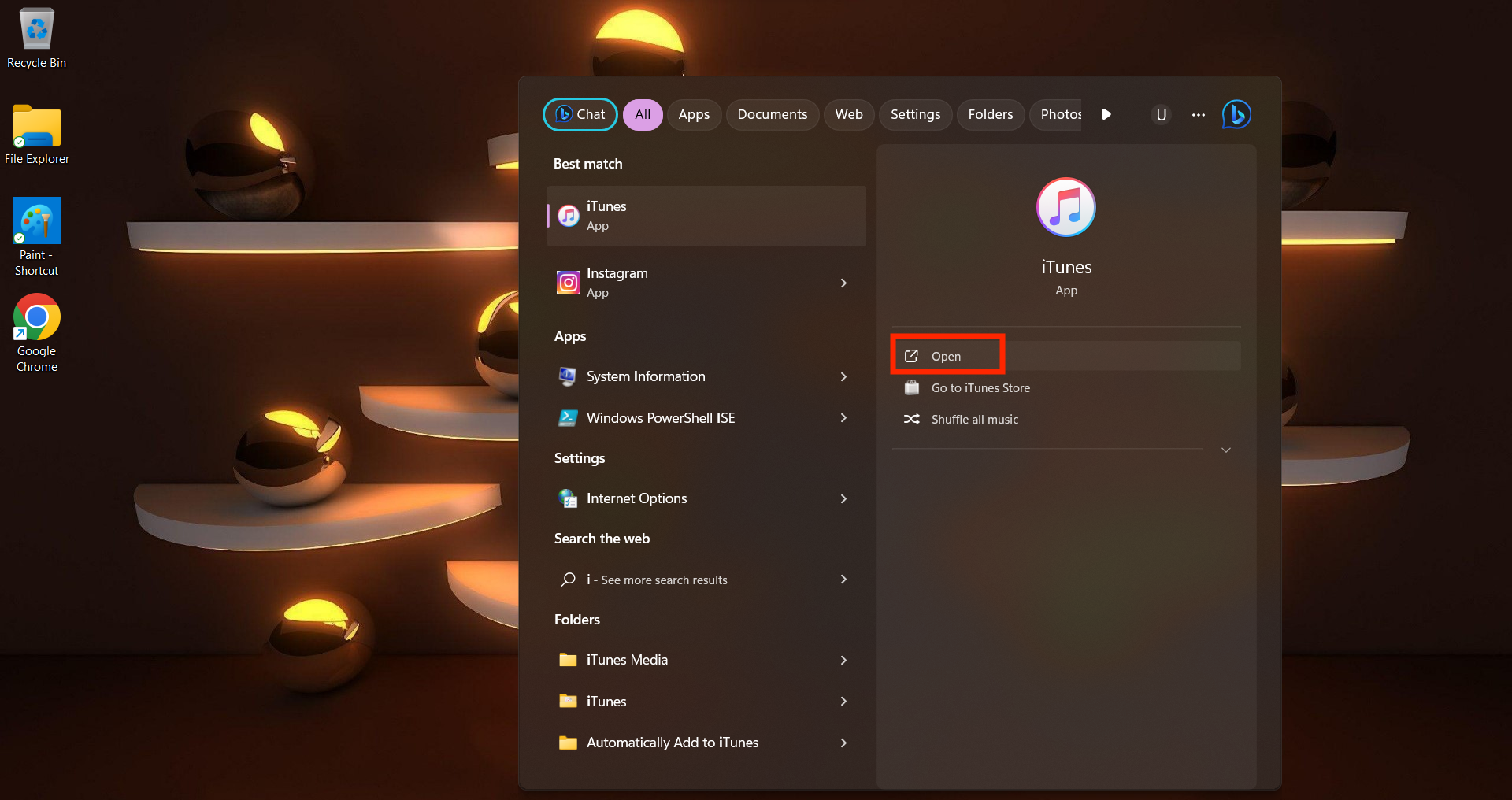
- Launch the iTunes app on your computer.
- In iTunes, select your connected iPhone by clicking on its icon, located in the upper-left corner.

- Navigate to the Summary tab for your iPhone.
- Click on Check for Update to see if a new iPhone software version is available.

- If an update is found, click Download and Update.
- Follow the on-screen prompts to proceed with the update, including agreeing to any terms if prompted.
- Allow the software to download.
- Once the download is complete, click Update to extract the software.
- iTunes will then back up your iPhone data and settings, prepare the device, and verify the updated software.
- Once completed, you’ll see the Hello Screen. Swipe up to open, tap Trust, then Continue.
Use Third-party Software to Fix Frozen iPhone
If the previous solutions have not helped you, you can also try third-party iOS system recovery tools. These tools can fix various system issues by restoring your iPhone. Options include Tenorshare ReiBoot, Dr.Fone – System Repair, and many others that you can choose according to your preference. Here are the general steps you should follow when restoring your iPhone or repairing it using a third-party platform:
- Connect your iPhone to your computer using a cable.
- Open the third-party recovery software that you have installed on your computer.
- The software should automatically detect your iPhone.
- Select the appropriate recovery mode depending on the state of your iPhone. Common recovery modes include:
- Standard Scan: This mode will scan your iPhone for common software issues and attempt to fix them without causing data loss.
- Deep/Advance Repair: This mode performs a more thorough scan of your iPhone, including system files and hidden data, to identify and fix deeper issues. (Data Loss).
- Once you have selected the recovery mode, click the Start or Repair button.
- The software will guide you through the steps, which may include downloading firmware updates or extracting data backups.
- Once the repair process is complete, your iPhone will restart automatically.
- If you performed a data backup before the recovery process, you can restore your data to your iPhone using the software or through iCloud.
Charge the iPhone After the Battery Completely Drain
As a possible solution, consider fully discharging the battery before charging. This may not be possible for users with a fully charged iPhone, but if your device has a low battery and is experiencing a problem, fully discharging the battery before charging could allow it to restart. When the discharged battery is recharged, your iPhone can go through a power cycle that may fix the problem. There is a possibility that your iPhone will restart on its own and fix the frozen screen issue.
Fix Frozen iPhone in DFU Mode
Restoring an iPhone via the DFU (Device Firmware Update) method is a possible solution to repair a frozen device. However, it requires time and patience as it involves removing bugs or problematic code and fixing software issues. It is important to note that this process will result in a reset, which will result in data loss. If you have an iCloud backup, you can proceed with peace of mind. If your iPhone contains important data, you should consider alternative methods.
iPhone SE, 6s, or Older
- Connect your iPhone to your computer using a cable.
- Press and hold both the Home button and the power button simultaneously.
- After 8 seconds, release the power button while maintaining pressure on the Home button.
- Release the Home button once your iPhone becomes visible in iTunes or Finder.
- Confirm successful entry into DFU mode if the iPhone’s display is completely black; otherwise, repeat the steps.
- Utilize iTunes or Finder to restore your iPhone.
iPhone 7 or 7 Plus
- Connect your iPhone to your computer using a cable.
- Press and hold the power and volume down buttons simultaneously.
- After 8 seconds, release the power button while still holding the volume down button.
- Let go of the volume down button when your iPhone is recognized in iTunes or Finder.
- A black screen confirms that your iPhone is now in DFU mode.
- Proceed to restore your iPhone using iTunes or Finder.
iPhone 8 or Newer
- Connect your iPhone to your computer with a charging cable.
- Quickly press and release the volume up button.
- Quickly press and release the volume down button.
- Press and hold the side button until the screen goes black.
- When the screen is black, press and hold the volume down button while still holding the side button.
- Hold both buttons for five seconds.
- After five seconds, release the side button but continue holding the volume down button.
- Keep holding the volume down button until your iPhone appears in Finder or iTunes.
- Restore your iPhone using iTunes or Finder.
Contact Apple Support
If you have followed the steps above and your iPhone screen is still not responding, it’s advisable to contact an Apple support specialist. The problem could extend to hardware damage that is beyond our troubleshooting capabilities. By contacting Apple Support for help, you can find the right solutions. You can also make an appointment at an Apple Store near you to get professional help solving the problems with your iPhone.
Ensuring a Freeze-Free iPhone Screen: Tips for the Future
If you have already tried various solutions to fix iPhone freezing issues and your device is working normally again. The best way to prevent your iPhone screen from freezing in the future is to research the methods to prevent iPhone freezing issues.
Update or Delete Freezing Apps
If your iPhone keeps freezing, it may be that a particular app is the culprit and is causing recurring problems. To prevent this, you can update your apps regularly. If a particular app keeps causing the problem, you can also identify and delete this app.
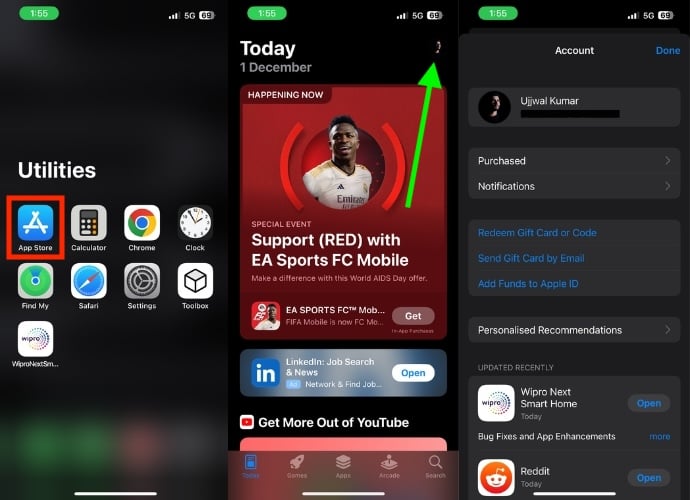
- Launch the App Store on your iPhone.
- Select your account icon in the upper right corner.
- If there is an available update for the troublesome app, proceed to install it to address any potential glitches.
If the problem persists after updating the app, you can uninstall and reinstall the app by following the steps below.
- Open the app library on your iPhone.
- Find the app that is encountering problems.
- Press and hold its icon.
- A small menu will pop up; tap on Delete App.
- As soon as you tap Delete App, a confirmation popup will appear, select Delete.

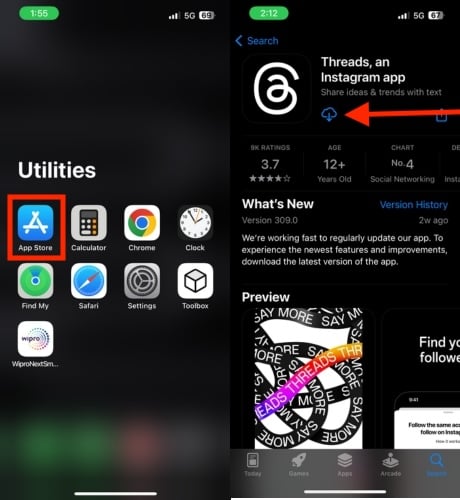
- Open the App Store.
- Search for the deleted app and reinstall it.
Update Your iPhone
If your iPhone freezes frequently, it could be related to an iOS update. Although this is rare, there have been cases, such as iOS 11.3.1, where an update caused display issues. Follow the steps below to check for an iOS update.
- Open the Settings app on your iPhone.
- Scroll down and tap on General.
- Select Software Update.

- Check if there’s any available update.
- If an update is available, tap on Download.
- Once the download is complete, you’ll be prompted to install the update. Tap Install Now.
- Install the update and wait for your iPhone to restart.
Reset All Settings
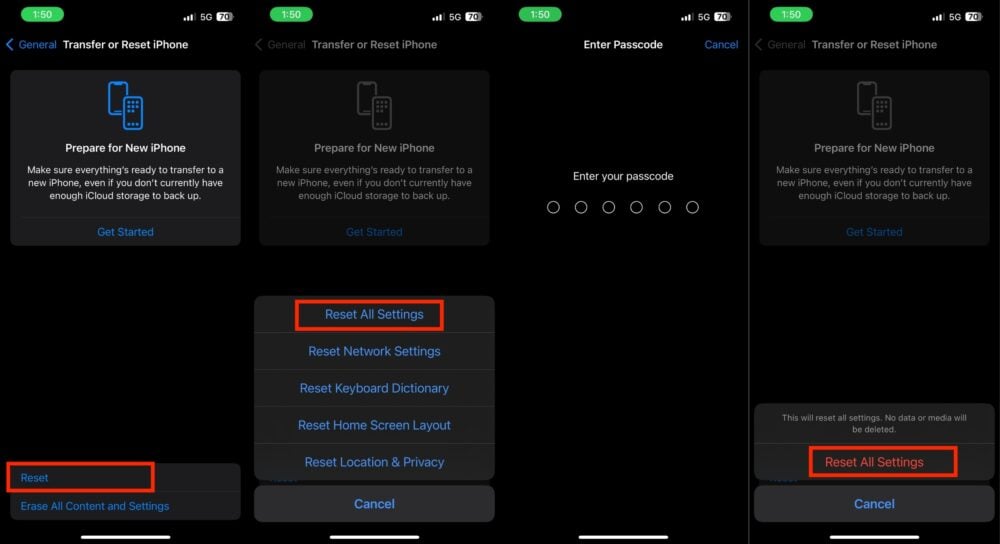
To avoid frequent freezes on your iPhone, try resetting all settings. Rest assured, this won’t erase your data, but it will revert customized settings to their default. Be aware that this action could result in the loss of saved Wi-Fi and certain other data, so carefully review everything before proceeding. Follow these steps to initiate the settings reset:
- Open the Settings app on your iPhone.
- Tap on General.
- Scroll down and tap on Transfer or Reset iPhone.

- Tap Reset.
- As soon as you click Reset, a menu will prompt; choose Reset All Settings.
- Enter the passcode of the iPhone on the new screen
- Confirm Reset by hitting Reset All Settings again.
Don’t Overload Your iPhone
To prevent your iPhone from freezing, it’s important not to overload it, especially if you’re working with limited storage space. Keep a routine of decluttering unnecessary files, photos, and unused apps, especially on older devices. Also, consider outsourcing rarely used or space-intensive apps. Using cloud storage for photos and videos can also help to free up local storage space on your iPhone.
Frequently Restart Your iPhone
When was the last time you restarted your phone normally? I bet you can’t even remember. These days, cell phones are super powerful and don’t usually need to reboot often. But that doesn’t mean you should never do it. Restarting your iPhone every week can make it work better, fix things, and resolve normal issues. It’s like a little refresher that makes your iPhone less likely to stop working.
Fix Frozen iPhone
Our discussion is over. We hope that you have tried the different methods described above and solved your frozen iPhone screen problem. Since these solutions are suitable for different situations, it’s important that you choose the right solution for your phone. We appreciate your readership and wish you the best of luck!
FAQs about Fixing Frozen iPhone Screen
1. Can an iPhone screen freeze due to physical damage?
An iPhone screen can freeze due to physical damage. Physical damage to the screen can disrupt the electrical connections that are necessary for the screen to function properly.
2. Is it possible for a specific iOS update to cause screen freezing issues on an iPhone?
Yes, although it is rare, certain iOS updates can introduce bugs or compatibility issues that can cause the screen to freeze. It is advisable to check for further updates or contact Apple support if the problems persist after an update.
3. What should I do if my iPhone screen freezes while using a specific app after updating it?
If an updated app continues to cause the screen to freeze, try uninstalling and reinstalling the app. If the problem persists, uninstall the app and look for alternative apps with similar features.
4. Are there any upcoming features or updates in iOS that aim to address or minimize iPhone screen freezing issues?
Apple is constantly working to improve the performance and stability of iOS. This includes fixing problems that can cause the iPhone screen to freeze. In recent updates, Apple has made several changes to minimize screen freezing issues and will likely continue to do so in future updates.

