

Earlier this month, Facebook parent company, Meta, introduced a new feature called Link History. The Link History function saves all links and websites you have visited in the last 30 days. It’s an optional feature whose main goal is to serve personalized ads to the target audience based on their interests, which Facebook extracts from the links you’ve visited. While the personalization of the ads is pretty good, most of the time it hits the mark and you may see alcohol and gambling ads. Fortunately, you can turn off such ads.

There are several aspects associated with this feature, which we will discuss in the next part of this guide. However, if you want to use the link history feature and know which websites or links you’ve visited, then keep reading this guide for all the details on how to view link history on Facebook. Let’s get started right away.
Table of Contents
What is the Facebook Link History feature?
The Link History feature on Facebook is, as the name suggests, a function that allows you to revisit all the links you have visited in the last 30 days. However, the Link History feature does not record links that you have opened directly in a third-party browser outside of the app. In addition, this function is not available on the website, but only on Android and in the iOS app.
It also does not record links that you visit via Facebook Messenger chats. In order for the link log to record the links you have visited in the last 30 days, you must ensure that the links are opened with the special browser integrated in Facebook. Facebook saves the links for 30 days. After that, all links are automatically deleted.
How to enable/disable the Link History feature on Facebook?
The good thing about the link history function is that Facebook has not activated this function by default. This means that you need to turn this feature on so that Facebook can record the links you visit. Follow the steps to learn how to enable or disable link history on Facebook.
On Android
- Launch the Facebook app on your Android.
- Tap on the Menu icon that will be shown as three horizontal lines at the top-right corner of the app.

- Open Settings and Privacy.
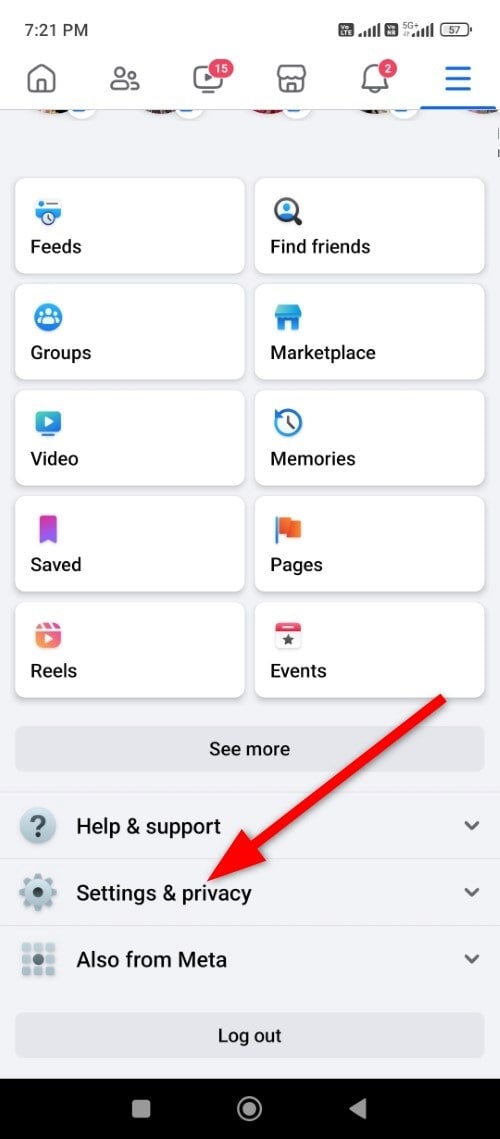
- Select Link History from the list of options that appear.

- You will see a ‘Want to see your link history?‘ prompt, where you need to tap on the Allow link history button at the bottom.

On iPhone
- Launch the Facebook app on your iPhone.
- Tap on the Menu icon that will be shown as three horizontal lines at the bottom-right corner of the app.
- Open Settings and Privacy.
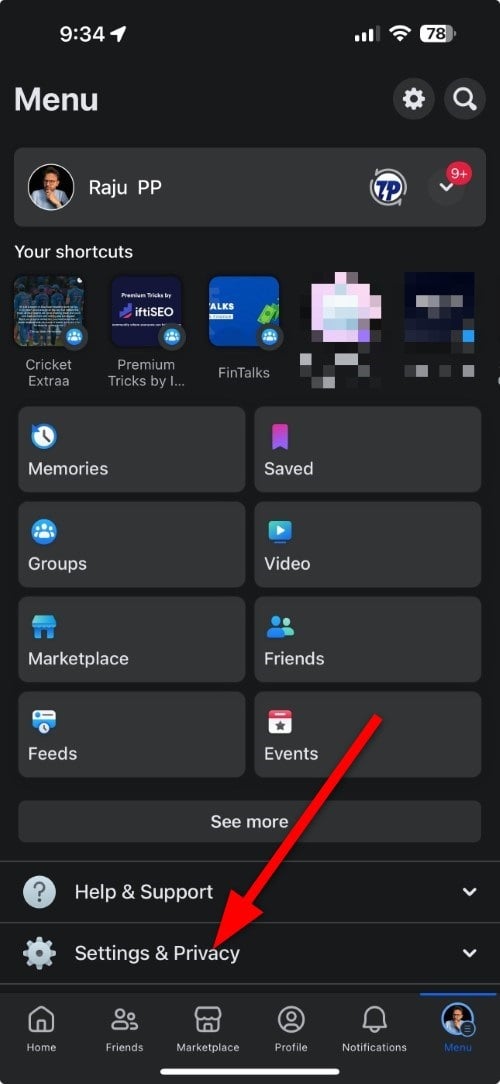
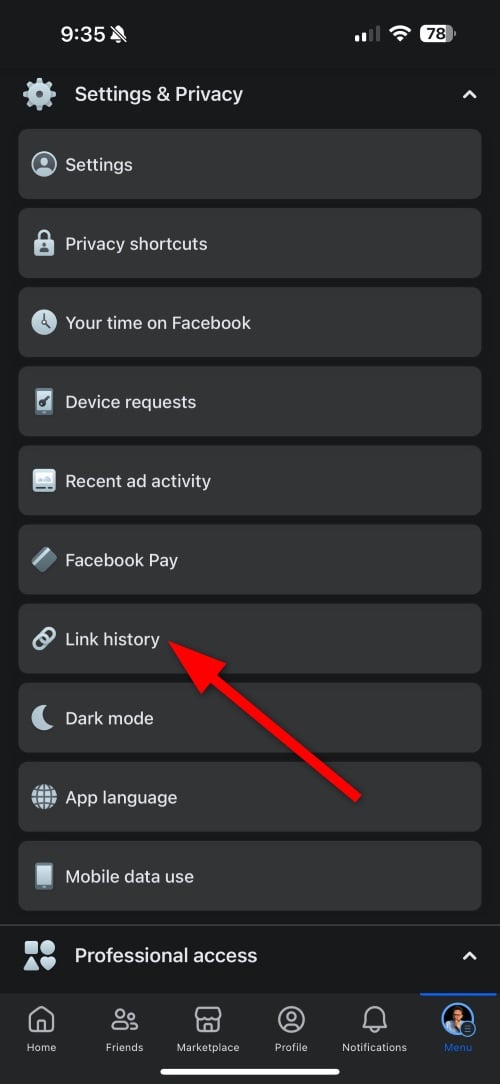
- Select Link History from the list of options that appear.
- You will see a ‘Want to see your link history?‘ prompt, where you need to tap on the Allow link history button at the bottom.
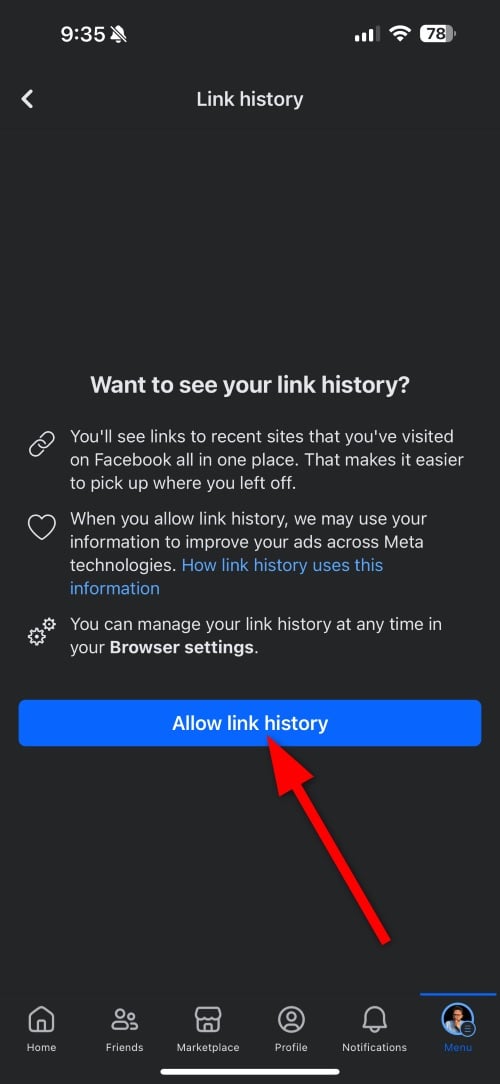
That’s it! Facebook will now start recording the links you visit via the Facebook app’s integrated browser. Disabling the link history feature is similar and you need to follow the same steps as described above. If you don’t see the “Link History” option in the settings and privacy section, the Facebook app on your phone may be out of date and you need to update it.
How to clear the Link History record?
Link history can be a good feature if you keep resisting a particular website. However, as with all other posts on Facebook, the app gives you the option to delete the link history so you can erase the link history forever. Here are the steps you need to follow to delete the websites in your link history.
On Android
- Open the Facebook app on your smartphone.
- Click on the three-horizontal Menu icon in the top-right corner.
- Select Settings and Privacy and choose Link History.
- If you wish to clear specific links, then tap on the cross next to them.
- Alternatively, if you wish to clear the entire history, then you need to tap on Clear all, and then tap on Clear in the confirmation pop-up to confirm your action.
On iPhone
- Open the Facebook app on your iPhone.
- Click on the three-horizontal Menu icon in the bottom-right corner.
- Select Settings and Privacy and choose Link History.
- If you wish to clear specific links, then tap on the cross next to them.
- In case you want to clear the entire history, then you need to tap on Clear all, and then tap on Clear in the confirmation pop-up to confirm your action.
Note that this doesn’t mean that Facebook won’t record the links you visit in your link history. If you want to prevent Facebook from recording the links you visit, you need to disable the “Link History” feature that we described in the previous section.
FAQs about Facebook Link History
1. Is Facebook the only app to offer Link History?
No, Facebook is not the only app that offers a link history. The meta-company Instagram also offers a link history option. The feature is available on Android and iOS apps. You can access it by going to your profile, clicking on Menu > Your activity > Link history.
2. Is it okay to turn on Link History?
Facebook, in general, is pretty notorious when it comes to privacy. It is known for tracking users and their activities. So if you’re worried about your privacy and don’t want to see personalized ads, you shouldn’t enable link history on Facebook. However, if you want Facebook to show you ads for the things you like, you should enable link history.
3. Can I view link history on the Facebook desktop?
No. Facebook has only made the Link History option available for Android and iOS apps. If it’s not visible in your mobile app, we recommend updating it to the latest version.

