

Archived messages, a nifty feature of Facebook Messenger, is excellent for saving something you wish to revisit later or cherish for years to come. Safe to say, archived messages are the storehouse of memories and unforgettable chats. However, things start getting out of hand if you have accumulated too many of them, which is when the whole idea of storing hand-picked messages gets bottlenecked.

If your Messenger archived chats are on the verge of spilling, you have come to the right place. Read along!
Delete Archived Messages Using the Facebook Messenger App
Messenger, popularly known as Facebook Messenger, is a messaging app under Facebook that focuses solely on chats, audio, and video conversations. You still need to log in using your Facebook account, but Messenger is also present as a standalone application on the Google Play Store and Apple App Store.
Archived messages can’t be deleted from the native Facebook application, as it will redirect you to install the Messenger app instead. Regardless, using the steps below, you can delete archived messages using the Messenger application.
- Open the Messenger application on your phone.
- Click on the hamburger menu icon (☰) from the top-left corner.
- Select Archive.
- Long-press the required chat and select Unarchive or Delete accordingly.
- Tap Delete again to confirm your action.

Unarchiving a message will simply remove it from archived messages, whereas deleting an archived message will permanently delete it. Sadly, there is no way to delete multiple archived messages simultaneously, so you must repeat the procedure for each chat you wish.
Delete Archived Messages Using Facebook’s Website
Facebook’s website allows you to delete archived messages, the procedure of which is explained below.
- Visit the Facebook website here.
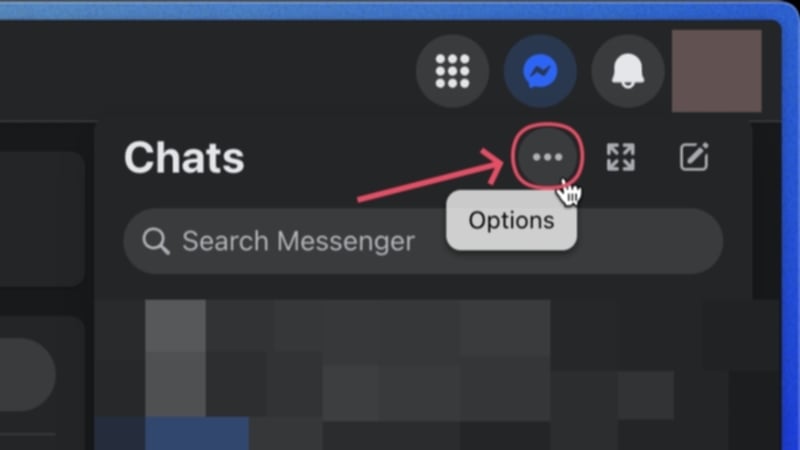
- Click on the Messenger icon in the top-right corner.

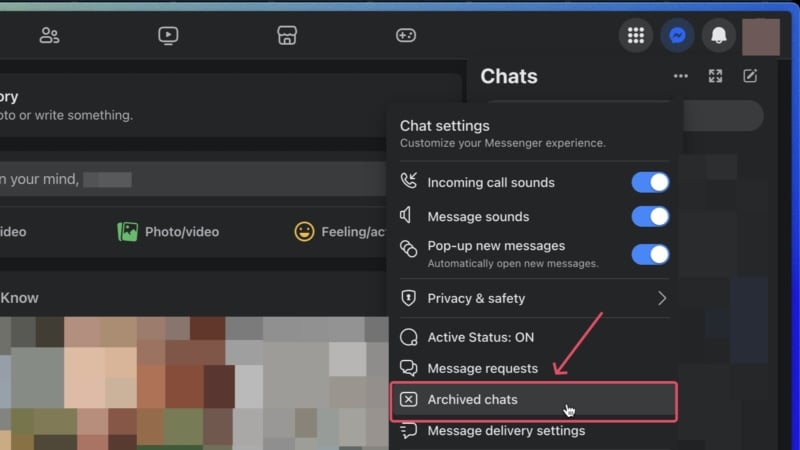
- Select chat options, which is represented by a meatballs menu icon (⋯) within the same window.
- Open Archived chats.
- Again, select the meatballs menu icon (⋯) beside the required chat and select Unarchive chat or Delete chat suitably.

- Click on Delete chat to confirm your action.

Facebook Messenger has a separate website that can also be used to delete archived messages. Here is how to do it:
- Visit the Facebook Messenger website here. It can also be visited directly from the Facebook website.
- Click on the meatballs menu icon (⋯) and select Archived chats.
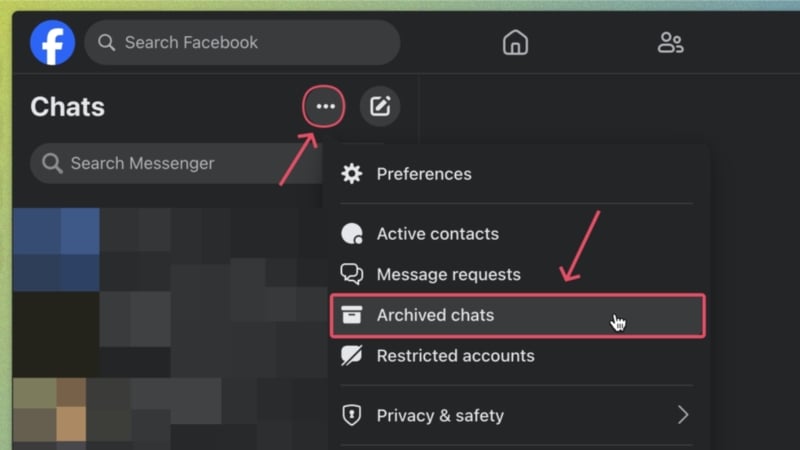
- Similarly, click the meatballs menu icon (⋯) beside the chat you wish to delete and select Delete chat.

- Confirm your action by selecting Delete chat.

Effortlessly Delete Archived Messages on Facebook Messenger
That’s all, folks! Deleting archived messages on Facebook is as easy as it gets and can be done using the Messenger app, website, or the Facebook website using the above methods.

