

Support for Google Drive backups is an outstanding feature of WhatsApp and provides a convenient and efficient way to back up WhatsApp messages on Android automatically. Back in 2018, Google announced that WhatsApp backups won’t count against the Google Drive storage. However, as of December 2023, backing up your WhatsApp chats on an Android phone will use up some of the free 15 GB of storage you get with your Google account.

This storage space is shared with other Google services such as Drive, Gmail, and Google Photos. If your WhatsApp backup is very large and you run out of free storage space, you will either need to delete some data from your Google account or upgrade to a premium plan to get more storage space.
If you don’t want to upgrade or are looking for alternative ways to backup your WhatsApp chats, check out this guide on how to backup WhatsApp messages without Google Drive on Android.
Table of Contents
How To Backup WhatsApp Messages Without Using Google Drive
Backing Up Using Email
WhatsApp allows you to export and backup your chats using your email. You can export the WhatsApp chat to your email and access it from another device.
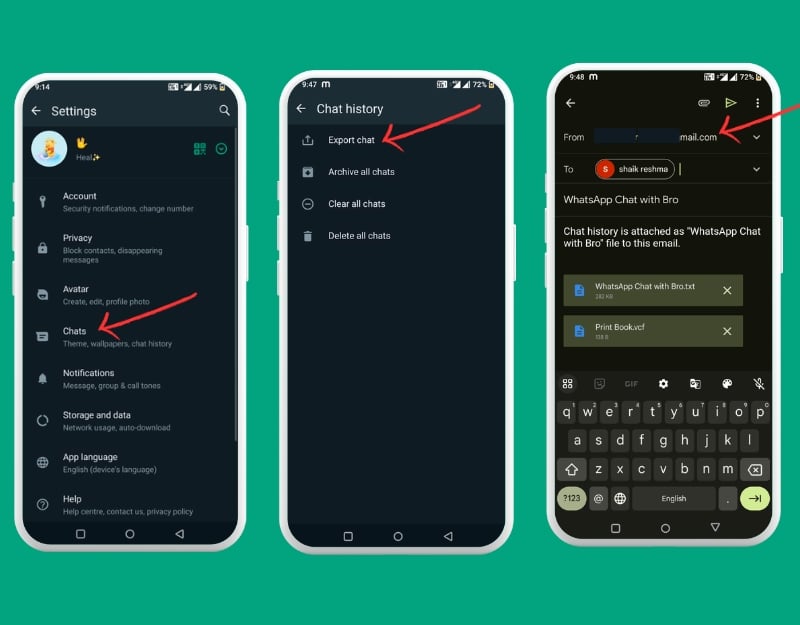
- Open WhatsApp on your smartphone and click on the three-dot menu in the top right corner of the screen.
- Select Chats in the main settings.
- Scroll down and select Chat History.
- Now click on Chat Export.
- Select the email and enter the email address you want to share the WhatsApp chats with.
You can also save individual chats on WhatsApp and send them by email.

- Open the chat (individual or group) that you want to export.
- Tap on the three dots at the top of the screen.
- Click on the Export chat.
- Decide whether you want to export with media (such as photos and videos) or just the text.
- Enter the email address and send it to the email address.
Related Read: WhatsApp Media Not Downloading? Here’s How to Fix It
Using Third-Party Tools
If you want to back up WhatsApp messages to an external device, using third-party tools is the best option for you. Tools like Mobile Trans and other third-party tools allow you to back up and store your Whatsapp data on your PC.
- Download the MobileTrans software and install it on your Mac or Windows PC. You can also choose alternative software such as Tenorshare iTransGo and Syncios Data Transfer. In this case, we’ll use MobileTrans software to backup Whatsapp chats.
- Open MobileTrans and choose Backup & Restore, then click on Backup under App Backup & Restore.

- Select WhatsApp from the list of apps, and connect your Android phone to the PC with a USB cable that works.
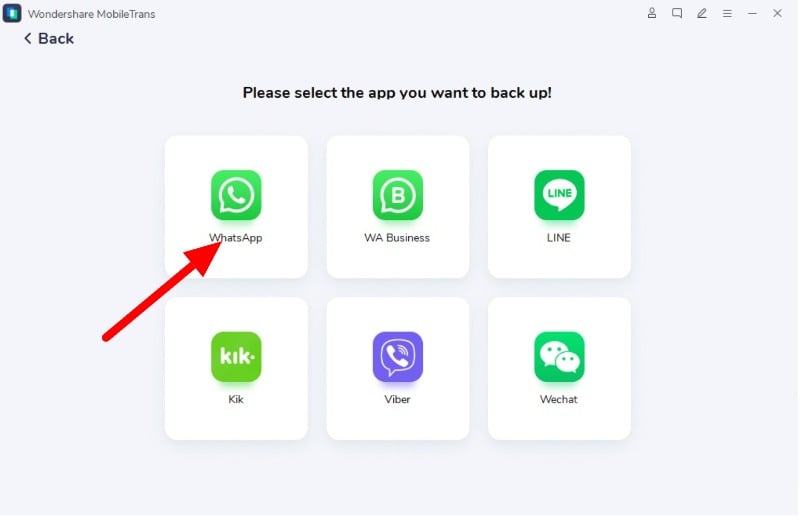
- Click on Start to begin backing up.

- Don’t disconnect your phone from the PC while the backup is running. Once the backup is complete, you can disconnect your phone.
Related Read: How to Enable End-to-End Encrypted Backups on WhatsApp
Backing Up to an SD Card
Saving data to the SD card is another common and easy way to back up your Whatsapp chats. Most smartphones do not support SD cards. If you have an SD card, you can back up and save your Whatsapp chats on an SD card.

- Insert an SD card into your Android phone. Open WhatsApp and click on the dot menu.
- In the main settings, click on Chats.
- Choose Chats Backup.
- Turn off automatic backup to Google Drive, and then tap Backup. This will save your WhatsApp data to the SD card in your phone.
Risks and Limitations of Non-Google Drive Backups
The automatic Google Drive backup is one of the best and easiest ways to back up your Whatsapp messages automatically. However, this option will soon be removed when Google announces changes to Google Drive. This method can still work if you have enough storage space on your Google Drive.
- Manual backup: You have to manually back up Whatsapp data every time you need to back up your messages.
- Losing control: It’s hard to keep track of updated information about the last backup.
- Security concerns: The backup files can be viewed by anyone without your Whatsapp account. Make sure you keep the file in a safe place.
- Switching services: Moving your data from one backup service to another can sometimes be very tedious.
Related Read: WhatsApp Backup Stuck in Progress or Taking Too Long on Android [FIXED]
Wrapping up
Every day, we receive many messages on WhatsApp. Some of these chats are important, and we want to remember them forever. To make sure you don’t lose these messages, you can back them up. If you use an iPhone, you can back up your WhatsApp messages via your iCloud account. If you are using an iPhone, you can back up WhatsApp messages using your iCloud account. You can visit WhatsApp, then tap Settings>Choose Chats, then Chat Backup>Tap “Back Up Now.
FAQs about WhatsApp Backup
1. Is it possible to use other cloud services for WhatsApp backups?
You can back up WhatsApp to other cloud services, but it’s a bit complicated. WhatsApp doesn’t support this directly. You can first save your WhatsApp chats on your phone (this is called a local backup) and then upload these saved chats to another cloud service such as Dropbox or Onedrive. But if you want to upload these chats back to your phone, WhatsApp can’t do this directly from these other clouds. You have to transfer the backup file from the cloud to your phone yourself.
2. Can WhatsApp messages be backed up without any internet connection?
Yes, you can use manual methods, such as copying the Whatsapp data with third-party tools or manually exporting the chat data and saving it to your local device.
3. How often should I back up my WhatsApp messages?
That depends. All the methods listed in this post are manual, and you can back up your Whatsapp chats at any time.
4. Are third-party backup tools safe to use for WhatsApp?
Make sure you’re using legitimate third-party tools to back up your data. The tools listed in this guide are safe to use.
5. How can I transfer WhatsApp backups from Android to iOS or vice versa?
You can use the Move to iOS app to transfer Whatsapp chats from iOS to Android. For this to work, your Android phone should have Android 5 or higher, and your iPhone needs iOS 15.5 or higher.
- Download the Move to iOS app on your Android smartphone
- Open Move to iOS on your Android smartphone and do what it says on the screen.
- Your iPhone will show a code. Type this code into your Android.
- Select WhatsApp on the Transfer Data screen.
- Press START on your Android and wait until it says the data is ready.
- Press NEXT and then CONTINUE to move your WhatsApp data to your iPhone.
- On your iPhone, download WhatsApp from the App Store. Log in to WhatsApp with your old phone number.
- Now, Press Start and wait until it’s done.
- Finish setting up your iPhone, and you’ll see your WhatsApp chats there.
6. How to Backup WhatsApp messages with an alternate Google Account
Google Drive offers 15 gigabytes (GB) of free storage to every user. If your current Google Drive account is full, you can create a new Google account and back up your WhatsApp chats to the new Google account.

- Open WhatsApp and click on the three-dot menu in the top right corner of the screen.
- Click on Chats
- Scroll down and click on Chat backup
- Scroll down and select Google account. If the current account is full, click on add account and create a new Google account for Whatsapp backup or use the existing account if it meets the storage requirements. Remember, Google offers 15 GB of drive space for free.
- The downside of this method is you cannot back up your Whatsapp chat if it is more than 15GB in size.

