

Every browser keeps a record of every single website you visit, known as search history. Search history proves beneficial at times, such as when you have to revisit the websites later on, say, to check your order status, a news link, a YouTube video, and more. Browsers make it easy to access your search history, which is usually just a click away.

Nonetheless, more often than not, you might feel the need to do the opposite – delete your browser’s search history. Although a few clicks away, it’s equally straightforward to delete search history. Whatever your reason for the act, this guide will help you delete search history effortlessly. Let’s begin!
To simplify the guide, we will address six popular browsers – Google Chrome, Microsoft Edge, Safari, Firefox, Opera, and Brave. Fret not; we will also be elaborating on the procedure to delete search history for their mobile versions as well.
Table of Contents
Delete Search History on Google Chrome
For Desktop
- Select the kebab menu icon (⋮) from the toolbar.

- Hover the cursor over History and select History.

- On this page, you can delete your visited sites individually by selecting the checkbox beside each entry. Select the Delete option that appears after selecting.

- If you wish to delete multiple entries, click on Clear browsing data. Alternatively, you can visit chrome://settings/clearBrowserData from Chrome’s home page.

- A new page will open where you can select the type of data to be cleared – Cookies, Cached data, or Browsing history.

- You can even edit the time range of the data to be deleted – from the last hour to all time. Select the dropdown menu beside Time range and choose your preferred one.

- For additional tweaking, switch to the Advanced tab from the top.

- Click on Clear data after selecting the desired settings.

For Mobile
- Select the kebab menu icon (⋮) from the top right corner.
- Click on History.
- Long-press an entry to select it and hit the trash icon that appears in the top right corner to delete the entry.

- To delete multiple entries, select Clear browsing data from the top column.
- Select the type of history you want to delete, be it Browsing history, Cookies and site data, Cached images and files, or Site settings.
- Set the Time range of the histories to be deleted by clicking the dropdown menu in the top right corner. You can select a period ranging from 15 minutes to forever.
- Hit Clear data to delete your selection.

If you wish to access advanced settings on mobile, select Settings instead in the second step. From there, head to Privacy and Security> Clear browsing data > Advanced.

Delete Search History on Microsoft Edge
For Desktop
- Select the clock icon from the toolbar.

- If the icon isn’t present, select the meatballs menu icon (⋯) from the toolbar and click on History.

- You can delete individual histories by clicking the cross icon when you hover the cursor over them.

- To delete multiple entries, click on the trash icon at the top. Alternatively, you can visit edge://settings/clearBrowserData directly from the home page.

- A new window will open where you can edit what you can delete. Select or deselect boxes beside the options to perform the action.

- To edit the Time range, click on the dropdown menu below the said setting.

- Select Clear Now to delete your selection.

For Mobile
- Select the hamburger menu (☰) from the bottom right corner.
- Click on History.
- To delete individual sites, long-press them and select Delete.

- Click the trash icon in the top right corner to delete multiple sites.
- Choose the types of histories you wish to delete, be it Browsing history, Cookies, Cached data, or anything else.
- Select the Time range by opening the dropdown menu beside that. You can choose a time ranging from Last 15 minutes to All time.
- Hit Clear data to delete your selection.
- You can also choose to enable Clear browsing data upon exit. This way, you won’t have to delete search history manually every time.

An alternative route to the same page is clicking the Settings icon in the second step and heading to Privacy and Security> Clear browsing data.

Related Read: How to View and Delete YouTube Search History
Delete Search History on Safari
For Desktop (Mac)
- Select Safari from your Mac’s status bar.
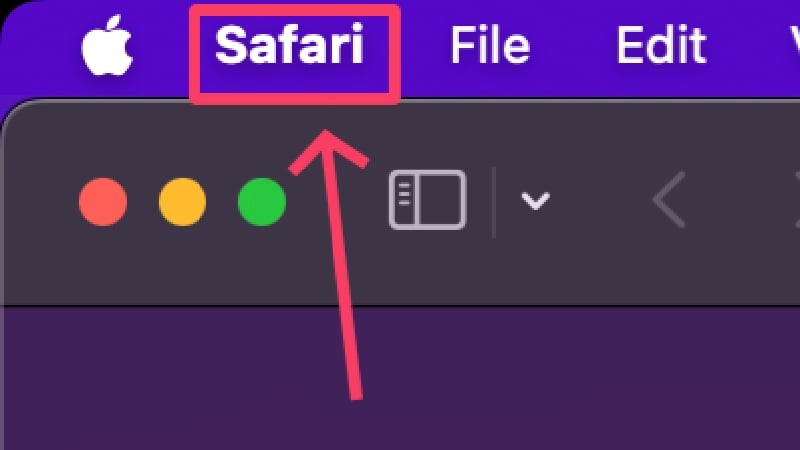
- Click on Clear History.

- Choose your time range by clicking the dropdown menu beside Clear.

- Select Clear History.

While Safari’s way of clearing history is pretty barebones compared to Google Chrome or Microsoft Edge, you can still clear individual histories on Safari. For that,
- Select History from your Mac’s status bar.

- Click on Show All History. Alternatively, enter the shortcut command + Y to open your browsing history directly.

- Safari stacks the websites you visit under their respective browsing dates. To reveal browsing data of a particular date, click on the arrow that proceeds the date.

- Right-click the entry you wish to clear and select Delete.

For Mobile (iPhone)
Safari on iPhone has different procedures to delete browsing history and website data (cookies and cached data). In fact, you can delete website data without deleting the browsing history, browsing history without deleting the website data, or both.
Delete Search History
- Open Safari and select the bookmark icon from the bottom section.
- Switch to the history tab, which is depicted by the clock icon.
- Long-press a search history to delete and press Delete.

Delete Search History and Website Data Both
- Open Settings and scroll down to select Safari.
- Open Clear History and Website Data.
- Click on Clear History and Website Data and confirm your action by pressing Clear History and Data.

Delete Website Data
- Under Safari Settings, open Advanced Settings.
- Select Website Data.
- To delete website data of specific sites, press the Edit option in the top right corner of your screen.

- Delete website data of particular websites by pressing the red-colored dot icon beside them.
- To delete the website data of all websites you have visited before, scroll down and click on Remove All Website Data.
- Confirm your action by pressing Remove Now.

Delete Search History on Firefox
For Desktop
- Select the hamburger menu (☰) from the top right corner.

- Click on History.

- To delete individual histories, right-click on the entry and select Delete Page. To view your all-time history, select Manage History and follow the same procedure to delete individual histories – right-clicking and clicking Delete Page.

- Click on Clear Recent History to delete multiple histories at once.

- Choose your time range from the dropdown menu beside Time range to clear. It can range from Last hour to Everything.

- Choose all the things you wish to be deleted, like Active Logins, Browsing & download history, Cache, Cookies, etc.

- Click on Clear Now after you have chosen what to delete.

For Mobile
- Select the kebab menu icon (⋮) from the top right corner.
- Click on History.
- To delete an individual browsing history, long-press the entry and press the kebab menu icon (⋮) from the top right corner. Select Delete from the dropdown menu.

- To delete multiple search histories, click on the trash icon in the top right corner.
- Choose your preferred time range and hit DELETE.

If you wish to delete specific attributes like cookies, cached data, or something else, select the kebab menu icon (⋮) from the top right corner and head to Settings. Scroll down a bit and click on Delete browsing data. You’ll arrive at a page where you can choose what to delete. Press on Delete browsing data after you are done to delete the selected things.

Delete Search History on Opera
For Desktop
- Select the clock icon from the left pane.

- To delete an individual entry, click on the cross icon that appears when you hover over it. Else, you can right-click on it and select Discard.

- To view your entire history, click on Open full History view at the bottom of the panel.

- In order to delete multiple browsing histories, select Clear Browsing Data. Alternatively, you can directly visit opera://settings/clearBrowserData from the homepage.

- Choose the things you wish to retain or delete, whether cookies or cached data.

- For additional options, switch to the Advanced tab from the tab and edit the sections.

- Choose your Time range by clicking on the dropdown menu. It can range from Last hour to All time.

- Click on Clear Data to delete your selection.

For Mobile
- Select the profile icon from the toolbar present at the bottom of your screen.
- Click on History.
- Select the kebab menu icon (⋮) beside it to delete individual entries and hit Delete.

- To clear all browsing data, select the trash icon up top and press OK.

If you wish to choose which data gets deleted, you can follow the procedure below,
- Select the profile icon from the toolbar present at the bottom of your screen.
- Click on the Gear icon.
- Enter Privacy & security.
- Scroll down and select Clear Data.
- Select or deselect the data you wish to delete or retain, and press Clear data.

Like on Microsoft Edge’s mobile version, you can also set Opera to delete search history when you exit the browser. To do so, click on Clear data on exit in the fourth step in the above procedure.
Delete Search History on Brave
For Desktop
- Select the hamburger menu (☰) from the top right corner.

- Hover the cursor over History and select History. Alternatively, you can visit brave://history/.

- Check the box beside a particular browsing history and click on the Delete icon that appears at the top to delete the selected browsing history.

- Select Clear browsing data to delete multiple browsing histories. Alternatively, you can visit brave://settings/clearBrowserData.

- Under Basic, you can delete specific things like Cookies, Cached images and files, or Browsing history.

- To fine-tune the deletion even further, switch to the Advanced tab and make your selection accordingly.

- Brave has an additional option where you can set it to delete browsing data upon exit. It can be enabled under the On exit section.

- Set your Time range, which can be anything from Last hour to All time, by clicking the dropdown menu.

- Click on Clear Data to delete your selection.

For Mobile
- Select the kebab menu icon (⋮) from the bottom right corner.
- Click on History.
- To delete individual browsing histories, click on the cross icon on the side. Otherwise, you can long-press to select an entry and delete it by pressing the trash icon that appears at the top.

- Click on Clear browsing data to clear your search history.
- Select a Time range by opening the dropdown menu.
- Choose the type of data you wish to retain or delete, be it saved passwords, cookies, cached data, or more.
- Hit Clear data in the bottom left corner to delete your selection.

Bonus Tip For Desktop Users
Sometimes, you may want to block the history for a particular website automatically. It gets incredibly tiring if you manually delete search history for a specific site, which is where the Chrome extension 1click Pause History comes to your rescue. Once set up, you can set it never to record search history for a particular site, thereby saving you valuable time.
Easily Delete Browser Search History
Indeed, the process of deleting browser search history is that simple. You might notice that the process to delete search history is more or less the same for all browsers, and that’s because most browsers are Chromium-based at the end of the day. Nonetheless, you now know how to delete search history, be it Google Chrome, Microsoft Edge, Safari, Firefox, Opera, or even Brave.
FAQs about Deleting Browser Search History
1. What data does my browser store while I’m surfing the internet?
You would be surprised to know this, but your website keeps track of many things. Apart from the usual search history of the websites you visit, every browser stores your browsing data, including cookies, cached data, login details, passwords, autofill data, and much more.
Every browser claims this data to benefit the user, as it helps websites and browsers prepare the websites before you revisit them the next time. For example, you won’t have to fill in your login details or remember your password every time, as it’s all stored securely by your browser.
However, you might still need to delete your search history and other browsing data, and thankfully, browsers give you the option to delete every type of data they possess.
2. Is search history different than other browsing data?
Indeed, search history differs from other browsing data, which generally includes cookies, cached data, autofill passwords, and much more. Your search history is essentially a record of all the websites you visit – it has nothing to do with the cookies stored or cached data accumulated by your browser.
This is why clearing either of the data doesn’t hamper the other; that is, you can separately delete browsing data or search history. Had they been linked, clearing one form of data would have deleted the other one, too. Hence, browsers implement different procedures to delete search history and browsing data.
3. How can I delete my browsing data every time I exit the browser?
Browsers like Brave and the mobile versions of Microsoft Edge and Opera have an in-built Clear data upon exit option. It comes in handy when deleting browsing data after every session.
Unfortunately, other browsers don’t come with built-in options, but you can install the Clear Browsing Data Chrome extension to clear your browsing data with a single click. It’s a practical workaround, as you can use the extension to clear your browsing data before you exit your browser.
4. Do browsers collect browsing data in incognito mode?
Browsers specifically mention the data they collect while you’re browsing in incognito mode. While browsers don’t collect or store the cookies, autofill data, login password, and cached data generated by the sites you visit, your browsing, although not collected, can still be viewed by your workplace, school, or internet service provider. Furthermore, the files you download, your favorites, and your collections will be available to access the next time you browse in incognito mode.

