

Quick Answer
Deleting Gmail search history on your devices is a no-brainer. Open the Settings page, go to General settings, and clear your Gmail search history on Android. On iOS devices, open Data privacy settings in the Settings page and tap the Clear search history button. However, the desktop gives you multiple options to delete your search history on Gmail.
Gmail is one of the most used personal email services. We use the search box to find a specific email among hundreds of emails. Over time, the search list continues to pile up. Whatever we search, we can see once we tap on the search box. This guide shows you how to delete Gmail search history on Android, iOS, and Windows/Mac.

Table of Contents
How to Delete Gmail Search History on Android
Deleting Gmail search history on Android involves a few steps.

- To start, open the Gmail app on your Android phone and tap on the hamburger menu beside the search box. Select Settings.
- In the Settings page, tap on General settings.
- Now, tap on the three-dot icon at the top-right of the General settings page and select Clear search history.
- Tap Clear on the Clear search history prompt to confirm deleting Gmail search history.
How to Delete Gmail Search History on iOS
To clear the search history on Gmail on your iOS device,
- Open the Gmail app and tap the hamburger menu beside the search box.
- Select Settings.
- Scroll down to the General tab and tap Data privacy on the Settings page.
- Tap the Clear search history button at the bottom of the Data privacy page.
- Select Clear to confirm deleting Gmail search history on the Clear search history prompt.

How to Delete Gmail Search History on Windows PC or Mac
You can delete Gmail search history on a Windows PC or Mac in three ways. Firstly, you just need to click on the search bar to see the previous searches. Beside the searches, you will see an x mark. Click on it to delete that particular search from your Gmail search history.
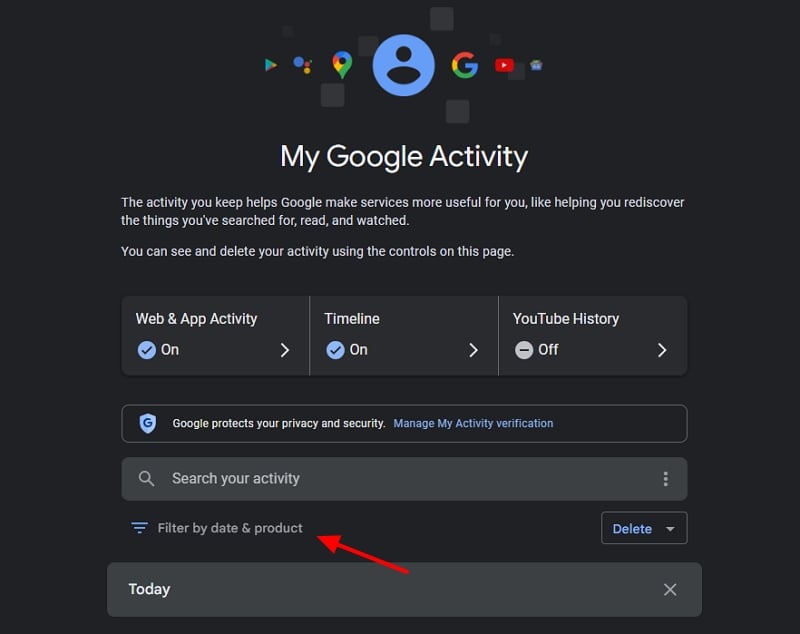
To completely delete Gmail search history on desktop, open the My Google Activity page on your browser and log in with your Gmail account if not logged in already. On the My Google Activity page, click on Filter by date & product.
It opens an overlay window to filter your Google activity by product and date. Select Gmail by checking the box beside it. You may also select the date range to clear your Gmail search history between the dates you choose. Click Apply to save the filters.

It shows the Gmail search history by filtering it from the other Google products linked to your account. Click Delete results to clear the Gmail search history.

Alternatively, you can click the Other activity tab on the Google My Activity page to clear your Gmail search history.

On the Other activity page, scroll down to Google Workspace search history and click on Manage Google Workspace search history.

Now, click on the Delete button at the bottom of Google Workspace search history page.

Select the time range in which you want to clear the Google Workspace search history by clicking on the specific time range from the options on the Delete Activity prompt.

Now, confirm deleting the Google Workspace search history by clicking on the Delete button on the Confirm you would like to delete this activity prompt.

That’s it. Hope this guide helps you in deleting your Gmail search history.
Clear Your Search History From Gmail
Over time, the Gmail searches pile up, and it looks confusing when you tap on the Gmail search box. The better way to clear the confusion is by clearing the search history. On a Windows PC, you can clear the search history in three ways, allowing you to clear individual search terms or batch delete all the searches along with the time range. Android and iOS devices do not have these options. You have to clear the entire search history in the Gmail app settings.
FAQs on Deleting Gmail Search History
How do I delete all searched messages in Gmail?
You can delete all searched messages in Gmail using the Clear search history option on Android and iOS devices. On Android, open the Settings page and select General settings. Tap the three-dot button, select Clear search history, and confirm clearing it. On iOS, go to Data privacy settings in the Gmail settings, tap on Clear search history, and confirm clearing the history.

