

The iPhone is known for its exceptional user-friendly interface and top-notch performance, offering a range of features for calling. One such feature is “Silence Unknown Callers,” which can be useful for managing unwanted calls.

Silence Unknown Callers on iPhone helps users avoid and block spam calls. It automatically silences calls from phone numbers that are not in your contacts, voicemail, or messages. This can be a useful tool for avoiding spam and telemarketing calls, but it can also cause you to miss important calls from unfamiliar numbers.
In this article, we’ll provide you with a step-by-step guide on how to turn off Silence Unknown Callers on your iPhone. We’ll also discuss some of the benefits and drawbacks of using this feature, as well as some alternative solutions for managing unwanted calls.
By the end of this article, you’ll be able to take control of your incoming calls and never miss an important call again. So, without any further ado, let’s get started.
Table of Contents
What Is Silence Unknown Caller — Benefits and Drawbacks
Silence Unknown Callers is a feature available on iPhones running iOS 13 and later versions that can automatically silence incoming calls for unsaved numbers. However, if you have sent a text message to some unknown number or mentioned the number somewhere in an email or SMS, calls from that number will still ring through despite the Silence Unknown Callers feature being enabled.
The main advantage of this feature is that it can help users avoid unwanted calls from spammers, telemarketers, and other unknown callers. This can be especially useful for those who receive a high volume of unwanted calls and prefer only to receive calls from known contacts.
Simultaneously, one major drawback of this feature is that it can also silence important calls from unknown numbers with whom you haven’t interacted in the past, such as calls for job interviews, delivery services, and else. Even if you receive a call from an unfamiliar number, the phone will neither ring nor show up in the call notification. It will only be visible in the recent call log.
Additionally, as mentioned earlier, calls from unsaved contacts to whom you’ve sent a text message or have shared their phone number through email will still ring through, which can cause confusion for some users.
How to Turn off Silence Unknown Callers on iPhone
If you’re finding that the turn-off silence of unknown callers on the iPhone feature is causing you to miss calls that you need to receive, turning it off may be the solution you’re looking for.
Fortunately, turning off Silence Unknown Callers on iPhone is a quick and easy process. Follow the below steps to turn off this feature on your iPhone so that you can stay connected with important calls and never miss a beat.
1. Open Settings on your iPhone.
2. Scroll down for Phone from the list of applications in the Settings menu and tap on it.

3. Tap on Silence Unknown Callers.
4. Now, turn off the toggle next to the Silence Unknown Callers.

Block the Unknown Numbers From the Recent Call List
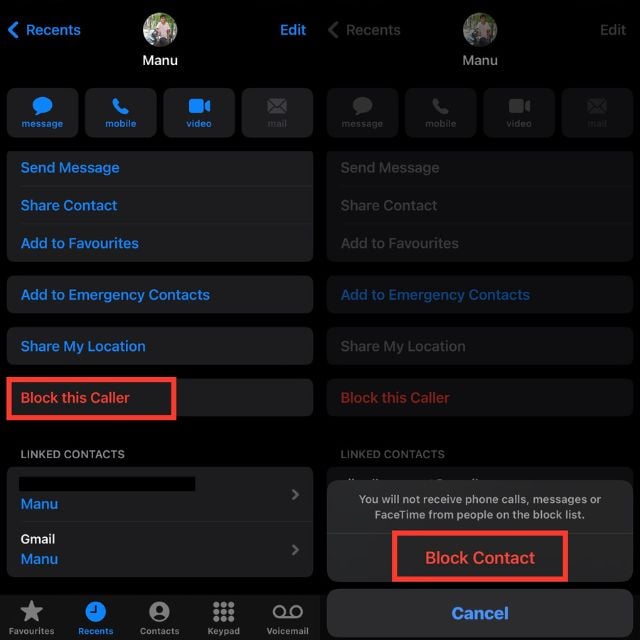
After explaining how to toggle the Silence Unknown Callers feature, the subsequent step involves manually blocking unwanted telemarketing and spam callers from your call history. This entails using your iPhone’s Phone app to individually block these numbers, thereby preventing them from calling you in the future.
1. Open the Phone app on your iPhone.
2. Find the phone number you want to block and tap on the info ⓘ button next to it.

3. Scroll down to the bottom of the menu and tap on Block this Caller.
4. Confirm your decision by tapping Block Contact to add the caller to your iPhone’s block list.
How to Fix iPhone Doesn’t Ring While Receiving Calls
If you disabled the Silence Unknown Callers function in your iPhone’s settings, but your device still fails to ring when receiving calls, there could be two likely causes. One possibility is accidentally muting your iPhone, while the other is activating the Do Not Disturb (DND) or work mode.
To resolve this issue, you can take the following steps to disable DND or work mode and switch your iPhone’s sound profile from Silent mode.
Turn On the Mute Button on Your iPhone
The first step is to check if your iPhone is accidentally muted. This is a common issue and can be easily fixed by checking the mute switch on the side of your device. If the switch is on, your iPhone will be muted, and you won’t hear any ringtone or notification sound. Make sure the switch is off, and try making a test call to check if your iPhone is ringing correctly.
Turn off DND or Work Mode from the Control Center on iPhone
If you’re having trouble receiving calls or notifications on your iPhone, the Do Not Disturb (DND) and Work Mode features could be the culprits. These settings are designed to help you avoid distractions, but they can sometimes cause your device not to ring or vibrate when receiving calls.
Follow the steps below to gain an understanding of how you can turn off DND or Work Mode from your iPhone’s Control Centre so that you stay connected and never miss an important call again.
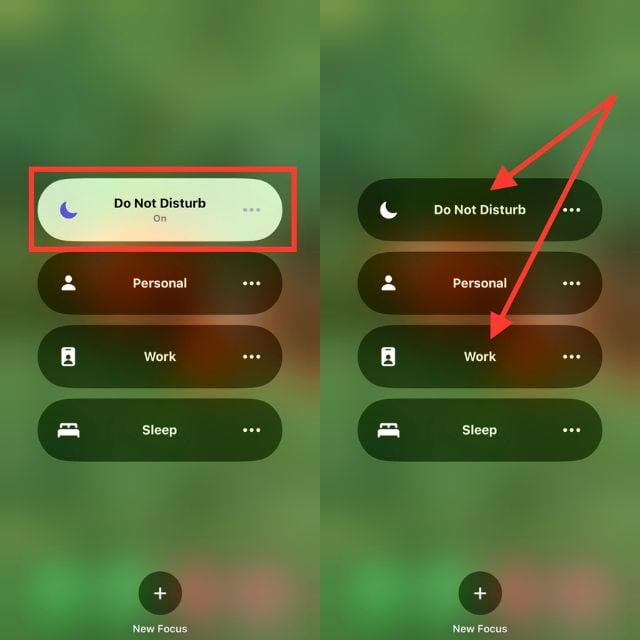
1. Swipe down from the top-right corner of your iPhone’s screen to launch Control Center.
2. Look for the Do Not Disturb or Work Mode icon. (The DND icon looks like a moon, and the Work Mode icon looks like a briefcase.)

3. If the icon is highlighted or colored, it means the mode is turned on. Tap the icon to turn it off.
4. The icon should now appear grayed out, indicating that the mode is turned off.
Disable Silence Unknown Callers on iPhone
Many users are facing an increase in the frequency of spam calls. To address this issue, the Silence Unknown Callers feature on iPhone has become a popular solution. This feature effectively filters out calls from unknown numbers.
It helps prevent distractions from unwanted calls by silencing unknown calls from which you haven’t interacted in the past via phone calls, iMessage, and all.
However, if you are concerned about potentially missing important calls, it may be best to turn this feature off.
FAQs about Silence Unknown Callers on iPhone
1. Can I turn off the Silence Unknown Callers feature for specific contacts on my iPhone?
No, You can’t turn off Silence Unknown Callers for a single contact on your iPhone. Save the contact to your phonebook to avoid being silenced in the future.
2. Will turning off the Silence Unknown Callers on my iPhone increase the number of spam calls I receive?
Turning off the Silence Unknown Callers on iPhone won’t affect spam call frequency. In fact, the number of spam calls will always be the same whether you enable the feature or not.
3. Does my iPhone allow me to block a range of numbers, like numbers starting with a certain area code?
The iPhone lacks the ability to block a range of numbers by area code or other criteria, but you can block individual numbers via its Phone app. Alternatively, third-party call-blocking apps can perform this task, but use them at your own risk.
4. Will blocking numbers from the recent call list also block them from messaging me?
Yes, if you block any number on your iPhone, it will also block them from messaging you.
5. Can I call emergency numbers with Silence Unknown Callers enabled?
Whether Silence Unknown Callers is enabled or disabled, you can still call emergency numbers and anyone else. Also, if you call an emergency number, the Silence Unknown Callers feature will be disabled on your iPhone within 24 hours.
6. If I turn on Silence Unknown Callers, will my iPhone still notify me of missed calls from unknown numbers?
Enabling Silence Unknown Callers on iPhone will silence and hide notifications for calls from unknown numbers, but missed calls will still be visible in the call log.
7. Can I turn on the Silence Unknown Callers feature for specific contacts on my iPhone?
No, It’s not possible to turn on Silence Unknown Callers for any specific contacts on iPhone. If you really don’t want calls from any particular number, then you can block that particular number.

