

Quick Answer
Samsung’s One UI 8.5 finally tackles spammy ad notifications with a new “Block apps with excessive ads” feature in Device Care. It automatically detects apps abusing notifications for ads, puts them into deep sleep, and silences them, with an optional Intelligent mode for smarter detection.
Ads in free Android apps are fairly common, and most of us generally don’t mind them since they’re one of the ways for developers to cover operational costs. However, some apps take this one step further. Since you’re more likely to pay attention and interact with what appears on the notification panel, these apps leverage notifications to push ads.
Many users, of course, despise this practice and have complained about it for years. Although late, Samsung has finally listened and offered a fix. Here’s how it works, and how you can use it to effectively prevent apps from spamming ads to your phone’s notification panel.
How is Samsung fighting apps that abuse notifications for ads
Samsung aims to combat apps abusing notifications for ads with a new feature called “block apps with excessive ads.” The idea behind the feature is simple: identify apps that push ads via notifications frequently and put them into deep sleep, i.e., prevent them from running in the background so that all their notifications are silenced.
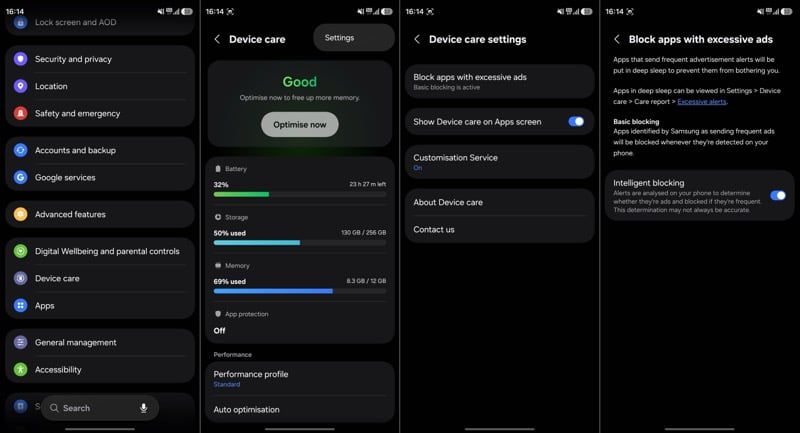
To achieve this, Samsung is relying on a two-pronged approach, which is reflected in the two blocking modes the feature offers: Basic and Intelligent. The Basic blocking mode uses a list of apps that Samsung has identified as known offenders to identify the culprit apps. It’s enabled by default and keeps a check on apps showing ads in your notification panel all the time. This also means the feature is always enabled and can’t be turned off.
On the other hand, the Intelligent blocking mode is available as an optional toggle. Unlike Basic blocking, it doesn’t rely on a list of blacklisted apps. Instead, it analyzes all incoming notifications on your phone to determine whether they’re ads and blocks apps that frequently send ads through notifications. The company notes that this identification may not always be accurate.
Samsung is bringing the “block apps with excessive ads” feature to the Device Care app (version 13.8.80.7) as part of the One UI 8.5 update. (Device Care, for those unaware, is an all-in-one suite that helps you optimize your phone’s system resources, including battery, storage, memory, and more, to keep it functioning smoothly.) All you need to do is update your Galaxy phone to One UI 8.5, and you should see the feature under Device care.
If you don’t see the feature after updating to One UI 8.5, check for any pending updates for the Device care app. Open the Galaxy Store app, tap the three-dot menu, and select Updates. Check if Device Care has a new update and install it. Do note that Samsung is rolling out the update in stages, so you may not see it immediately. Check again in a few days.
As for using the feature, you don’t have to do anything — unless the Basic blocking isn’t effective and allows apps to show ads through notifications. In which case, you should consider turning on Intelligent blocking. To do this:
- Go to Settings > Device care.
- Tap the three-dot menu in the top-right corner and select Settings.
- Select Block apps with excessive ads and toggle on the Intelligent blocking option on the next screen.
Note: The above steps have been tested on a Samsung Galaxy S26 Ultra.
The ad-tracking feature will now identify culprit apps and put them into deep sleep. You can find these apps under Excessive alerts. In the Device care app, tap the histogram / bar chart icon and select Excessive alerts on the next screen.
A thing to note here is that this deep sleep menu isn’t the one you see under Background usage limits. That one shows you a list of apps put to sleep by the battery manager to save power — and has nothing to do with apps put in deep sleep for notification abuse.
Will Samsung stop notification ads from its own apps
The new Device Care feature is a great step toward fighting ad notifications on Galaxy phones. We’ll know how effective it is once more people start using it. It will also be interesting to see whether the feature can tackle Samsung’s native apps, too, since some of those apps, such as the Galaxy Store and Gaming Hub, have been known to use notifications for promotions in the past, or if it will remain focused explicitly on third-party apps.

