

Quick Answer
Recall AI Timeline records all the user activities that they do on their PCs via periodic snapshots, allowing the user to go back and find them through historical data. It has been termed a ‘privacy nightmare’ for the fact that it records everything that you do on your PC, even whatever you type, such as passwords, credit card numbers, etc. One can turn off Recall AI timeline via Settings or by modifying the Registry or by using the Group Policy.
Microsoft introduced a new feature called “Recall (AI Timeline)” as a part of the Windows 11 May 2024 update. The feature records all the user activities that they do on their PCs via periodic snapshots, allowing the user to go back and find them through historical data. The Recall AI Timeline Windows 11 feature was specific to Windows CoPilot+ PCs, and there was a minimum hardware requirement for a PC to be able to use the Recall AI Timeline feature. However, ever since the feature got out, it has been termed a “privacy nightmare” for the fact that it records everything that you do on your PC, even whatever you type, such as passwords, credit card numbers, etc.

Thankfully, in this guide, we will give you all the details that you would need to understand what the Recall AI Timeline Windows 11 feature is and make a decision if you want to continue using this feature or not. If you decide on the latter, then we have also listed down the steps to disable Recall AI Timeline in Windows 11. Let’s jump right into it.
Table of Contents
What is the Recall AI Timeline Windows 11 feature?

As mentioned, Microsoft rolled out the Windows 11 24H2 update in May, which introduced a new Recall AI Timeline feature for CoPilot+ PCs. The Recall AI Timeline Windows 11 feature works as a digital photographic memory and takes a snapshot periodically of user activities. The specific hardware requirements for Recall AI to operate include:
- A Windows 11 Copilot+ PC
- 16 GB RAM
- 8 logical processors
- 256 GB storage capacity
- To enable Recall, you’ll need at least 50 GB of storage space free
- Saving screenshots automatically pauses once the device has less than 25 GB of storage space
The feature takes snapshots of your screen every few seconds and stores them locally on your hard drive. So, if you wish to continue using it, make sure that you have sufficient space in your storage. With the Recall AI Timeline Windows 11 feature, you can find any activity, such as documents, images, websites, messages, emails, apps, etc., using the NPU (Neural Processing Unit).
Many people are concerned with the fact that all of your information is stored in the form of screenshots on your PC, which makes everything searchable. Surely, it offers encryption, but that is decrypted as soon as a user logs in, and anyone accessing your computer can get their hands on the periodic information that is saved, thanks to Recall AI Timeline.
Who should and should not use the Recall feature in Windows 11?
The Recall feature, although termed a privacy nightmare, may not have been developed with that in mind. Here is a list of reasons why you should and should not use the Recall feature in Windows 11;
- Positives
- Recall lets you go back to the files that you have previously used and also use the details that you have previously entered. You may not find the websites that you have visited or files that you have used, but by using Recall you can easily search them.
- The interface is user-friendly and doesn’t imitate you like other AI features out there. Can’t find a document, simply search for it in the Recall AI app and the result will be shown.
- Recall doesn’t require internet access to work as the snapshots are stored locally. It relies on several AI models of the CoPilot+ PCs making it a convenient feature.
- Negatives
- Although it has all sorts of features that will make you want to use it, it still is a privacy nightmare. Since the snapshots are stored locally, anyone with access to your PC can get their hands on them and use them for all sorts of things.
- There is no security feature involved with Recall. Until and unless you turn on BitLocker on Windows 11 Pro or use Device Encryption on Windows 11 Home, all the data collected by Recall is available for everyone.
- A huge concern for storage as the images are stored locally on your PC, the storage space may run out quickly.
How to turn on the Recall AI Timeline feature in Windows 11?
Here are the steps that you need to follow to turn on the Recall AI Timeline feature in Windows 11 CoPilot+ PCs;
- Press the Win + I keys to open the Windows Settings menu. Alternatively, you can right-click on the Windows logo on the taskbar and select Settings from the list of options that appear.
- Click on Privacy & Security on the left pane.
- Select Recall & snapshots.
- Turn on the Save snapshots toggle on the right.

If you don’t want your privacy to be hindered and don’t want your PC to track and keep a record of your movements every few seconds in the form of screenshots, then you can follow the below section to learn the different methods to disable Recall AI Timeline on Windows 11.
How to turn off the Recall AI Timeline feature in Windows 11?
Turn off Recall AI completely from Settings
- Press the Win + I keys to open the Windows Settings menu. Alternatively, you can right-click on the Windows logo on the taskbar and select Settings from the list of options that appear.
- Click on Privacy & Security on the left pane.
- Select Recall & snapshots.
- Turn off the Save snapshots toggle on the right.
- Click the Delete snapshots option.
- Select the timeframe and hit the Delete all button to get rid of all traces that the Recall AI captured.

Once you have completed the above steps, Recall will stop capturing screenshots of your activity. If you only want to pause the Recall AI feature for some time, then you can click the Recall button on the taskbar and click the “Pause until tomorrow” button.
Turn off Recall using Registry
- Open the Start menu.
- Type Registry Editor and open it as an administrator. Alternatively, you can press the Win + R keys to open the Run dialogue and type regedit to access the Registry Editor.
- Navigate to the following path.
HKEY_CURRENT_USER\Software\Policies\Microsoft\Windows\WindowsAI - Right-click on the WindowsAI key and select New > DWORD (32-bit) Value.

- Rename the key as DisableAIDataAnalysis and press Enter.
- Double-click on the newly created key to open it.
- Change the Value data from 0 to 1.
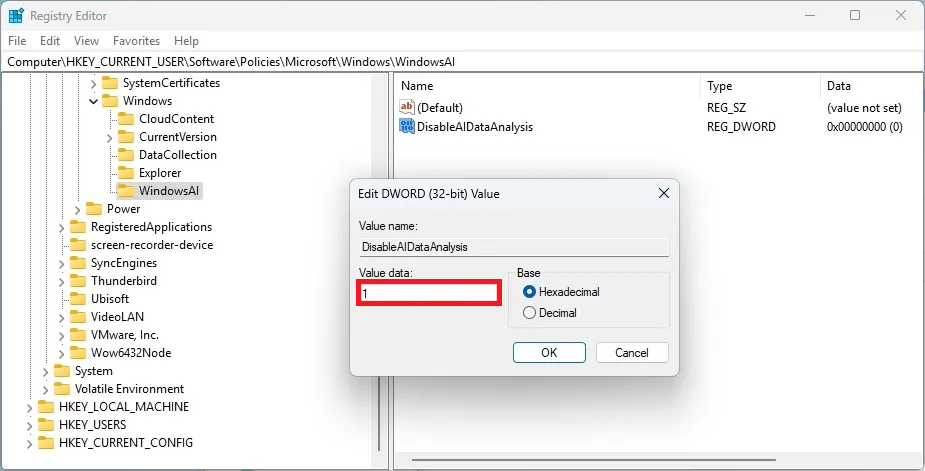
- Click OK to save the changes.
- Restart your computer.
After you have followed the steps correctly as mentioned above and restarted your computer, the Recall feature will no longer be operational on your PC. Then you can navigate towards Settings > Privacy & security > Recall & snapshots and click on Delete all snapshots.
Turn off Recall from Group Policy
This step is for those who are using Windows 11 Pro, Enterprise, or Education versions of the operating system. You can easily disable the Recall AI Timeline Windows 11 feature from Group Policy by following the below steps:
- Open the Start menu.
- Search for Group Policy Editor and open it as an administrator. Alternatively, you can press the Win + R keys to open the Run dialogue and type gpedit to open the Group Policy Editor.
- Navigate to the following path.
User Configuration > Administrative Templates > Windows Components > Windows AI - Right-click on Turn off saving snapshots of Windows policy and select the Edit option.
- Ensure that Enabled is selected.
- Click Apply and OK to save the changes.
Turn it off for better privacy
The above methods will help you turn off the Recall AI Timeline feature in Windows 11. It surely is a better and more attractive feature that can help you access files, documents, websites, etc., that you have visited earlier, but nothing should be above privacy, and there are some serious concerns with Recall that Microsoft needs to iron out before we would advise you to use it. Speaking of security, Gmail is used by millions across the globe, and it has all sorts of private information such as credit card details, OTPs, bank details, etc. We have a guide that lists some of the best methods to secure your Gmail account.

