

ChatGPT can not only be used for writing or composing e-mails. You can also use it as a quick image editing tool to edit your pictures on the go. With ChatGPT you can resize, crop, scale, convert and much more. There is also a native image editor that you can use to edit images created with DALL-E. In this guide, you will learn how to quickly edit photos with ChatGPT.

Table of Contents
How Does ChatGPT Image Editing Work?
Before I go into the methods, I want to make it clear that you need to be a ChatGPT Plus member with access to the editing features. Unlike traditional image editing programs like Adobe Photoshop, Affinity Photo, Canva and others, all image editing can be done using text prompts only. It can understand complex editing commands and modify images using simple text prompts.
Editing images with ChatGPT comes with some restrictions, e.g. certain types of images containing people or sensitive content cannot be edited. In addition, all photos uploaded to ChatGPT can be used to train the model. You can specify in the settings that your data is not used to train the models. With that in mind, let’s take a look at the different methods of image editing.
How to Edit Images Using ChatGPT
Edit AI-Generated Images
ChatGPT has recently gained native image editing features for images generated using DALL-E. This tool allows you to add or remove certain elements from the image using simple text prompts. The model regenerates the images, and you won’t even notice that they have been edited.
How to edit DALL-E generated images in ChatGPT
- Step 1: Visit chat.openai.com and select the GPT 4 model.
- Step 2: Click on the text editor and enter the prompt to generate an image.

- Step 3: Click on the generated image and enter the full screen.
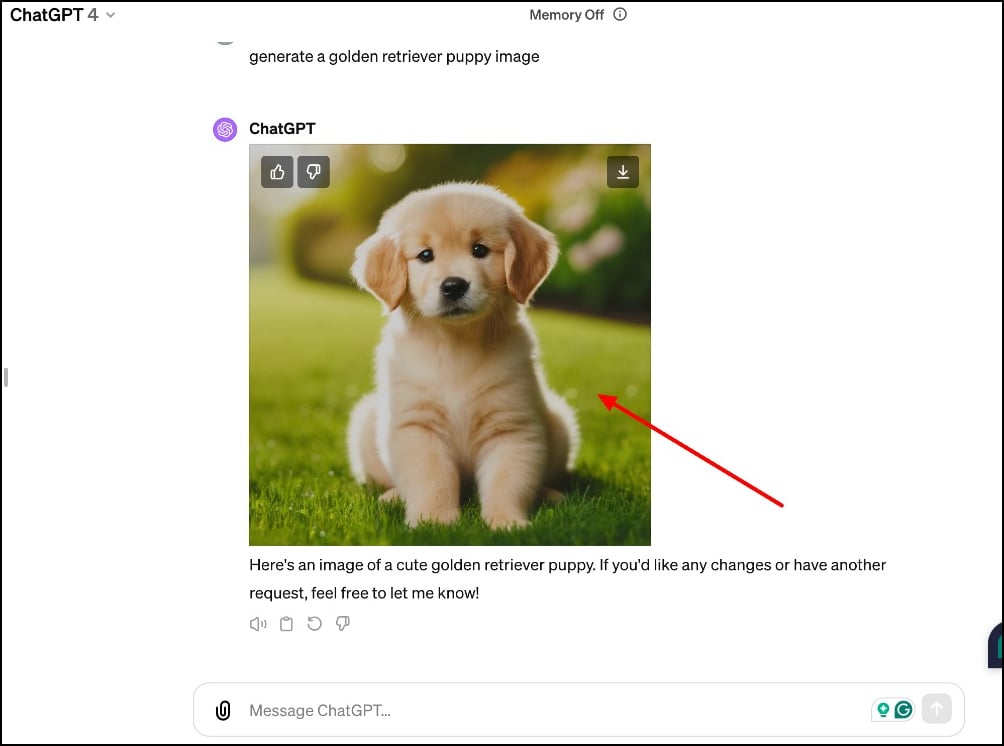
- Step 4: Now click the edit icon and use the brush to select the area you want to edit. Describe the changes you want to make to the text prompt. For better results, please ensure your text prompt is clear and well-defined. You can make multiple edits to the image until you achieve the desired result.
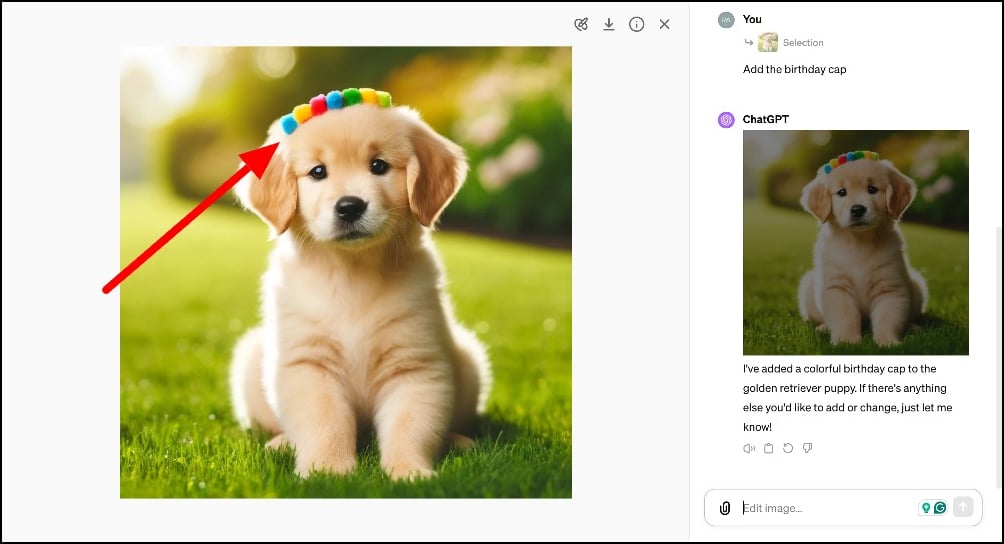
- Step 5: Click the download icon to save the image after the edit.
Edit Images Using Custom GPTs
You can also edit images using the Custom GPTs on ChatGPT. Custom GPTs are pre-trained models with unique abilities to perform a specific task. They are available within ChatGPT for GPT Premium subscribers.
Unlike the native method, which only works for AI-generated images, you can use the custom GPT to edit local and AI-generated images. You can perform basic photo editing operations such as cropping, rotating, applying filters to the image, removing the background, converting the image to another format and much more.
There are many custom GPTs for image editing; each GPT is specialized for a specific image editing task. We have selected the five best custom GPTs that offer the most common image editing features.
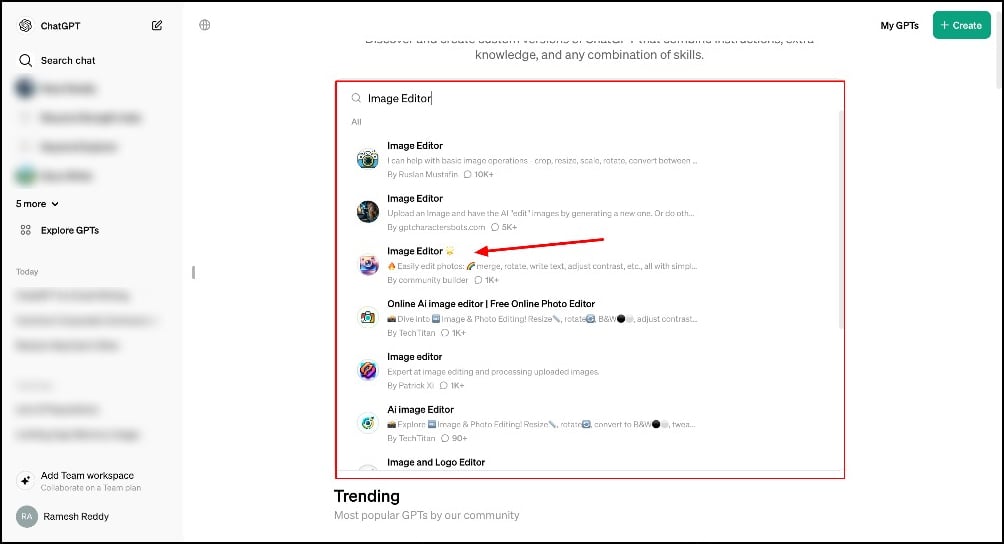
- Image Editor (by Ruslan Mustafin) – Crop, resize, scale, rotate, convert between formats, etc
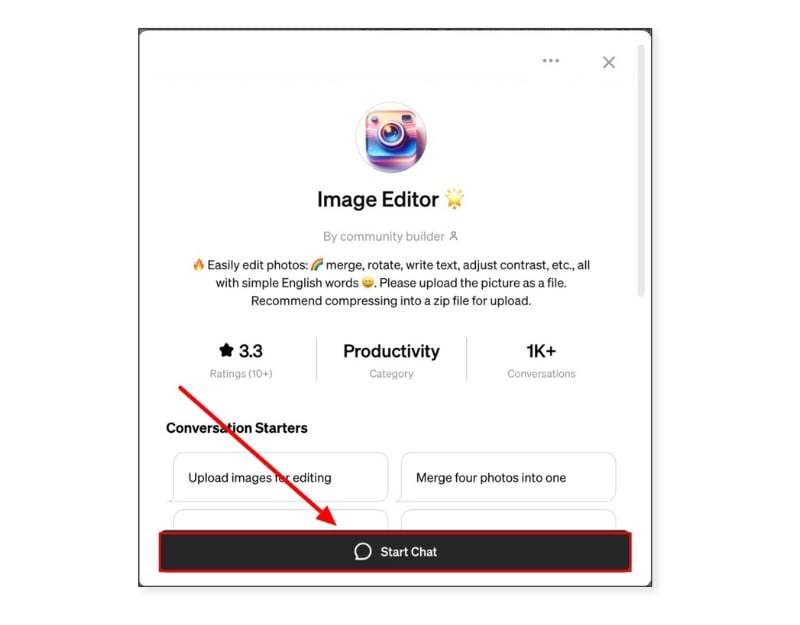
- Image Editor (by community builder) – Merge, rotate, write text, and adjust contrast.
- Online Ai image editor (by Tech Titan) – Resixe, add, change format, compress images.
- Image Converter (by Rohit Rajaram Kanade) – Conver images into different formats.
- Canva – Create posters using the images.
How to custom GPT to edit images in ChatGPT
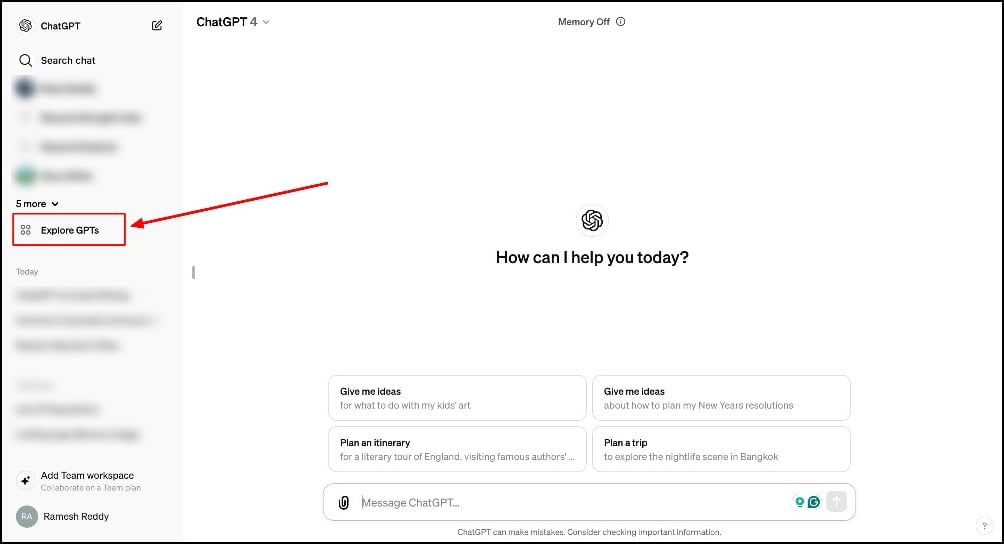
- Step 1: Visit chat.openai.com and click on the Explore GPTs in the sidebar.
- Step 2: Using the search, find the image editing GPT.
- Step 3: Select the GPT and click on the Start chat
- Step 4: Click on the attachment icon and upload the image you want to the editor. You can also directly paste the copied image into the text input.

- Step 5: Now, Enter the prompt you want to use to change the image. Ensure your text prompt is clear for better results.

- Step 6: In this case, I want to crop the image, so I am entering the prompt to crop the image. The more specific the prompt, the better results you get.
- Step 7: After a few seconds, new images will be generated. However, on the image, click on the download link to save it to your device, or you can click on the link and download the edited image.

Convert Your Images Into AI Art/Cartoons
With ChatGPT you can also convert images into AI cartoons or AI art. AI art generators have become very popular in recent months, and many photo editing apps now offer a dedicated feature to convert your images into art. With ChatGPT, you can convert images into cartoons or AI art without the need for third-party tools or custom GPTs. Here’s how it works:
How to convert your images into AI Art and cartoons in ChatGPT
- Step 1: Upload the image you want to convert into a cartoon.
- Step 2: Enter the prompt and describe the detailed prompt to get the best results.
- Step 3: Wait for a few seconds, and the image will be generated. You can tweak the image by giving it even better prompts.

- Step 4: Hover on the image and click on the download button to save the image to your device.
FAQs on Editing Photos Using the ChatGPT
1. What types of image edits can ChatGPT perform?
ChatGPT supports common image formats, including JPG, PNG, HIEC, and more.
2. Is it possible to remove an object from an image using ChatGPT?
There are two ways to remove an object from the image with ChatGPT. First, you can remove objects from AI-generated images. Recently, ChatGPT has native image editing features that allow you to edit DALL-E generated images. Next, you can use the custom GPTS, which is specifically designed for removing objects from the image.
3. Can ChatGPT enhance the quality of a low-resolution image?
Yes, with the ChatGPT Custom Image Enhancer you can improve the quality of low-resolution images. Upload the image and enter the prompt to enhance and you will get an enhanced image.
4. How can I undo changes or revert to the original image in ChatGPT?
ChatGPT will not alter the original image. When you upload the photos to the ChatGPT, it creates a copy of the images and then generates another copy with edit changes. Your existing image will not be altered.

