

It can be really frustrating when you can’t hear anything on your iPad. Whether you use your iPad to watch movies, play games, or for work, no sound can be a real downer.

But don’t worry about it! In this guide, we’ll show you a few easy ways to restore your iPad’s sound.
Table of Contents
How to Fix iPad Sound Not Working Issue
Turn Off Silence Mode
Let’s start with the simple troubleshooting method: make sure your iPad isn’t in silent mode. When you enable silent mode on your iPad, you won’t hear incoming calls or notification sounds, and the device won’t vibrate. However, when you listen to music or watch videos, the sound will still play in some cases, depending on your settings. If you’re having trouble with sound on your iPad, make sure you turn off silent mode on your iPad.

How to turn off silent mode on iPad:
- Swipe down from the top right corner of your iPad screen to open the Control Center.
- Look for the bell icon in the Control Center. It represents silent mode.
- Tap the bell icon to turn off silent mode. This will unmute your iPad.
- If you’re using an older version of the iPad, you can move the switch to a position that isn’t red to fix the issue.
Once you have disabled the silent mode on your iPad, try increasing the volume if the problem persists. You can find the volume up button on your iPad and long press it. You can also visit the Control Center and slide the volume bar up to increase the volume on your iPad. This should fix the problem.
Disable the Do Not Disturb Mode
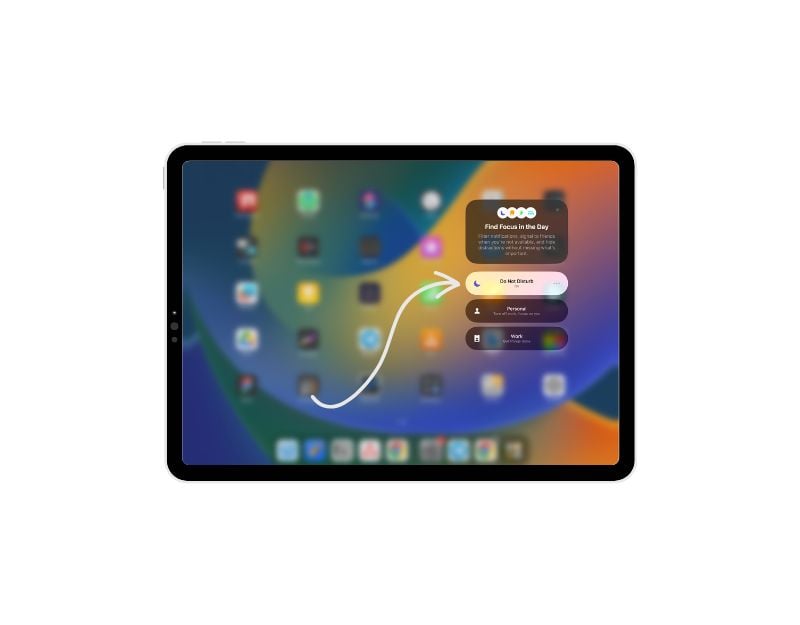
When “Do Not Disturb” mode is enabled, your iPad will not make any sounds. All notification sounds, messages and app notifications are muted, and media playback sound is also muted. DND is very useful when you’re in a meeting, studying, sleeping, or just want some uninterrupted time. But sometimes, if you’re not aware of it, it can also cause problems, such as no sound coming from the iPad. You can simply disable the “do not disturb” mode on your iPad to fix the problem. Also, make sure you don’t have automatic “do not disturb” cycles set. If you set one, it will automatically mute all notifications and block your iPad’s sound.
How to turn off DND mode on iPad:
- Open Settings on your device.
- Tap on “Focus” and go to the “Do Not Disturb” tab.
- Find the “Turn on automatically” option and turn it off.
Check If You Are Connected to Any Bluetooth Device
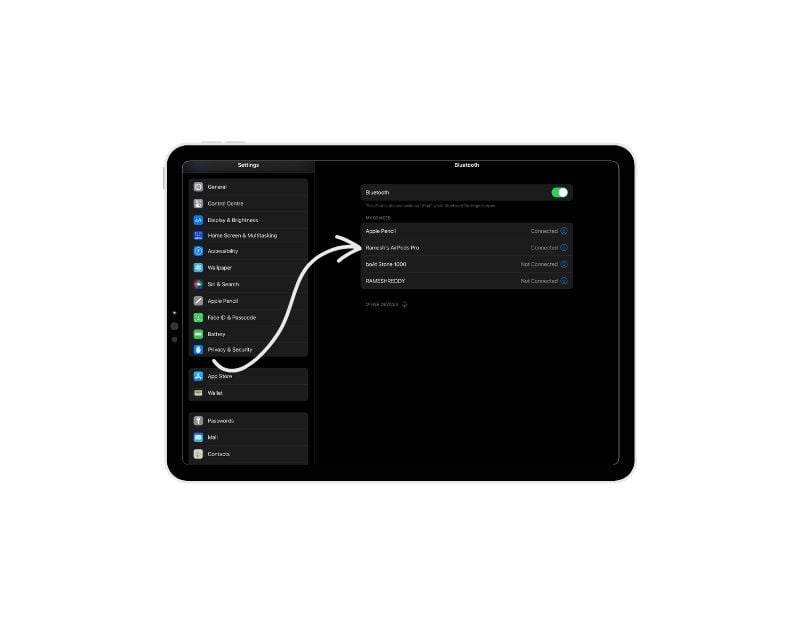
When you connect your iPad to a Bluetooth device, such as headphones or speakers, the audio from your iPad is routed to the Bluetooth device instead of going through the iPad’s built-in speakers. To fix the problem, disconnect the Bluetooth device from your iPad or turn off Bluetooth on your iPad.
How to turn off Bluetooth and disconnect devices from iPad:
- Open Control Center on your iPad and tap the Bluetooth icon when it’s on. The Bluetooth icon turns gray when it’s off.
- If you want to disconnect the Bluetooth devices, open the control center, find the Bluetooth icon, and long press on it to enter the Bluetooth settings. There, select the Bluetooth devices, click the info, and tap “Forget” to remove the Bluetooth devices. Note that if you disconnected the device from your iPad, you need to reconnect it.
If you have problems with sound when you connect your Bluetooth device, it may be due to the following reasons.
- Bluetooth device not paired or connected: You can’t hear the sound when your Bluetooth device is not connected to your iPad. To fix this issue, make sure the Bluetooth device is properly paired and connected to your iPad. Check if the device shows as connected in your iPad’s Bluetooth settings. You can do that by going to Bluetooth settings.
- Volume settings on the Bluetooth device: Make sure the volume on the Bluetooth device is turned up and not muted. Some Bluetooth devices have separate volume controls, so adjust the volume on both the iPad and the Bluetooth device accordingly.
- Incorrect audio source selection: On the Bluetooth device, ensure that the audio source is set to your iPad. Some Bluetooth devices allow you to switch between different audio sources, so double-check that the correct source is selected.
- Bluetooth device out of range: If you move too far away from the Bluetooth device or there are any obstructions between the device and your iPad, the connection may weaken or drop. Make sure you are within the recommended range.
Clean iPad Speakers

If your iPad’s audio output is distorted and sometimes drops out altogether, it may be because dirt is lodged in the speaker or something else is blocking the iPad’s speaker grilles. To fix this, carefully clean dirt from your iPad’s speaker grilles and remove all screen protectors, films, and cases from your device. Make sure to use a dry and soft brush to avoid accidental damage.
How to clean iPad speakers:
- If possible, dip the tip of a new toothbrush in rubbing alcohol.
- Gently clean the iPad speaker openings with the toothbrush.
- Avoid using water and applying too much pressure.
- You can also use other methods, such as tape or cloth to clean your iPad’s speaker grilles gently.
Restart Your iPad

If the above steps don’t work, try restarting your iPad. Restarting can be a very effective and also the most popular method when it comes to temporary problems. You can try restarting your iPad and see if the problem is fixed. You can long press the power button and slide to turn off the iPad, wait for some time, and then long press the power button to turn on the iPad again.
Reset All Settings

Another easy way to fix iPad sound not working is to reset all the system settings on your iPad. It’s possible that either a third-party app caused problems with your iPad’s settings or that you accidentally changed some settings. If this happens, it can cause problems such as the sound not working on your iPad. To fix this, you can simply reset all the settings on your iPad.
How to reset all settings on your iPad:
- Open the Settings app on your iPad.
- Tap “General” in the list of options.
- Look for the “Transfer or Reset iPad” section and tap it.
- In the “Reset” menu, you’ll find several options. Tap on “Reset all settings.”
- A prompt will appear asking you to confirm the action. Follow the on-screen instructions to proceed with the reset.
- Please note that this process won’t delete any of your personal data, such as photos or apps. It only resets the settings to their original state.
Update Your iPad
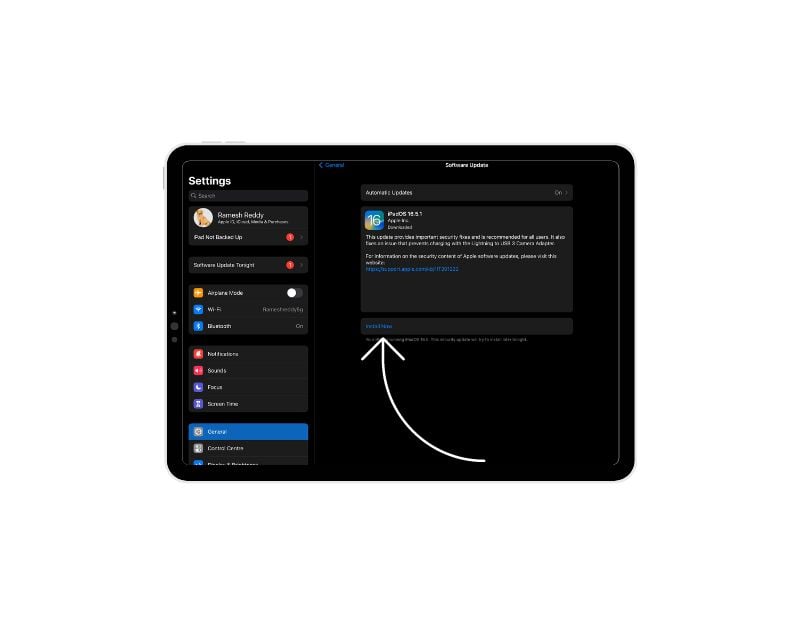
Update your iPad to the latest version and check if the problem is fixed. Sometimes, the sound problem is caused by a bug or glitch in the software. When Apple releases updates, they include fixes for these types of issues. When you update your iPad’s software, you’ll get the latest improvements and bug fixes that will make the sound work properly again. So if you’re having trouble with your iPad’s sound, try updating the software to see if that fixes the problem.
How to update your iPad:
- Open your iPad’s settings.
- Scroll down and go to General settings.
- Tap on Software update.
- Click on “Download and install” if the update is available. Wait for some time until the updates are applied.
Factory Reset Your iPad

If none of the steps above work, you can reset your iPad to factory settings as a last resort. Factory resetting your iPad will erase all data, settings, and personalizations you’ve made on the device. It removes installed apps and deletes your accounts and all files and documents stored on the iPad. You can set it up as a brand-new device. Be sure to back up important data before you factory reset your iPad.
How to factory reset your iPhone:
- Open “Settings” and go to “General. “
- Scroll down and select “Reset. “
- Choose “Erase All Content and Settings. “
- Enter your passcode and Apple ID password when prompted.
- Wait for the process to complete and set up your iPad as new.
Contact Apple Support

If the problem persists, it is likely that it is a hardware issue. To fix the problem, you can contact Apple Support or book an Apple Genius bar appointment to have your device checked on-site.
Prevent future sound issues on iPad
- Keep your iPad up to date: Be sure to update your iPad’s software and apps regularly. Updates often fix bugs and bring improvements that help prevent sound problems.
- Handle your iPad with care: Physical damage can cause sound problems on your iPad. Make sure you treat the device with care.
- Use good accessories: Use headphones, speakers, and other accessories that are suitable for your iPad. Cheap or incompatible accessories can cause sound problems and prevent the iPad from outputting sound.
- Clean the speakers and ports: Keep your iPad’s speakers and ports clean. Sometimes, dust and dirt that gets stuck on the speaker grilles can block the sound or make it sound strange. Carefully remove any dirt with a soft cloth or small brush.
- Restart your iPad sometimes: Restart your iPad from time to time. This will help fix any temporary problems and keep everything running smoothly, including sound issues on your iPad.
- Be careful with software changes: A software update can disrupt or fix the sound on your iPad. Make sure your iPad is updated with the latest version and revert the update if it causes the problem.
- Aware of Sound Settings on your iPad: Make sure you have DND and Mute modes enabled on your iPad. If you accidentally enabled DND mode or Mute mode, you won’t be able to hear the sound on your iPad. To check, you can go to settings>sound> Ringtone and Alert volume.
Troubleshoot iPad Sound Issues
The iPad is a great source of entertainment and also for professional work. It can be very frustrating when you can’t hear anything on the iPad. If you follow the simple troubleshooting methods, you can restore sound on your iPad in no time. We hope you find this guide helpful.
FAQs Fixing iPad Sound Issues
1. How do I know if my iPad’s sound issue is software-related?
There is no direct way to determine if the problem is caused by the hardware or the software. But there are some tools you can use to find out.
- Try checking if the specific app is causing the issue: The first and also most effective method is to check if a particular app or iPad feature is causing the problem. If it is, the problem is most likely due to the software. You can restart the app, reset all network settings, factory reset your iPad, or update the software to fix the problem.
- The sound has stopped after the update: If you don’t hear sound after an update, the problem is probably with the software update. It’s a software issue, and you can go back to the previous update to fix the problem.
- Sound glitches: If the iPad works fine and then occasionally drops out, it’s more likely to be a software problem.
2. Can I fix sound problems on my iPad without professional help?
Yes, if the problem is most likely caused by a software issue. You can try methods like restarting your iPad, updating the iPad software to the latest version, adjusting some settings, and finally, if none of these work, factory resetting your iPad. If the problem is hardware-related, please contact Apple customer service and schedule an appointment at the Apple Genius Bar. It’s important to know that trying to fix the problem yourself can be risky. If you’re not a professional, you may damage your iPad or make the problem worse. It’s best to get help from an expert or contact Apple Support for assistance.
3. Will resetting my iPad erase all my data?
iPad offers several options for resetting. Only the “Erase all content and settings” option will erase the data on your iPad. Here are all the other common reset options on iPad and what happens when you reset it:
- Reset all settings: Data isn’t deleted, and network settings, keyboard dictionary, location settings, privacy settings, and Apple Pay cards are removed or reset to default values.
- Reset Network settings: It’ll reset all network settings on your iPad and all Wi-Fi and Bluetooth settings; you’ll need to re-enter your Wi-Fi passwords and re-establish your network and Bluetooth connections. This won’t affect your personal data, like photos or messages. It only resets your internet and Bluetooth connections.
- Reset Keyboard Dictionary: Resetting the keyboard dictionary on an iPad will delete any new words your iPad has learned from you. After resetting, your iPad will no longer suggest those words when you type.
- Reset Home Screen Layout: Resetting the layout of your iPad’s home screen will delete any folders you’ve created and put all apps back in the order you found them when you bought your iPad. It’ll also remove any customizations you made to your iPad home screen.
- Reset iPad location and services: When you reset your iPad’s location and privacy settings, it forgets any permissions you’ve given apps to use your location or other private information. After the reset, you’ll have to give those permissions again when apps ask for them.
4. What should I do if the sound problem occurs only in certain apps?
If the sound problem only occurs in certain apps, try updating the apps or using other methods, such as force-stopping the app or reinstalling the apps. Also, check if the problem is broader and affects not only you. If this is the cause, wait for some time until the developer of the app fixes the issue.
Further Reading
- 10 Ways to Fix iPad Touchscreen Not Working Issue
- 16 Comprehensive Ways to Fix iPad Battery Drain Issues
- AirDrop Not Working? Try These Fixes to Resolve Common AirDrop Problems
- Apple Pencil Not Working? Here Are 9 Ways to Easily Fix the Problem

