

Quick Answer
Transferring bookmarks from one computer to another can be tricky, especially if you do not choose the automatic route. To ease your efforts, browsers rely on importing and exporting HTML files to transfer bookmarks, which you can do by yourself too. HTML files are universally compatible with all browsers, so you can import an exported bookmark file to an entirely different browser if you want to! It doesn’t get easier than this.
It won’t be a fine afternoon if you decide to switch computers because it’s one daunting task. As tiring and lengthy as it is, thanks to importing data, setting up the new PC, and resetting the old PC, you must agree that switching browsers is even more drilling. Transferring bookmarks from one computer to another is an essential step in the process and is often left unattended.

While most browsers inherit the feature that seamlessly transfers your stuff, including browser history, bookmarks, and cache data, you may still run into trouble with that. Yes, sync exists, too, but you must have a separate browser account (and Internet connectivity) for that. So, the sole option left is manually transferring the bookmarks, which is a fail-proof method.
This article elaborates on effective ways to transfer bookmarks from one computer to another for Chrome, Microsoft Edge, Opera, Safari, or Mozilla Firefox.
Table of Contents
Transfer Bookmarks Automatically
Before we get into the manual side of things, let us inform you that most browsers, if not all, have the built-in ability to seamlessly transfer bookmarks from your old browser. It’s a fast and one-click operation that transfers bookmarks and other settings.
For instance, the Opera browser allows you to transfer your bookmarks during installation, setup, and within the browser settings. You can select the required browser from which you wish to transfer your bookmarks, including Google Chrome, Microsoft Edge, Safari, and Firefox.
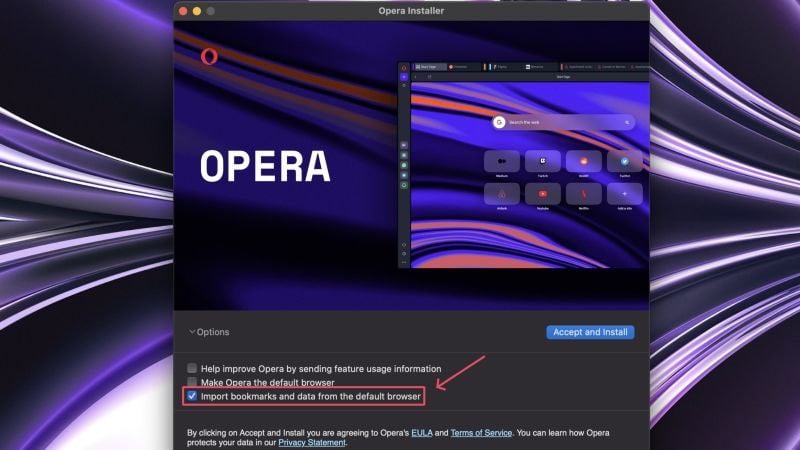
Furthermore, if you do not switch browsers and stay on the same one on your new PC, your browser will automatically load your bookmarks and other synced data. For this, you must have sync enabled on the old browser and be logged in, too.

Transfer Bookmarks Manually
Let’s say you can’t use automatic transfer due to unforeseen circumstances; manual transfer is your best bet. Apart from automatic transfers, every browser supports importing and exporting bookmarks. This comes very handy when you are not just switching browsers but also computers, as you can always store the exported bookmark data in an external storage drive and import it on your other computer. Since every browser relies on the trusty HTML file format for importing and exporting bookmarks, you need not necessarily import it within the same browser on your other PC.
Let’s check out the procedure for some popular browsers that are present out there.
Google Chrome
- Open Google Chrome on your old computer.
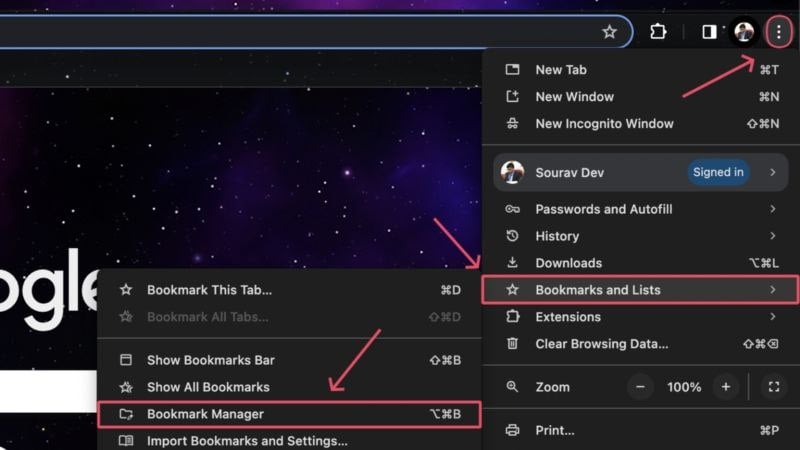
- Click on the kebab menu icon (⁝) from the toolbar at the top and hover the cursor over Bookmarks and Lists.
- Select Bookmark Manager from the dropdown menu. Instead, you can directly visit chrome://bookmarks/ by pasting it in the address bar.
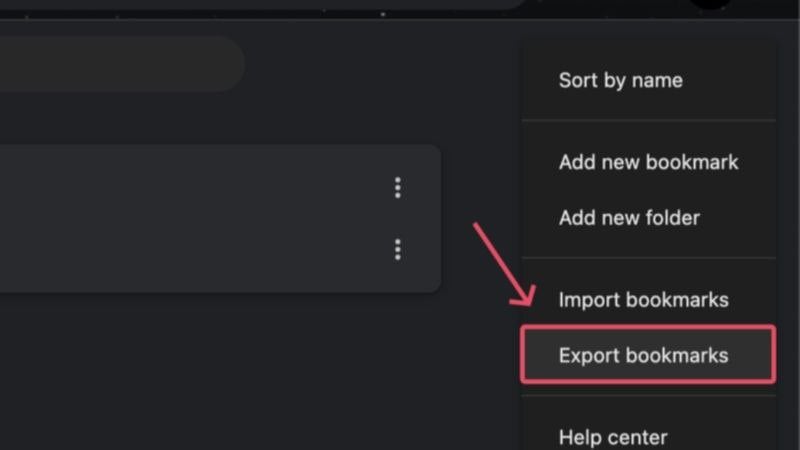
- Click on the kebab menu icon (⁝) from the top-right corner and select Export bookmarks.
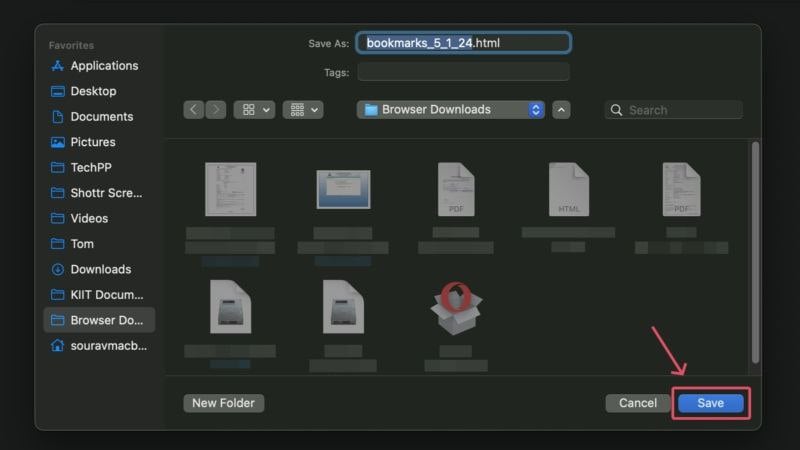
- Save the file at the desired location. We recommend saving the export file (.html file) on an external storage device so that you can import it to your new PC.
- On the other PC, run the browser of your choice. Again, the new browser doesn’t necessarily have to be Google Chrome, but for the sake of uniformity, we will continue the procedure for Google Chrome.
- Click on the toolbar’s kebab menu icon (⁝) and hover the cursor over Bookmarks and lists.
- Select Import Bookmarks and Settings… from the dropdown menu. Alternatively, you can also visit chrome://settings/importData.
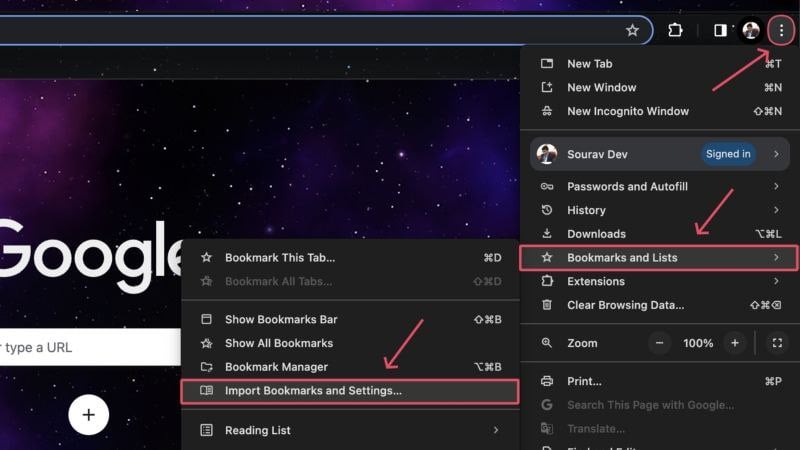
- Ensure Bookmarks HTML File is selected and click on Choose File.
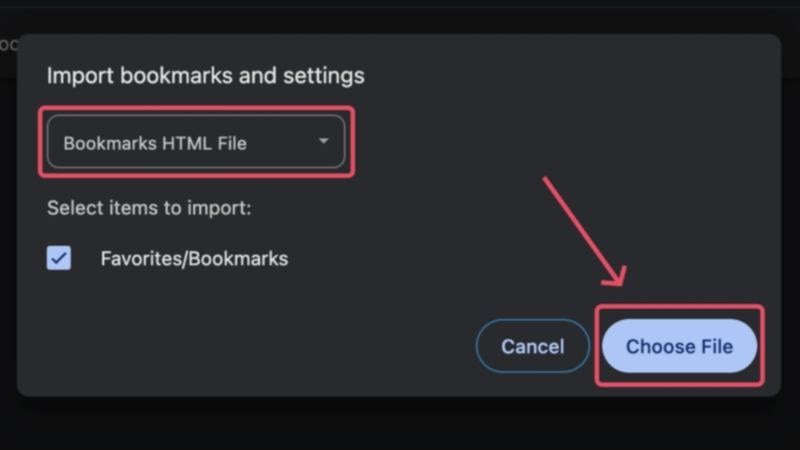
- Plug in your storage device and import the exported bookmark file ending with a .html extension.

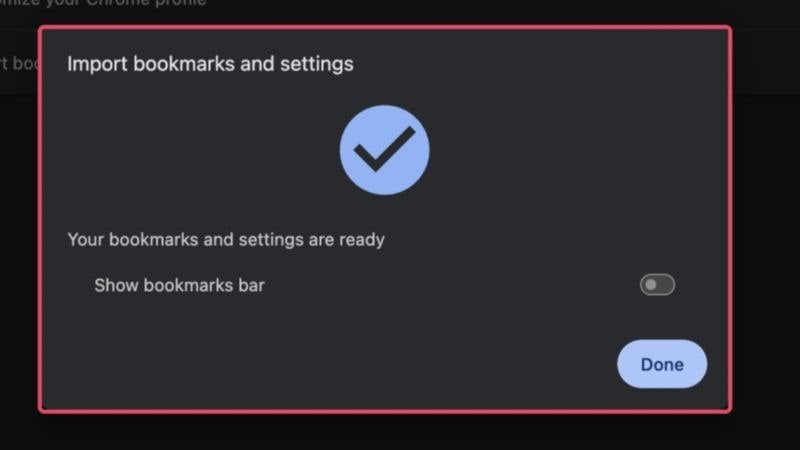
That’s it! Your bookmarks will be imported to your new browser in no time.
Microsoft Edge
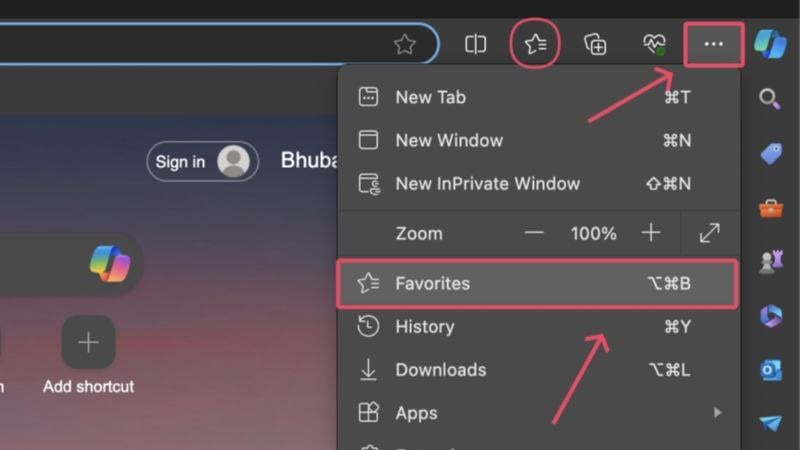
- Microsoft Edge refers bookmarks as favorites, which is represented by a star symbol in the toolbar. Click on it.
- If you can’t locate it, click the meatballs menu icon (⋯) from the toolbar and select Favorites.
- Click the meatballs menu icon (⋯) within the dropdown menu and select Export favorites. Alternatively, you can visit edge://favorites/ and follow the same steps to export favorites.

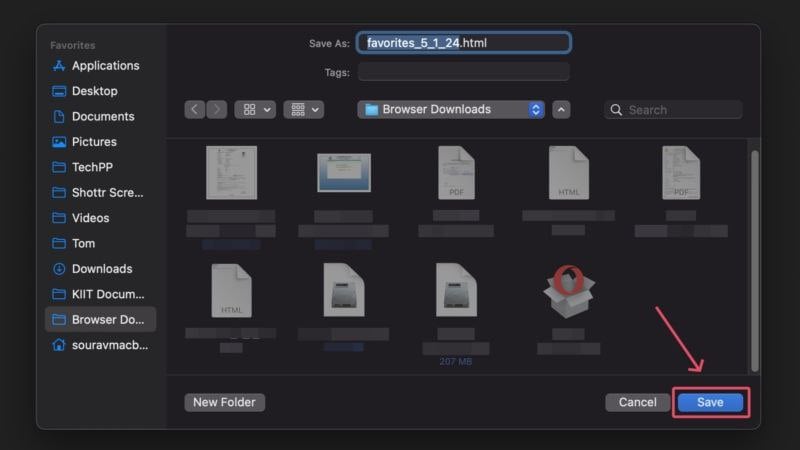
- Choose your preferred location to save the exported file. Consider saving it to an external storage device if you wish to import the exported file to a different PC.
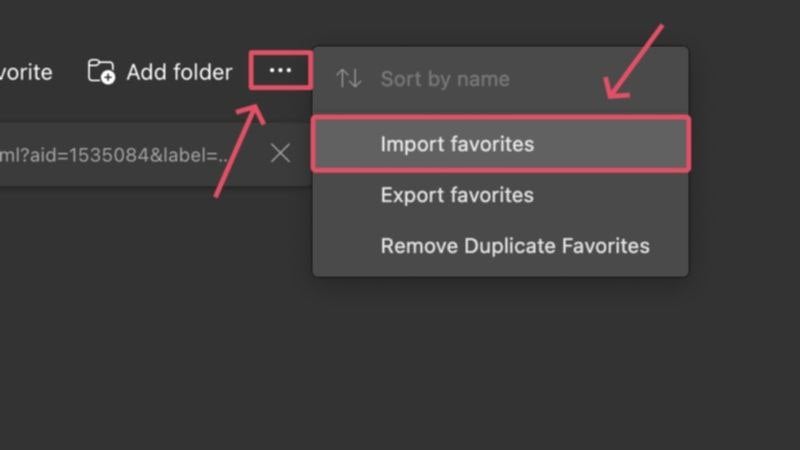
- Open the browser on your other PC and visit edge://favorites/.
- Click on the meatballs menu icon (⋯) and select Import favorites.
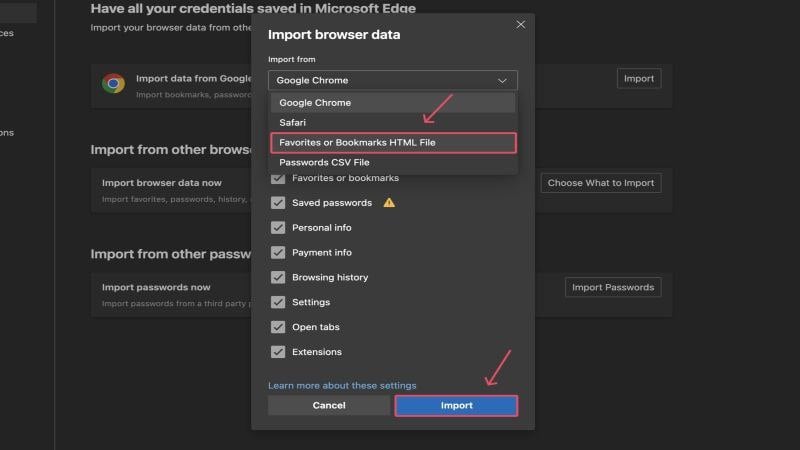
- Select Choose What to Import under Import from other browsers.

- Click on the dropdown menu below Import from and select Favorites or Bookmarks HTML File. Then click on Import.
- Select the required .html file from the file manager window and click Open. If you have the file saved on an external storage drive, plug in the drive and select the file from there.

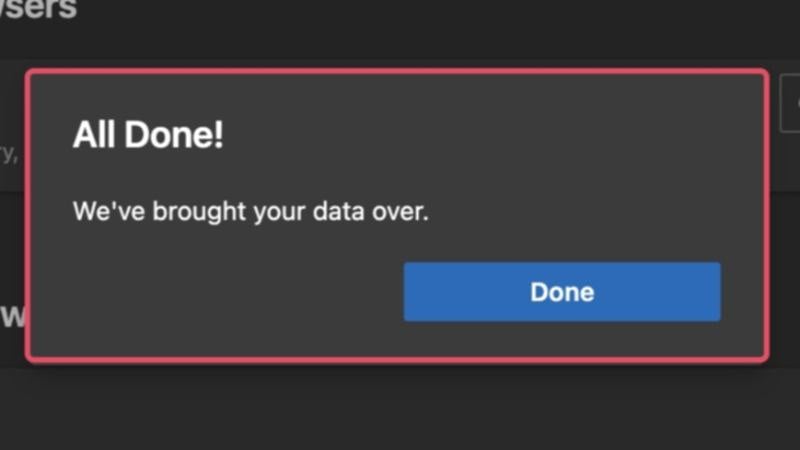
With this, your bookmarks will be transferred to Microsoft Edge from your old computer.
Mozilla Firefox
- Open the Firefox browser and click the hamburger menu icon (☰) from the toolbar.
- Select Bookmarks from the dropdown menu.
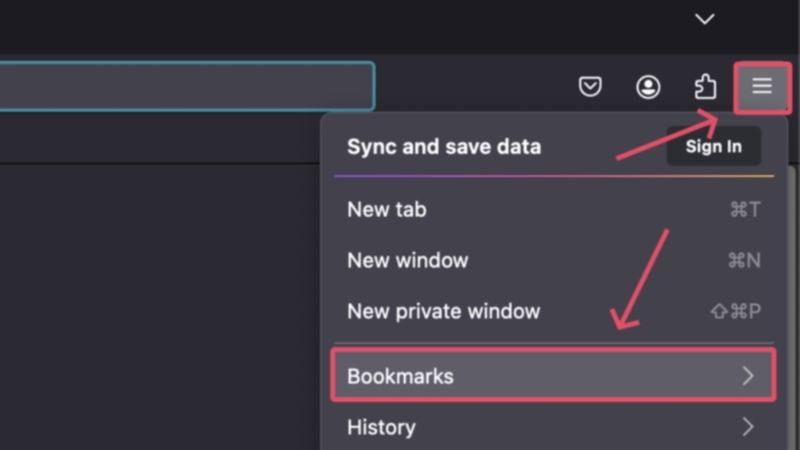
- Click on Manage bookmarks.

- Click on the icon with upward and downward-facing arrows and select Export Bookmarks to HTML…
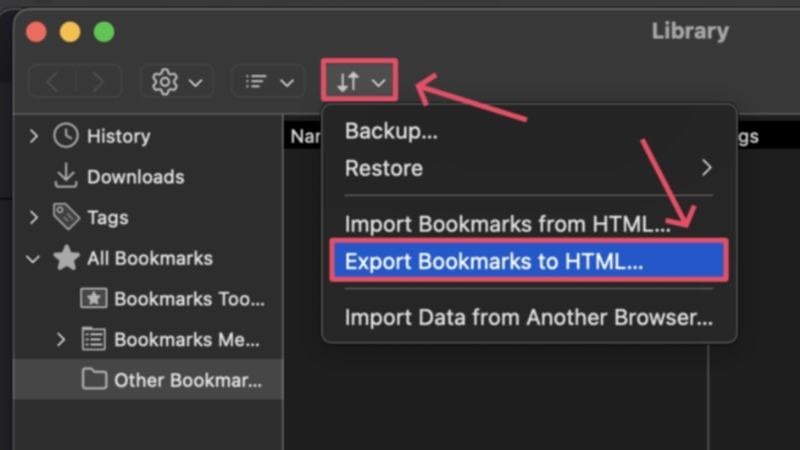
- Choose where you wish to save the file or an external storage drive to import your bookmarks to a new computer. Click on Save.

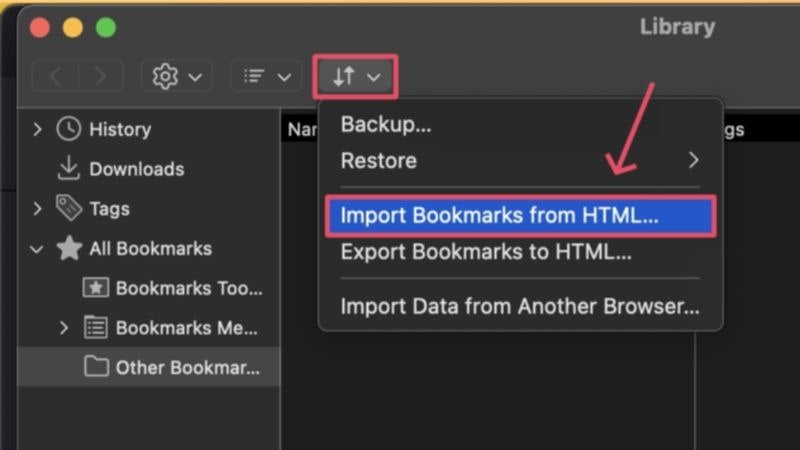
- On the other PC, you can follow the same steps and choose Import Bookmarks from HTML…. Alternatively, you can visit about:preferences by pasting in the address bar.
- Select Import Data.
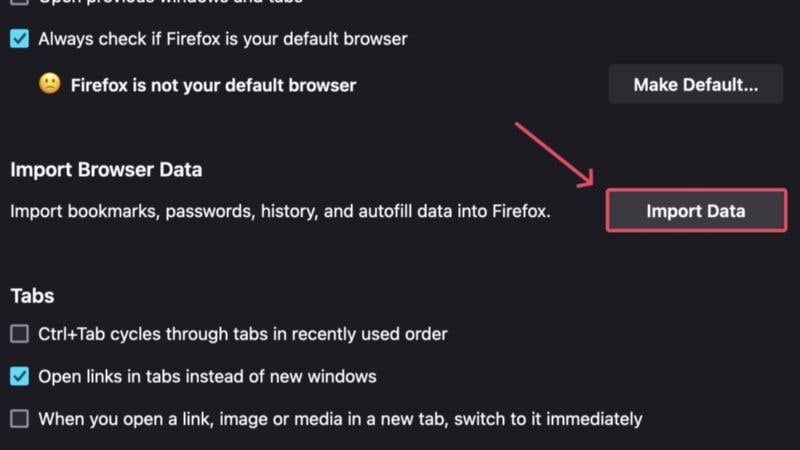
- Click on the dropdown menu and select Bookmarks from HTML file.
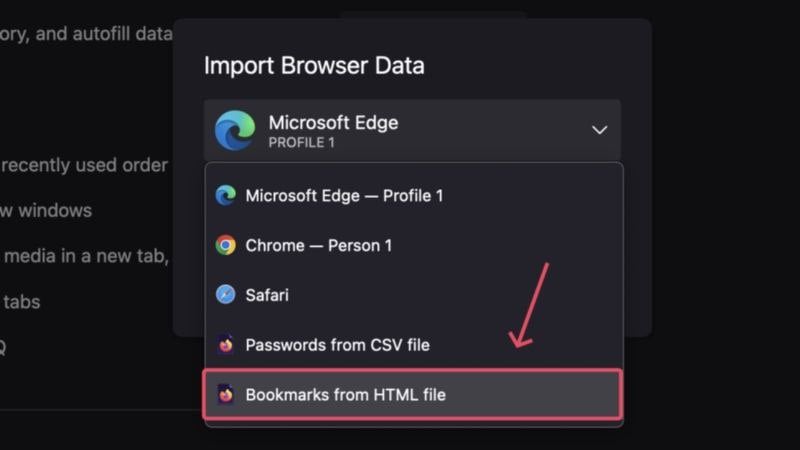
- Select the required .html file from the file manager window and click Open.

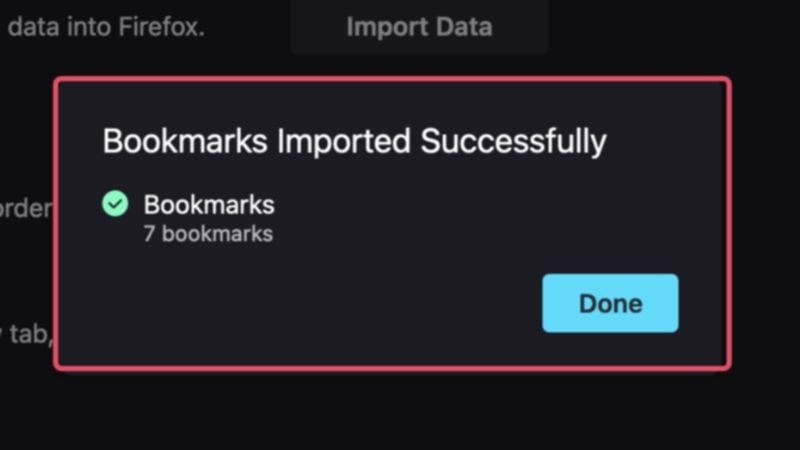
Voila! Your bookmarks will be imported to Mozilla Firefox in no time.
Opera
- Open the Opera browser and click the meatballs menu icon (⋯) from the bottom left corner.
- Click the arrow icon beside bookmarks to open them in a new tab. Alternatively, you can visit opera://bookmarks directly.

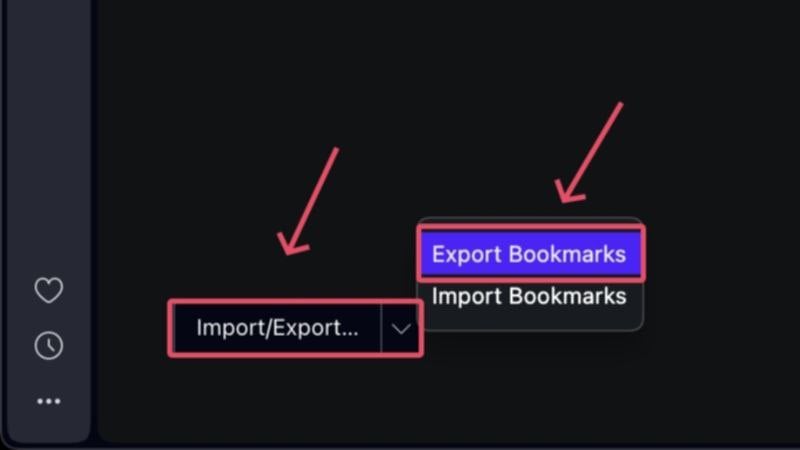
- Select the dropdown menu at the bottom left corner and click on Export Bookmarks.
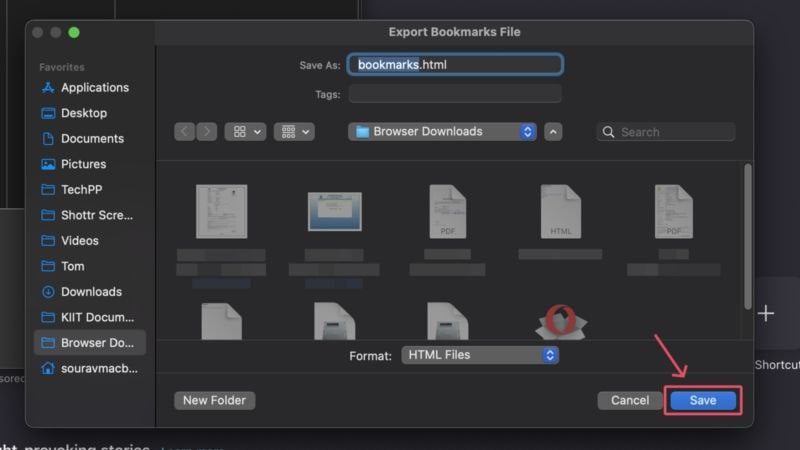
- Choose your preferred file-saving location and Save the .html file. You can also consider saving the file to a storage drive to transfer it to another computer.
- Open Opera on your other PC and navigate to the same settings page by pasting opera://bookmarks in the browser’s address bar.
- From the dropdown menu at the bottom left corner, select Import Bookmarks.

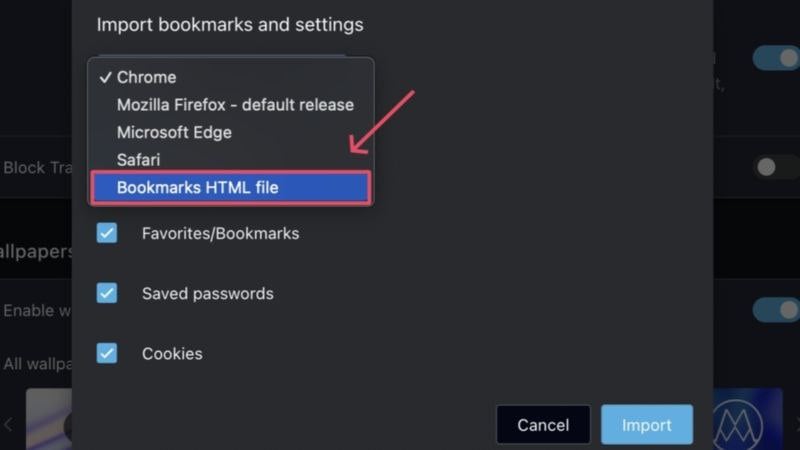
- A new window will open where you must select Bookmarks HTML file from the dropdown menu. Click on Choose File.
- Select the required .html file from the file manager window and click Open.
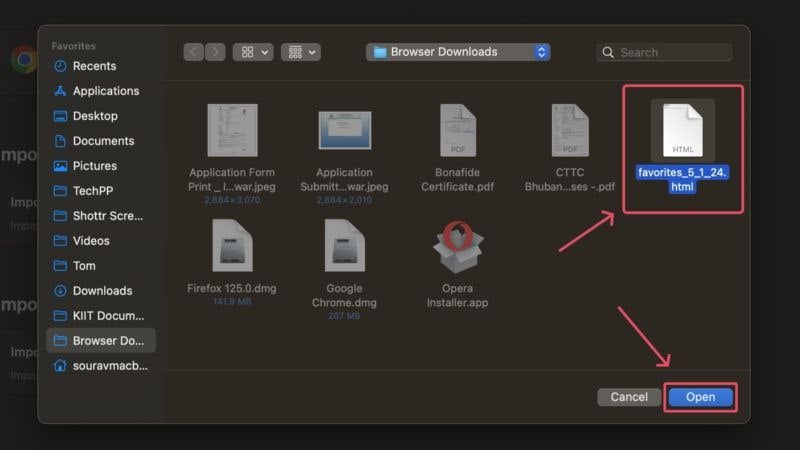
Your bookmarks will be imported over to the Opera browser.
Safari
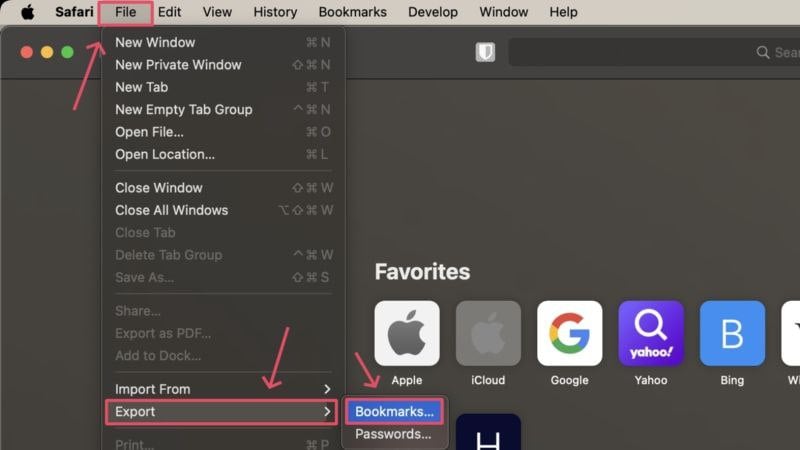
- Open Safari on your Mac. Click on the File icon from the menu bar and cover the cursor over Export. Select Bookmarks… from the dropdown menu.
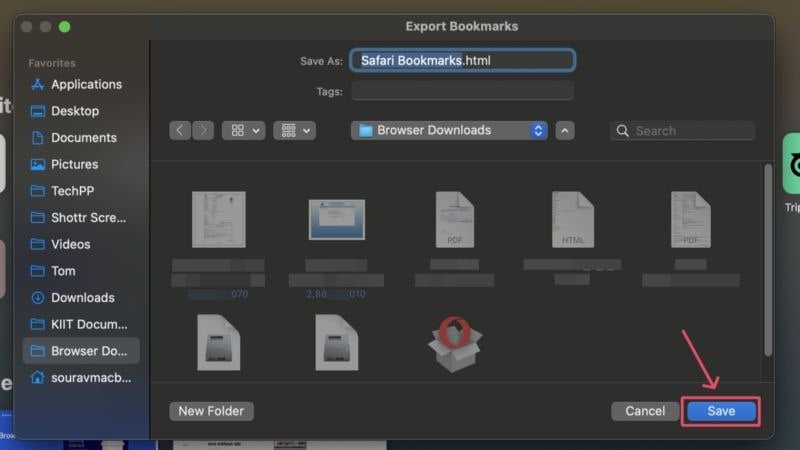
- Save the file to your desired location or an external storage drive if necessary. Click on Save.
- On your other Mac, click on the File icon from the menu bar and cover the cursor over Import From. Select Bookmarks HTML File… from the dropdown menu.

- Select the required .html file from the file manager window and click Import.
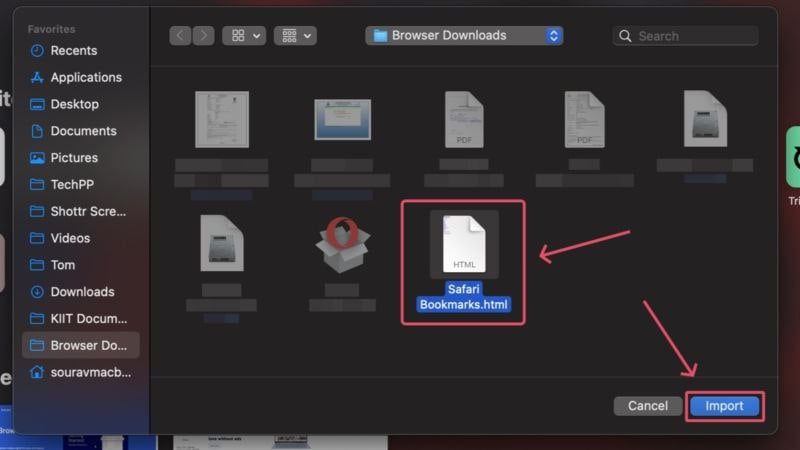
That’s all! Your bookmarks will be transferred over to Safari.
Transfer Bookmarks From One Computer to Another
Bookmarks are essential to an ideal browsing experience, so you can only imagine the inconvenience caused by not having them on your new machine. Transferring bookmarks is fairly easy since most browsers follow a similar method. It takes no more than a few seconds to get going once again, all without much effort.

