

Quick Answer
Google Contacts lets you transfer contacts between Android smartphones by syncing them with your Google account. Alternatively, you can share contacts using VCF files. This article covers these methods and more to assist you.
Do you need to transfer contacts between two Android smartphones? Some individuals’ common concern when upgrading to a new phone is moving contacts from the old device to the new one.

Besides, you might want to have the contacts on one of your Android phones accessible on your other Android phone(s). Fortunately, this is entirely possible using some very straightforward methods.
One of the most popular and reliable methods to transfer contacts from Android to Android is using Google Account Backup, which is safe and easy to use. In this article, I’ll explain how to transfer contacts using Google Account and other hassle-free methods you can use. Keep reading to find out.
Table of Contents
How do I transfer my contacts from my old Android to my new Android?
There are several methods available for transferring contacts between your Android smartphones, and below are the most recommended ones, along with descriptions of how to use them:
Sl. No. | Method | Description | Pros | Cons |
|---|---|---|---|---|
1 | Google Contact Sync | Uses Google account syncing features to back up and sync contacts across devices. | - Automatic and continuous syncing - easy and quick setup. | - Requires an internet connection and a Google account - May need to enable settings manually. |
2 | Export Contact as a VCF | Export contacts as a VCF file and transfer them to the new phone. | - Can be done offline - VCF file can be easily shared via multiple methods (email, Bluetooth, etc.). | - Manual process - Might miss some contacts if not all sources are selected - Requires file transfer and manual opening. |
3 | Use Third-party Apps | Utilize apps like Easy Contact Backup and Restore, DroidKit, and Droid Transfer to back up and restore contacts. | - Often offer additional features like SMS and media backup - Some apps support cross-platform transfers. | - May require downloading and installing third-party apps - Potential security risks with third-party apps. |
4 | Transfer with SIM Card | Transfer contacts saved on the SIM card by moving the SIM to the new phone and copying contacts to the phone. | - Simple and straightforward - Does not require internet or additional apps. | - Limited by the storage capacity of the SIM card (usually up to 250 contacts) - May not support all contact details (e.g., photos, emails). |
Google Contact Sync
You can use Google Contact Sync to transfer contacts from Android to Android smartphones. This is made possible by the syncing features provided by your Google account contacts on Android phones.
You need to make sure contact syncing and backup are enabled in the Contact settings on both the phone you’re transferring from and the one you’re transferring to for this approach to work.
This will create a backup of your contacts and sync them across all devices logged into the same Google account.
Here is the step-by-step guide on how to transfer contacts between Android smartphones:
1. Go to the Settings app on the Android phone you want to transfer from.
2. Navigate to Account on the Settings page and click it.

3. Click on the Gmail account you want to sync your contact with and select Account Sync or Sync account.
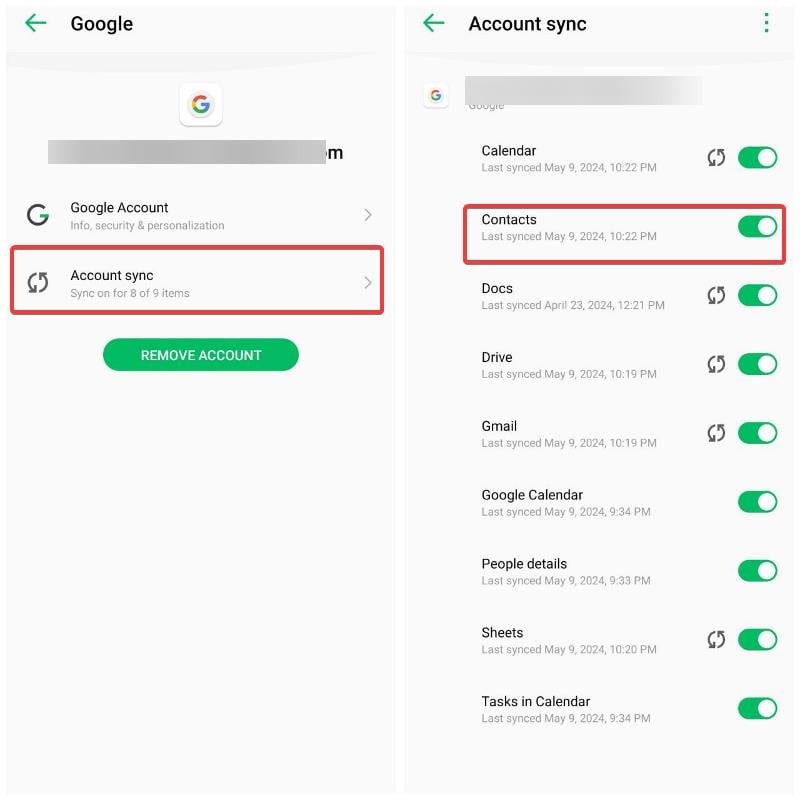
4. Next, make sure the slider next to Contacts is enabled and that it was recently synced.
Alternatively, you can sync your contacts via your phone Contacts app. I recommend using the Google Contacts app as your default contacts app because the steps to transfer contacts are straightforward, and that’s what I’m using for this piece, too.
1. Open Google Contacts on the Android phone you want to transfer from and click on your profile menu at the top-right corner.
2. Next, select Contacts settings and click Google Contacts sync settings.
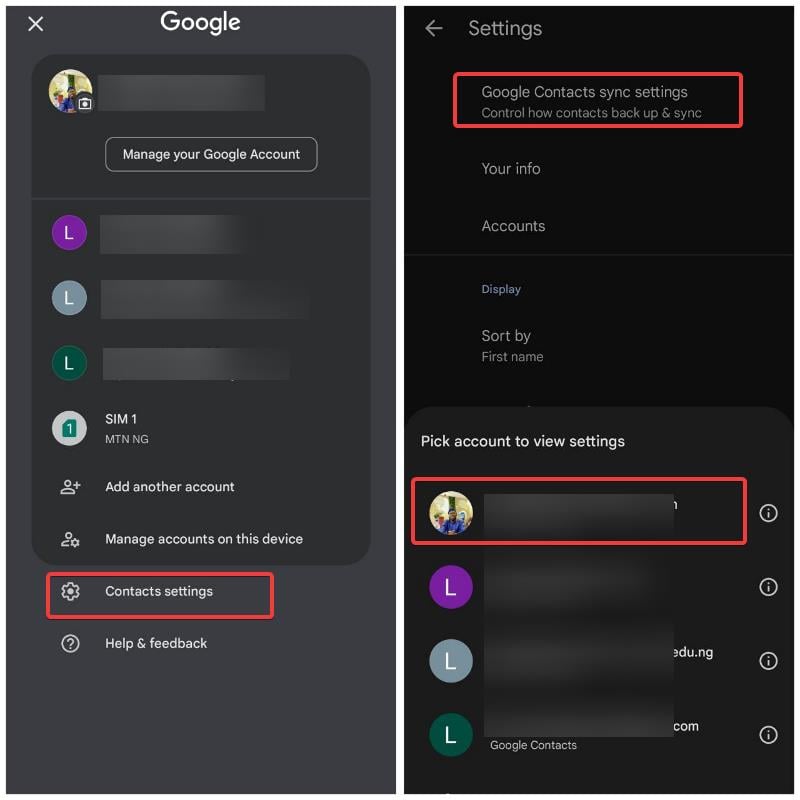
3. Choose the Google account you want to sync your contacts with.
4. Click the Status option, then toggle on the slider next to Google Contacts sync.
5. Now, return to the previous page and select Also sync device contacts.

6. On the next page, toggle on the switch next to Automatically back up & sync device contacts.
Export Contact as a VCF
You can also transfer contacts from Android to Android by sharing them as VCF. This can be done by following the steps below:
1. Open the Google Contacts app on the Android phone from which you want to transfer contacts.
2. Select the Organize tab, then click Export file.

3. Choose the sources to export contacts from; it’s recommended to select all options to ensure all your contacts are exported.
4. Click Export, then select the location in your phone storage where you want to save the contacts file.
5. After saving the contact file (VCF), send it to the other Android phone. Open the file on the new phone to automatically add all the contacts.
Alternatively, you can directly share contacts from an Android smartphone with another using the share option on the Contact app. Following are the steps to do that:
1. Open the Contacts app and open your contacts.
2. Click and hold one of your contacts, select the three-dot menu at the top-right corner, and choose Select All.

3. Next, click the Share icon at the top of the contacts page and choose your preferred method to share all the selected contacts with another.
Use third-party Apps
You can use third-party apps like Easy Contact Backup and Restore to back up your contacts on an Android phone and restore them on another Android phone. Additionally, other apps like DroidKit, Droid Transfer, and many desktop-based apps offer the same features for transferring contacts between Android devices. These apps allow you to access your contacts on one Android phone and transfer them seamlessly to another.
Transfer Contacts with Your SIM Card
Using SIM cards to transfer contacts between Android phones is a method many of us have relied on for years. If your contacts are saved on the SIM card in the phone you want to transfer from, simply remove the SIM card and insert it into the new Android phone. Then, move or copy the contacts to the phone.
Final Thoughts
Finally, the methods discussed in this article will help you transfer contacts from Android to Android effortlessly. The Google Contacts approach and the VCF file method are the most straightforward, and I have explained how to use them. I hope this guide helps you.
FAQs About Android Contacts Backup
How do I restore my contacts to my new Android phone?
You can restore contacts on your new Android phone using Google Contacts, but this only works if you've previously backed up your contacts to your Google account. Alternatively, you can restore your contacts using a VCF file after creating it on the phone where your contacts were originally saved.
Why did my contacts not transfer to my new Android phone?
If you haven't previously synced your contacts with your Google account, or if you haven't synced your Google account with your new Android phone, your contacts will not transfer to the new device.
Can I transfer a single contact from one Android smartphone to another?
Yes, you can transfer contacts from one Android smartphone to another by sharing your contacts as a VCF file. You can also back up your contacts to Google Contacts on the phone you are transferring from and restore them on the Android phone you are transferring to.
Further Reading:
- How to Fix Call History Not Showing on Android
- [WhatsApp] Set Custom Notification Sound for Specific Contact and Group
- How to Link an Android Phone to a Windows PC Using Microsoft Phone Link

