

Quick Answer
If you use Chrome or Firefox, the easiest way to hide AI Overviews in Google Search is to use TenBlueLinks’ workaround. It involves reconfiguring your browser’s search engine settings, and the best part is that it lets you hide AI Overviews on mobile, too.
Other options include using Chrome extensions like “Bye Bye, Google AI” or setting a new filter in uBlock Origin.
AI Overviews is an evolved version of SGE (Search Generative Experience) that offers easy-to-digest AI-generated summaries of results from various websites on top of the Search page. The idea behind the feature is to provide comprehensive answers to users’ queries to save them the hassle of visiting various websites.
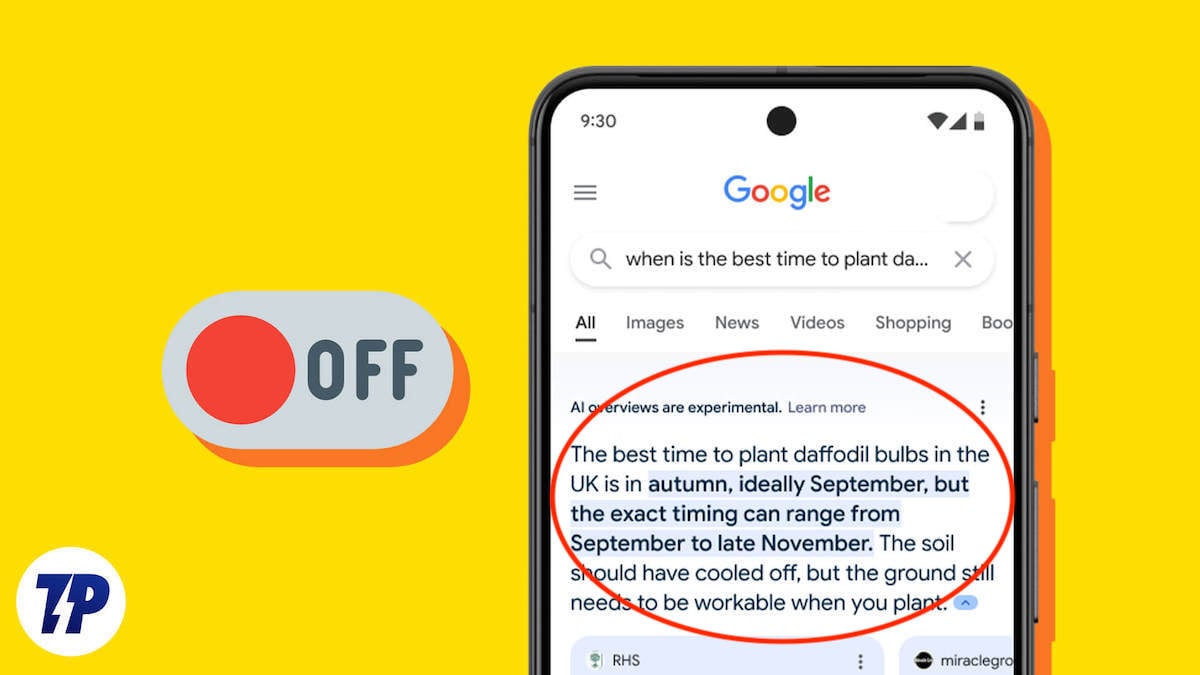
However, in the limited time since AI Overviews has been around, some users have complained about its inaccurate results. Plus, many are skeptical about what the search experience would be like once Google integrates ads into AI Overviews.
Sadly, Google doesn’t allow a way to disable AI Overviews in Google Search; the best you can do is go to the Web tab to avoid it. However, people on the internet have come up with solutions to hide it permanently and return to the traditional search experience. Here are three such ways to hide AI Overviews in Google Search.
Table of Contents
How to Hide AI Overviews in Google Search
Sl. No. | Method | Description | Platforms |
|---|---|---|---|
1 | Reconfigure Browser | Use TenBlueLinks' workaround to hide AI Overviews. | Chrome (Android, iOS, macOS, Windows), Firefox (macOS, Windows) |
2 | Chrome Extension | Use the "Bye Bye, Google AI" extension to hide AI Overviews. | Chrome (macOS, Windows) |
3 | uBlock Origin | Set up a new filter in uBlock Origin to hide AI Overviews. | Any browser with uBlock Origin |
Hide AI Overviews in Google Search by Reconfiguring Your Browser
If you use Chrome or Firefox, the easiest way to hide AI Overviews in Google Search is to use TenBlueLinks’ workaround. It involves reconfiguring your browser’s search engine settings, and the best part is that it lets you hide AI Overviews on mobile, too.
Reconfigure Chrome to Hide AI Overviews
Chrome users can use the TenBlueLinks workaround on all platforms — Android, iOS, macOS, and Windows — to hide AI overviews.
On macOS and Windows:
- Open Chrome and visit the Search Engine settings page.
- Look for the Site Search section on the right and click the Add button.
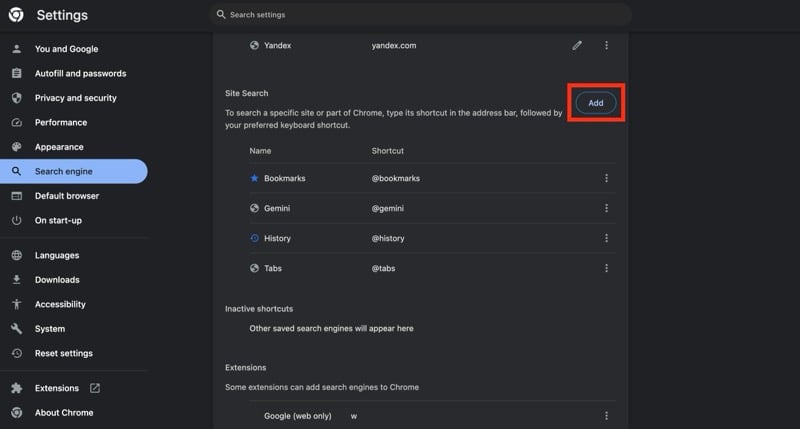
- Populate the fields in the Add Site Search popup as shown below and hit the Add button:
Search engine: Google Web
Shortcut: @web
URL: {google:baseURL}search?q=%s&udm=14

- You’ll now see Google Web as one of the Site Search entries. Click the ellipsis button next to it and select Make Default.
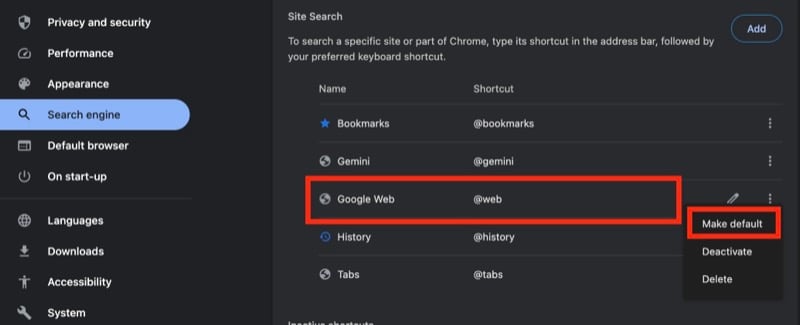
On Android and iOS:
- Open TenBlueLinks’s website in Chrome on your Android or iPhone.
- Open a new tab and make a search query in Google Search.
- Tap the ellipsis button in the top-right corner (on Android) or bottom-right corner (on iPhone) and select Settings from the menu.

- Tap on Search Engine and select Google Web under the Recently Visited section.

Reconfigure Firefox to Hide AI Overviews
Unlike Chrome, TenBlueLinks’ workaround for Firefox works only on macOS and Windows.
- Open TenBlueLinks’s website in Firefox.
- Right-click on the address bar and select Add Google Web from the context menu.

- Click the hamburger menu next to the address bar and choose Settings.
- Select Search from the left sidebar.
- Click the drop-down button for Default Search Engine and select Google Web from the menu.

Hide AI Overviews in Google Search Using a Chrome Extension
If you use Chrome on your Mac or Windows PC, you can use the Bye Bye, Google AI extension, created by Tom’s Hardware’s Avram Piltch, to hide Google’s AI Overviews from Search.
Although there’s another popular extension, Hide Google AI Overviews, which lets you hide Google’s AI Overviews, what’s nice about the Bye Bye, Google AI extension is that it also lets you remove other sections on the Google Search page, like featured snippets, sponsored links, shopping blocks and more, for an even cleaner browsing experience.
Begin by downloading and adding the Bye Bye, Google AI extension to Chrome, and then follow these steps to use it:
- Click the Bye Bye, Google AI extension’s icon in the Chrome toolbar and select Manage Extension.
- Make sure the extension is turned on.

- If you want to hide AI Overviews in incognito tabs, too, toggle on the option for Allow in Incognito.

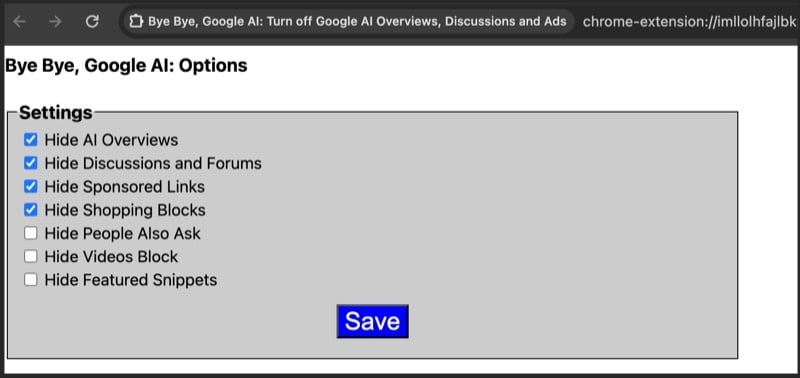
- To hide other elements on the Search page, click on Extension Options, and on the following, check off the checkboxes next to the elements you want to hide and hit Save.
Hide AI Overviews in Google Search Using uBlock Origin
If you find the above workarounds tough to follow–and already use the uBlock Origin extension in your browser to block ad content–you can set up a new filter in uBlock Origin, as suggested by a Reddit user (u/Neth110), to hide Google AI Overviews from the Search page. This filter seemingly targets the CSS class (GCKpu), which Google uses for the AI Overview element on the Search page, and hides it.
If you don’t already use uBlock Origin but would like to use this method, start by downloading uBlock Origin and adding it to your browser. Then, follow these steps:
- Open your preferred browser and click the uBlock Origin icon in the toolbar.
- Click the three-gear icon in the bottom-right corner of the pop-up to open Dashboard.

- Go to the My Filters tab.
- Paste the following line and click Apply Changes:
google.com##.GcKpu

Enjoy the Traditional Search Experience Till It Lasts
As of the time of writing this, I was able to hide AI Overviews in Google Search using all three methods listed in this guide. However, it’s hard to comment on how long these methods would continue to work. But till they do, you can enjoy an AI-free search experience on Google Search, with complete freedom to access content on any links on the page.

