

Quick Answer
Apple’s latest iOS 18 brings many new features. Although these updates are minor, they can significantly improve the iPhone experience. The useful features include changing quick toggles on the lock screen, customising the Control Center, scheduling iMessages, hiding and locking apps, and more.
Over the years (at least for a decade), Apple has restricted users from personalizing their iPhones, so much so that you cannot place the app anywhere on the home screen. iOS also lacked basic features that Android has had for years. Finally, this will change with the latest version, iOS 18. Apple has added plenty of useful features and customization options to the iPhone. Here are the seven best features you should know about to improve your iPhone experience.

Table of Contents
7 Best iOS 18 Features That Enhance Your iPhone Experience
Change Your Quick Toggles on Your Lock Screen

Now, you can replace the two quick toggles on your lock screen. The lock screen quick toggles are very useful on iPhone, especially the torch toggle, where long-pressing the toggle enables the flash quickly without needing to unlock and visit the control centre.
The other icon on the lock screen is the camera toggle. However, it isn’t as useful for me. In my three years of iPhone use, I barely used the camera toggle and always wished I could replace it with another useful utility. Finally, with iOS 18, I can do that.
You can now replace both quick toggles on the iPhone. Some options include adding shortcuts, remote control, translation, music, etc. I have set the left toggle to the flashlight and the right to scan QR codes. You can set these to anything and change them anytime.
How to change quick toggles on iPhone lock screen:
- Go to the lock screen.
- Long press anywhere on the screen and click on the Customize button.
- Select Lock Screen.
- Tap on the minus symbol to remove an existing icon.
- Click on the plus symbol and select the icon you want to add.
Customise the Control Centre

Another feature of iOS 18 is the ability to customize the control center. You can now add multiple toggles, edit existing ones, and even integrate controls from third-party apps.
You can fill the control center with all the quick controls you need or remove the existing ones to minimize them. For the best experience, you can divide the control center into different pages. On the first page, add all the quick toggles for daily use, like the torch and other utilities. On the second page, you can add third-party apps like music or car keys.
Third-party app support for the control centre is limited as of now. However, similar to the dynamic island, apps are expected to fully utilize the control center’s functionality on the iPhone in the future.
How to use the Customize control center on iOS 18:
- Go to the control center.
- Click on the plus icon on the top left corner of the screen.
- Tap on Add a control and select the control you want to add.
- Select the bottom right corner to resize controls and drag to make it bigger.
- To add a new control page, Click on the plus icon, scroll down to the bottom, and add a new control.
Place Apps Anywhere on the Home Screen
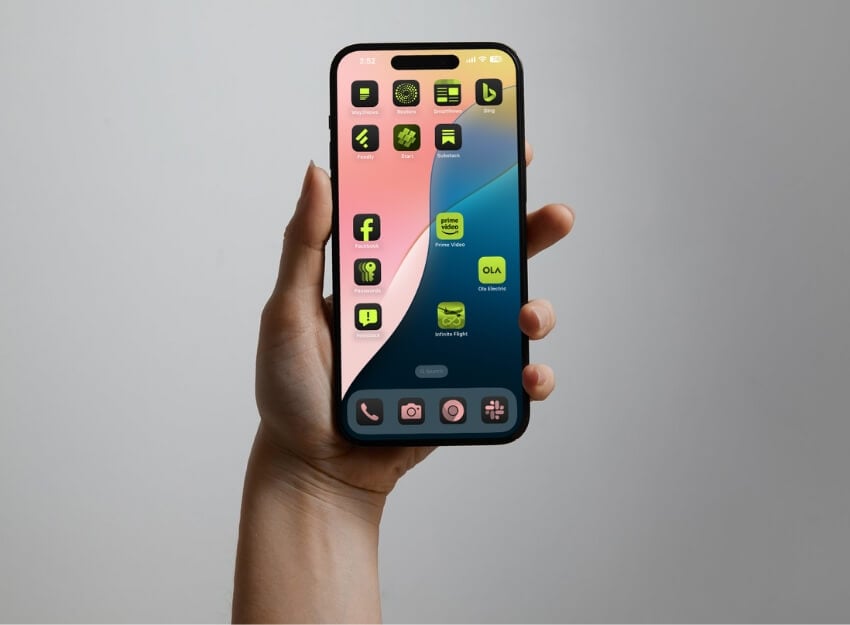
This feature may sound simple, but it took Apple 10 years to bring it to the iPhone. Finally, you can place apps anywhere on the home screen. You decide where to put the apps and can control how fast you access them.
How to rearrange icons on the iPhone home screen:
- Select the home screen you want to arrange.
- Long press on the app and drag and drop it anywhere on the screen.
Hide or Lock Your Apps

Another handy feature added to iOS 18 is the ability to lock or hide apps without using any third-party shortcuts or workarounds. It does exactly what it sounds like. Locking apps prevent unauthorized access from others, and you can set up Face ID to unlock the app. However, locking apps is a bit tricky. Unlike the traditional app locking feature, iOS uses a slightly different method called “Require Face ID.” It works for any app you have installed on your iPhone.
How to hide or lock apps on iPhone:
- Long press the app you want to hide or lock.
- Select Require FaceID.
- To lock, Tap on Require Face ID.
- To lock and hide, Select Hide and Require Face ID.
New App for Managing Passwords, Passkeys, and Verification Codes
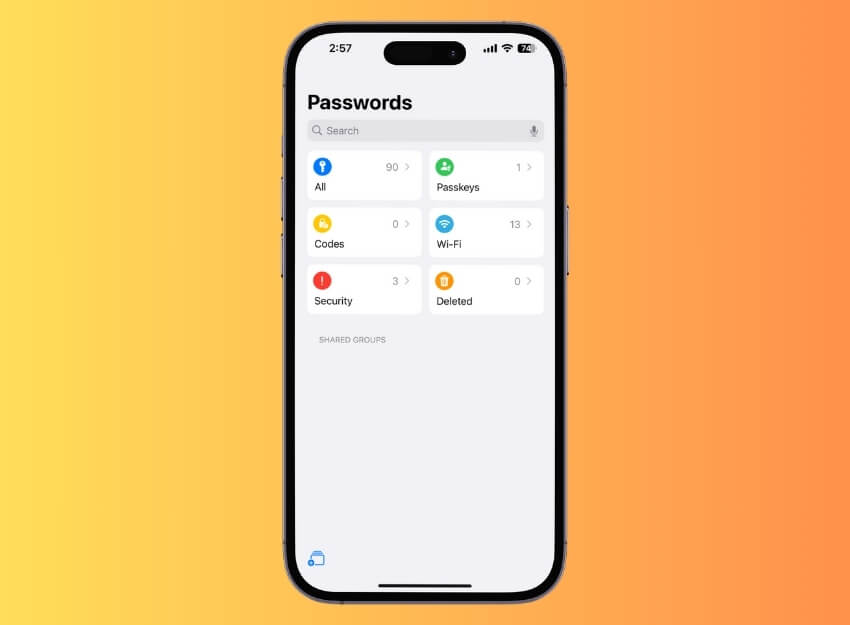
If you ask me, a password manager is a must-have app for anyone. However, most reliable password managers are paid and often suffer from data breaches, which can concern many people. This is where Apple’s built-in password manager comes in handy.
First, it is from Apple, so it can be trusted more than any third-party password manager. Second, it’s time to do so if you don’t use a password manager. If you are already using one, you have to make a choice. The Apple password manager is basic; it only lets you store passwords and works within the Apple ecosystem.
I am currently using Dashlane as my password manager, and I plan to test both Apple Password Manager and Dashlane to see if you should switch from third-party password manager apps. I will share my results in a few days. But Apple’s built-in password manager is still a good option if you start with password managers.
How to use the password app:
- Open the passwords app on your iPhone.
- You will see all your passwords stored here.
- To add a new password, Click on the All, the Plus icon, and add new credentials.
Schedule Messages on iMessage

iMessage has also received several helpful updates. It finally supports RCS, a useful feature for more engaging conversations. However, one feature that can be particularly useful is the ability to schedule messages. I have been waiting for this feature for so long, as I can now schedule messages for specific occasions or birthdays.
Previously, I had to use a shortcut, which was a hassle. I am very thankful to Apple for adding this feature, which is very helpful.
How to schedule iMessage on iPhone:
- Open the iMessage app on your iPhone.
- Go to chat and click on the plus icon. Click on the More and select Send Later.
- Edit the date and time, enter the message, and click the send icon. Your message will be scheduled.
Change the Look of Your Home Screen

Finally, change the way your iPhone looks. Over the years, iPhone screens have looked the same, but now it will change with iOS. You can place apps anywhere on the screen, which these customization options enhance. Here is what you can change:
- Change the color of icons: Changing icons can completely transform the look of your smartphone.
- Resize the apps: Another new feature is the ability to resize apps. This works in two ways: You can resize the apps without labels and convert them into widgets. Currently, this is only supported for system apps.
How to icons color on iOS 18:
- Go to the home screen and long press anywhere on the screen.
- Click on the plus icon on the top left corner of the screen and select Customise
- Now select the icon theme to apply. You can also change the icon’s color using the color slider.
- To resize the icons, Click on the Large tab.
The New Power off Button

Another useful feature is adding a power-off button in the control panel. You can long press the button for a second and turn off the slider to power off your iPhone. The button is added by default when you update to iOS 18.
iOS 18 Makes Your iPhone Better
You should use these seven features to improve your iPhone experience with iOS 18. Although these features are minor updates, they can add significant value by improving your iPhone’s daily use. Whether changing the quick toggles for easy access to the most used functions or scheduling messages to send wishes to your favorite ones, use these features to enhance your iPhone experience.

