

In Summary
- Apple’s most hyped Apple Intelligence (AI) features are now available for supported Apple devices. For iPads, you need an Apple M1 or later to get Apple Intelligence features.
- I have been using them on the iPad for the past two days to take better notes, summarize emails, reduce interruptions while watching movies, and test the new updates to Siri.
- Here are the five best Apple Intelligence features I like the most and how to use them. To get these features, ensure your device runs on M1 or later and uses the latest version of iPadOS 18.1.
Apple has started rolling out Apple Intelligence features to all supported Apple devices, including iPhone, iPad, and Mac. Even though they aren’t as good as I hoped, they can still be very helpful for everyday tasks.

In the previous post, I shared my experience using Apple intelligence features on Mac. I also use an iPad as a secondary device for reading articles, watching media, taking notes, and attending office meetings. Apple Intelligence features are useful for tasks like note-taking and reducing interruptions while watching videos on my iPad. In this guide, you will learn about five features that significantly impact and improve everyday experiences.
Table of Contents
How to Enable Apple Intelligence Features on Your iPad
Apple Intelligence features are available for iPads powered by M1 or later processors. Ensure your iPad is running on iPadOS 18.1 or later to get Apple Intelligence features. To enable this, go to Settings on your iPad, then Apple Intelligence, and turn on the toggle next to Apple Intelligence.

5 Best Apple Intelligence Features on iPad
S.no | AI Feature | How to Use |
|---|---|---|
1 | AI Writing Tools - Rephrase Text | Select text, long-press, and tap "Writing Tools" in the selection menu. |
2 | Enhanced Note-Taking - Summarize Notes | In Notes, tap the Apple Intelligence icon in the toolbar. Use Image Wand in 18.2 update for drawings. |
3 | Summarize and Reply to Emails Quickly | Open an email, tap the summary or reply button for quick smart features. |
4 | Limit Interruptions in Focus Mode | Go to Control Center, select Reduce Interruptions; manage in Settings > Focus Mode. |
5 | Use upgraded Siri 2.0 | Press power button or say "Hey Siri." You can type to Siri for follow-up questions. |
AI – Writing tools
Like on the Mac, AI writing tools on the iPad are helpful. You can use these tools systemwide and on various apps, including Notes and others like Messaging or WhatsApp. You can proofread, rewrite, and change the text’s tone to friendly, professional, and more without any rate limits. Unlike writing tools on your Mac, you can describe the changes you want on your iPad for greater flexibility.
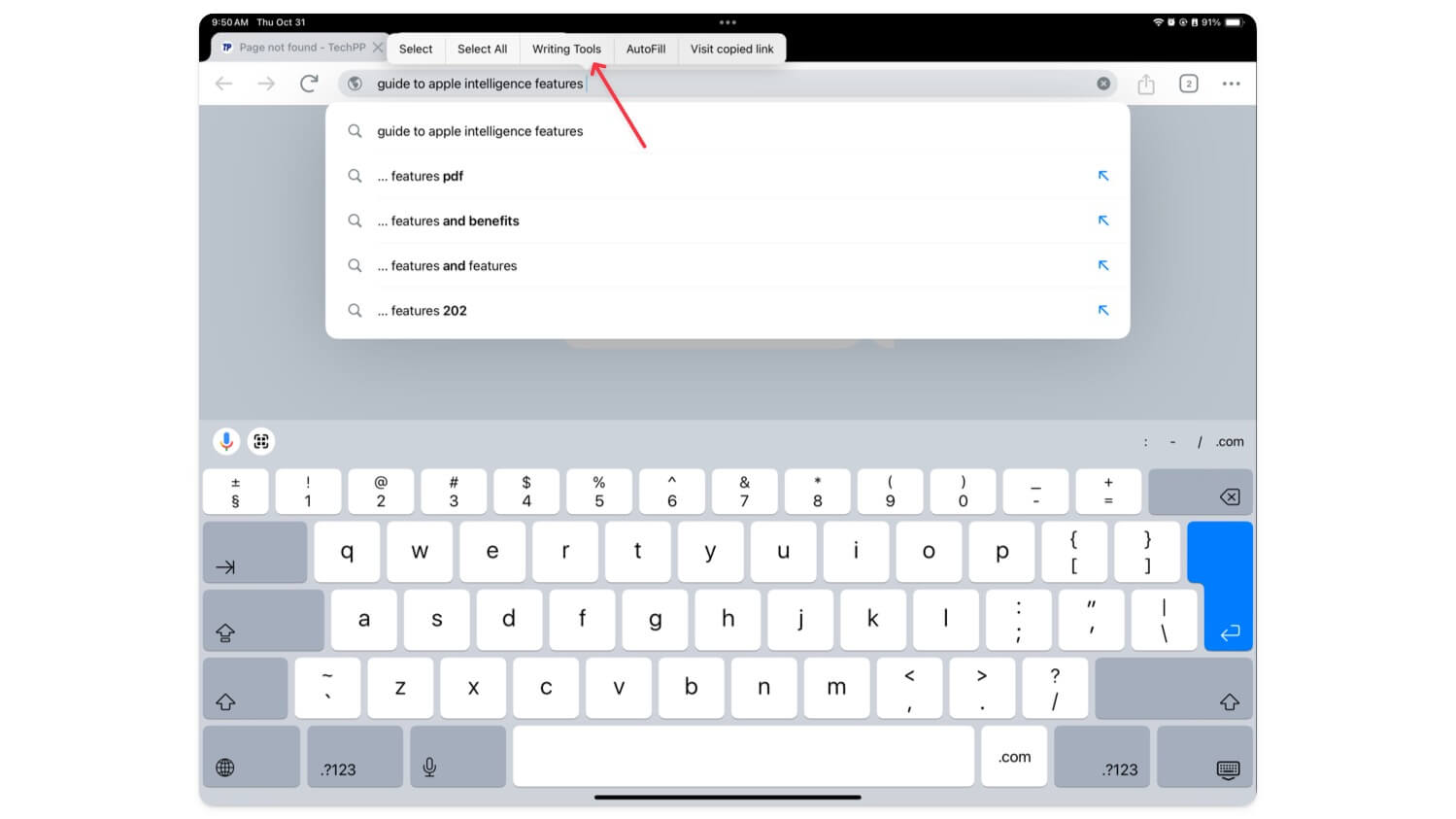
How to use AI Writing tools on iPad:
To use writing tools, Select the text and long press on it, and a new option called “Writing Tools” will appear in the selection menu. Click on it to open the context menu for the writing tools. It works on almost all popular apps, including Chrome, messaging apps, Notes, etc.
Better Note-Taking Features for iPad

Apple has introduced several Apple Intelligence features for the Notes app. You can use AI Writing tools to rewrite, summarize, and turn the text into various forms like table summaries, large text, simple key points, and more inside the Notes app.
In addition, you can describe the changes you want to make to the text, and in the 18.2 update, You can compose text using ChatGPT. You can access Apple Intelligence writing features by tapping the Apple Intelligence icon on the top toolbar in the Notes app.
Apple Notes app also now supports direct voice recording. You can record the voice directly in the notes and translate it into text.
In the upcoming 18.2 update for iPadOS, you can even convert drawings on your notes into more engaging images using AI. See the video below for reference on how it works. I don’t have access to the image playground, but I have requested early access. I will share more details about its performance after I get hands-on with it.
How to use Apple intelligence features in the Notes app:
To use Apple Intelligence features in the Notes app, open the Notes app, start typing, and if you want to rewrite or proofread text, select the text and click on “Writing Tools” to access the AI writing tool. You can also click on the Intelligence icon at the top to bring up Writing Tools.
To use Image Wand (available in the 18.2 update), select the new Image Wand tool from the toolbar. You can convert existing drawings in the notes to an image or describe the image you want to insert. Image Wand is a new feature, and it takes a bit of a learning curve to get familiar with it. Check the video below for a detailed guide.

New Email Priority, Emails, and Smart Replies in the Email App
If you use email on your iPad, With the Apple Intelligence features for the Mail app. You can summarize long emails into key points and reply to them using AI. The email app also supports Apple Intelligence writing features. You can proofread your emails, translate them into different tones, and sound more professional or funny. The mail app prioritizes emails and displays them at the top based on the email context.

How to use email summarise on iPad:
Open the Mail app on your iPad. You can see the prioritized emails on the top. To summarise emails, tap the email and click the summary button at the top. To use smart reply, click on the reply email, and the smart replay will suggest a reply to this email with specified pre-built text. Tap on the text to insert the text.
You can also use the AI writing tools in the Mail app when replying to emails. This can be helpful if you want to write a custom reply and refine it for a better tone.
To use, enter the text you want to reply to and click on the Apple Intelligence icon at the top to bring Apple AI writing intelligence features to the Mail app. Additionally, you can long-press the text and click on the writing tool, and you will get access to the AI writing tools on the iPad.
Reduce Interruptions in Focus Mode
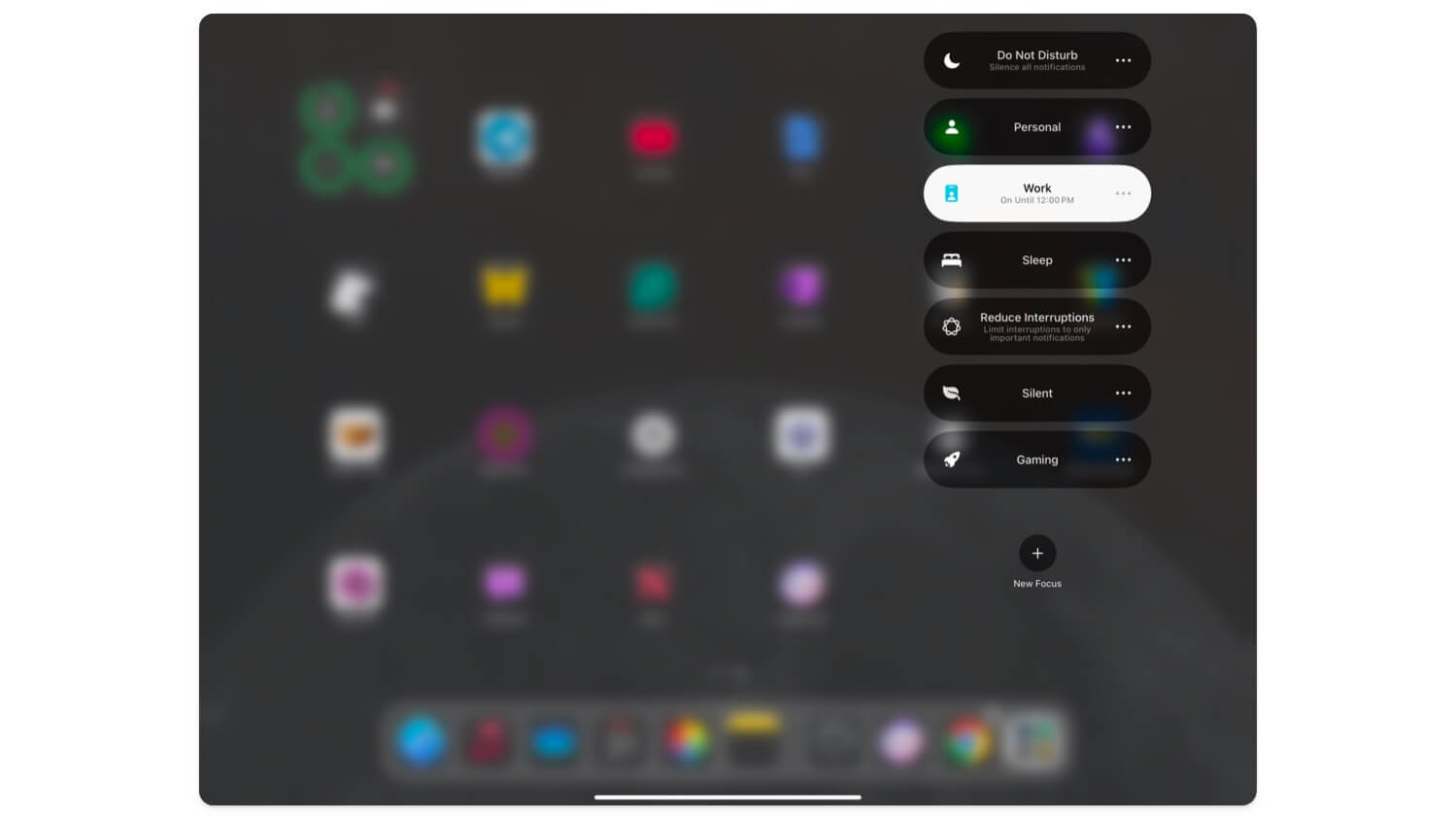
One of the most useful features of Apple Intelligence is the new Reduce interruptions Focus mode. Until now, when you enabled focus mode, it blocked all unnecessary distractions on your iPad. You could select a few apps and people as a whitelist and allow all notifications from them.
However, it was still distracting since all their notifications could also be distracting, and there was no control over which ones to receive. The new reduce interruptions mode gives us extra flexibility to control the focus mode by allowing critical notifications to pass through the focus mode and get notified.
While this is not a fully customizable solution, you won’t miss out on critical messages blocked during focus mode. There is currently no way to control or customize this focus mode for specific notifications or words, but this is a welcome change, and more changes are expected in the coming updates.
How to use Reduce Interruptions focus mode:
To use the Reduce Interruptions focus mode, Open the control center and select reduce interruptions. If you don’t see. Go to Settings> Focus Mode, click on the add new, and select Reduce Interruptions.
New Upgraded Siri That Can Set the Right Reminders (and More)

Siri also gets a big boost with Apple Intelligence support for the iPad. It is significantly better than previous versions, and now you can rely on this for everyday assistant tasks like settings, asking for weather info, and more. Also, you can have continuous conversations with Siri; now, it is easier to understand your context. You can set multiple alarms using Siri, understand context better now, ask follow-up questions, and more.
If you don’t want to speak, type into Siri and get recommendations. There’s also ChatGPT integration, which can answer questions better. It is available in the 18.2 update and is currently in developer testing, which I am testing now. To activate Siri, press the power button on your iPad or say ‘Hey Siri.’
Elevate Your Daily Tasks with Apple Intelligence on iPad
Those are the five Apple Intelligence features you must try on your iPad. All these features are very helpful, especially for daily use on your iPad. The writing tools allow you to summarize and change the tone of emails using your iPad for professional purposes. The note-taking experience is a game changer for users like students and professionals who can avoid spelling mistakes using ChatGPT and make notes more appealing with Image Wand. Finally, the support for new Reduce interruptions and updated Siri are welcome additions and useful in daily use.
As mentioned, Apple Intelligence is only available for iPads running on M1 or later processors. If your device is running on M1 or later and you don’t see Apple Intelligence settings, Open the Settings, go to System Update, and ensure you have the latest version of iPadOS 18.1. Once there, you should be able to see Apple Intelligence features at the top; set the language to English (US) to enable this. Go to Settings, then click Go to Apple Intelligence and enable. Some features of Apple Intelligence require opting in. Please comment below if you have any questions or are having trouble with Apple Intelligence.

