

Quick Answer
Apple added many engagement features to iMessage in iOS 18. These features enhance your messaging experience. You can add text animations, share high-quality images with your friend using Android with RCS support, generate emojis for specific contexts, generate AI images and share them without switching between apps, and schedule messages for special occasions.
I have always loved the engagement features in messaging apps, whether WhatsApp, Signal or now iMessage. They make conversations more engaging and fun, especially for special occasions like celebrating a friend’s birthday, sharing updates in a daily group, or surprising your sister or friends about a recent purchase. These moments must be special, and this is where the recent engagement features come in handy.
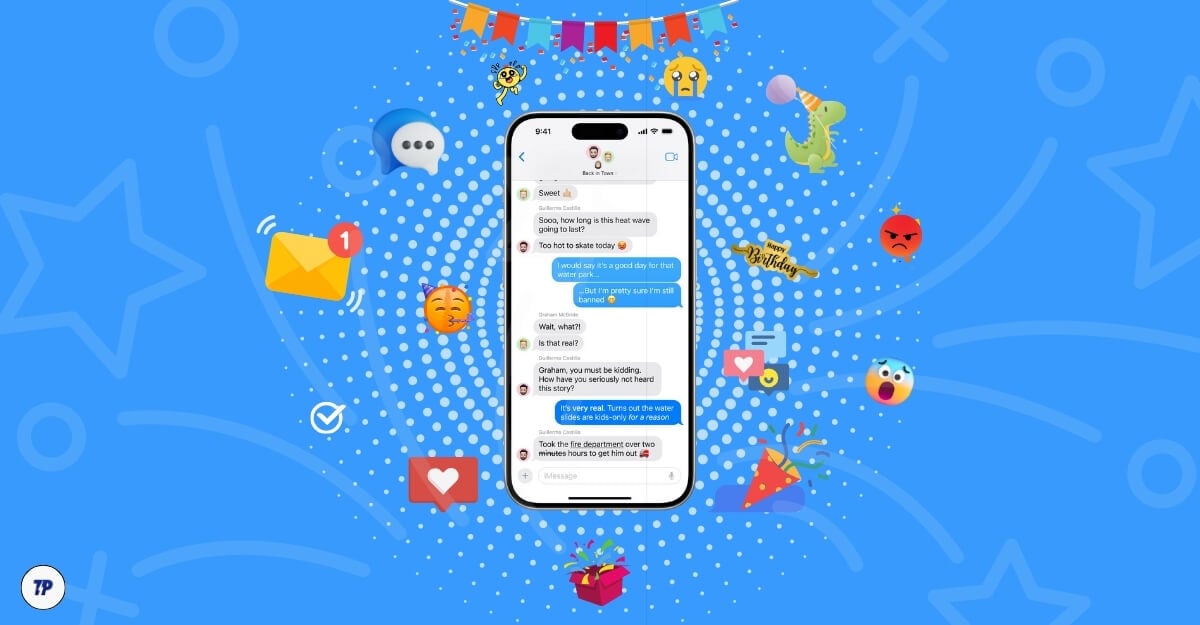
In a recent update, Apple added plenty of engagement features to iMessage, such as message reactions, generating and sharing AI images, creating emojis, scheduling messages, and more. Let’s consider utilizing these features to make text messages more engaging and enhance special moments.
Table of Contents
How to Make Your Celebrations Better with iMessage
Sl No | Feature | Description |
|---|---|---|
1 | Text Animations | Add animations to your messages to make them standout. |
2 | Schedule Messages | Schedule your messages to be sent at a specific time for special occasions. |
3 | Custom Emojis | Create personalized emojis using the new Genmoji feature. |
4 | AI-Generated Images | Easily create and share personalized AI-generated images directly in iMessage. |
5 | Enhanced Media Sharing | Share high-quality images and voice notes with RCS support for a richer experience. |
Adding Text Effects
One of the recent additions to the message in iOS 18 is text effects. You can add text animations along with the text underline and bold features. These text effects highlight and make the messages eye-catching compared to the rest. You can match the animation based on your emotions; for instance, you can use big text effects to share exciting news or important messages.
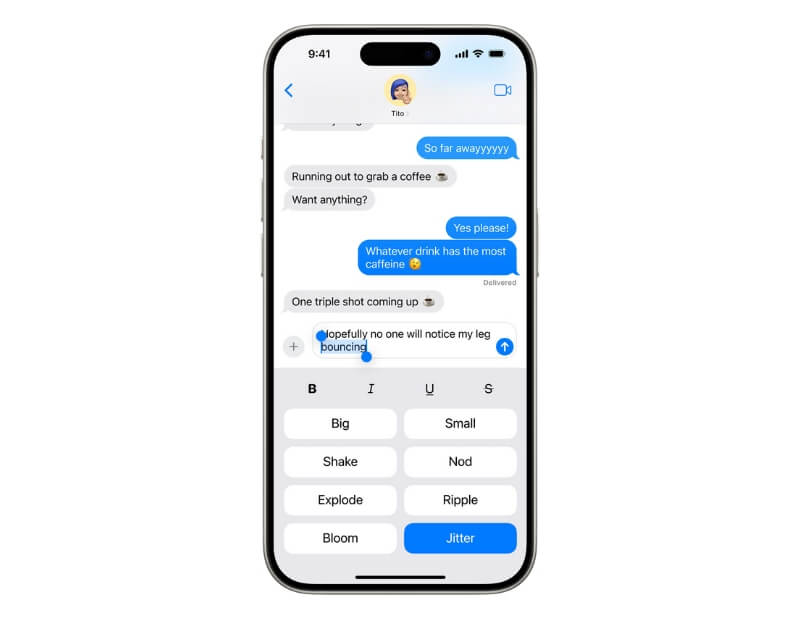
How to add animation to text messages
- Open iMessage and go to the contact you want to send a message.
- Start typing, select the text you want to animate, and click on the text effects
- Select the animation you want.
If you are confused about which one to use, here is some help
- Big: Use this for exciting news or important messages.
- Small: Use this to convey something subtly.
- Shake: Use this to show frustration, disbelief, or disagreement.
- Nod: Use this for agreement, confirmation, or to show that you understand.
- Explode: Use this to celebrate or show excitement and surprise.
- Ripple: Use this to show concern or sympathy.
- Bloom: Ideal for romantic messages
- Jitter: Use this to show nervousness, excitement, or anticipation.
Schedule Messages

Schedule messaging is the most useful feature, especially if you want to share wishes on the occasion like birthdays. With the latest iOS 18, you can schedule messages on iMessage. You can select the date and time, and your message will be automatically delivered when the time is reached. Unfortunately, scheduling is unavailable if you are scheduling messages for Android smartphones. Apple things.
How to schedule messages on iMessage
- Open the iMessage, go to chat, and click on the plus icon.
- Click on the More and select Send Later.
- Edit the date and time, enter the message, and click the send icon. Your message will be scheduled and will be delivered on time.
Make Your Own Emojis and Add Them to the Messages

Genmoji will be available this fall on iPhone, potentially changing how we use emojis. We generally have plenty of emojis—Apple supports more than 3,600 emojis—but finding a specific emoji that fits your message perfectly can be difficult. Often, I can’t find the right one and share the image in the place of an emoji.
However, this will no longer be an issue. You can generate your custom emojis using Genmoji (Generative AI that generates emojis based on your text input). This is one of my favorite features of iMessage, enhancing the messaging experience.
Generate and Share AI Images With Image Playground
Apple Intelligence Image Playground lets you explore AI-generated images with ease. You can create, edit, and enhance photos effortlessly using smart AI tools. pic.twitter.com/RGBVHgj073
— Ramesh (@Ramesh2353575) June 13, 2024
Generating AI images isn’t new; plenty of free AI image generators help you generate images. However, Apple has done its best by integrating the image generator into the iMessage app. This has many benefits. First, it makes it easy to use and send images without switching between various apps and copying and pasting, which adds friction.
Using the Messages image background feature can be very useful. Like Genmoji and Apple Image Playground, you can generate AI images and share them instantly in message conversations. This feature is coming this fall and will only be supported on the iPhone 15 Pro or later.

During the WWDC 24 event, Apple demonstrated how to generate images based on the occasion. I was very impressed, and it is one of the reasons that motivated me to write this article. A few things to know: Images generated through AI will have a watermark. You can create images in sketch, illustration, and animation.

The Mediocre RCS Support
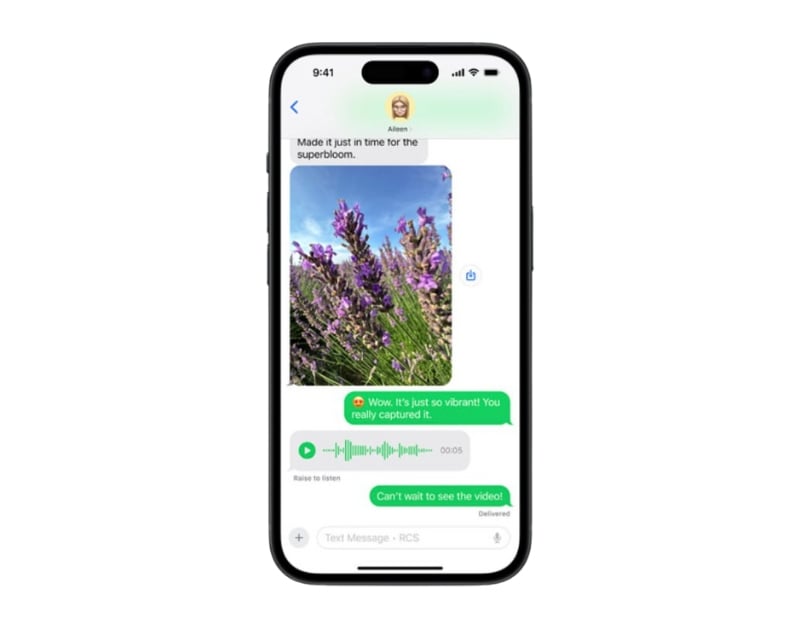
Finally, RCS support is coming to iOS. However, don’t get too excited. Apple still made some features exclusive to iPhone messages, leaving Android users behind. As mentioned, message scheduling is unavailable for Android users, meaning you can’t schedule messages for your loved ones.
However, it is finally time to improve the messaging experience. With RCS support on iOS, you can enjoy higher-quality media sharing, read receipts, and type indicators, which are especially useful in group chats, as well as all the benefits RCS messaging offers.
Celebrating Special Occasions with iMessage
You need iOS 18 to get these features on iMessage. Currently, iOS 18 is in developer beta. I recommend waiting for the public beta, which should roll out next month. If you still want to use these features, install the developer beta by going to Settings > General > Software Update > Beta Updates > iOS 18 Developer Beta.
Let me know which engagement features you want to use in your next special moment. I hope you find this guide helpful. Apple also announced plenty of other features that will help improve your daily experience. I have covered them all in a detailed post, which you can check out here.

