

Vision Pro is Apple’s latest mixed-reality headset. It supports AR (augmented reality) and VR (virtual reality) and comes with the Vision OS specially developed for the headset. The Vision Pro’s greatest potential lies in the apps it supports. Similar to how apps have made the iPhone very useful and popular, the apps developed for the Vision Pro will play a big role in its success.

At launch, Vision Pro supports more than 600 natively compatible apps, including iPad apps. These apps use Vision Pro’s mixed reality capabilities to create new ways of interacting and using the app. Most of these apps are already impressive and transforming everyday experiences. If you have a Vision Pro, this guide will show you the twelve best Apple Vision Pro apps that you should definitely use.
Table of Contents
Best Apps for the Apple Vision Pro
- Widget Smith: Customize your virtual space with widgets like calendars and to-do lists that are easily accessible without opening apps.
- Carrot Weather: Get detailed weather forecasts and interactive 3D maps in your mixed-reality environment.
- Endel: Turn your surroundings into a peaceful meditation space with calming sounds and immersive experiences.
- Jigspace: Learn about complex structures with interactive 3D models, from engines to sports cars, in your own space.
- Juno for YouTube: Third-party YouTube client on the Vision Pro. Watch YouTube videos with a clean interface.
- Splitscreen – Multi-Display: Expand Virtual Mac displays on the Vision Pro.
- Spatial Cam: Monitor live camera feed from your iPhone camera directly on your Vision Pro.
- Float Notes: Place sticky notes anywhere around you, making remembering tasks in different rooms easy.
- Navi: Instantly translate and transcribe voice in real-time, making communication in different languages seamless.
- Fantastical: Best Calendar app for the Vision OS. Organize your schedule by syncing events from various calendars, To-do lists, and more.
- Bezel Phone Mirroring: Mirror your iPhone screen onto Vision Pro, making your phone’s display larger and more interactive within your space.
- Adobe Lightroom: Edit photos on Vision Pro. Enjoy the flexibility of photo editing on a large screen.
- Lowe’s Style Studio: Design and style your interior with virtual furniture and color schemes, transforming your home into a mixed reality.
Widget Smith
Widgets provide quick access to information without opening the app. And the Widget Smith app offers an extensive collection of widgets for the Vision Pro. You can place the widgets anywhere in your surroundings.

You can select and customize widgets to display in your surroundings. For instance, you can add the calendar, clock, and temperature widgets to your spatial environment and get a detailed overview of your day and the time.
Similarly, you can add a to-do list widget to your environment and record quick ideas without opening the to-do list app. Widgetsmith is a free app for the Vision Pro. It is also available for iPhone, iPad, and Mac OS. It offers a premium plan with access to additional widgets and more customization options.
Download WidgetSmith for Vision Pro
Carrot

Apple Vision Pro doesn’t come with a built-in weather app. That’s why you have to rely on third-party apps for weather information. The Carrot weather app is the best weather app for the Vision Pro.
The app is natively supported on the Vision OS. It has interactive 3D weather maps. It offers detailed weather reports. It has a full 3D earth with live weather data. You can interact with it, view changing weather patterns, apply different weather types, and much more. The Carrot Weather app is free and offers a premium version with benefits such as weather time travel to explore past or future forecasts and the ability to customize the widget on the home screen.
Download Carrot Weather for Vision OS
Juno for YouTube

The official YouTube app is still in the works. The best and only native way to watch YouTube on Vision Pro is to use third-party clients like Juno.
Juno is a YouTube client that offers a clean and minimal user interface and is natively compatible with Vision OS. It offers all the essential features for the best YouTube experience. Juno for YouTube supports native controls such as pinch gestures, video aspect ratio retention, and much more. You can change the size and position of windows, darken the screen around the window, and much more.
We have a detailed guide on how to watch YouTube videos on Vision Pro. In it, you’ll find more detailed information on how to set up and use Juno on Vision Pro. Juno is a paid app. It costs $5. You can also watch YouTube via Safari, but this is a web interface with drawbacks such as ease of use. Compared to the native Juno for YouTube, it doesn’t support offline downloads.
FloatNotes

Float Notes is a simple sticky notes app for Vision Pro. You can use it to attach sticky notes anywhere in your environment. You can place the notes in your kitchen, bedroom, and more. The notes stick to the place where you put them so you have the flexibility to remember. The app is simple and easy to use. It offers a transparent design and supports multiple sticky note windows at the same time.
Download Float Notes for the Vision Pro
Fantastical

Fantastical is a widely used calendar application and offers its app for the Vision Pro. With it, you can add and synchronize different calendar events from different calendar apps and view all events in a single place. So you can plan and organize better.
The app offers views such as DayTicker, day, week, month, quarter, and year. The Calendar app offers integrated tasks within the calendar for better planning. You can attach files and photos to events on all synced devices.
The app is natively supported on the Vision OS. You can interact with the calendar, add or remove events, sort events from different calendars, and much more. The app is free to download and offers the option to upgrade to the premium version, which offers additional benefits.
Split screen – Multi Display

Split screen – Multi Display is very useful if you are using the virtual Mac display on your Vision Pro. It lets you create multiple virtual Mac displays on the Vision Pro. By default, you can only create and use one virtual Mac display on the app. Using the app you can create multiple displays for better multi-tasking and increased productivity.
The app supports resolutions between 1280×720 and 2560×1400 with more resolutions coming soon. You can create multiple displays and drag applications between them. Each display can support a resolution of up to 60 frames per second. The display can work together alongside the Mac or work separately. The app is free to use and you can download it from the Vision OS app store.
Download the Split Screen app for Vision OS
Spatial Cam

With the Spatial Cam app on the Vision Pro, you can watch live camera feeds from your iPhone. You can use it for a quick baby monitor, monitor your home, or use it as a webcam.
The app sends the camera feed from your iPhone to your Vision Pro. You can resize the window and place it anywhere to watch the action. Currently, the app doesn’t offer the ability to notify you at any moment in the camera or receive a notification when you’re using a Vision Pro. The free app should be installed on the iPhone and Vision Pro to receive live feeds. It’s one of the most practical apps on this list.
Download Spatial Cam for Vision OS
Navi – Subtitle and Translation App

Navi is the most useful app on the Vision Pro. The app instantly transcribes and translates speech into other languages and subtitles. The app creates subtitles, transcribes the voice into different languages, and displays them in real-time as you speak to the person. In the video above, you can see how the app works and how it works.
It’s one of the most useful apps on the Apple Vision Pro. But there is a pitfall. In order to use the translation features, both you and the person you’re communicating with must have a Navi subscription, which limits how you can use it in certain scenarios. For example, you can go to any person and activate this real-time translation function.
Download Navi for the Apple Vision Pro
Endel
Endel offers an immersive mediation experience on Vision Pro. It transforms your surroundings into a beautiful place to meditate. You can set immersive experiences such as a bath in soothing sunlight with light reflection, an ocean breeze with water droplets swirling around you, and much more.
The app infuses your surroundings with different elements to create a relaxing experience; you’ll no longer be distracted by anything while meditating with this app on your vision. Endel also features calming sounds for a better meditation experience. You can set a timer and prevent other apps from interrupting your meditation. The app is free to use in limited environments. You can upgrade to the premium version to unlock it and get additional benefits.
Jigspace

Jigspace is an education app for Vision Pro for learning and exploring interactive 3D models. The app is primarily intended for companies to show 3D models of different structures. Companies can create structured interactive content for training, 3D product demonstrations, and more.
Currently, the app supports 3D models of aircraft engines and Formula 1 sports cars. If you are a student or a regular user, you can view the model in 3D in your own room and learn more about it. You can take out any model component and get more information. You can annotate the models in real-time and edit content directly with your hands. It also supports multiplayer collaboration for remote teams. It is best suited for interactive product guides and people who want to explore and learn about different structures.
Adobe Lightroom
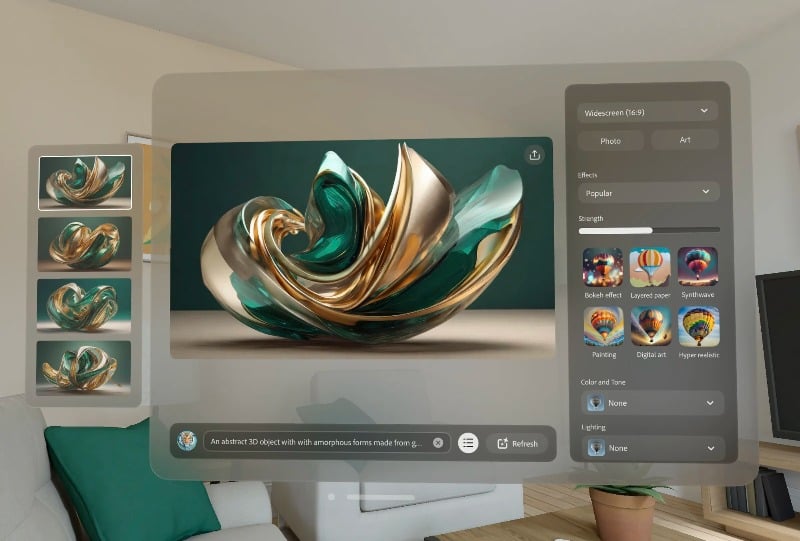
Microsoft and Adobe have already developed their applications for Vision Pro. They are not as immersive as the other applications but offer the flexibility to use Vision Pro.
Adobe Lightroom is a popular photo editing app that offers both basic and advanced photo editing features. You can use your eyes and fingers to control and edit the photo in Vision Pro. You can resize windows to edit photos on the big screen, drag and drop elements and use generative fills to make changes with AI and faster. You can save and view the edited photos in Vision Pro if you want to edit the photos in the Vision app. Adobe Lightroom may be the best choice for you.
Download Lightroom for Vision Pro
Bezel Phone Mirroring
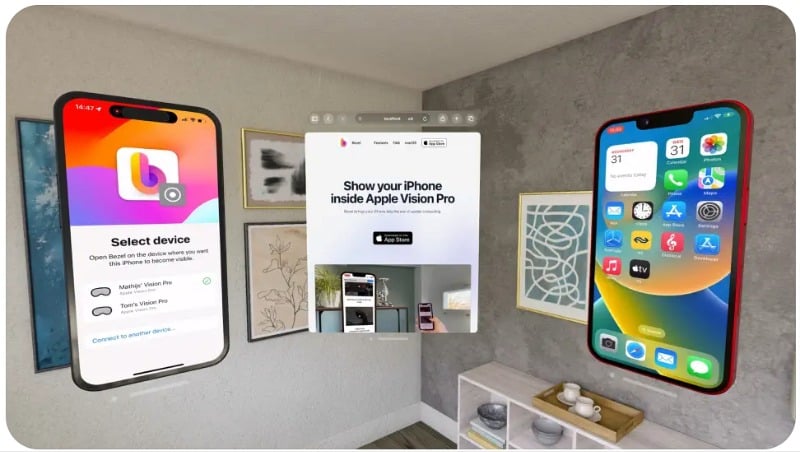
With the Bezel Phone Mirroring app, you can mirror your iPhone in the Vision Pro. Why not? If you think your iPhone will fall by the wayside after getting used to the Vision Pro, this app could save it. But joking aside, the best use case for this app is to make the iPhone screen bigger.
You can mirror your iPhone screen on the Vision Pro. You can resize it and place it anywhere in the room. This is especially useful if you want to use your iPhone and Vision Pro together. Remember that the app mirrors the iPhone screen, which you cannot interact with from the Vision Pro.
Download Bezel Phone Mirroring for Vision Pro
Lowe’s Style Studio

One of the best uses of VR and AR headsets is shopping. With the Lowes Style Studio, you can design your interior with different furniture and color combinations. You can interact with the other interior models in real-time, add or delete elements, change color combinations, and much more. You can turn your physical surroundings into an immersive model and customize it to your liking.
FAQs about Best Vision Pro Apps
1. What makes these apps the best choices for the Apple Vision Pro?
Each app is designed for a specific purpose. These apps are considered the best because of their native compatibility and the unique features they offer.
2. Do I need to pay for these apps, or are they free?
No, most of the apps listed in this article are free. However, apps like Widget Smith and Carrot Weather offer a free version with basic features. You may need to purchase a premium subscription to unlock advanced features. Some apps like Juno for YouTube require you to pay upfront.
3. Can I use iPad apps on the Vision Pro?
Yes, the Apple Vision Pro supports iPad apps. However, the user experience may vary as these apps have not been developed specifically for Vision Pro’s mixed reality environment.
4. How do the apps enhance the mixed-reality experience?
These apps are designed to take full advantage of Vision Pro’s AR and VR capabilities. They offer new and immersive ways to interact with the applications—most of the apps listed in his post support Vision Pro’s native controls. You can use your eyes and fingers to interact with these apps, which offer a unique and immersive experience.
5. Are these apps easy to use for beginners?
Yes, these apps are best for beginners. Vision Pro is a new product; everyone should go through the initial learning curve to use the headset. Aside from the new Vision controls, most of the app interfaces are simple and very similar to the app interface on the smartphone. However, learning the Vision Pro gesture controls and eye controls might take a while.

