

In Summary
- Most Android apps have a trash or recycle bin to store the deleted files temporarily.
- As such, you’ll want to empty the trash on your Android phone to reclaim your storage space.
- Sadly, emptying the trash on an Android phone isn’t a one-tap process as on the desktop. You’ve to clear the trash for different apps individually, as this guide explains.
Deleted files on your Android device, but the storage space doesn’t reflect so? It’s likely because the files aren’t removed from the system entirely; they’ve probably moved to the trash instead to avoid the loss of valuable files in case of accidental deletion. Clearing the trash should delete these files from the device and, in turn, help reclaim storage space.

However, unlike macOS and Windows, Android doesn’t have a universal trash that you can clear in one go. Instead, many Android apps use their own trash to hold onto your deleted files temporarily, which you’ve to clear individually to remove them from the device completely.
Read on to learn how to empty the trash on an Android phone. We’ll show you how to clear the trash of some of the popular Android apps on your phone to make your life easier.
Table of Contents
Empty the Trash in Files by Google
Many Android phones come pre-installed with the Files by Google app. If yours comes with it, too, or you’ve installed it manually to manage your files, here’s how to clear its trash.
- Open Files by Google on your Android phone.
- Tap the hamburger menu (three horizontal lines) in the top-left corner and select Trash.

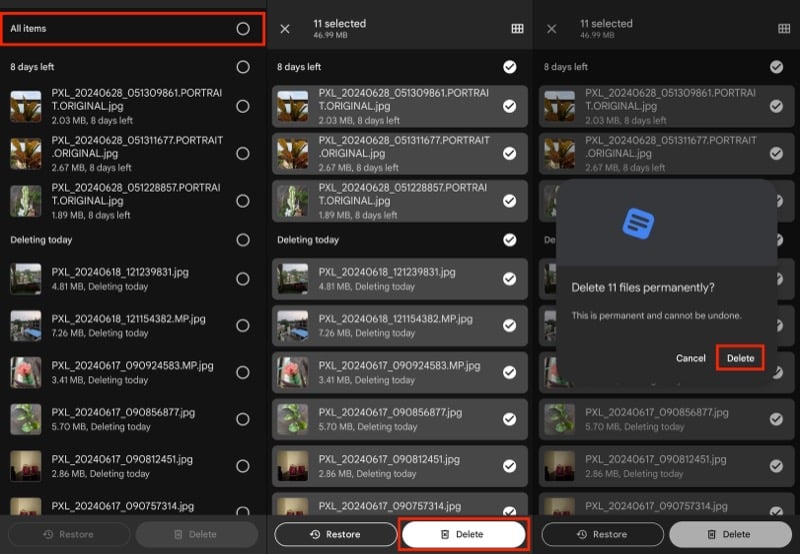
- Hit the radio button beside All Items to select all items in the Bin for deletion.
- Finally, hit Delete at the bottom and tap Delete on the confirmation prompt to confirm emptying the Bin.
Empty the Trash in Google Photos
If you’ve deleted photos or videos in the Google Photos app on your Android phone, it’ll move them to the Bin. Follow the steps below to find and delete these files from the Bin:
- Open Google Photos.
- Tap on Library at the bottom.

- Select Trash.

- Tap the three-dot menu in the top-right corner, select Empty Trash, and tap on Delete Permanently to delete all the files from the Bin.

Empty the Trash in Google Drive, Docs, or Sheet
Drive, Docs, and Sheet are other Google apps that move deleted files to the Bin temporarily after you delete them. You can delete these files and empty the Bin, as shown below.
- Open Google Drive, Docs, or Sheet on your Android phone, depending on whose trash you want to empty.
- Tap the hamburger menu in the search bar and select Trash.

- Hit the three-dot menu in the top-right corner, select Empty Trash, and confirm deletion by tapping Delete Forever.

Empty the Recycle Bin in Samsung Files
My Files is the default file manager app on Galaxy phones. If you’ve deleted files inside My Files, they’ll end up in the Recycle Bin. Follow the steps below to delete them and clear the Recycle Bin in the My Files app.
- Open My Files on your Galaxy phone.
- Scroll down to the Utilities section and select Recycle Bin.

- Tap the three-dot menu in the top-right corner of the screen and select Empty. Confirm clearing the Recycle Bin by tapping Delete in the confirmation pop-up.

Empty the Recycle Bin in Samsung Gallery
All Galaxy phones come with a native gallery app called Gallery. Similar to Samsung Files, Gallery also has a Recycle Bin, which temporarily holds all the photos and videos you delete. You can empty the Recycle Bin in the Samsung Gallery using the steps below.
- Open Gallery on your Galaxy phone.
- Tap the hamburger menu in the bottom-right corner and select Recycle Bin.

- Hit the three-dot menu in the top-right corner, select Empty, and tap Delete in the prompt to delete all the photos and videos in the Recycle Bin.

Empty the Trash in Other Apps
Similar to the above apps, several other apps on your Android phone also have a dedicated trash folder. These apps could either be native apps that come pre-installed with the operating system or third-party ones you install manually from the Play Store.
Depending on what app it is, it may label the trash as Trash or Recycle Bin. You should be able to navigate to it and clear it easily in a similar way as demonstrated on the apps above.
Reclaim Your Phone’s Storage Space
Emptying the trash on an Android device, whether it’s Google’s Pixel or Samsung’s Galaxy—is easy once you know how to do it correctly. And after you do it, it should free up a significant chunk of your phone storage.
Sure, many Android apps automatically clear the trash after 30 or 60 days to delete the files you no longer need. But if you usually run low on memory space, it’s best to manually clear the trash regularly to prevent its files from hoarding unnecessary space on your device.
If you’re still running low on space, head to the Downloads folder in your file manager app and look for the downloaded files you no longer need. Select and delete these files, and then clear the trash again. You should’ve reclaimed some more storage space.

