

Quick Answer
To delete labels in Gmail, follow these steps: On the web, go to Gmail settings, select the “Labels” tab, find the label you want to delete, and click “Remove” followed by “Delete.” On Android, open a browser in Desktop mode, access Gmail’s web version, and follow the same process as on the web. For iPhone users, open the Gmail app, go to Settings, navigate to Label settings, select the label you wish to delete, and tap “Delete.” This will help you keep your inbox organized.
For someone who cannot withstand a messy inbox, labels in Gmail make it a far cleaner thing to deal with. Gmail labels allow you to sort emails under specific sections and are fully customizable to the core. In fact, you can set automated filters to put incoming emails under distinct labels, such as based on the sender’s address or a particular keyword.

Although it’s an excellent way to categorize your presumably messy inbox; Gmail labels can often go out of hand if you have too many of them. Alternatively, you may wish to update your label collection by removing a few existing ones created for past projects or team communications, which is when you must delete labels in Gmail. This guide outlines how to delete labels in Gmail for PC and mobile (Android and iOS) platforms. Let’s get started!
Delete Labels in Gmail (PC/Web)
Fixing stuff on Gmail’s desktop is usually an easy affair, and it holds true in this case as well. Here is how you can delete labels in Gmail using a PC –
- Access your Gmail dashboard from here.
- Select the gear icon beside your profile picture and click on See all settings in the menu that appears.

- Switch to the Labels tab from the top panel on the settings page.

- This page shows all your existing labels, including Gmail’s default labels, such as starred, scheduled, snoozed, and more. Scroll down to view your custom labels.
- Click Remove, followed by Delete, to confirm deleting the selected Gmail label.

While this method is best for deleting multiple Gmail labels in one place, there’s an even quicker way to delete labels in Gmail. To do so –
- Access your Gmail dashboard from here.
- Identify the label you wish to delete from the left panel. You may have to expand the panel to view your existing labels.
- Click on the kebab menu icon (⁝) beside the required label and select the Remove option from the dropdown menu.

- Select Delete to approve your action.

Delete Labels in Gmail (Android)
Thanks to the Gmail app’s limited feature set, there is no straightforward way to delete labels in Gmail using its Android app. Regardless, there’s one way, and here’s how you do so –
- Open your browser and switch to Desktop mode. It can be found within your browser’s toolbar.
- Access Gmail’s web version from here.
- Now, the process remains largely similar to that on a PC. Click on the gear icon and select See all settings.
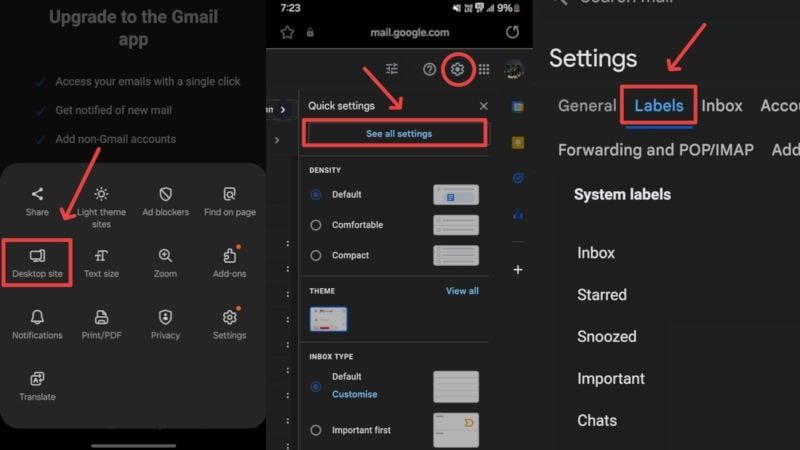
- Select the Labels option from the toolbar present at the top of the settings page.
- Scroll down to access your existing labels and tap Remove beside the label you wish to get rid of.
- Follow by pressing Delete, which removes the label from your inbox.

- Alternatively, you can remove an individual label directly by tapping the kebab menu icon (⁝) beside it and pressing Remove.
Delete Labels in Gmail (iPhone)
Things are a little more sorted in the Gmail app for iPhone, which is ironic because, unlike iPhone, Android is Google’s, and so is Gmail. To do so –
- Open the Gmail app on your iPhone.
- Tap the hamburger menu icon (☰) from the top-left corner.
- Select Settings from the menu.
- If you have multiple accounts, select the requisite one to delete labels from.
- Scroll down and tap on Label settings under the Labels section.
- Identify the required label and tap the arrowhead beside it.
- Select the Delete notes option to remove the label.

Delete Labels in Gmail Effortlessly
Deleting labels in Gmail is indeed that easy. We recommend doing the same on a PC because it’s best done that way. Deleting labels will immensely help organize your inbox better. While iPhone users can get it done far more intuitively, Android users will sadly have to rely on the web version to delete labels in Gmail.
Further Reading:
- How to Sort Gmail by Size
- How to Delete All Emails from One Sender on Gmail
- Gmail File Attachment Downloading Problems? Try These 13 Fixes

