

Quick Answer
To remap PS5 controller buttons, go to Settings > Accessibility > Controllers > Custom Button Assignment. Enable custom assignments, select “Customize,” and adjust buttons as desired. Save changes, and use the Reset option to revert to defaults if needed. Prioritize comfort and consider game-specific remapping for optimal performance.
Playing games on a console, especially on PlayStation 5, is an experience that you can only experience. While PC gaming allows you to get crazy and use mods to tweak the gameplay, playing games on PS5 gives you that lag-free and authentic gaming experience, thanks to the DualSense controller. It is not just a regular controller but comes with adaptive triggers, haptic feedback, and an ergonomic design, ensuring your hands don’t feel tired after a long gameplay session. While there is a default button layout available for all games, PlayStation 5 gives users the option to customize the controls as per their needs.
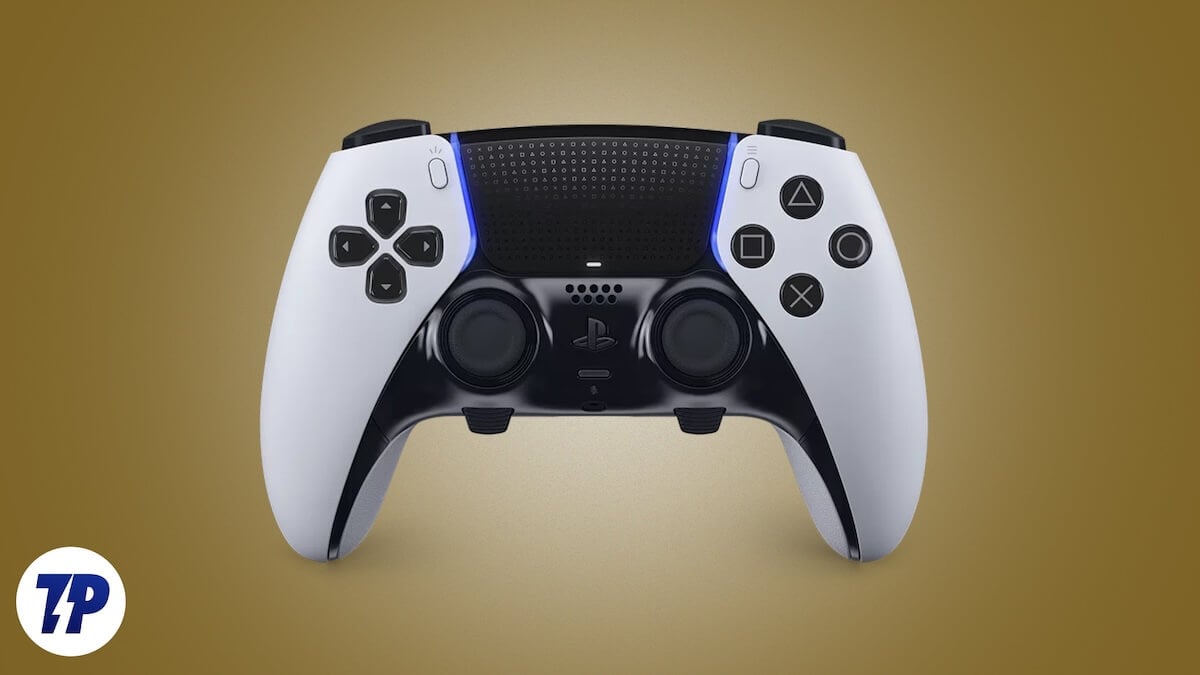
Yes, you heard it right. You can remap PS5 controller buttons and assign different buttons to suit your preference. Although this would make the game more accessible to you, there are a few caveats that you need to remember, which we will be discussing in this guide. Whatever the case may be, whether you are looking to improve your comfort or accommodate a disability, in this guide, we will show you how you can remap PS5 controller buttons. Without any further ado, let us jump right into it.
Table of Contents
How to remap PS5 controller buttons?
Thanks to Sony, button remapping on PS5 is quite straightforward, but you need to know what you are doing. Here are the steps required to remap PS5 controller buttons.
- On the PS5 home screen, navigate to the Settings icon located in the top-right corner before your profile image.

- Choose Accessibility from the list of options that appear inside the Settings menu.

- Select Controllers from the left side menu and then choose Custom Button Assignment for DualSense Wireless Controller on the right.

- Toggle on the Enable Custom Button Assignments option and select Customize Button Assignments under it.

- Now, you will see your PS5 DualSense controller on screen. Here you can change the buttons as per your liking.

- Once done, press Apply to save the changes.

You can change and remap PS5 controller buttons following the same steps anytime you want. Also, if you think you have messed up your controller button layout, you can use the Reset button to restore them to default settings. Any advice would be to take note of the changes you have made to the button layout, as it will be easier for you to get accustomed to when playing a game.
Tips for effectively remapping buttons
Before you berserk and change everything on your DualSense controller, here are a few tips that can help you remap buttons effectively:
- Start with small adjustments and avoid remapping everything at once. Try changing the layout for a few buttons and check inside a game if that perfectly suits you or not. If positive, then you can go ahead remapping the other buttons.
- Prioritize a comfortable button layout that doesn’t feel alienating, minimizes strain, and feels comfortable. By remapping buttons, you aim to make gaming more enjoyable.
- Some games allow in-game remapping. In such cases, you can avoid remapping the default button layout and instead choose to remap PS5 controller buttons inside the specific game.
- Always keep a note or a photo of the changes that you have made. This will eliminate the need to revisit the remapped button layout if you forget the newly set button layout.
Use third-party tools
Having a native button remapping option in PS5 is handy; you can opt to go for third-party options that give you more flexibility.
- Scuf Reflex Controller: You can purchase the Scuf Reflex Controller, which is a customizable, ergonomically designed controller that features four extra paddles on the back that can be remapped.
- PS5 Remote Play: You can use third-party software to remap the buttons on a PC or a smartphone and play as per your preference. Finding suitable software can be a tricky task, though.
- Cronus Zen: You can also go for the Cronus Zen adapter that supports remapping PS5 buttons. You can also create custom scripts for advanced gaming setups, allowing you to map keyboard and mouse buttons for a lag-free experience.
Why should I remap PS5 controller buttons?
Different consoles have different button layouts. If you have recently switched from an Xbox console to a PlayStation, you may find it a bit difficult to adjust and may even push the wrong buttons for some time. While you may get accustomed to the new button layout of a different console in a bit, that may not be true for everyone. You can get mixed up, and the only solution would be to remap the controller buttons.
Here are a few key reasons why you can consider remapping PS5 controller buttons:
- Personal convenience: As mentioned above, if you frequently switch consoles, you should remap the PS5 controller buttons. Remapping allows you to set actions to buttons based on your natural hand movements.
- Accessibility: If a user has some disability, making the usual button layout difficult to use, remapping the controller buttons can help. It can also be a solution if you have an injury that makes using the default button layout usage problematic.
- Improved performance: You can remap PS5 controller buttons to improve your gameplay efficiency. You might have seen gamers adjust the keyboard and mouse placement to optimize their reaction times. The same can be done on a PS5 controller by remapping the buttons, giving you a competitive edge in games like Fortnite or Call of Duty.
- Game-specific customization: Certain games don’t make use of all buttons on the controller. You can remap the buttons based on your games and keep the required buttons in more easily accessible positions.
Issues with PS5 button remapping
While the process of remapping is quite straightforward, you may come across a few issues when doing so. Here are some issues along with their workarounds:
- You may notice that even after you remap PS5 controller buttons, the new change doesn’t seem to apply. This could be because you might have left the Custom Button Assignment off. Turn that on and check if that resolves the issue.
- Some games won’t let you remap the controller layout and override the remapped layout. Ensure that a related toggle to allow remapping is turned on within the game or an in-game remapping option is available.
- You may also want to keep the firmware of your controller and console up to date to avoid compatibility issues.
Final thoughts
Remapping your PS5 controller buttons gives you that extra bit of flexibility to get the most out of your gaming session and also enhance performance. Remember to try out different button layouts and stick to the one that is comfortable and suits your needs. Since you are the one using your controller, it should behave as you want it to.

