

Quick Answer
You can get navigation buttons back on an iPhone using accessibility features. Enable AssistiveTouch to add a floating virtual button for Home and App Switcher, use Back Tap to trigger actions like Home with double or triple taps, and turn on Reachability to make one-hand navigation easier.
Smartphones are all about screen real estate. Although a standard screen size has gone from 4 inches to 7 inches, brands are adopting ways to offer more screen in any possible way. Previously, we used to have physical navigation buttons on a smartphone, which later evolved into screen-based navigation buttons. Then Android phones with Android 9 Pie and iPhones with iOS 11 brought in navigation gestures. You have to perform certain swipe gestures to go back, go to home, or look at the recent apps menu.
On an iPhone, gestures are fluid, and they work perfectly. But let’s be honest, they aren’t always the most practical way to get around. When you multitasking like sitting in your car, trying to change a track, or holding your phone in one hand and a baby in the other. Fumbling around with gestures is quite complicated. Luckily, there is a way to get back the navigation buttons on an iPhone. Here’s how.
Table of Contents
Why should you get navigation gestures back?
If you are switching from Android to iOS, the difference now, frankly speaking, isn’t too much. Most Android skins already have several iOS-like features, and it goes the same way for iOS. However, one different thing is that Android still allows users to turn on navigation buttons (at least that is an option on my Samsung Galaxy S24 Ultra). On iPhone, it is not available at all. You have to use gesture navigation, that’s it.
For many, that shouldn’t be much of an issue. However, if you are handing over your iPhone to older people in your house, then it could be a problem. In such cases, simple button-based features are convenient. Also, dedicated buttons are a good way to navigate if you are multitasking. Thankfully, there is a workaround to get the navigation gestures back. Though there is no simple way or toggle to get navigation buttons in the Settings menu, we have a trick, which we have discussed in the next section.
Get navigation buttons back on iPhone
Here are three effective ways you can get the navigation buttons back on your iPhone:
AssistiveTouch: Your floating navigation bar
If you want an on-screen navigation button on your iPhone, then AssistiveTouch is the undisputed champion. This is originally designed as an accessibility feature for users who have difficulty touching the screen. However, you can use it to add a virtual home button to your iPhone screen.
When you enable it, AssistiveTouch places a small, semi-transparent circle on your screen. You can drag this circle anywhere you like, and when you tap on it, it opens a customizable menu of actions. You can program that for anything you like and make it work like a navigation button.
Here’s how to turn on AssistiveTouch:
- Open the Settings menu.
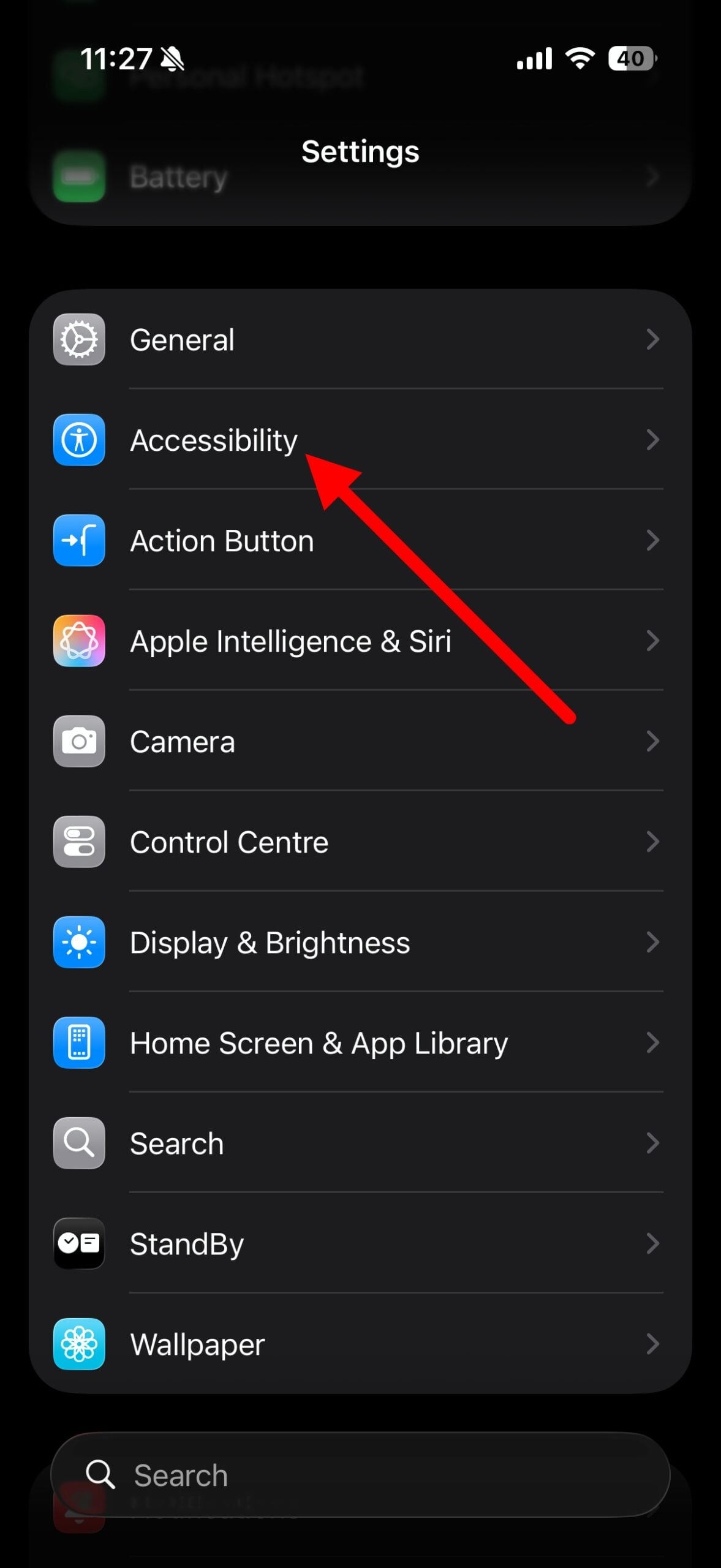
- Scroll down and tap on Accessibility.
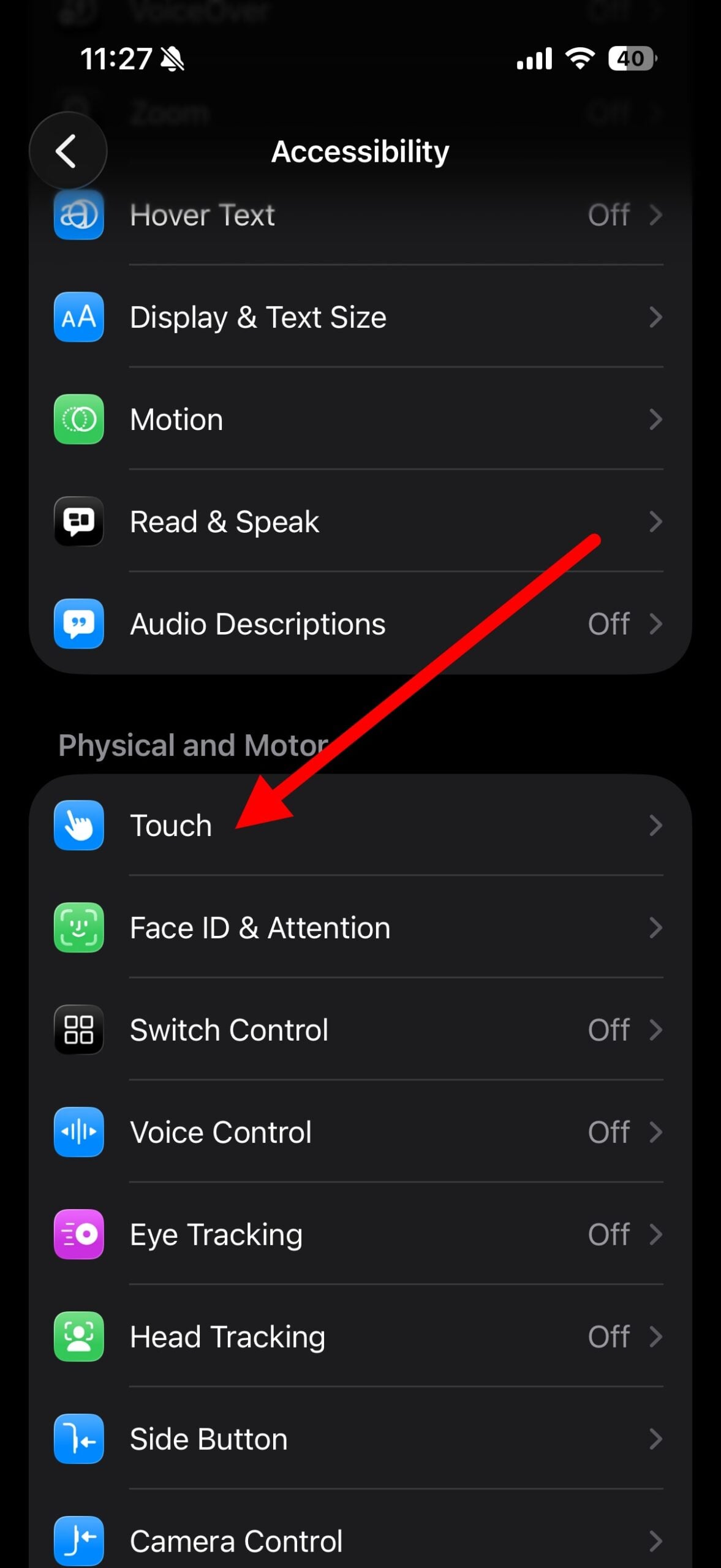
- Under the Physical and Motor section, tap on Touch.
- Tap on AssistiveTouch right at the top and toggle the switch to the ON position.
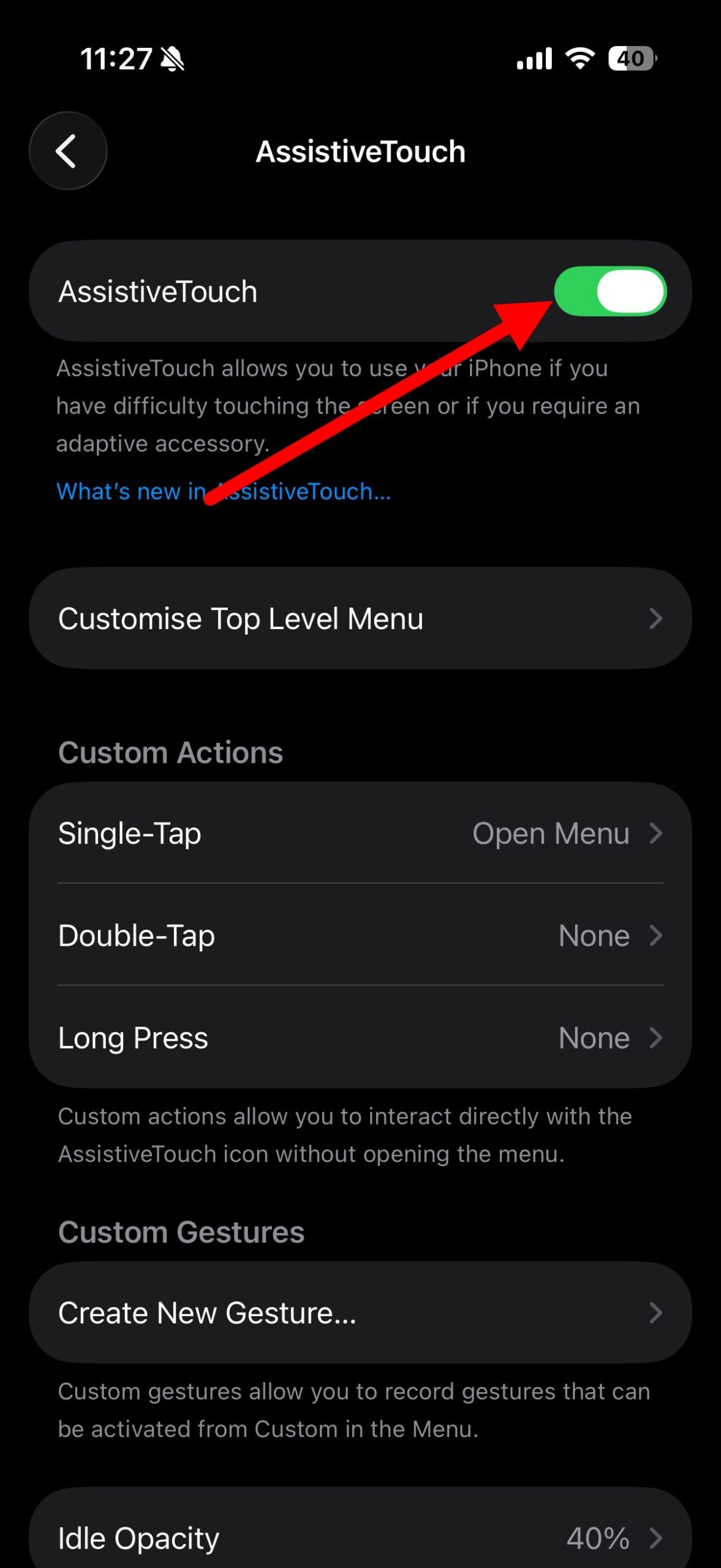
You will see a dark circle appear on your screen. You now have a virtual button. But let’s make it more useful by customizing it.
Customize AssistiveTouch buttons
By default, when you tap on the AssistiveTouch button, it opens a menu with several options. If you want it to behave like an actual navigation bar, then you have to tweak it a bit. You have to look for the Custom Actions button, and here is where the magic happens.
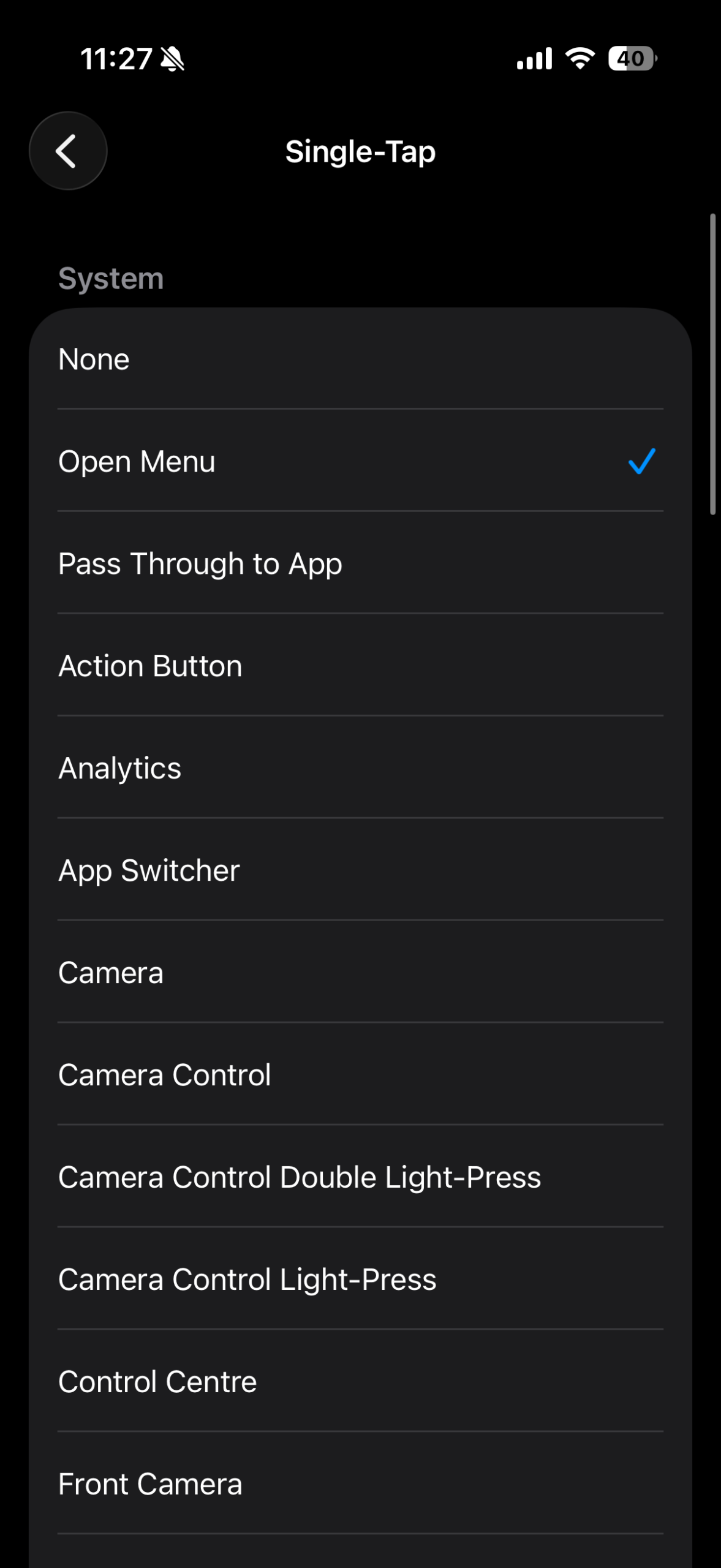
- Single tap: You can set this to Home. This means when you tap on the circle once, it will take you back to the home screen, just like the old physical Home button.
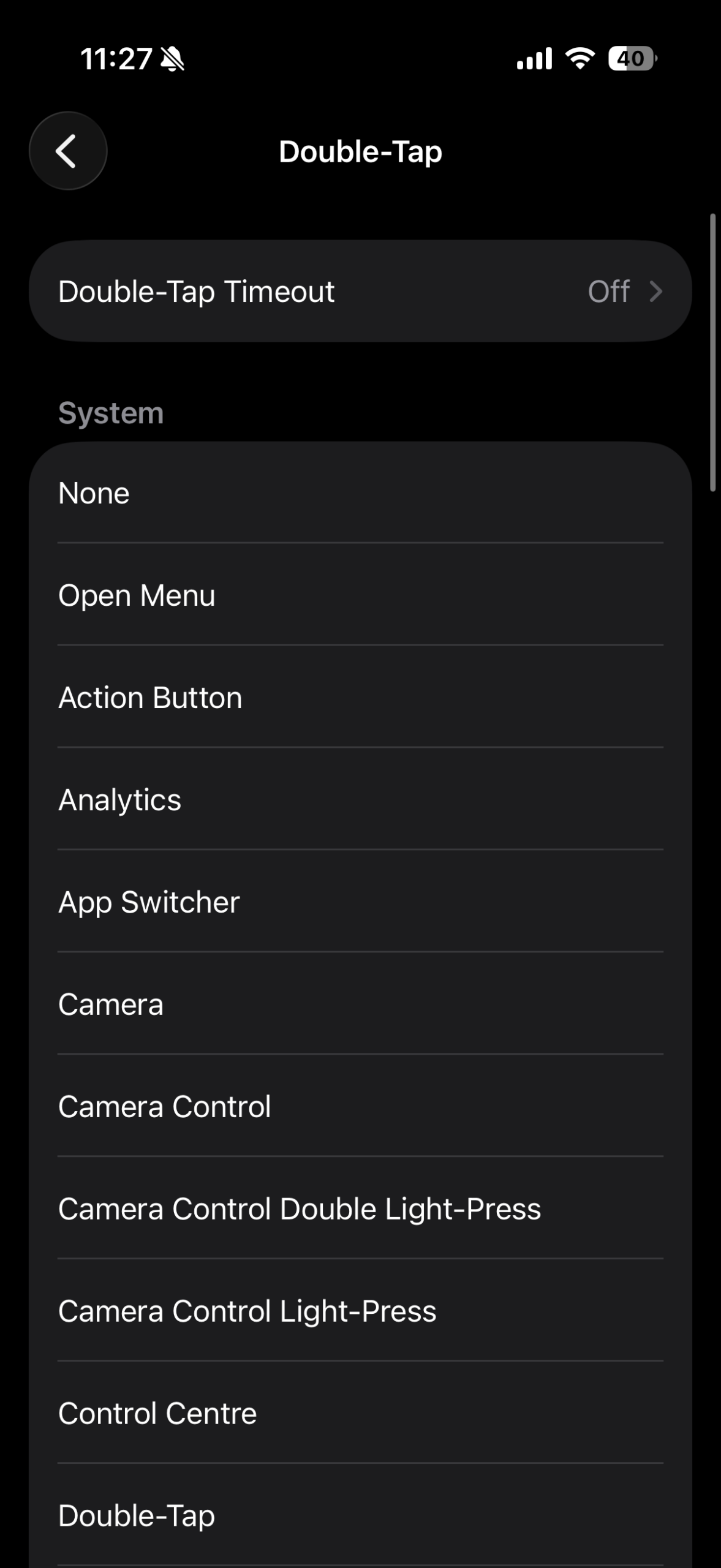
- Double-tap: You can set this to App Switcher, which works like the recent apps button. Pressing this will show you all the open apps, making it easy to jump between them.
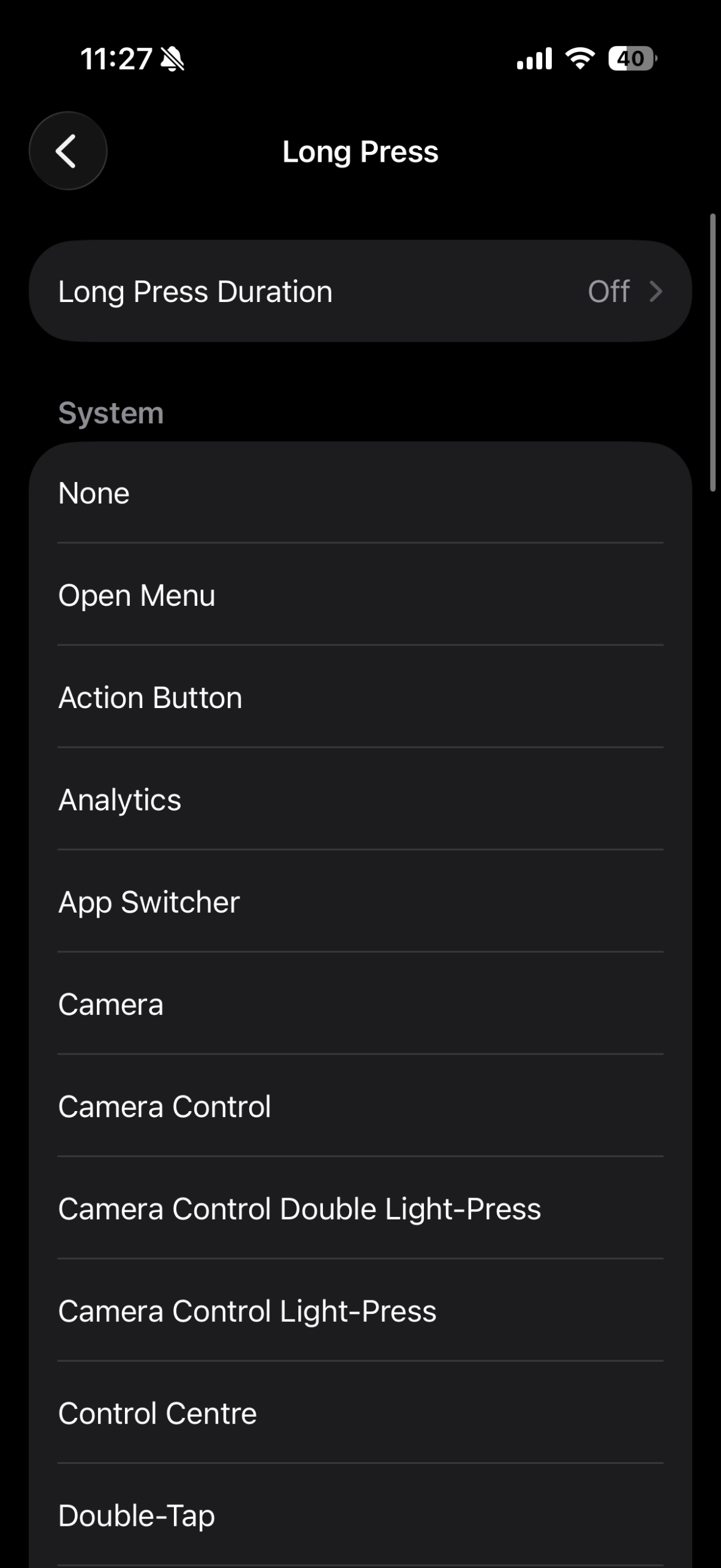
- Long press: You can set this to Control Center or Screenshot. If you hate reaching for buttons just to take a screenshot or open the Control Center to switch on/off Wi-Fi or Bluetooth, then this could come in handy.
This way, you can get the good old navigation button back in a different but capable form on your iPhone.
Back Tap: The secret physical button
There is a hidden physical button on your iPhone that you can’t see. Find this amusing, right? But it is true. It is on the back of the device, and though it is not a visible button, it is a software feature called Back Tap. It turns the entire back panel of your phone into a touch-sensitive interface.
By firmly tapping on the back of your phone, you can trigger specific commands. Here’s how to set it up:
- Navigate to Settings > Accessibility > Touch.
- Scroll down and tap on Back Tap.

- You will see two options: Double Tap and Triple Tap.
- Double Tap: You can assign it to App Switcher and Reachability.
- Triple Tap: Assign this to Home.
Now, whenever you give triple tap on the back of the phone, it will go back to the home screen. And when you tap two times, it will show you all the open apps for a quick switch between them.
Reachability: The ultimate lifesaver
If you are using a Pro or Pro Max iPhone, then you would resonate with the fact that reaching its corners isn’t a one-handed affair. My hands are quite big, and still I had to slightly adjust my hands to get to either corner on the top of my iPhone 17 Pro Max. Reachability acts as a virtual navigation helper that pulls down the entire top half of the screen to the bottom half.
Here’s how to activate it:
- Head over to Settings > Accessibility > Touch > Reachability and turn it on.
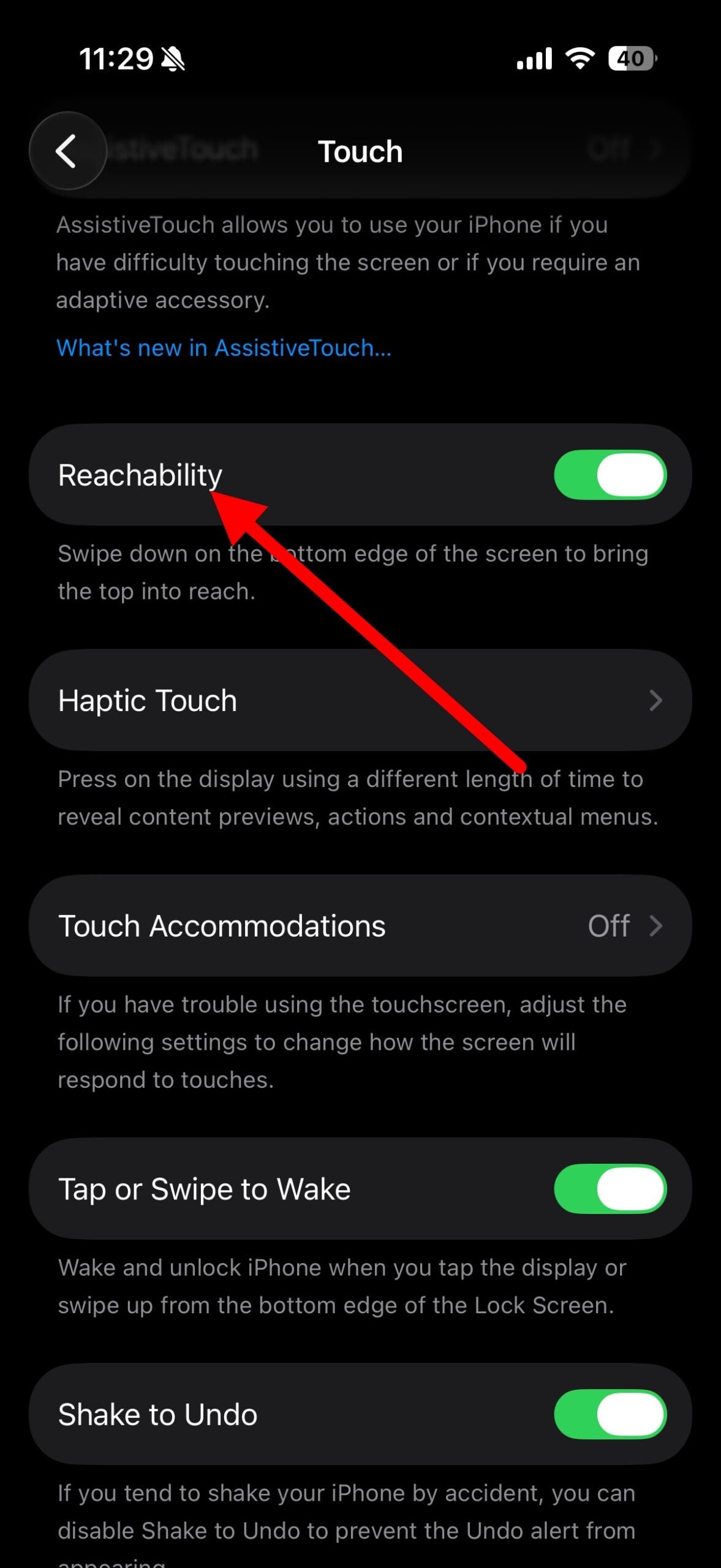
- Look at the very bottom of your iPhone screen, where the horizontal gesture bar sits.
- Place your thumb on the bottom edge and quickly swipe down toward the charging port. The entire interface will slide down.
This will allow you to access the control center and the notifications panel right at your fingertips. Once you tap what you need, the entire top half goes back to its original position.
Something is better than nothing
With the removal of physical navigation buttons and then the on-screen navigation buttons, things got a bit complicated, and people had to adapt to a new way of navigating on their phones. However, it’s been a while, and smartphones have been with navigation gestures, which most people are now comfortable with. But those who are not, especially on their iPhones, can use the above tricks to get back navigation buttons on their phones.
Aside from this, there is also a Name Recognition feature that will help you know if an unknown number calls you. You can also make use of the Shortcuts app to make your life easier by assigning automated tasks to your iPhone.

