

Quick Answer
To share files between OnePlus and iPhone, install the O+ Connect app on your iPhone, open the app, and grant the necessary permissions. On OnePlus, ensure it is running on OxygenOS 15 or later. Open the device, select the files, click the share icon and tap Share with iPhone. Accept to receive files on other devices.
Sharing files between iPhone and Android is still a hassle. There is no single method I can point to that will be available for everyone to share files between these devices. I recently started using OnePlus devices, and when I first used it, I encountered a new feature called Share with iPhone.

Fundamentally, it lets you share files between OnePlus and iPhone. It also supports Realme and Oppo devices that share files with the iPhone. Is this the method we are looking for? Spoiler alert: it’s not. You still need to install the O+ connect app on your iPhone. However, it eliminates the need to install a third-party app on OnePlus, connect to the same Wi-Fi network, use Chrome, or install the app on both devices to share files.
Table of Contents
How to Share Files Between Android and iPhone
You need an Oppo, Realme or OnePlus device to feature this work. For OnePlus, you require OxygenOS 15 or later; on iPhone, you can install the O+ Connect app.
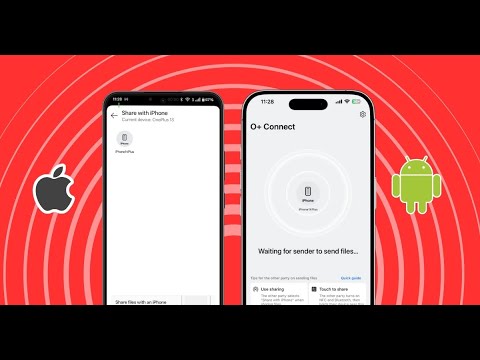
- On your iPhone, install the O+ Connect app.
- Open the app and give all the necessary permissions. Keep the app open to receive files.

- On your OnePlus, ensure your device runs on the latest OxygenOS 15 or later.
- Go to the Settings, search for Share with iPhone, and turn it on. You can also use a quick panel. Find the Share with iPhone toggle and turn it on.

- Select the file and click on the share icon Share with iPhone. However, in the first use, since it is the first time, you must grant all the necessary permissions to make this feature work. This might take quite an effort. However, this is only once.

- Once you are there, select all the files you want to share with your iPhone. Since it is a global panel, you can use it on apps, file manager, photos, built-in apps, and more to share files between your Android and iPhone.

This is how you can share files between Android and OnePlus devices. While it eliminates the need to install an app on OnePlus devices, it is slow to share files. The speeds are not as good, at least what I expected. Sharing a simple photo file took nearly 4 to 5 seconds, which isn’t true with AirDrop or other file-sharing methods. However, this isn’t the case with every transfer. You can use the alternative methods listed below if this method is slow.
Alternate Method to Share Files Between Android and iPhone
- Using Snapdrop (browser-based): Snapdrop is the best alternative. It works using a browser and doesn’t require installing any app. The speeds are generally faster. However, you have to follow the initial setup procedure to share files, like connecting your devices to the same Wi-Fi and visiting the same URL in the browser.
- Using Zapya: You can also share files using Zapya. However, it requires you to install apps on both of your devices, and speeds are generally faster in most cases.
- Alternative methods like WhatsApp, Telegram, and email also work to share simple files to Android or iPhone or vice versa.
FAQs on Sharing Files Between OnePlus and iPhone
Does “Share with iPhone” work without the internet or require Wi-Fi?
Yes, Share with iPhone works without the internet. When you share files, these devices automatically connect using hotspot and Wi-Fi. Ensure you don't turn off Bluetooth, Wi-Fi, or hotspot on either of the devices during file transfer. If you have issues, if the devices fail to turn on Wi-Fi, or if it doesn't share, you can restart the app and check that all the necessary functions are enabled. On Android, you can go to Share with iPhone settings and grant the necessary permissions; on iPhone, go to Apps and the permissions and allow all permissions.
What are the limitations of this method? Can it transfer videos or only photos and documents?
There were no limits. I even tried to share a 2GB file, which worked great. You can share multiple files simultaneously, including photos, documents, and videos, or combine and share them all.
Why is this feature not as fast as AirDrop? Is there a way to improve the transfer speed?
The speed is significantly improved over the course. However, if you still feel it's slow, you can consider alternative services like Snapdrop and Zapier, which offer significantly better speeds than this method.
Can I send files from iPhone to Android using this feature, or is it one-way only?
Yes, you can share files between iPhone and Android and vice versa. There are no limitations.

