

In Summary
- Google has revamped its Results About You tool, which lets you control how your personal information appears in Search.
- The updated tool makes it easier to request the removal of personal information, such as phone numbers, addresses, and email, from websites directly on the Search page.
- Additionally, it also lets you request Google to update an outdated result that still lists your personal details.
Google released the Results About You tool in 2022 to help you get your personal information removed from the Search results. It was subsequently updated in 2023, introducing the ability to get alerts when your personal information pops up in Search.

Now, the company has made a few more changes to its tool. Aside from a redesigned dashboard, the updated Results About You tool now makes it easier than before to submit removal requests. In addition, it also gives you the ability to request an update for outdated results to reflect the latest changes.
Here’s how quickly remove your personal information from Google Search results with the updated Results About You tool.
Using the Results About You Tool to Remove Personal Information From Google Search
As part of the latest update, the Results About You tool now lets you request the removal of your personal information from websites directly on the Search page. This is how you use it to get information like phone number, email address, home address, and more—when you spot it in a web result—removed.
- Open your preferred web browser and log in to your Google account. (This is the account on which Google will send updates about your removal request.)
- Look up your name or whatever search term returns the personal information that you want to remove.
- Click the three-dot button to the right of a result.
- On the sidebar to your right, click the Remove Result button.

- Now, for the Why would you like to remove this result prompt, choose the It shows my personal info and I don’t want it there option.
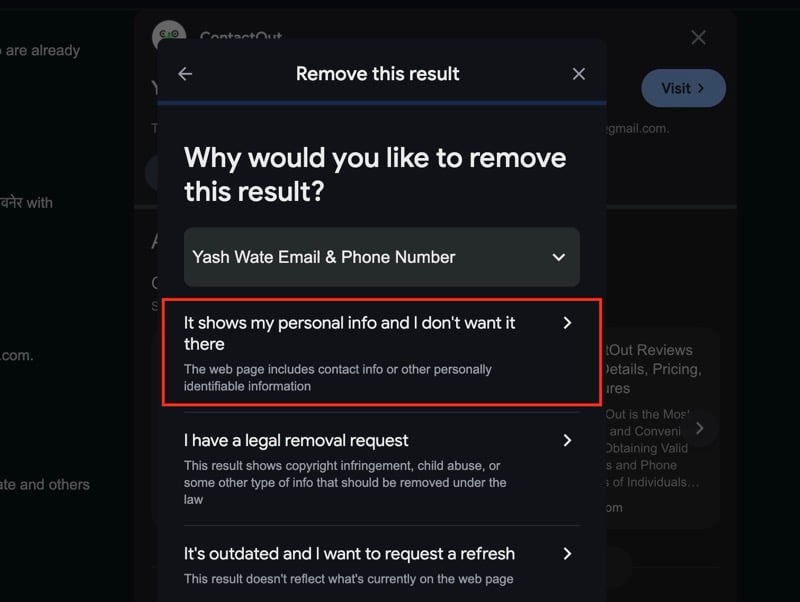
- Similarly, select Contact Info for the What personal info does it include prompt if you want to remove personal information. Alternatively, choose the relevant category in which the information you want to remove fits.

- Hit Continue.
- In the Let us know the details prompt, type your name as it appears in the result.
- Click the Contact Info Type drop-down button and select the correct type for the information you want to get removed.
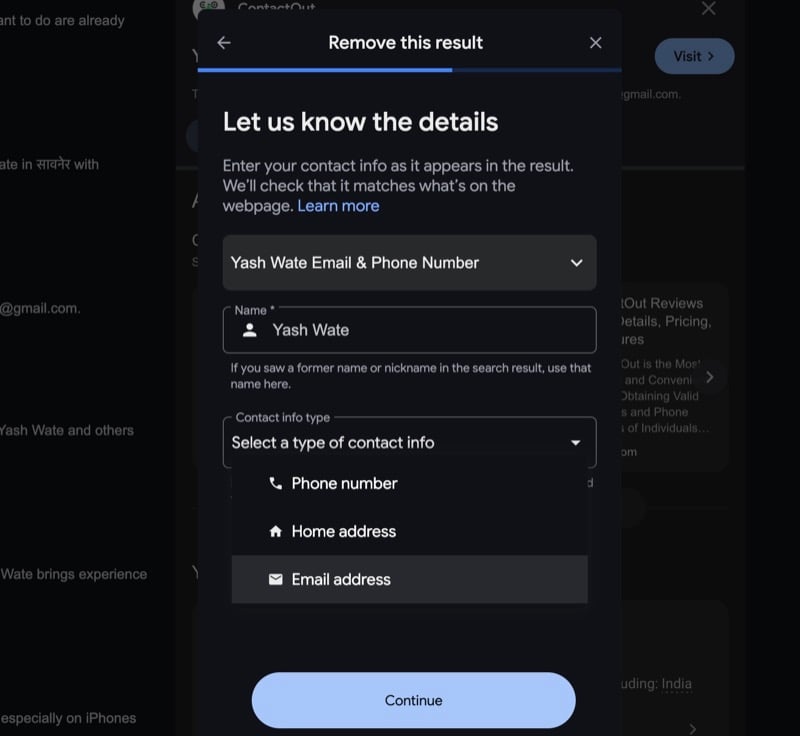
- Type the information as it appears in the result and click Continue.
- Finally, hit Send.
Once you send a removal request, it can take anywhere between a few minutes and a few days for Google to review your request. If the request gets approved, you’ll get an email on your provided account informing you about the same. After it’s approved, Google says it takes a few hours for the requested information to be removed from Search.
Still Seeing Your Personal Information in Search? Request a Refresh
If you still see your personal information in Search after hours of your removal request being approved, you can request Google a refresh, and it will recrawl the page to update the latest information. Here’s how:
- Repeat steps 1 to 4 in the previous section.
- On the Why would you like to remove this result prompt, select It’s outdated and I want to request a refresh.
- Click the Request a Refresh button.
Google will now send you an alert when your request is approved. It could, again, take a few hours for Search to reflect the changes.
Get Alerts When Your Personal Information Appears in Results Again
Besides removing your personal information from Search, the redesigned Results About You tool also lets you set up an alert anytime your information reappears on Search. Follow these steps to do this:
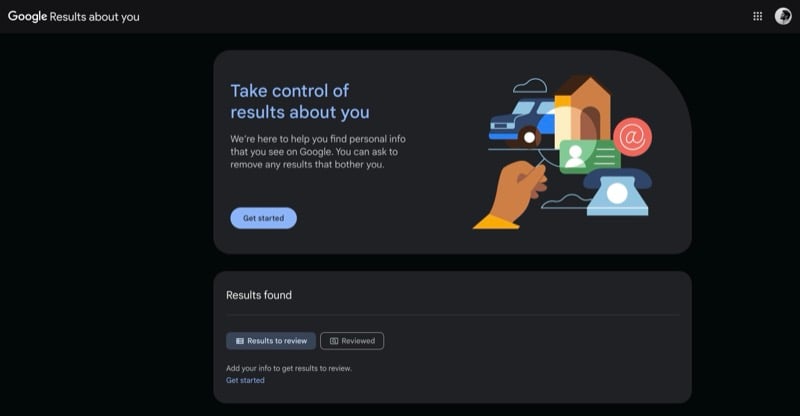
- Head to the Results About You page.
- Here, click the Get Started button. Then, hit Next on the following prompts.
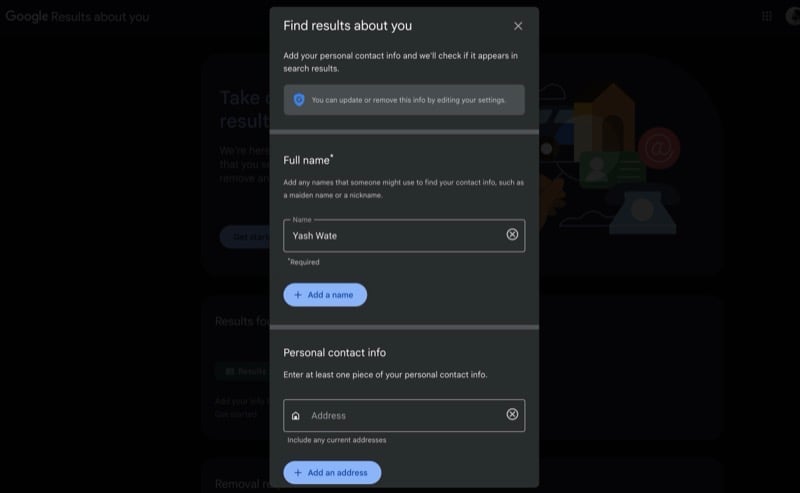
- On the Find results about you prompt, fill in your personal information that you want Google to check and inform you about when it resurfaces in Search results.
- Check off the I confirm that the contact info that I’ve added here belongs to me checkmark and click Continue.
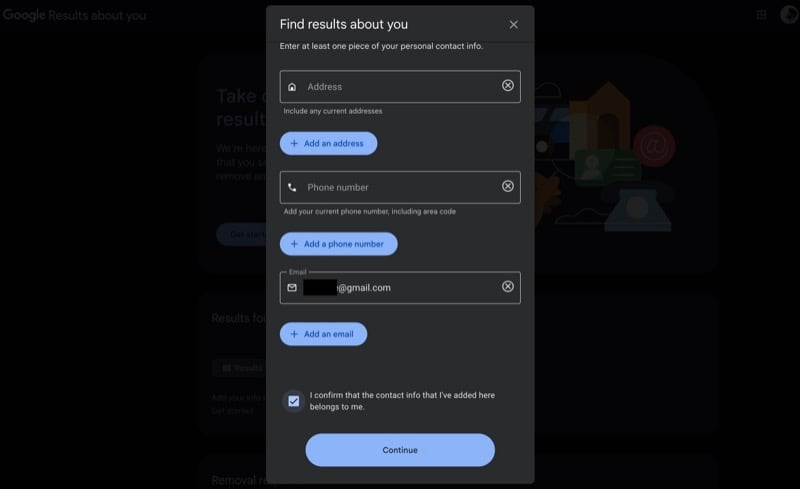
- Finally, choose how you want to get alerts and hit Save.
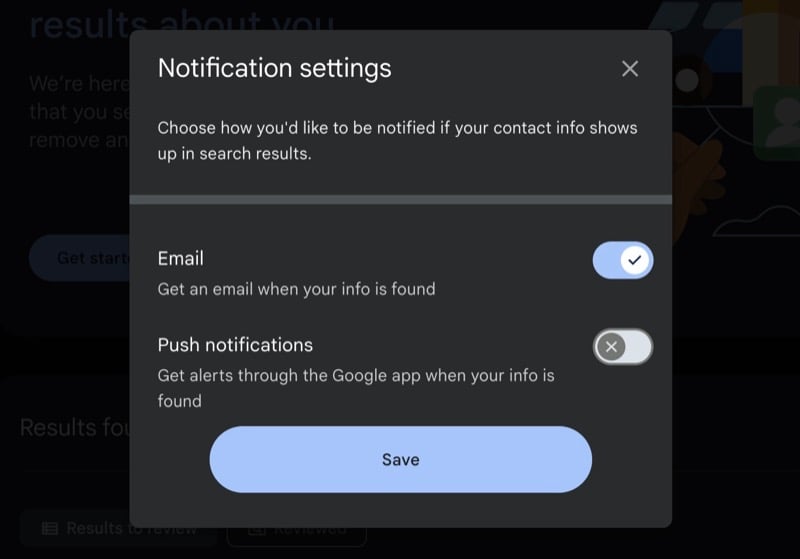
Now, if the information you provided appears in a result on Search, Google will send you an email on your provided email address or a push notification in the Google app, depending on how you requested an alert at the time of setup. You can then click the appropriate button or link in the email or notification to create a removal request and get the information removed from Search.
Removing Information From Google Isn’t Enough
While Google greatly simplifies getting your personal information removed from Search results with its updated Results About You tool, it’s important to note that your information is only gone from Google Search. It continues to be available on the internet, and, therefore, other search engines can crawl it, and those using these search engines can still see it.
If you want to remove your information permanently, you need to request the source to remove it. A lot of the websites take removal requests, but there are exceptions. On the ones that allow you to take such requests, all you need to do is reach out to them via their Contact Us page. Certain websites offer a button or an option next to your details that takes you directly to the removal request page. Fill out the request, and the website should stop showing your information going forward.

