

Quick Answer
WhatsApp’s document scan is currently only available for iOS. To scan documents, open WhatsApp on your iPhone, go to the chat, click the plus (+) icon, select Document, and tap Scan Document. You can add up to 24 pages into a single document.
WhatsApp has been on a roll lately, adding plenty of useful features to the app. The recent integration of ChatGPT into WhatsApp has made it quickly and easily accessible without installing third-party apps, marks all messages as read features to declutter your unread messages quickly, and creates funny GIFs using Meta AI to enhance conversations and Meta is currently testing the ability to translate all chats natively on WhatsApp.
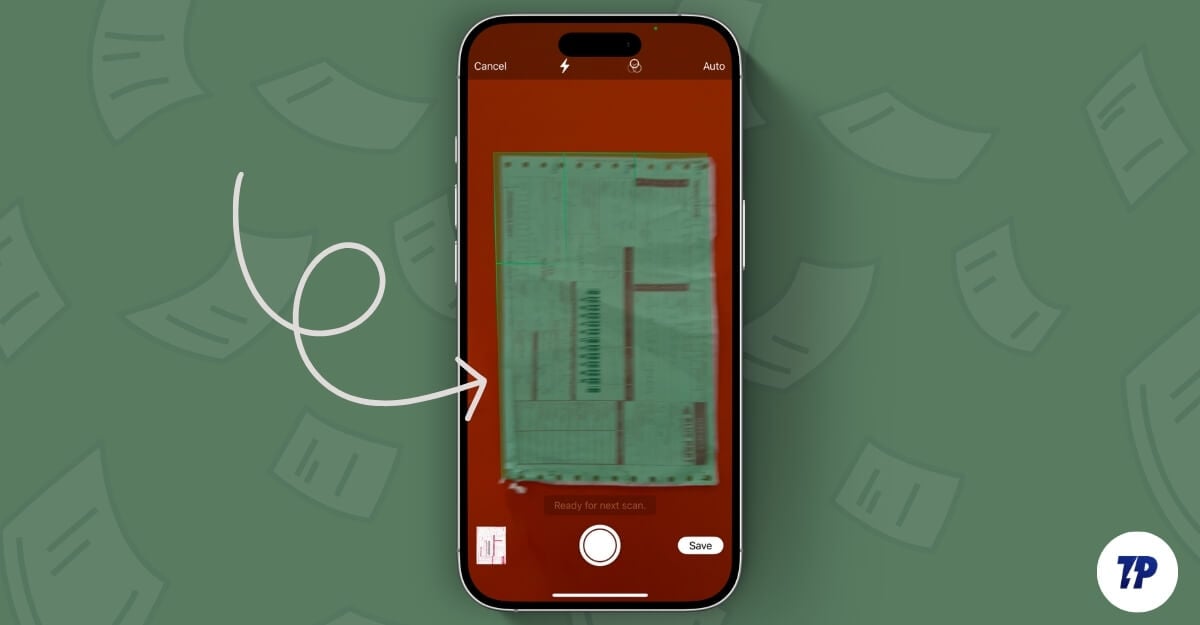
Most of us use WhatsApp to send documents, and WhatsApp recently added a native document scan feature to the app. It lets you instantly capture documents, convert them into PDFs, and share them directly on WhatsApp without requiring a third-party app. In this guide, you will learn about how to share documents instantly on WhatsApp.
Table of Contents
How to Scan Documents in WhatsApp
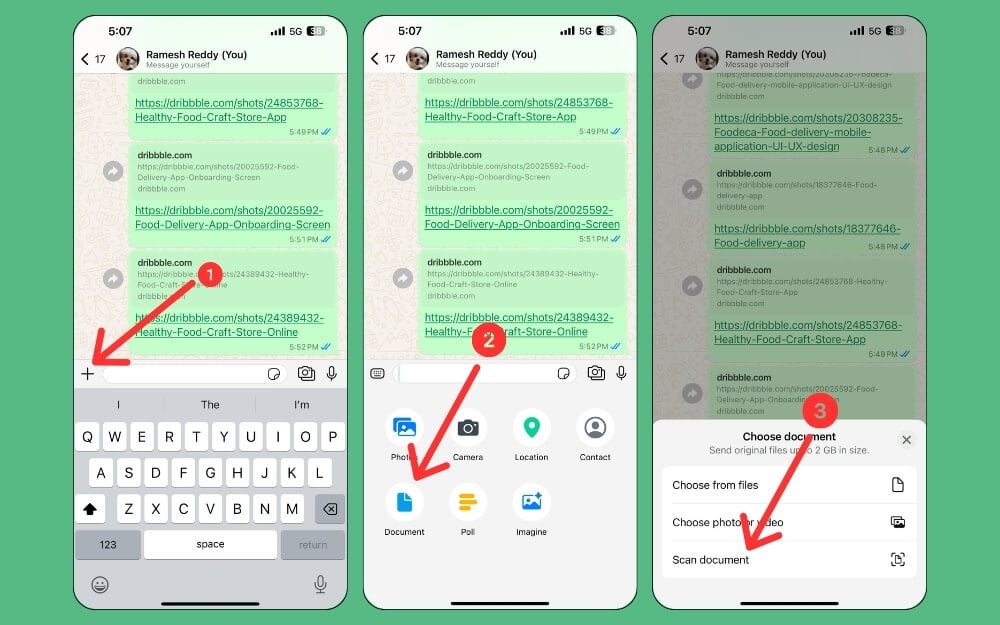
- Open WhatsApp on your iPhone.
- Click on the plus icon, tap on Documents, and then tap on Scan Document.
- By default, WhatsApp automatically detects and captures the documents. This can be handy if you are using a single hand to scan documents. In most cases, it is accurate; however, if you want to capture manually, click on the Auto option at the top to change it to manual.
- You can capture up to 24 pages, and WhatsApp automatically converts them into PDFs.
- To make any changes, click on the document’s image icon. WhatsApp offers basic editing options such as crop, filter, rotate, delete, and the ability to retake the specific scan for the document.

- Once you finish editing, click on the Done option.
- To share the document with multiple contacts, click on Save and select the contacts you want to share it with.
- You can also add a caption. Currently, there is no option to rename the document file. By default, it names the documents starting with the word WhatsApp.
This is how you can quickly scan and share documents on WhatsApp; however, it is very limited, but it is handy for someone who wants to scan and share documents with others quickly. While it adds convenience by eliminating the need for third-party apps and direct sharing with contacts, currently, it doesn’t offer advanced functionalities like OCR (Optical Character Recognition) to extract text from documents and tools to annotate, make key changes or add a signature to the documents which can be a deal breaker for professionals or students looking for advanced PDF scanner tools.
Also, most importantly, the document scan feature is currently unavailable on Android. For advanced users and also for people looking for more advanced features, you can try free document scanner apps available for Android and iPhone that offer advanced capabilities and a user-friendly interface that lets you share directly to WhatsApp once you have created the file.
FAQs on Scanning documents on WhatsApp
Can I scan multiple pages into a single PDF using WhatsApp’s scanner?
Yes, you can scan multiple pages into a single PDF using native WhatsApp. While scanning, you can scan multiple documents.
Is there a limit to the number of pages I can scan into a single document?
Yes, in my testing, you can currently add up to 24 pages in a single document.
How can I ensure the best quality when scanning documents with WhatsApp?
In most cases, WhatsApp maintains the best quality of documents. However, to get optimal results, place the document on a flat surface and ensure it has proper lighting. Also, while scanning, keep your mobile steady. If the auto-scan fails to capture and detect the edges, you can shift to manual mode for more precise controls. After saving, you can also use basic editing tools to enhance further the quality of the scans created in WhatsApp.
Are scanned documents saved locally on the device, or are they stored within WhatsApp?
By default, WhatsApp won't store your documents locally on your device. However, you can save them manually once they are shared with the contacts. To save documents locally on your iPhone, open the document and click on the share icon, then select Save to Files. This will save the documents locally on your device. Here, you can rename, edit, or share them to a PDF viewer app for further edits.

