

Quick Answer
Search for the missing emails in the search box, check Spam and Trash folders, inspect filters and forwarding settings, and finally use the Gmail Message Recovery Tool to get the permanently deleted emails in the last 30 days.
Emails are one of the best ways to communicate officially. We get many emails regarding work, banks, and the products to which we subscribe. However, sometimes, we may lose important emails and fail to find them in our inboxes. If you have had a similar experience on Gmail, this guide is for you. We show you how you can recover missing emails on Gmail easily.

Table of Contents
8 Ways to Recover Missing Emails in Gmail
When you do not find the emails that you need on Gmail, follow these steps to find and restore them to your inbox folder.
Check Your Spam
Spam emails are common for everyone. They are mostly from untrusted sources that Gmail algorithms detect as spam. Such emails are automatically moved to the Spam folder without you getting a notification.
When the email you receive on Gmail contains a suspicious subject or body, comes with a malicious attachment, is flagged as spam by other users, is received from domains that do have proper security setup, or has links that seem malicious, it will go to spam. You never know you received such an email unless you go through the spammed emails.
Click on the hamburger menu beside the Gmail logo and select Spam from the options you see there to go through the Spam folder.
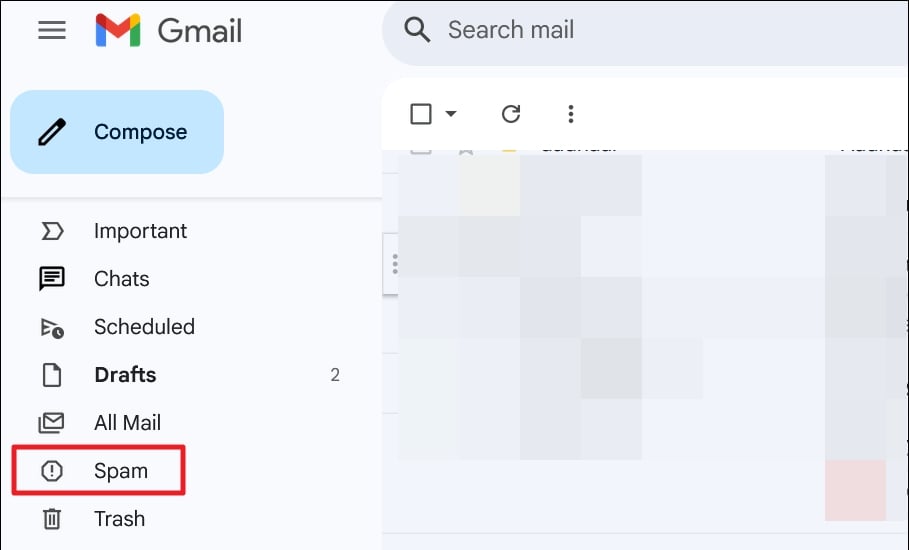
The process is the same on the Gmail app. The only difference is you do not see the Gmail logo. Just tap on the hamburger icon on the search bar and select Spam.
You should find the missing emails there. When you find the emails you are looking for, click Report not spam not to send future emails into the spam folder. As a rule, the emails in the spam folder are deleted automatically in 30 days on Gmail.
Search for Emails
If you remember or know the content of the email you are looking for or know the sender’s email address, you can directly search for it in the search bar. It will fetch the emails from different folders in your email. It will help you find the emails and not lose track of them again.
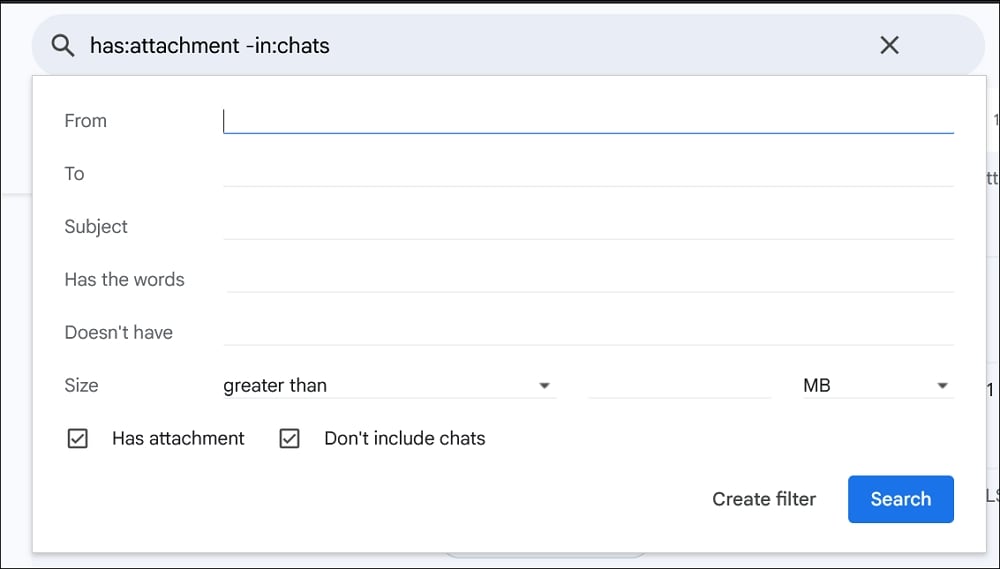
Use filters like Has the words, Doesn’t have, Size, etc., and find your missing emails.
Check the Trash Folder
The Trash folder on Gmail contains all the emails you have deleted in the last 30 days. If you have overlooked an email, deleted it, and forgotten about it, the trash folder is the best option to find it. The Trash folder holds the emails for 30 days and automatically deletes them permanently after 30 days.
Click on the hamburger menu and select Trash to access the trash folder. Or just type in:trash in the search bar to access the trash folder. Go through all the emails in the trash folder, and when you find the email you are looking for, open it, click on the Move icon, and send the email to other folders to restore it from deletion.
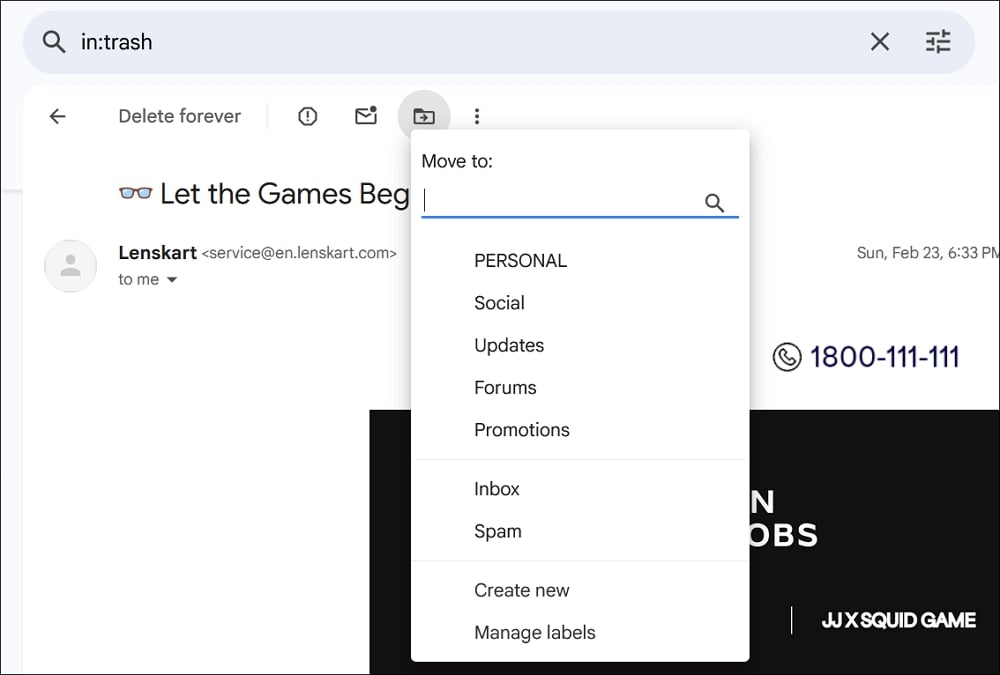
On the Gmail app, you do not find the Trash. It is labeled as Bin. Find your emails and move them to another folder using the three-dot icon at the top of the email.
Check All Mail
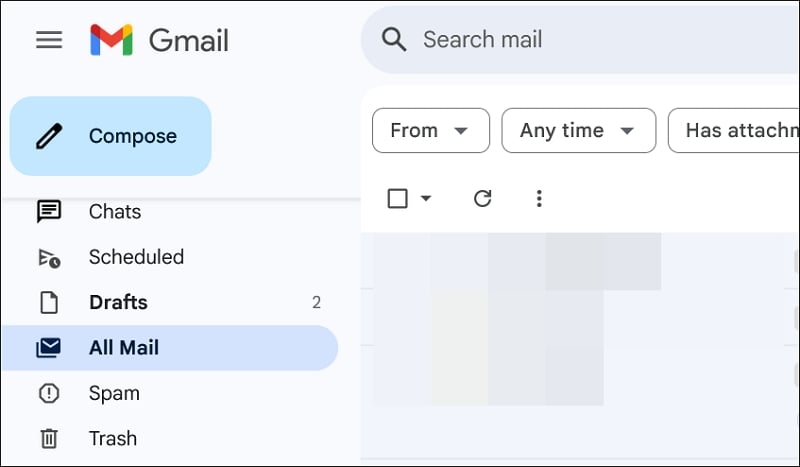
Similar to the Trash and Spam folders, you can see the All Mail folder in the Gmail folders list on the sidebar. In the All Mail folder, you can find every email that is on your Gmail account. You can go through them and find the email you are looking for.
To make the finding process easier, you can use the filters you see above the email list, such as From, Has attachment, Any time, etc. It takes a while to go through all of them and find the missing emails from the thousands of emails. But it is inevitable when we look for an important file missing.
Check Your Gmail Storage
When the Gmail storage is full, you cannot receive new emails. You and the sender will be notified about this. If you have ignored the notification somehow, you need to make sure you have free space on Gmail to receive new emails.
Go through your Google Drive and move the large files to other storage options. If you cannot do that, just buy additional storage for your email on Google. You are required to pay for a monthly subscription to keep and use the storage.
Check for Filters and Blocked Addresses
Gmail has options to filter and block email addresses. If you have filtered emails from a certain email address, they skip the inbox and go to the archived folder. The other filters include Mark as read, Apply a label, Delete, Spam, etc.
You need to carefully check the filters you have set in the Gmail settings and look for emails based on them. To check the filters and blocked addresses, click on the gear icon at the top of the Gmail and select Open all settings. Then, select the Filters and Blocked Addresses. You can find the filters you have set. Go through them and find emails or know where they have gone.

If you have blocked senders’ email addresses, they are automatically spammed and deleted 30 days after receiving them.
Check Forwarding Options
If you have chosen to forward your emails using the POP and IMAP options in the Gmail settings and chose to delete the forwarded emails, you might have lost the emails.
Check the forwarding settings in the Gmail settings and see if they have been forwarded to any other email address. In such a case, you can access the other email and find the emails you are looking for.
To access the Gmail settings, click the Gear icon and select Open all settings. Then, select the Forwarding and POP/IMAP tab and check the settings beside Forwarding, POP download, and IMAP access.

You can find emails if they are enabled and forward them to some other address.
Use the Gmail Recovery Tool
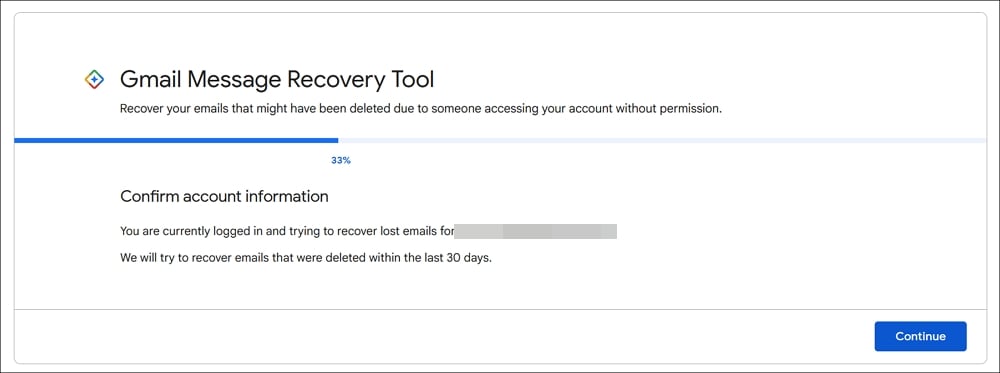
If you have not found the emails yet, the only option you have is to use the Gmail Recovery Tool. Unfortunately, it only helps you recover the emails that you have deleted permanently in the last 30 days.
If the emails are moved to spam or trash without your interference and permanently after 30 days, you may get them using the recovery tool. See if you can find them using the tool. On the Gmail Message Recovery Tool page, sign in with your Gmail and let it check for deleted emails. When it shows the emails you are looking for, recover them using the recovery options.
Gmail Messages Are Missing
When messages are missing from your Gmail account, it can be due to the spam or the settings you have tweaked to filter, block, or forward them. You need to inspect all the settings and find the cause of the missing item. When you fix the settings, you will no longer see them missing from your Gmail account.
FAQs on Recovering Missing Emails in Gmail
Why do my emails disappear without being deleted on Gmail?
If the Gmail algorithms detect an email as spam with the content or attachment it has, it automatically goes to the spam folder. If you do not look at the spam folder for 30 days from the day of receiving it, they are automatically deleted. If you have enabled filters or forwarded them to another email address, they are deleted automatically after the forward if you have selected to Delete them in the forward options.
How do I get my Inbox emails back?
If you have deleted them in the last 30 days, you can find them in the Trash folder unless you have emptied the trash manually. You can use Gmail Recovery Tool to recover permanently deleted emails in the last 30 days.

