

Quick Answer
If app icons suddenly disappear from the macOS dock someday, you can try out a few quick fixes first. These include performing a system restart, reopening the affected apps, clearing RAM and occupied storage space, updating apps to their latest versions, re-adding the icons to the dock, defaulting back to the original dock settings, and more. Otherwise, if that doesn’t help, try performing a safe boot, clearing dock and icon caches, running system scans using cleaner apps, or re-assigning the app icons to restore missing dock items.
Imagine this: you’re working well and good on your Mac when you realize some icons are missing from your dock. A problem as small as this is enough to make a grown-up man startled, especially since dock icons are a primary way of navigating on a Mac after Spotlight Search. Fret not; this guide outlines 15 effective fixes for missing dock icons on a Mac. Read along to know more.

Table of Contents
Quick Fixes for Missing Dock Items on macOS
Before jumping into the advanced solutions, we suggest trying the quick fixes below to see if the issue of missing dock icons gets resolved. Sometimes, a few clicks is all it requires to fix a problem, so you need not always go down the lengthier route. Alternatively, if you have tried these already, consider jumping directly to the next section, where we discuss sure-shot fixes for missing dock items in macOS.
- Perform a system Restart by clicking the Apple logo () at the top-right corner and selecting Restart.

- Disable Stacks, if enabled, by opening Finder, clicking the View section from the menu bar, and deselecting Use Stacks.

Image credits: MacPaw - Remove and re-add the app icon by dragging the blank icon away from the dock and releasing it. To add it back, open the required app, right-click its dock icon, and select Keep in Dock by hovering the cursor over Options.

- Quit the respective app by right-clicking its icon and selecting Quit. Alternatively, you can close it using the keyboard shortcut command + Q. To perform a Force Quit instead, open Activity Monitor, select the app under Memory, and click the cross-icon to perform a force quit. We recommend doing the same for Finder to ensure it’s not the one causing the issue.

- Run a terminal command that restarts the macOS dock – open Terminal, enter the command “killall Dock” (without the inverted commas), and press return.

- Quit unwanted apps to save on system memory. To check your Mac’s RAM usage, open Activity Monitor and view the Memory stats. Additionally, ensure that your Mac has sufficient internal storage. If not, free up your Mac’s storage to prevent app slowdowns.

- Make sure the faulty app is running on its latest version. To check for app updates, open the App Store and navigate to the Updates section from the left pane.

- If the app is running on its latest version, try reinstalling it. To do that, uninstall the app from your Mac’s Applications folder or from the Launchpad directly and reinstall it from the App Store or its original source.

- Consider reverting to the original settings if you are using custom dock settings. This includes dock position, size, magnification, and more. To do so, right-click on the dock and change the required settings by selecting Dock Settings.

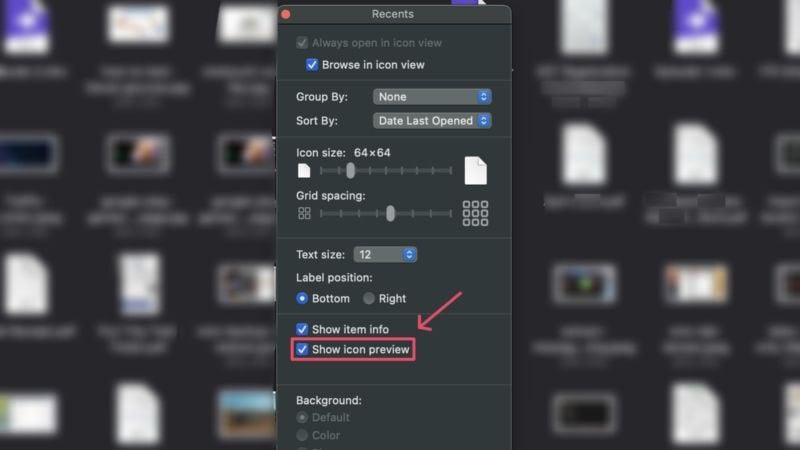
- Turn on the icon preview within Finder by selecting the View option from your Mac’s menu bar. Enter Show View Options and select the checkbox beside Show icon preview.
With that out of the way, let’s take a look at a few advanced solutions that are sure to bring back missing dock icons in macOS.
Clear macOS Dock Files
macOS contains specific files related to its dock, which, once reset, can restore the original dock configurations and result in its usual functioning. An efficient way of resetting the files is by relocating or removing them, post which macOS automatically creates fresh files. Here is how you can do so:
- Open Finder and select Go from your Mac’s menu bar.
- Click on the option stating Library.

- Locate and enter into the Preferences folder.

- Look for the following files and delete them using the keyboard shortcut command + delete –
com.apple.dock.plist
com.apple.dock.extra.plist (if available)
com.apple.dock.db.plist (if available)To ease the search process, enter dock in the search bar at the top-right corner and select Preferences to filter the search results. After the required files show up, delete them.

- Open your Mac’s Trash and empty it.

- Perform a restart and check if the problem persists.
Alternatively, you can move the files mentioned above to your desktop instead and perform a restart. If the problem is resolved, delete the files present on the desktop, as macOS will automatically create fresh files to replace the missing ones.
Perform a Safe Boot
Safe boot is a known fix for many unknown problems, as it lets macOS run diagnostics and fix issues independently. It includes clearing unwanted caches, preventing certain startup programs from running, such as login items and extensions, and a basic disk checkup to ensure nothing is out of place. That said, here is how you can perform a safe boot, which, by the way, depends on the type of Mac you are using:
For Apple Silicon-Based Macs (M1 or Later)
- Shut down your Mac by clicking the Apple logo () at the top-left corner and selecting Shut Down.

- Wait a moment or two and long-press your Mac’s power button until you see the Apple logo accompanied by Loading Startup Options.

- Locate your Mac’s startup disk, which is usually named Macintosh HD unless changed. Press and hold the Shift key and select Continue in Safe Mode.

- Once in safe mode, log in, give it a minute or two, and restart your Mac the usual way.
For Intel-Based Macs
- Shut down your Mac by clicking the Apple logo () at the top-left corner and selecting Shut Down.
- Press your Mac’s power button to turn it on. Follow it immediately by long-pressing the Shift key until you see a login window.

- Once logged in, your Mac will enter safe mode. Wait a short while and restart your Mac.
Clear Icon Caches
Like every other unwanted cache file, icon caches should be removed, too. There’s a high chance that icon cache files might be causing the issue, which is why getting rid of them is recommended to fix missing dock icons. To do so,
- Open Terminal.
- Enter the following command –
sudo rm -rfv /Library/Caches/com.apple.iconservices.store

- Follow by entering your Mac’s password. Note that as a safety measure, macOS restricts the display of the password while you enter it. In other words, don’t fret if you see nothing while entering your Mac’s password.

- After that, run the following command –
sudo find /private/var/folders/ \( -name com.apple.dock.iconcache -or -name com.apple.iconservices \) -exec rm -rfv {} \; ; sleep 3;sudo touch /Applications/* ; killall Dock; killall Finder

- Restart your Mac and check if the problem is resolved.
Rebuild Icon Caches
Another clever way to deal with missing dock items is by restoring the icon caches of the missing icons altogether. This forces macOS to revert the app to follow its original icon, which should help bring back the icon. It sounds complicated but isn’t a tough nut to crack. Here’s how to do so –
- Open Finder and head to the Applications folder from the left pane.
- Locate the required app, right-click its icon, and select Get Info.

- Once a small window opens, click the lock icon at the bottom-right corner to unlock it. This is required to edit app permissions and you will be asked to authenticate the action by entering your Mac’s password or using Touch ID.

- Drag anything you want over the app icon in the top-left corner and release it. You can drag images, folder icons, and file previews, including PDFs, documents, and more. The original app icon will be replaced by the dragged file type, which should also be reflected in the dock and the Launchpad.

- Now that you have replaced the original app icon, you can revert by selecting the new icon from the top-left corner and pressing the delete key on your keyboard.
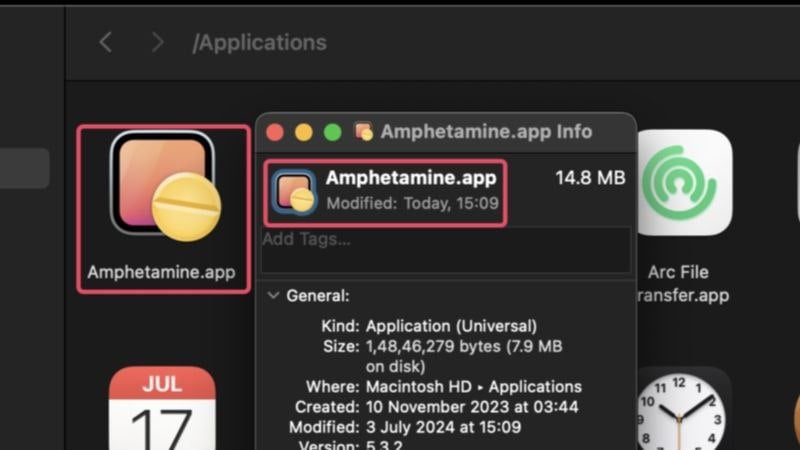
This will force macOS to restore the app’s original icon, thereby rebuilding its cache files. If the app was running during the procedure, consider force quitting and relaunching it to ensure the changes take place.
Put Cleaner Apps To Use
Cleaner apps prove godsent at times, and this is one such moment. Cleaner apps like CleanMyMac X, MacKeeper, and Cleaner One Pro have built-in cache removers that help clear unwanted cache files. If a faulty cache file had caused the issue, cleaner apps might delete the cache file upon performing a system scan.

However, not all that glitters is gold, as cleaner apps may sometimes clear away necessary cache files required for the smooth functioning of the dock. So, if running a system scan didn’t help, consider force quitting the cleaner app and see if the issue gets resolved.
Unhide Missing Dock Items With Ease
We hope the above solutions were able to bring back missing dock items on your Mac. If the problem remains unresolved, you can try switching to alternative apps, if any, or reinstall macOS completely. The latter might seem unfeasible, but if you feel the need or more icons start going missing, that’s the only solution left for tackling missing dock items.

