

Quick Answer
To delay startup programs on Windows 11, use Task Scheduler to create a task that triggers at log-on or startup. Alternatively, antivirus tools like BitDefender, Norton, or Kaspersky offer built-in options for delaying startup programs. Third-party apps like LaunchLater can also help, but they may consume additional resources. Delaying startup apps improves boot time and system performance.
When we boot a Windows PC, some apps and processes start running in the background by default. They are automatically set to run on the Startup when we install them. As the number of programs that run at the startup increases, your PC’s performance suffers.

The only way to fix it is to delay the startup programs for some time until all the essential processes start and run to make your PC’s performance smooth. Otherwise, you can disable those startup programs completely. Let’s see how we can delay startup programs on Windows 11.
How to Delay Startup Programs on Windows 11
You can delay the startup program on Windows 11 using any of the following ways. Follow the one that suits you.
Using Task Scheduler
A normal Windows 11 user does not use the Task Scheduler as frequently as other programs. It is a built-in scheduling tool on Windows which do not have visibility as other programs. We can create tasks on the Task scheduler to delay startup programs and improve the performance of our PC.
To delay startup programs using the Task Scheduler on Windows 11, click on the Start button, search for Task Scheduler, and open it from the results. On the Task Scheduler app, click on Action on the menu bar and select Create Task.

Alternatively, you can click on Create Task on the Actions panel on the right side of the Task Scheduler tool.
A Create Task window opens. Enter the name for the new Task in the General tab. Click the Triggers tab and click New at the bottom.

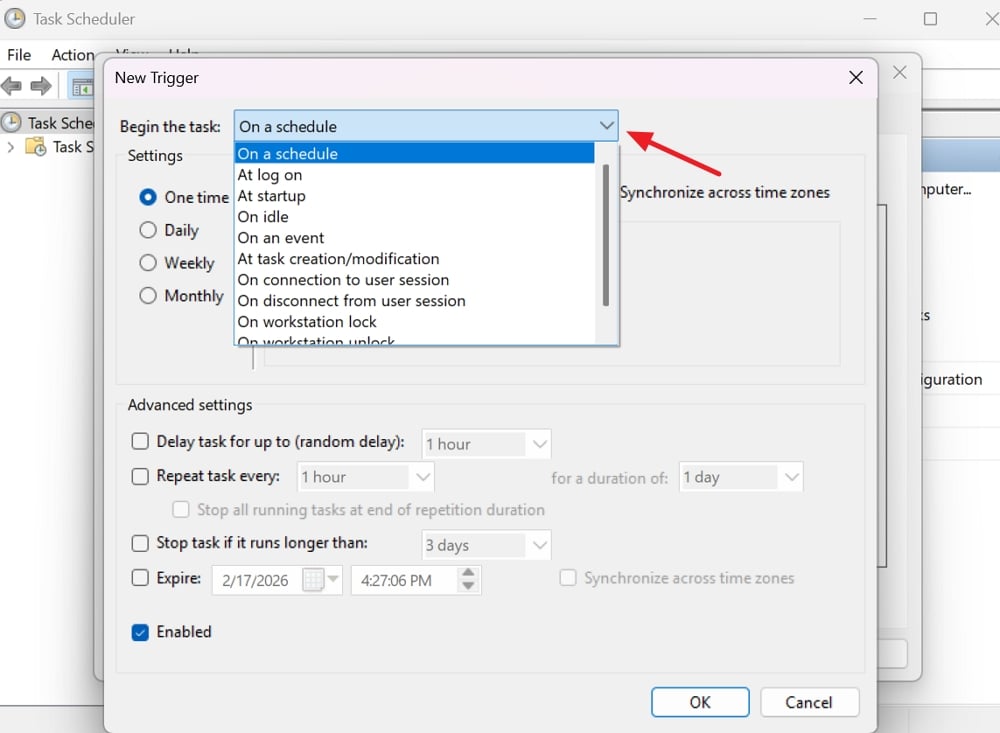
A New Trigger window will open. Click the drop-down beside Begin the task and select At log on. You can also select At startup. If you select At log on, the task starts after you log into your PC using the PIN or password. If you select At startup, the task will start even if you are on the login screen without logging into the PC. The task will start in the background. Even if there are no tasks scheduled, when you turn on a PC and leave it on the login screen, the startup programs will start by default even without logging in.
After setting the trigger as you deem perfect, click on the Actions tab. It will open a New Action window. Set Action to Start a program. Click on Browse under the Program/Script and locate the .exe file of your program in the installation directory. Then, click OK.

You can tweak the Conditions and Settings for the task in the respective tabs. To delay other programs at the startup, repeat the same. At any time, you can delete the tasks you have created in the Task Scheduler tool from the list of tasks.
Antivirus Programs
If you do not want to use Task Scheduler to delay startup programs, you can use the antivirus app you have installed on your PC. Most of the major antivirus programs come with PC optimization tools to make your PC perform better.
You can find options to delay startup programs on BitDefender antivirus programs under Startup Optimizations controls, on Norton antivirus under Startup Management, on Kaspersky antivirus under Startup Control, etc.
The terms may change with each antivirus, but they serve the same purpose. Using these features, you can delay the startup program in one or two clicks and improve your PC’s performance at the startup.
Third-Party Startup Optimization Programs
Though the above two ways are good-to-go without giving your PC access to some random third-party app, if you need you can use LaunchLater, WinPatrol, and other startup optimization or windows optimization programs.
You need to download and install any of those programs and let them run in the background. They defeat the purpose of delaying startup programs to improve PC’s performance as they start running in the background.
Improve Your PC Performance by Delaying Startup Programs
Delaying startup programs reduces the sudden stress on the PC resources at the startup or on the log-on. The gradual running of startup programs at a later time after you start using your PC makes it work fine. You can witness a great deal of change in the performance of your PC with just this task.

