

Scanning QR codes with smartphones is easy. However, sometimes you don’t want to use your smartphone and wish to scan the QR code natively on your computer.

The good news is it’s possible to scan QR codes in Windows. We’ll show you three different methods to do this so you can decide which one to go with, depending on whether the QR code you want to scan exists in the real world or appears on your computer’s screen.
Table of Contents
5 Ways To Scan a QR Code on Windows 10 and Windows 11
Method | Works For | Compatible With | Limitations |
|---|---|---|---|
Camera App (Built-in) | Physical QR codes using live webcam feed | Windows 10 & 11 | Can't scan images or screenshots stored on the PC |
Snipping Tool | QR codes from saved images/screenshots | Windows 11 only | Doesn’t support live camera scanning |
CodeTwo QR Scanner (Third-party app) | QR codes from screen, files, clipboard, webcam | Windows 10 & 11 | Requires installing external software |
Online QR Scanners | QR codes from uploaded images or live webcam | Windows 10 & 11 (Using browser) | Requires internet; also avoid uploading sensitive QR codes |
Using Browser | QR codes found on websites in the browser | Windows 10 & 11 | Doesn’t work for local files or scan physical QR codes |
Scan a QR Code on Windows Using the Built-In Camera App
- Works for: Physical QR codes. You can scan a QR using the camera live feed just like on your mobile.
- Compatible with: Windows 10 and 11.
- Limitations: It cannot scan QR codes from images stored on your PC or screenshots
Microsoft ships the Camera app in Windows 10 and Windows 11, which you probably already use to click pictures or record videos. But there’s more to it: the app also features a built-in QR code scanner to help you scan QR codes on the PC.
Here’s how to use the Camera app to scan a QR code in Windows 10 or Windows 11:
- Launch the Camera app.
- Click the Barcode button below the shutter button along the right edge of the app to bring up the scanner. (If it’s unavailable, check the steps below to enable it.)

- Bring the QR code you want to scan in front of your computer’s camera and hold it still.
- Once the Camera app scans the QR code, its contents pop up on the screen. If it’s a link to a website, you can click on it to visit the website; if it’s text, you can copy it.

If, for some reason, you don’t see the Barcode button in the Camera app on your PC, you’ll have to enable it manually like this:
- Open Camera.
- Click the Settings button (with the gear icon) in the top-left corner to bring up Camera Settings.
- Scroll down and click on Related Settings to expand it.

- Flip the switch to Try Out New Experimental Features.

- Close the Camera app and reopen it.
Scan QR Code Using Windows Snipping Tool (Windows 11 Only)
- Works for: Detect and decode QR codes from an image
- Compatible with: Windows 11.
- Limitations: Doesn’t support scanning physical QR codes directly from the live webcam.
If you are using Windows 11, you can use the built-in Windows Snipping Tool to quickly scan the QR code from the images already stored on your device. It can detect QR codes in the pictures you have captured and stored on your device.
Unfortunately, the Windows Snipping Tool is only available for Windows 11. For Windows 10 users, you can try alternative methods like the third-party QR code scanners listed below.
- Open the Windows Snipping Tool. Click on the start button or press the Windows Key, and in the search bar type Snipping Tool and open it.
- Click on the three-dot horizontal menu on the top and click on the open file.
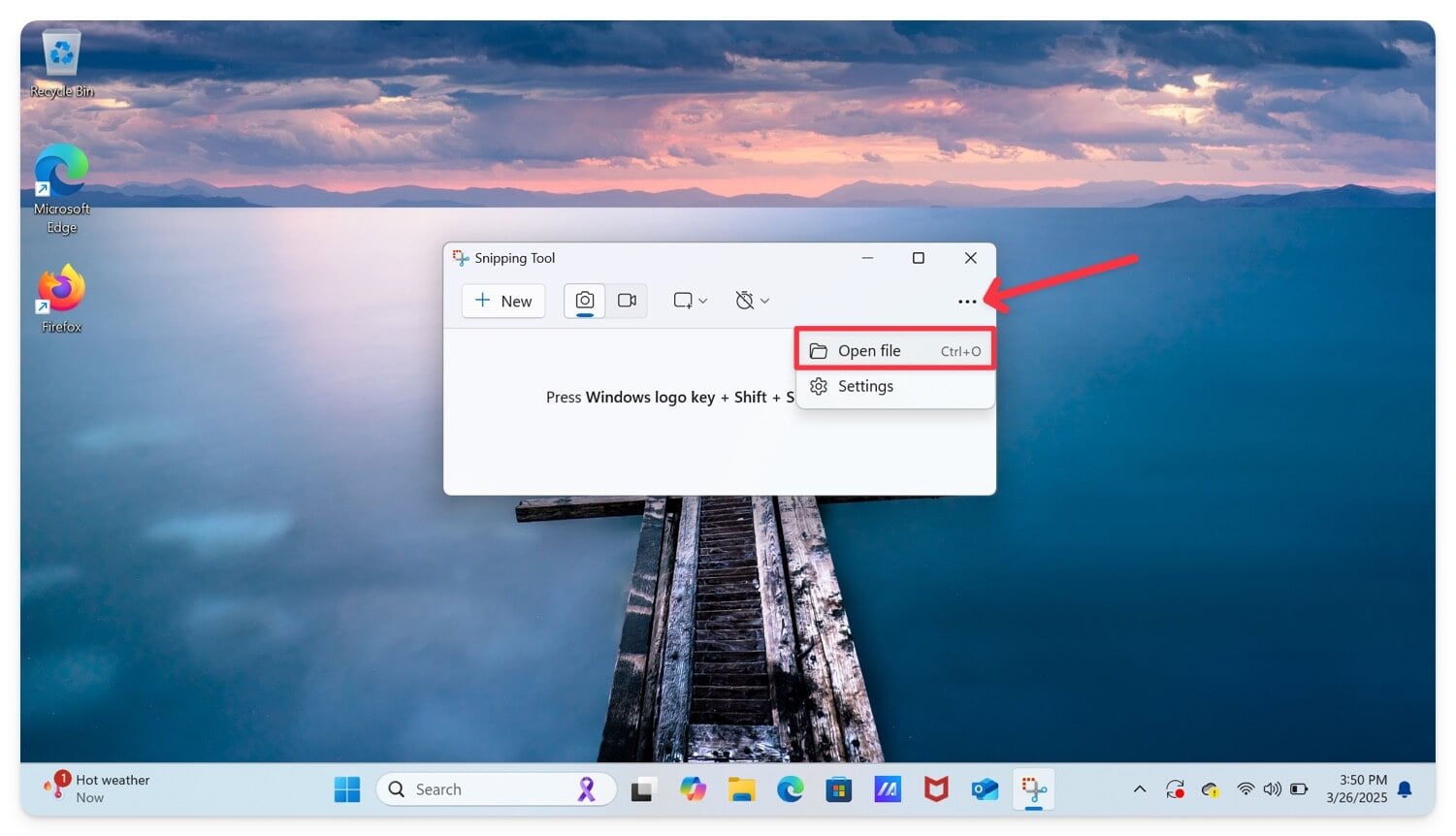
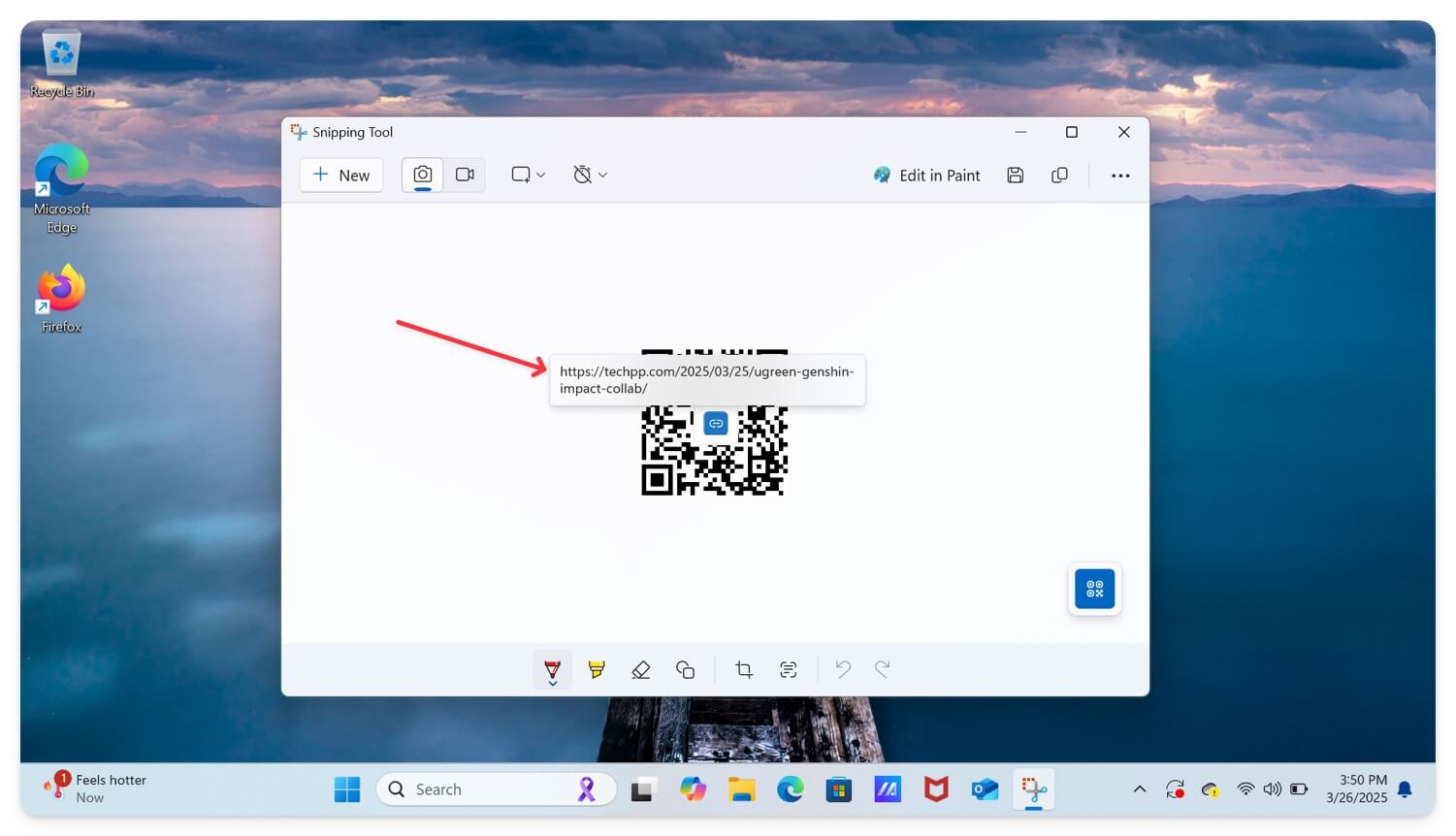
- Next, select and open the QR code you want to scan. Wait for the Snipping Tool to detect the image after clicking on the QR code icon in the bottom right corner.

- Finally, open the link or copy the text from the QR code.
Scan a QR Code on Windows Using a Third-Party QR Code Scanner
Using CodeTwo QR App
- Detect and decode QR codes from an image or webcam.
- Compatible with: Windows 10 and 11.
- Limitations: Requires you to download the external app.
Microsoft’s Camera app and the Snipping Tool offer a quick and easy way to scan QR codes on a Windows PC. However, you cannot get both functionalities in the same app. In this case, you can use the free third-party CodeTwo QR code desktop app to scan the QR codes.
For such requirements, you need a third-party QR code scanner. While there are many capable QR code readers that you can use, we recommend CodeTwo’s QR Code Desktop & Generator. It’s free, has one of the better UIs, and offers a code generator to help you generate QR codes.
What’s more, the app gives you the ability to scan QR codes from various sources. So, you can, for instance, scan a QR code in a file. Or scan it on an app (when it appears on your screen), from the clipboard, or even via your webcam.
Using the CodeTwo QR Code Desktop & Generator is easy, too. First, download and install the program from the link below, and then follow the instructions below to scan a QR code.
Download CodeTwo QR Code Desktop & Generator
Launch the CodeTwo QR Code Desktop & Generator app on your PC.
Now, depending on where the QR code you want to scan is, click on the From Screen, From Webcam, From File, or From Clipboard button in the Read QR Code section at the app’s top.

If you choose From Screen, you must select the QR code inside the app (or wherever it is) by drawing a square around it. Similarly, if you click on From File, the app will open File Explorer and require you to select the image file containing the QR code.
Alternatively, you can copy the QR code and select the From Clipboard option to automatically get its content in the CodeTwo QR Code Desktop & Generator app. Or use the From Webcam option and put the QR code before your PC’s webcam so the app can scan it.
When you feed in the QR code in the CodeTwo QR Code Desktop & Generator app, its content will show at the bottom under the QR Code Text section. You can then click the clipboard icon on the right to copy the text of the QR code to your clipboard.

Sadly, the CodeTwo QR Code Desktop & Generator app also shows URLs as plain text, which means you’ll need to copy them from the app to a browser to open them.
Using Online QR Code Scanners

If you don’t want to install third-party tools, use simple online QR code scanner tools. These online tools are more advanced now; they can even scan QR codes from an image and a live webcam, similar to the Code 2QR app.
As an advantage, you don’t need to install any third-party apps; they are easy to access from any web browser. There are plenty of tools, and here are my favourites.
| Tool | Link |
| Scan QR (Scan from images and text) | scanqr.org |
| Web QR (Live webcam scanning & image upload) | webqr.com |
| Online Barcode Reader (Supports QR, barcodes, PDF417) | onlinebarcodereader.com |
| QR Code Reader by QR Scanner (Simple drag & drop) | qrscanner.org |
Scan a QR Code on Windows Using Google Lens
- Quickly scan QR codes found on websites.
- Compatible with: Windows 10 and 11 (using a supported browser).
- Limitations: cannot scan QR codes from local image files or live camera feed.
Google Lens is a great way to scan QR codes you come across on the internet inside Google Chrome. You could also do this using the CodeTwo QR Code Desktop & Generator app, but that would require you to download the QR code to your computer before you can scan it. Lens saves you this hassle.
Almost all popular browsers now come with a built-in QR code scanner. Depending on your browser, you can scan the QR code on webpages.
Here’s how it works:
- Go to the page with the QR code you want to scan in Google Chrome.
- Right-click on the QR code and select Search Image with Google.

- If you don’t see this option in the context menu, right-click on the image and select Open in New Tab. Then, go to that tab, right-click again, and select Search Image with Google.
- Chrome will now bring up a Google Lens window showing the result of your scan.
- Lens will also give you a bunch of different action buttons, such as Website, Copy URL, and the like, depending on the QR code’s content, for quick access. Click on an action to perform it.

Scanning QR Codes on Windows Is Easier Than You Think
Scanning QR codes directly on your Windows PC may seem complicated. However, as you’ve seen, it’s anything but that. In fact, not only is this approach easy and quick, but it’s also far more efficient than scanning a QR code on your smartphone and moving that information to your computer.

