

Quick Answer
To avoid giving spoilers on YouTube TV, use the “Broadcast Delay” feature. Go to the playback screen, click the three-dot menu, select “Broadcast Delay,” and choose “Decrease for 48 hours.” This delays your stream, reducing the chance of revealing live event spoilers to others.
You might have noticed that the live event that you are watching on YouTube TV always lags behind what is currently happening. You will find social media posts related to that event appear a bit faster than what is currently being streamed on YouTube TV. This happens because of a latency issue that delays what you’re watching because people are watching it live. Latency has been a nemesis of the internet, especially with sports events. A family or a group of friends watching the event at different locations are susceptible to spoilers.

Thankfully, YouTube TV offers an option to reduce the delay when watching live content. The feature gives you a little control over things, basically helping you to reduce the broadcast delay. The broadcast delay is built-in by default, which happens because it allows the video to stream and build up to offer a buffer-free broadcasting experience. But in the process, the live event is shown with some delay. In this guide, we will show you how you can use broadcast delay on YouTube TV to improve your live event-watching experience.
Table of Contents
What is broadcast delay on YouTube TV?
YouTube TV introduced the Broadcast Delay feature a while back. It can allow users to reduce the broadcast delay by adding a bit of instability to the stream. This could offer you almost a real-time watching experience as the live event is happening. According to a post on Reddit, YouTube explains this feature as:
If you choose “Decrease for 48 hours,” the decreased broadcast delay will revert back to “Default” after the 48 hours are up. Keep in mind that the lower the broadcast delay, the less buffer the video player will have, so you may be more likely to experience playback interruptions. “Default” is best to minimize playback interruptions, whereas “Decrease for 48 hours” is best to reduce live spoilers.
This means that if the broadcast delay is reduced, your stream is more exposed to playback interruptions. As per Google, “The lower the broadcast delay, the less buffer the video player will have. With a lower broadcast delay, you’re more likely to experience playback interruption.” Do note that internet speed, network congestion, Wi-Fi interference, and other factors are also responsible for live programming latency issues. Delays can happen even if you have a high-speed connection.
How to use broadcast delay on YouTube TV?
The steps to enable broadcast delay on YouTube TV are quite simple. If you are okay with the trade-off involved when turning on this feature, then follow the steps below to enable this:
- Launch the YouTube TV app on your TV or your streaming device.
- Select any playback screen on any channel.
- Click on the three-dot menu icon under the timeline.
- Select the Broadcast Delay option.
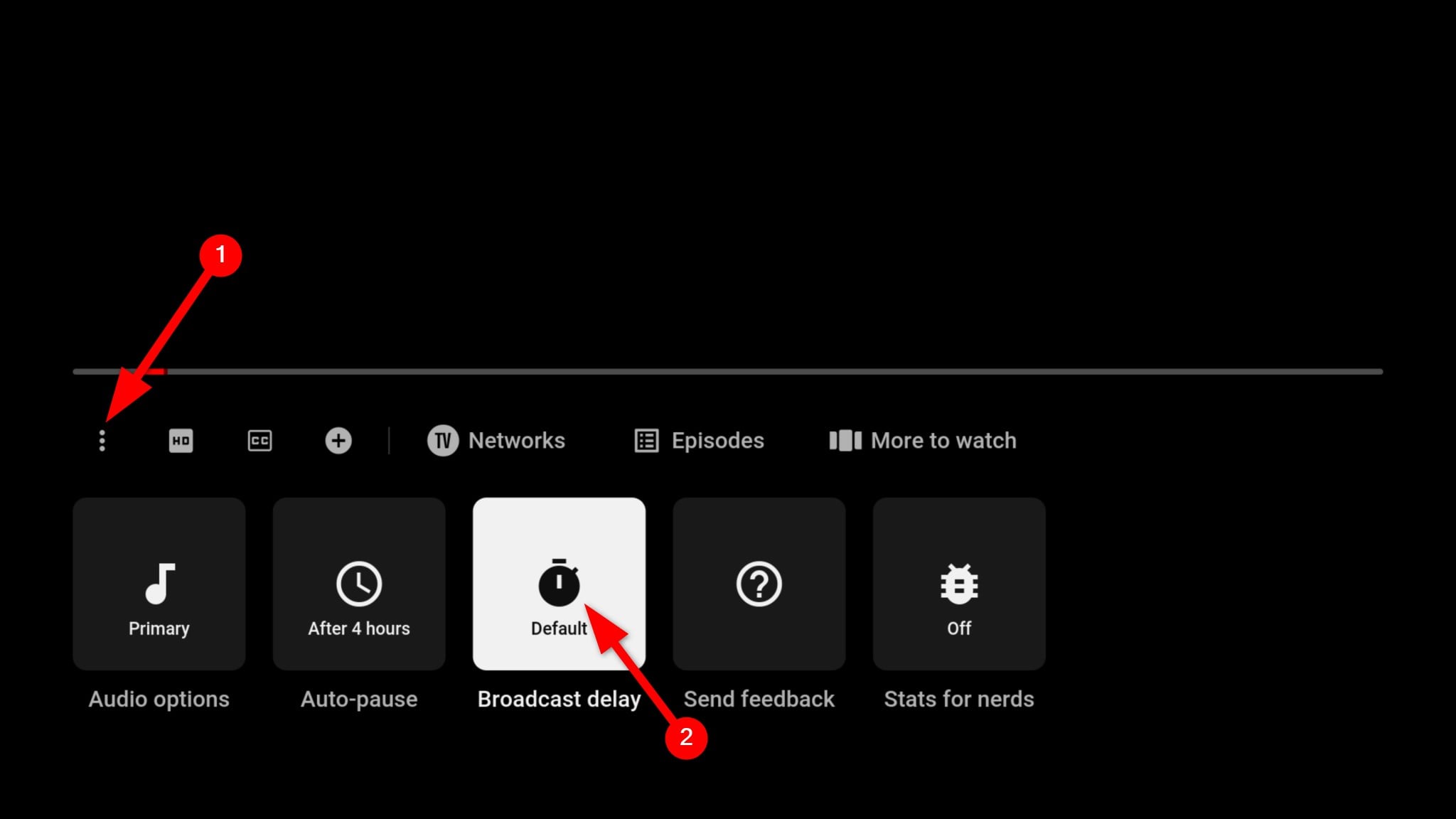
- You will have the option to choose: Decrease for 48 hours or Default. You need to choose “Decrease for 48 hours.”
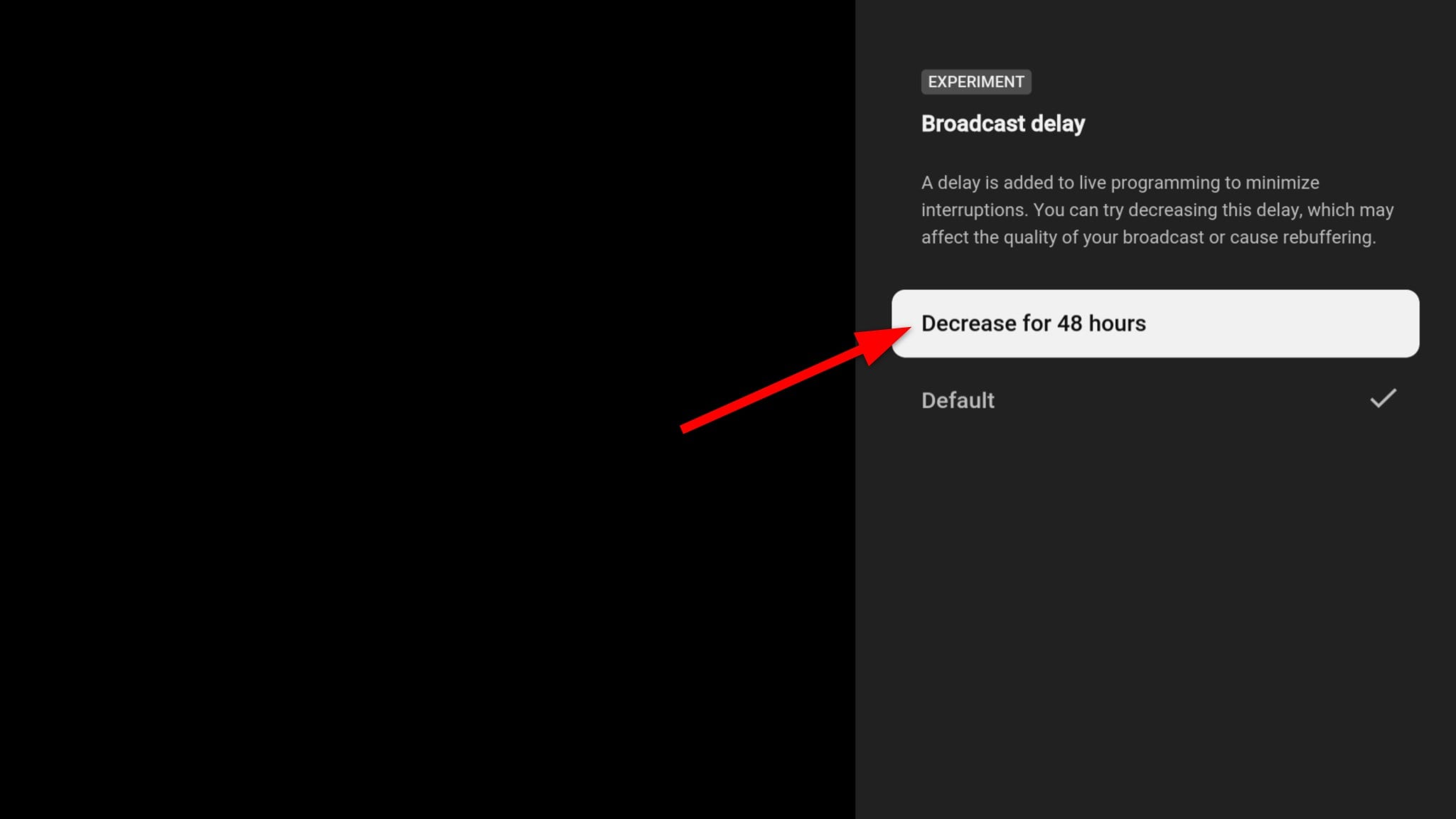
As mentioned above, if you choose the “Decrease for 48 hours option,” then the broadcast delay will revert to the “Default” option after 48 hours. Also, the lower the broadcast delay, the less buffer you will experience during the live stream. In our case, you need to choose the “Decrease for 48 hours option” to avoid having live spoilers.
For your information, here is a list of devices you can download the YouTube TV app on and apply the above method:
| Game consoles |
|
|---|---|
|
|
| Smart TVs | Fire TV Edition smart TVs produced by Toshiba, Insignia, Element, and Westinghouse |
| Hisense Smart TVs (select models) | |
| LG smart TVs (2017+ models only) | |
| Roku TVs (all models) | |
| Samsung smart TVs (2017+ models only) | |
| Vizio SmartCast TVs (select models) | |
| Streaming devices | Android TV (Note: TVs running a mobile version of Android may not be supported) |
| Apple TV (4th generation & 4K) | |
| Chromecast with Google TV | |
|
|
| Google TV (Note: All Google TVs and streaming media devices) |
|
| Peloton | |
|
|
| TiVo Stream 4K | |
|
FAQs about broadcast delay on YouTube TV
Why is YouTube TV lagging on my TV?
YouTube TV streaming could lag on your TV because of various reasons, including slow internet connection, router problems, high-video resolution settings, unsupported format, server issues, etc. In case you are looking for solutions, particularly for Chrome, then you can apply the solutions mentioned in our guide.
Does turning on broadcast delay on YouTube TV affect other videos?
No, the broadcast delay feature is applied only to videos that are being streamed live. Non-live videos will continue to play as they were uploaded on YouTube.

