

Quick Answer
Getting rid of AI from the apps and devices we use is a long task. Still, it is a worthy one as we can stop the models use our data to train, stop invasive notifications from AI than real humans, and decrease attention span further with the generated summaries for the content we normally consume. Almost every social media platform, web browser, and devices have some AI features on them. We can disable or mute them to make them stay silent and not access our data.
ChatGPT, which came in November 2022, introduced the consumer AI. It provided every internet user with additional capability. Every industry is impacted, and AI is blended into its products to make them even better. It is both a boon and a nightmare. Since OpenAI’s ChatGPT, every major tech company in the world has invested hugely in AI.

As the world is currently moving into AGI, we wonder if it is possible to use the internet without AI, like how we used to browse the web and use social media as they are without AI as a medium to summarize or impact the experience. Follow this guide to learn more about how you can avoid AI by disabling the AI capabilities in the most used services on the internet, from social media and search engines to your devices.
Table of Contents
How to Disable Meta AI on Facebook and Messenger
Meta AI cannot be completely disabled on your Facebook as your data is used to train the models. We cannot change that unless we submit an objection and leave it to Meta’s discretion. We have two options to not see Meta AI features on our Facebook. One is to disable comment summaries, and the second one is to mute Ask Meta AI. Let’s see how we can do this on the web and the Facebook app.
To disable comment summaries on Facebook, log in to Facebook on your web browser. Click on the profile picture and select Settings & privacy. Go to Settings. Scroll down to the Audience and visibility section and click on Posts.
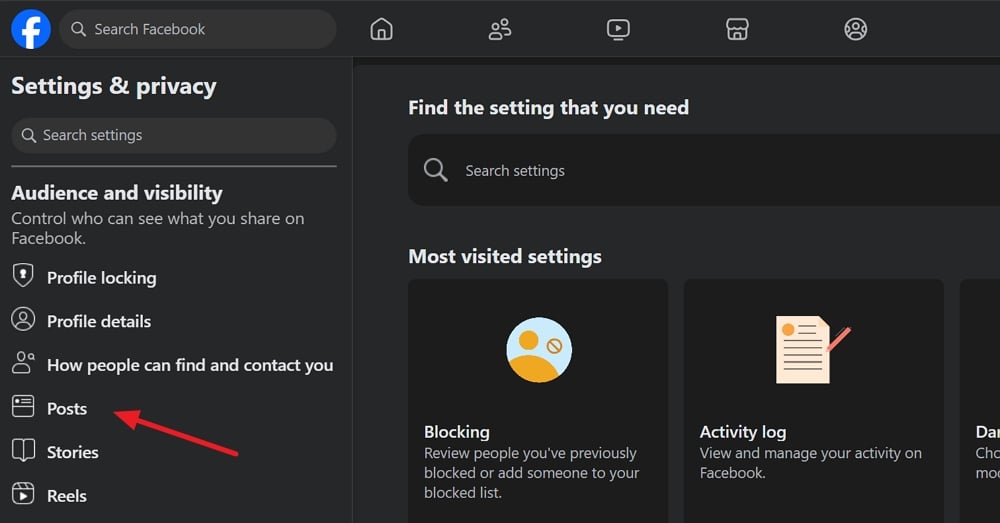
Toggle the button beside Allow comment summaries on your posts to turn it off. The button should turn grey, indicating the feature is disabled.
To disable comment summaries on the Facebook app, go to your profile page on the Facebook app and click the Gear icon. You will see the Settings & privacy page. Scroll down to Audience and visibility and then tap on Posts.
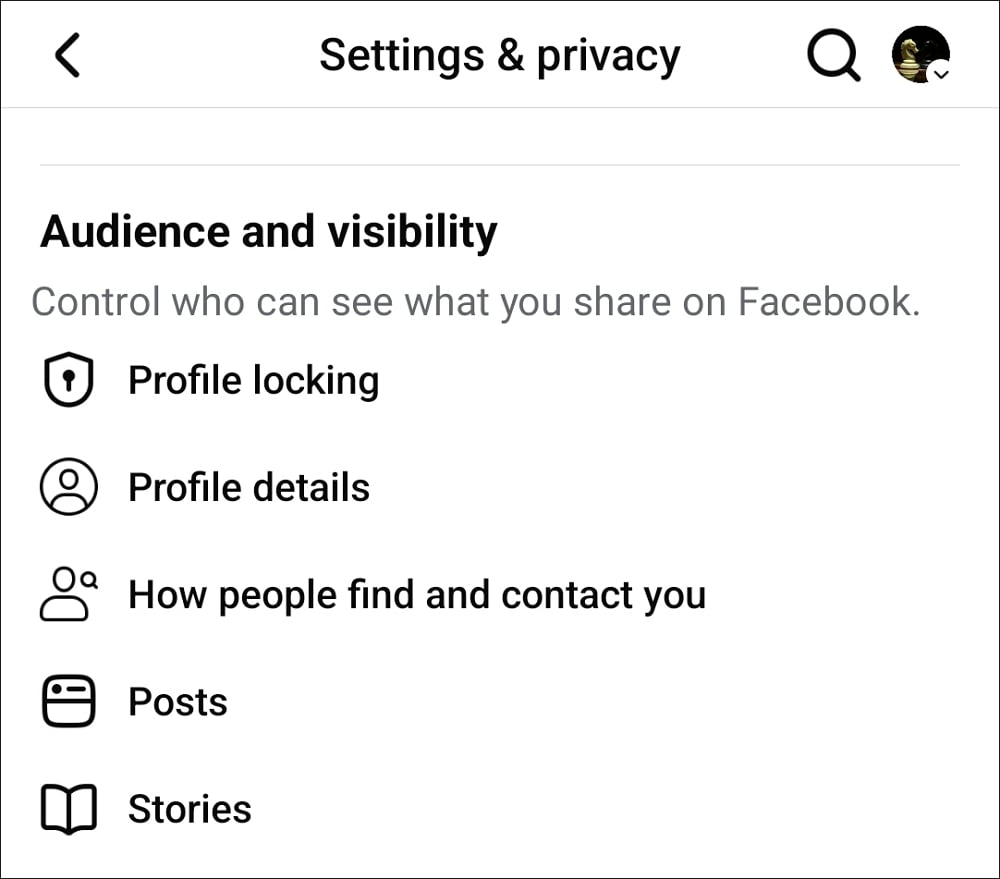
Now, tap the button beside Allow comment summaries on your posts to turn it off. That’s it. Now, proceed to disable Ask Meta on the Facebook app. Tap the search bar and select Ask Meta AI.

It opens Meta AI chat. Tap the information icon at the top-right of the chat. Then, tap the Mute button and set it to Until I change it by checking the button beside it. Once you are done, tap OK to save changes.
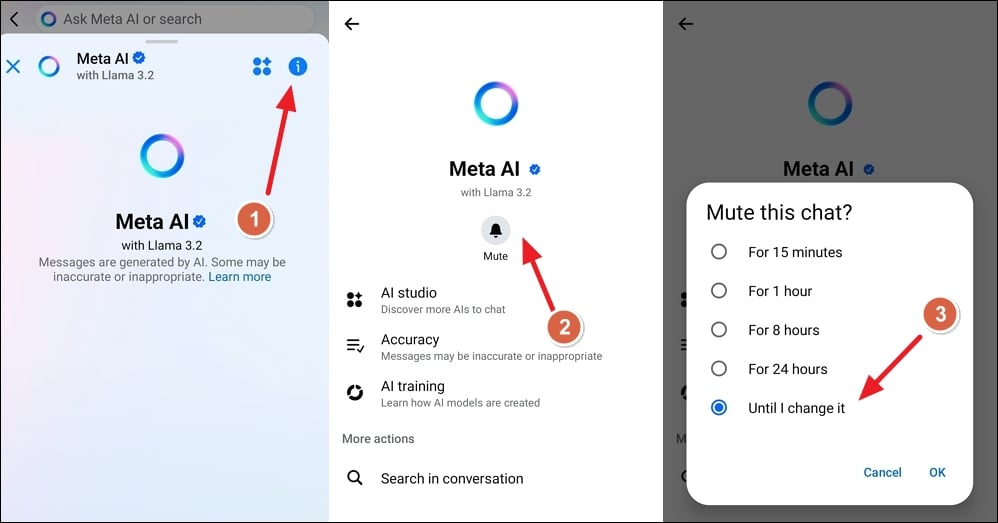
This mute applies to Ask Meta AI on the Messenger app, too. You don’t have to mute it separately. Following these two ways, you can considerably limit the AI’s visibility on Facebook.
How to Disable Meta AI on Instagram
Similar to how you mute Ask Meta AI on Facebook, you have to mute Ask Meta on Instagram, too. Open the Instagram app on your phone and tap the Messages icon at the top-right. Then tap on the search bar, which will show Ask Meta AI or Search.
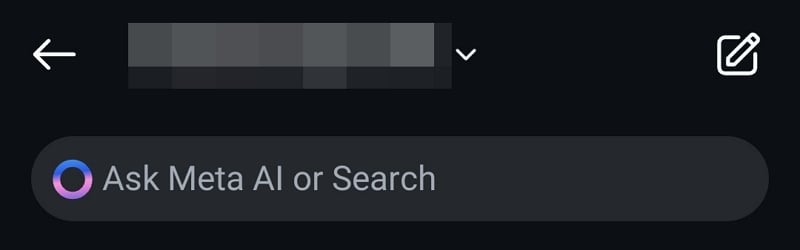
It will open Meta AI chat. Tap the information icon at the top. Then, select Mute on the information page.
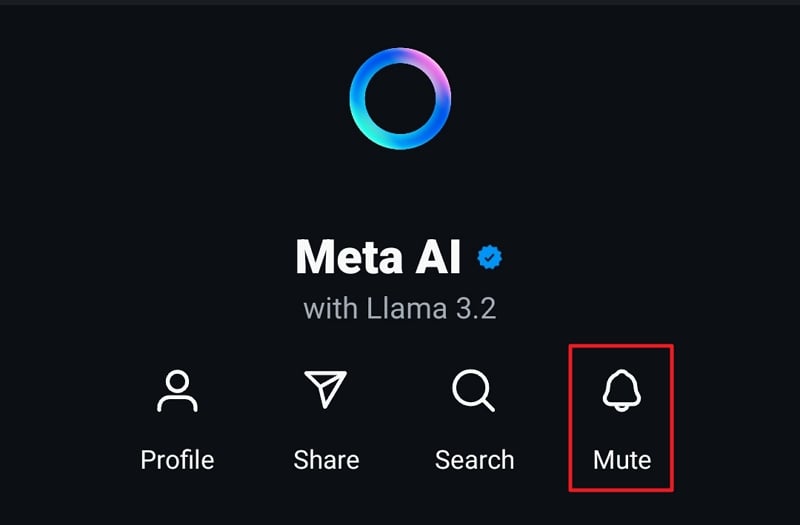
Now, tap the button beside Mute messages at the bottom of the screen and select Until I change it. Also, toggle the button beside Hide message previews.
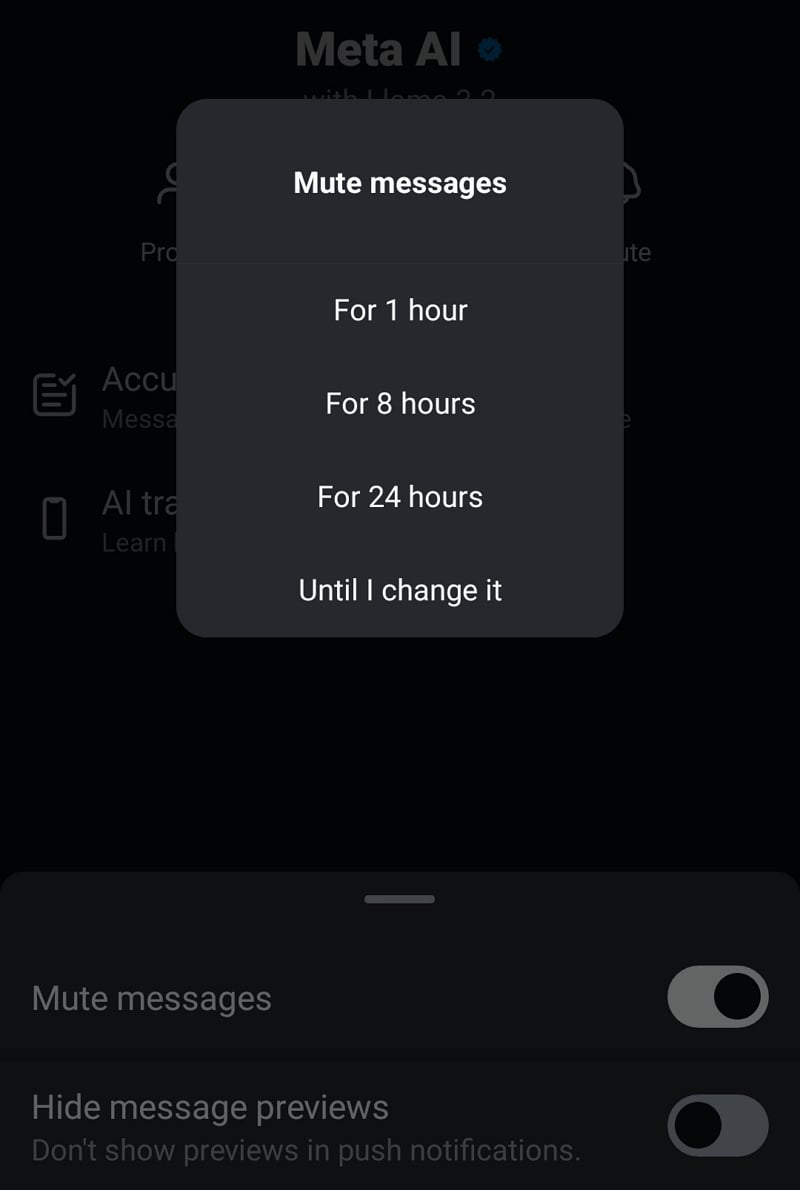
You will not see notifications again regarding Ask Meta AI on Instagram. However, you will see Ask Meta AI on the search bar. You cannot entirely remove it as it is built into Instagram by its parent company, Meta.
How to Disable Meta AI on WhatsApp
Meta has added Ask Meta AI to all their products, which gives us no option to opt out. We only have the choice to mute them and make them not visible to use in notifications. Open WhatsApp on your device and tap the search bar. You will see a send icon. Tap on it.
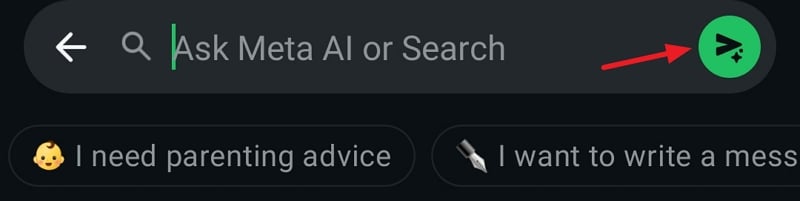
It opens the Meta AI chat box. Tap on the Meta AI profile name at the top of the chat box. Tap on Notifications. Toggle the button beside Mute notifications. A Mute notifications pop-up appears. Select Always and tap OK.
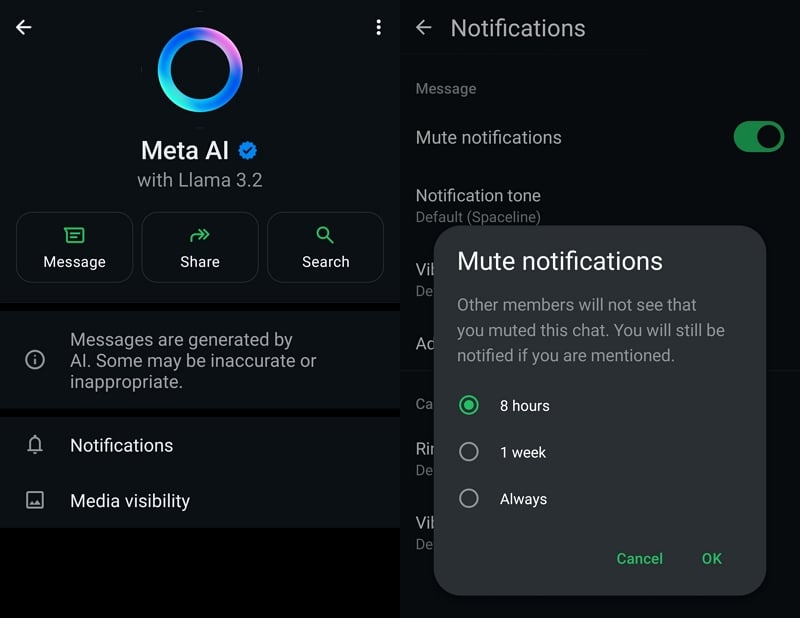
Now, on the Notifications page, tap on Advanced settings. Uncheck the button beside Use high priority notifications.
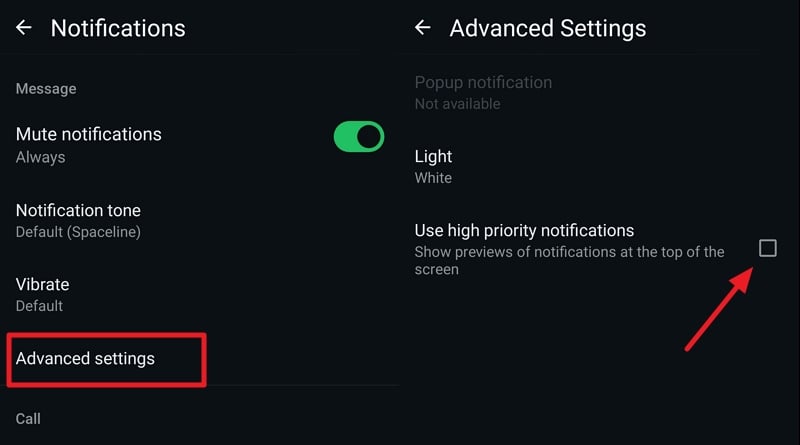
That’s it. You will no longer see Ask Meta AI notifications, but you can get rid of them in some way.
How to Disable AI Overviews on Google Search
AI is the new reality we all have to adapt to. Google had given options to enable or disable AI overviews on Google search while they were testing it via Labs. As the feature is now widely enabled, there is no option to disable it. However, we can use third-party extensions on our web browsers to disable AI overviews.
If you are using the Microsoft Edge browser, install AI Overview Hider for Google extension from the Edge Add-Ons store. I installed it and tested if it was working or not. It works absolutely fine when removing Google AI overviews for your searches.

If you are using Google Chrome or Brave browser, you can install the Hide Google AI Overviews extension from the Chrome Web store and enable it to remove AI overviews. You can use this extension on browsers like Vivaldi or Opera, which supports adding extensions from the Chrome Web store.
Add Hide Google AI Overviews from the Firefox Browser Add-Ons store if you are a Firefox user.
All these extensions help you remove the AI overviews that summarize and highlight the answer to our query. We all trust websites that give the best answers that we understand easily. Google AI overviews jump on that and make it hard to scroll to find the websites we trust. These extensions should help you get the old search experience back on Google.
How to Disable AI on Bing Search
Bing was the first search engine to blend ChatGPT capabilities into its search. It forced Google to add AI overviews. The AI summaries or answers for our search queries were given under the Chat tab, with links in the remaining tabs. As a part of making Copilot a go-to AI chatbot, Microsoft has replaced the Chat tab with Copilot, which is not enabled by default with the search query.
When you search for something on Bing Search, it stops showing summarized answers with invisible links. All you see is the text pulled up from the websites related to your search query, highlighting the website links.
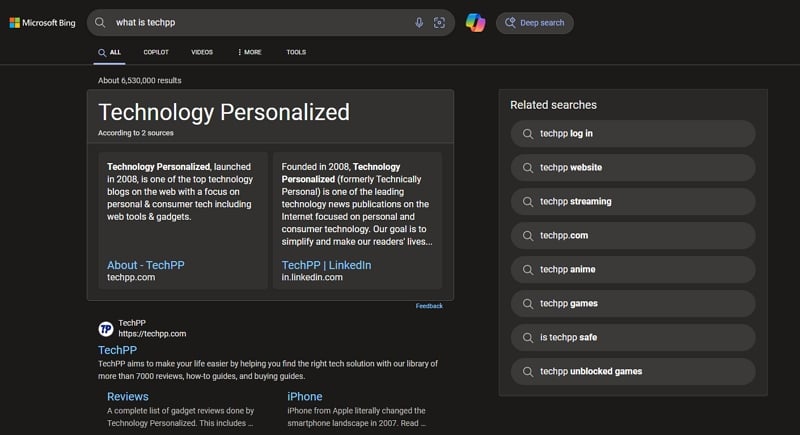
The AI features work only when you click COPILOT button, and it opens in another tab, leaving the Bing purely for search like how we used to do earlier.
How to Disable Grok AI on X (Formerly Twitter)
Elon Musk, the owner of X (formerly Twitter) has made Grok AI a primary feature on X. Unfortunately, it is not possible to disable Grok AI from showing up on your timeline, or the options. All you can do is stop its training on your data and delete your conversation history. After that, you can stop using Grok AI and use X like you did before without Grok AI.
To delete conversation history with Grok AI and stop its training on your data, click on the three-dot icon on the left sidebar and select Settings and privacy. Click on the Privacy and safety tab. Scroll down to the Data sharing and personalization tab and click on Grok & Third-party Collaborators.

Click Delete conversation history and confirm deleting it on the pop-up. Then, uncheck the buttons beside Allow your public data as well as your interactions, inputs, and results with Grok and xAI to be used for training and fine-tuning and Allow X to personalize your experience with Grok.
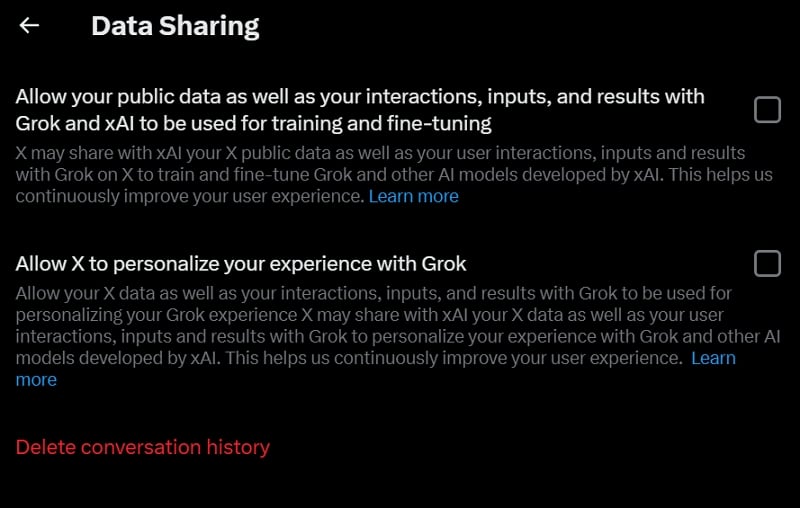
You have now deleted all your Grok AI history and stopped it from accessing your data for training.
To delete conversation history and stop Grok AI from accessing your data for training on the X app, tap on the Profile picture, expand Settings & Support, and select Settings and privacy.

On the Settings page, tap Privacy and safety. Scroll down on the Privacy and safety setting to find Data sharing and personalization options. Then, tap on Grok & Third-party Collaborators and Grok Personalisation, one after another. Disable everything in those settings and delete the conversation history.
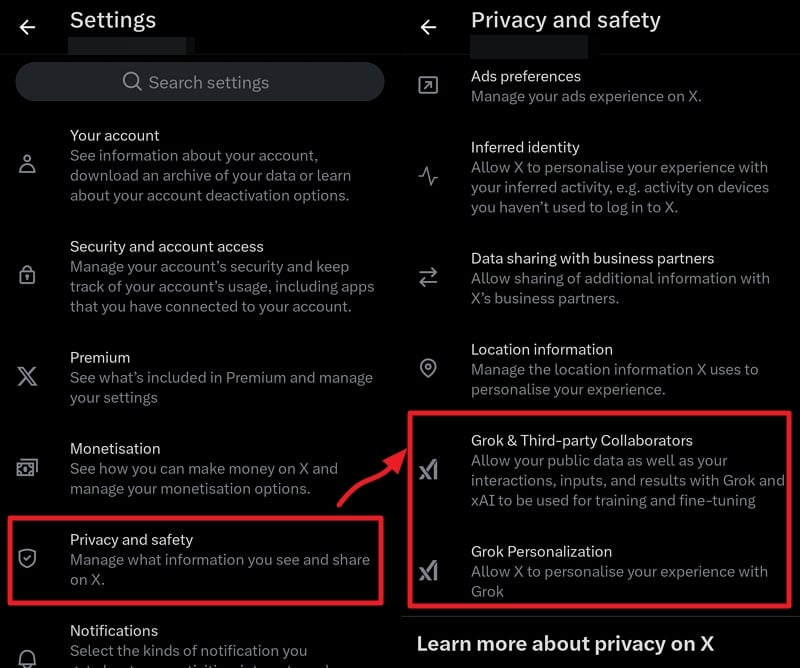
Hope the option to disable Grok AI is available in the future.
How to Get Rid of My AI on Snapchat
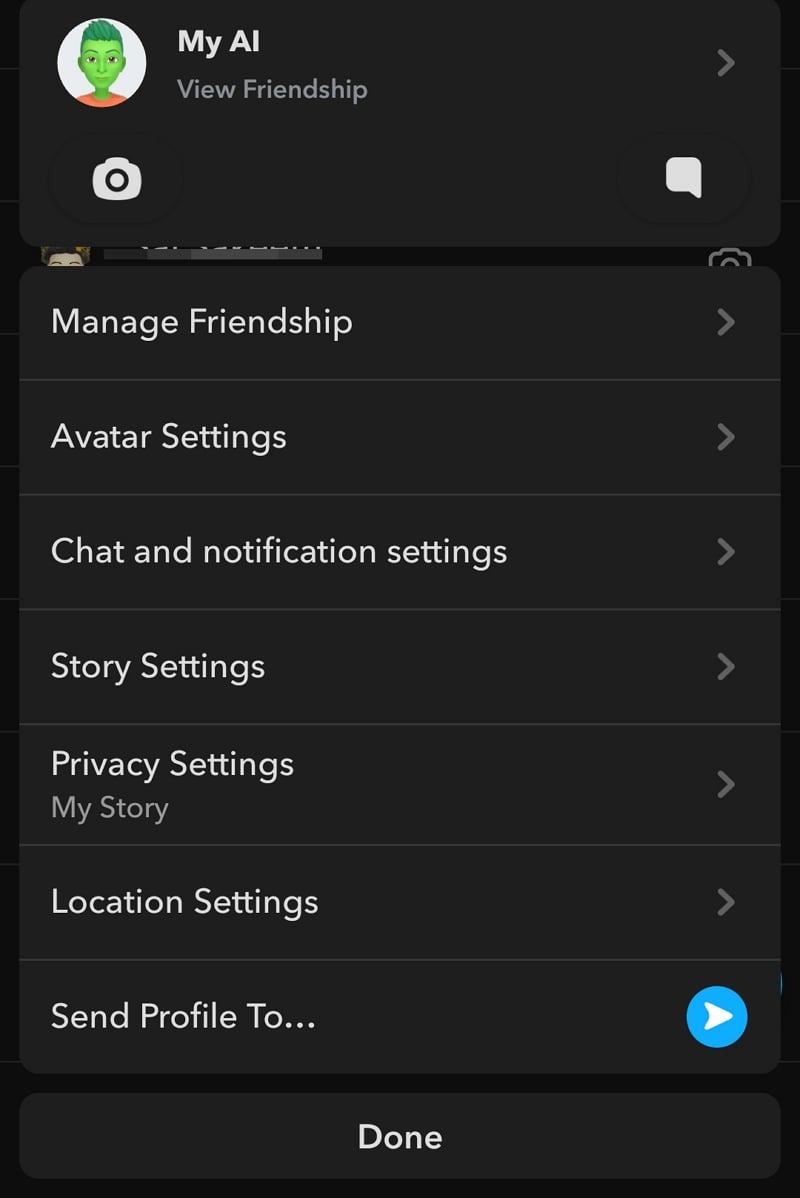
My AI on Snapchat is a way of giving us an AI experience. At first, it was available only for Snapchat+ users. Now, it is available to all users. To get rid of My AI on Snapchat, open the chats page by swiping right from the camera screen on Snapchat. Tap and hold My AI in the chats list and select Chat and notification settings.
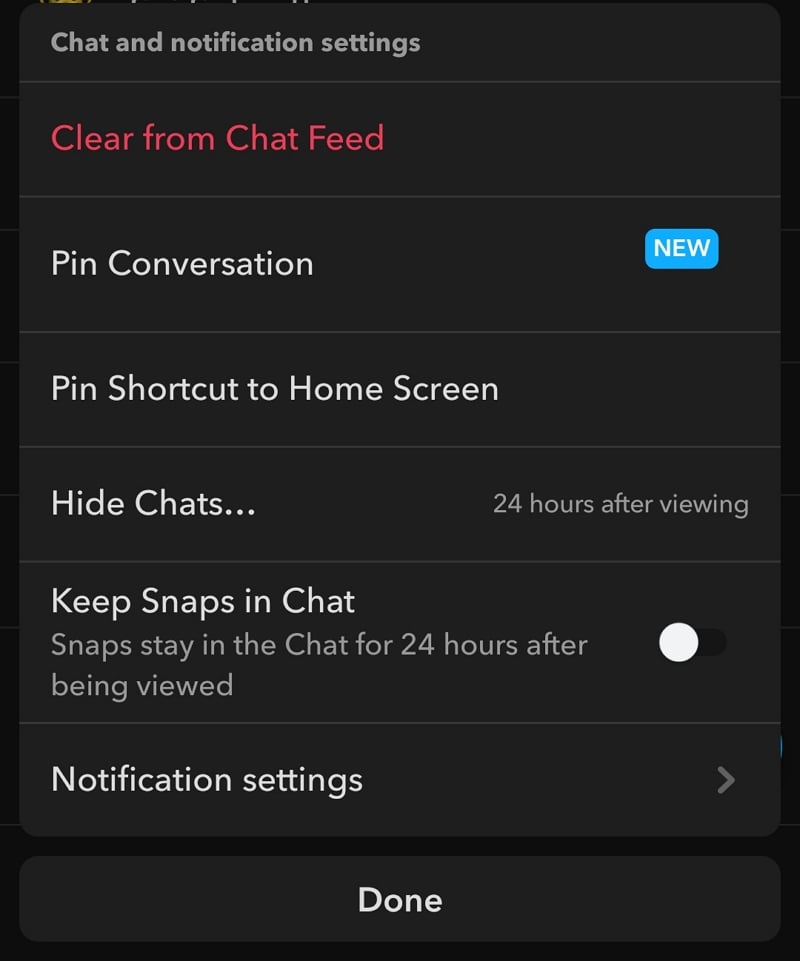
Tap the Clear from Chat Feed button to remove My AI from your Chat list and confirm removing it on the popup.
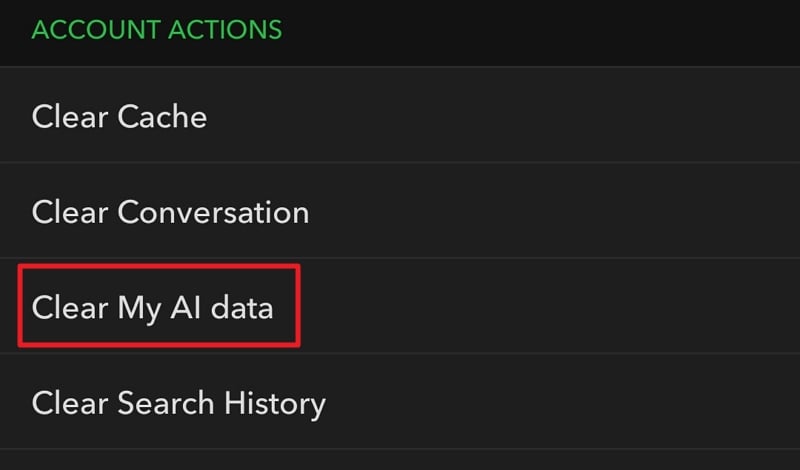
Now, when you share a snap or a story, make sure to remove My AI from the friends list to stop it from seeing or accessing your data. Now, tap on the profile icon on the Snapchat icon. On the profile page, tap the Gear icon to go to the settings page. Scroll down to the Account Actions section and tap on Clear My AI data. A popup asking for confirmation appears. Confirm clearing to remove My AI data on Snapchat.
Additionally, there are AI lenses available while you take a snap using Snapchat. To stop using AI, you must stop using the AI lenses so as not to give your data out to Snapchat for training.
How to Disable AI Features on Web Browsers
Currently, Microsoft Edge and Brave browsers have AI capabilities due to the AI assistants built into them. Microsoft Edge comes with Copilot, which we can disable easily. Brave browser has Leo to add AI features to the browser.
Disable Copilot on Microsoft Edge
It is not entirely possible to remove Copilot from Microsoft Edge. All we can do is stop it from showing up on the toolbar or the sidebar. To remove Copilot on Microsoft Edge, click the three-dot icon on the top right of the toolbar and select Settings. Click Copilot and sidebar on the left side panel. Then, click on Copilot.

Toggle the button beside the Show Copilot button on the toolbar. If the button is blue it is enabled. If it is grey, it is disabled.
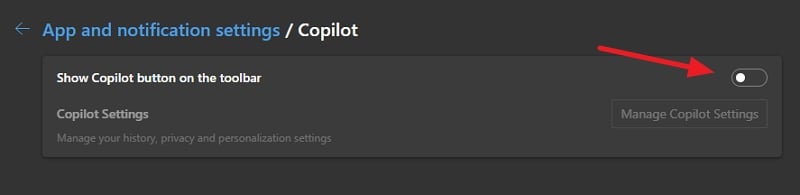
The Copilot button on the toolbar will now disappear.
Disable Leo on Brave Browser
Leo is the Copilot equivalent of Brave browser. It is enabled by default on the Brave browser powered by AI. To disable Leo, click the hamburger menu on the Brave browser’s toolbar and select Settings. On the settings page, click on Leo in the left side panel. Click Delete all Leo AI conversation data to remove all the data saved from your browsing activity. Then, toggle the buttons beside the Show Leo icon in the sidebar, Show Leo in the context menu on websites, and Store my conversation history to disable Leo.
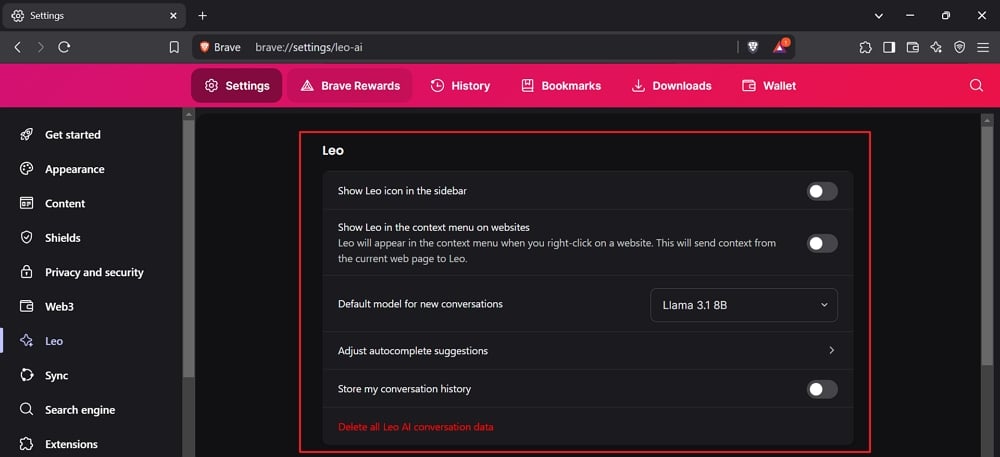
Now, click on Adjust autocomplete suggestions in the Leo tab and disable the Show Leo AI button and Leo AI Assistant.
How to Disable AI on Windows 11
Microsoft Copilot is the only AI tool available on Windows 11 by default. Unfortunately, you cannot install it using the Settings app. Download BCUninstaller and install it. Run BCUninstaller on your PC and select Copilot to uninstall. Proceed with the uninstallation. It will successfully remove the Copilot and its traces from your PC.
You can also disable Copilot using the Group policy or the registry editor. However, it is not recommended to mess with the registries or policies when you cannot understand how they work.
The other way you can access Copilot by default is by using Microsoft Edge. Remove it from the toolbar and get rid of it.
How to Disable AI on Android
AI features on Android devices are mostly enabled with Google Gemini. Some manufacturers enable their own set of AI features for image editing, etc. We cannot do anything about them. The better way to disable AI features on Android is to uninstall the Gemini app. If it is not possible to uninstall the Gemini app, disable it. Tap and hold the Gemini app on your device. If you see Uninstall, select it. If not, select Disable.
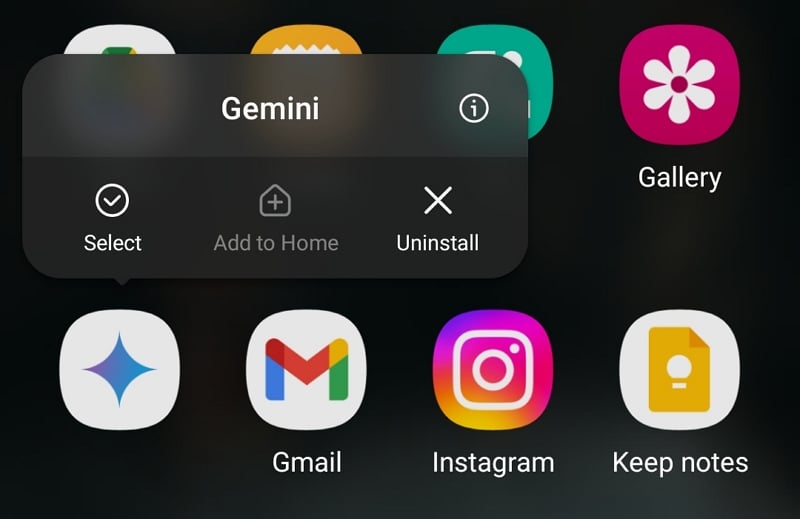
It removes the AI quotient on your Android device to a larger extent. Then, uninstall or disable other Google apps, such as Google Chrome, Google Lens, Keep Notes, etc., which have AI features. Instead of them, you can use apps that do not have AI features to scan or read. It is almost impossible to find such apps in this AI era. But there is no other choice but to get rid of AI on Android.
Even after doing all these, Google can still read your data and train its model using the data as it has access to all your emails, drive contents, etc.
Is It Possible to Get Rid of AI Completely?
It is not possible to completely get rid of AI in our lives. As AI models are evolving and new tools are introduced every week, it would be difficult to compromise on a lot of things to stay away from AI. But, we can try to limit how we let our data train the AI models. We can make sure to disable AI on apps we use regularly. Still, it’s a long shot. Maybe in the future, when everything seems stable, tech companies may give us the choice to enable or disable AI or data-hungry bots on our apps and devices.

