

Microsoft recently announced the latest version of Windows 11 (23H2), and it brings many new features, such as a new UI for File Explorer and an all-new Backup app for Windows 11. But one feature that Microsoft has pushed the most in Copilot is Windows 11. Microsoft has successfully integrated Chat GPT with Bing AI into Windows 11, calling it Copilot for Windows 11.

Copilot in Windows is something like an AI built into Windows 11. According to Microsoft, it can improve and speed up your Windows experience because now you don’t have to switch between different apps to change small settings or ask a question, which has become much easier. In addition, Copilot in Windows 11 also integrates with Windows apps to improve your experience.
Even though Copilot in Windows 11 looks like a great add-on, you don’t have to enjoy everything Microsoft introduces. If you’re looking for ways to disable Copilot in Windows 11, you’ve come to the right place because, in this blog, we’ll share several methods to disable Copilot in Windows 11, but first, we need to understand what Copilot is.
Table of Contents
What is Copilot in Windows 11
Copilot is an AI helper introduced by Microsoft in Windows 11 and integrated into many Windows apps such as Photos, Outlook, and Paint. It was introduced in Windows 11 to increase user productivity and creativity and is available to you at all times, as Copilot in Windows is now located in the taskbar. It’s a combination of Chat GPT and Bing AI that’s designed to help you get answers to your questions and follow-ups, and it can also help you create images and let you get creative with them.
Even though the feature looks great, it’s important to know that, for now, it only works when you’re connected to the Internet. It’s only available as a preview and will be rolled out by October 10, 2023. You can trigger Copilot in Windows either from the icon in the taskbar or from a keyboard shortcut (Win+c). You can also dock it to the sidebar so it’s always available next to any app, though we don’t think anyone will do that.
Now you know what Copilot is in Windows. We’ll show you how to disable it using several methods.
Removing Copilot from the Taskbar
The first step to remove Copilot from Windows 11 is to remove the icon from the taskbar. However, you have to keep in mind that this does not disable Copilot in Windows 11; it is just a way to remove it from the taskbar so that it is not visible to you. You can still bring it up via a key combination (Win+c) if you want, though.
Here are the steps to remove the Copilot icon from the taskbar:
- Open the Settings app.
- Click on Personalization.

Source: Pureinfotech - Then go to Taskbar.

Image: Pureinfotech - Below the taskbar items, you can see the Copilot (preview).
- You can easily disable it by clicking the button in front.

Source: Pureinfotech
This will remove Copliot from the taskbar, but you can still use it with a keyboard shortcut (Win+c).
Disable Copilot in Windows using the Registry Hack
Windows Registry Hack is something that all Windows users will appreciate from the very beginning. The Registry in Windows 10 and Windows 11 is the same as its name: it is a registry or a database of configuration files in Windows and contains all the key values and all the information about your system hardware and software. It was introduced in Windows 95. And to this day, people use it to customize things in Windows 10 or 11.
We’re going to use the registry in Windows 11 to disable the copilot, but remember that you could damage your Windows if you don’t follow this process exactly. If you don’t know how to create a system restore point, our article How to use System Restore Point in Windows 10/11 will help you.
After you create a system restore point, we’ll start disabling Copilot in Windows 11 via the registry:
- Click Start search for Registry and open the first result.
- Open the app, and now we need to go to this path.
HKEY_CURRENT_USER\Software\Policies\Microsoft\Windows\WindowsCopilot
- Just copy the path and paste it into the bar above where the default path is.
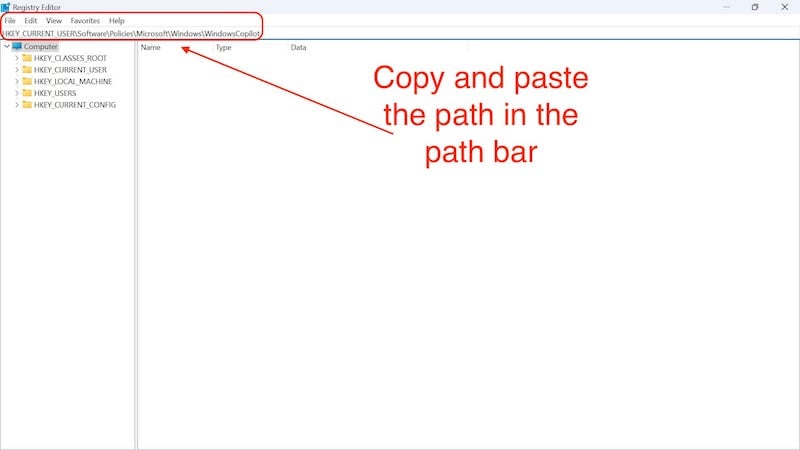
- When you press Enter, you will see that there is no Copilot key that you need to create now.
- In the above bar, paste the following command once again,
HKEY_CURRENT_USER\Software\Policies\Microsoft\Windows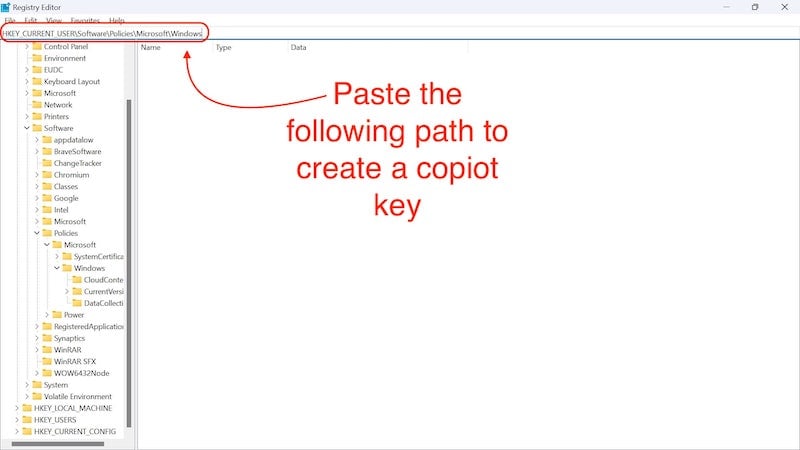
- When you get to this directory, you need to create a Windows Copilot key here.
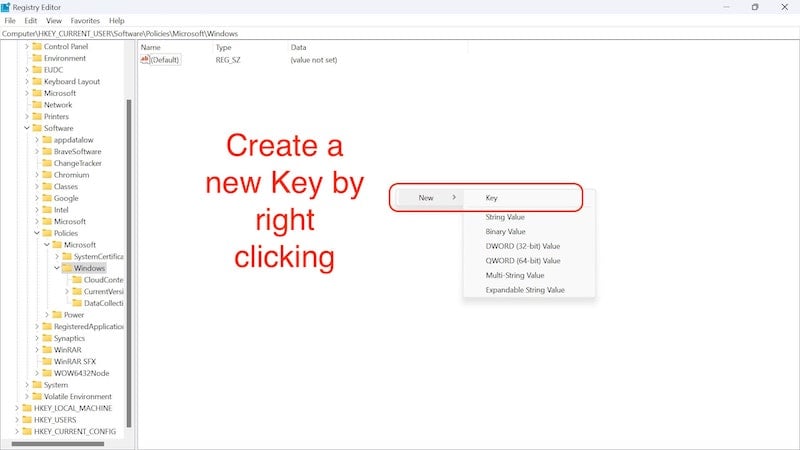
- Just add a folder in the Windows directory and name it WindowsCopilot.
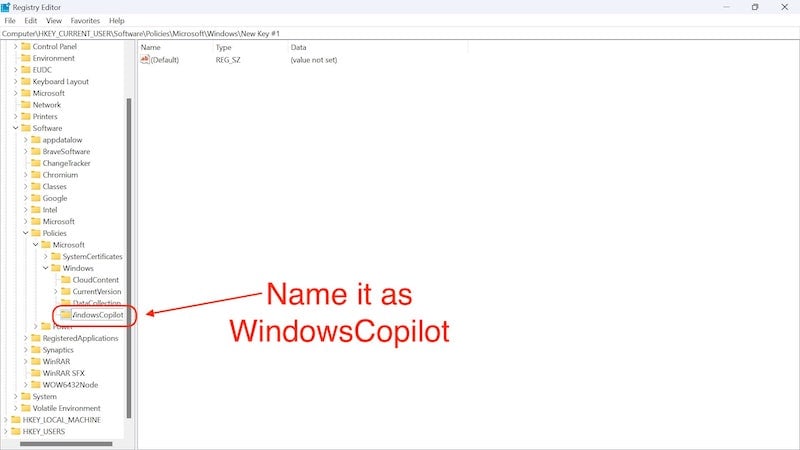
- In this folder, create a new value by right-clicking, selecting New and clicking on DWORD (32-bit) value.

- We will rename it to TurnOffWindowsCopilot.

- Press Enter to save the name.
- Then, we double-click on it and change the value from 0 to 1.
- And press OK.

- Now we need to restart the computer.
With this method, you disable the copilot on your Windows PC.
Related Read: 4 Ways to Remap Copilot to Another Key
Edit Group Policy to Disable Copilot in Windows 11
Group Policy is a Windows admin tool that allows us to change certain settings of Windows. With this tool we can disable the copilot in Windows 11. We can do many things with this tool, such as restricting user access to Windows and disabling certain apps. Even though it is a super powerful tool and helps us disable Copilot in Windows 11, even this app can’t save us from the terrible bloatware situation in Windows 11. For that, you should check out our blog on How to Debloat Windows 11/10.
Now that we’ve cleared that up let’s take a look at how we can disable Copilot in Windows 11 using Group Policy:
- Search for Group Policy in the Start menu.
- Click on Edit Group Policy.

Source: Mike’s unboxing, reviews, and how to - In the app, click the arrow next to Administrative Templates on the left side of the screen to expand their properties.

Source: Mike’s unboxing, reviews and how to - Then click on the arrow beside Windows Components.

Source: Mike’s unboxing, reviews and how to - Then scroll down until you find Windows Copilot.
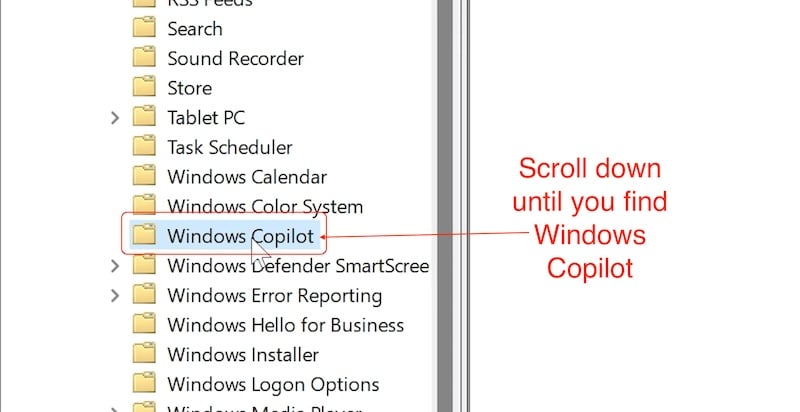
Source: Mike’s unboxing, reviews and how to - Here, you click on Turn off Windows Copilot and edit it
- A window will pop up where you need to click Enabled.
- Then click Apply to save the changes.
- Click OK to come back.

Source: Mike’s unboxing, reviews and how to
Once this process is complete, restart your PC /laptop, and Microsoft Copilot will be disabled.
Wrapping Up
These are some ways you can disable Copilot in Windows 11. They should disable Coplit permanently, and after you follow these steps, you will not be able to use Copilot in Windows 11. However, you have to keep in mind that Microsoft may permanently remove these methods with another Windows update and permanently enable Copilot. But the likelihood of them making such a big move seems pretty slim at the moment.
We also have to remember that Copilot is currently in the preview version and hasn’t been released to everyone yet. Whether you use Copilot or not is your personal choice. Microsoft has done a good job with Copilot, and you should try it out first. If you don’t like it, you can follow the steps above and disable it at any time.
If you want to learn more about Copilot in Windows 11, you can visit the link to the official announcement of Copilot. There you can learn more not only about Copilot in Windows 11 but also about the new Windows 11 23H2 update.
FAQs about Disabling Windows Copilot
1. Is Copilot in Windows 11 paid?
No, Copilot in Windows 11 is free, and you can use all its features and services with the new Windows 11 23H2 update. The best thing about Copilot is that it uses ChatGPT as its main AI and the free version of ChatGPT is limited, but Copilot in Windows 11 offers all the features of ChatGPT without you having to pay any money – a win-win situation in every sense.
2. Can I use Copilot in Windows 10?
No, it is not possible to use Copilot in Windows 10 as it is a Windows 11 exclusive feature. The most important thing is that you have the Windows 11 23H2 update on your PC /laptop to use Copilot in Windows 11. Any other earlier version does not support Copilot. But even in earlier builds, you can use Bing AI in Microsoft Edge.
3. Is there any way to enable Copilot in Windows 11 again?
Yes, if you disabled Copilot in Windows 11, you can re-enable it at any time. All other methods only disable Copilot and do not remove it permanently. You can simply follow the same steps and enable Copilot by changing the value from 1 to 0 in the registry and selecting Not Configured in Group Policy.
4. Can I generate images from text prompts in Windows 11 now?
Yes. With the new update, Microsoft has integrated DalleE 3 at the system level. Now, you can use Copilot, Bing AI, and the new paint app to enhance and create images by simply pressing the keys on your fingers, though we don’t know how well or poorly that works yet.
5. How useful can Copilot be in Windows 11 for me?
Well, with Copilot in Windows 11, Microsoft has done its best to integrate AI into Windows as seamlessly as possible. For example, you can change any settings, create a routine, set a timer, and even generate images if you want. The possibilities are much greater than you might think. It depends on your creativity and what you can do with it.
6. Is there any specific hardware requirement to use Copilot in Windows 11?
No, if your PC /laptop is running Windows 11, you are already covered and can use Copilot, but you should wait for the latest WIndos 23H2 update to come out on your PC because that will bring Copilot with it.
7. Will disabling Copilot hinder my Windows 11 experience?
The answer to this question is subjective. Once you get the Windows 23H2 update, we recommend that you try Copilot for a while, give it time to adjust, and try to use it as often as possible. If you feel it really helps you, you should keep it. Otherwise, you should disable it. While the core functionality of Windows 11 remains the same, the user experience may be different for different people because of the AI improvements.

