

Quick Answer
Apple’s accessibility features aren’t just for people with disabilities; they can also be useful for everyone. For instance, if you find it hard to read text in iOS 26, you can reduce transparency. Back Tap, which is available for all models, allows you to quickly launch shortcuts by just double-tapping on the back of your iPhone. You can also change text size for individual apps, use keyboard shortcuts to save time, and more. These simple accessibility settings can unlock the best iPhone experience.
Apple accessibility features make the iPhone usable for everyone. Fortunately, it’s not just for people with disabilities but also for users like you and me who use an iPhone. For instance, features like voice input, back tap or screen magnification can come in handy in many cases.
With the recent iOS 26, Apple’s latest update for iPhones also introduced a handful of new features, along with a few new accessibility features. So, after publishing the post on best developer options, which many of you have loved and found very useful, I have started testing different accessibility settings over the past week on my iPhone 14 Plus. Here are the 10 best options useful for everyday users.
Unlike the developer options, accessibility settings are available globally. You can navigate to settings, go to the search, and start enabling these features. I have also offered an easy step-by-step guide to enable these features on your iPhone. With these in mind, let’s get started.
Table of Contents
12 Best iPhone Accessibility Features
Make Your iPhone Easier to Read with Reduced Transparency
While Apple has already been at the center of making the iPhone accessible to everyone, it is now going through a design transition where it is making all of its UI translucent and glassy. While this has received some praise for making the entire system modern and fluid, many people are facing readability issues.
While Apple has been tweaking this design, you can make it even less transparent and make it easy to use with the new accessibility settings available for all iOS 26 users. You can enable the reduced transparency feature, which adds extra blur to the control center and all other glassy elements, and makes text more readable.
How to enable Reduce Transparency mode on your iPhone:

Open Settings on your iPhone, scroll down, tap on Accessibility, tap on Display & Text Size, and turn on the option that says Reduce Transparency.
Use Back Tap to Perform Quick Actions Instantly
Back tap is a handy and useful feature on iPhones to easily perform quick actions without navigating through your touchscreen. For instance, you can enable a back tap on your iPhone to trigger some actions, such as taking a screenshot, turning on the flashlight, or opening a specific app.
Back tap on iPhone supports three variations, including single, double tap and triple tap, allowing you to set three different actions for three different triggers. I have been using back tap for a while now, and there are some instances where back tap is accidentally triggered when casually holding the smartphone, so I highly recommend that you set up a triple back tap. It also works for all iPhones, even if it works on a case.
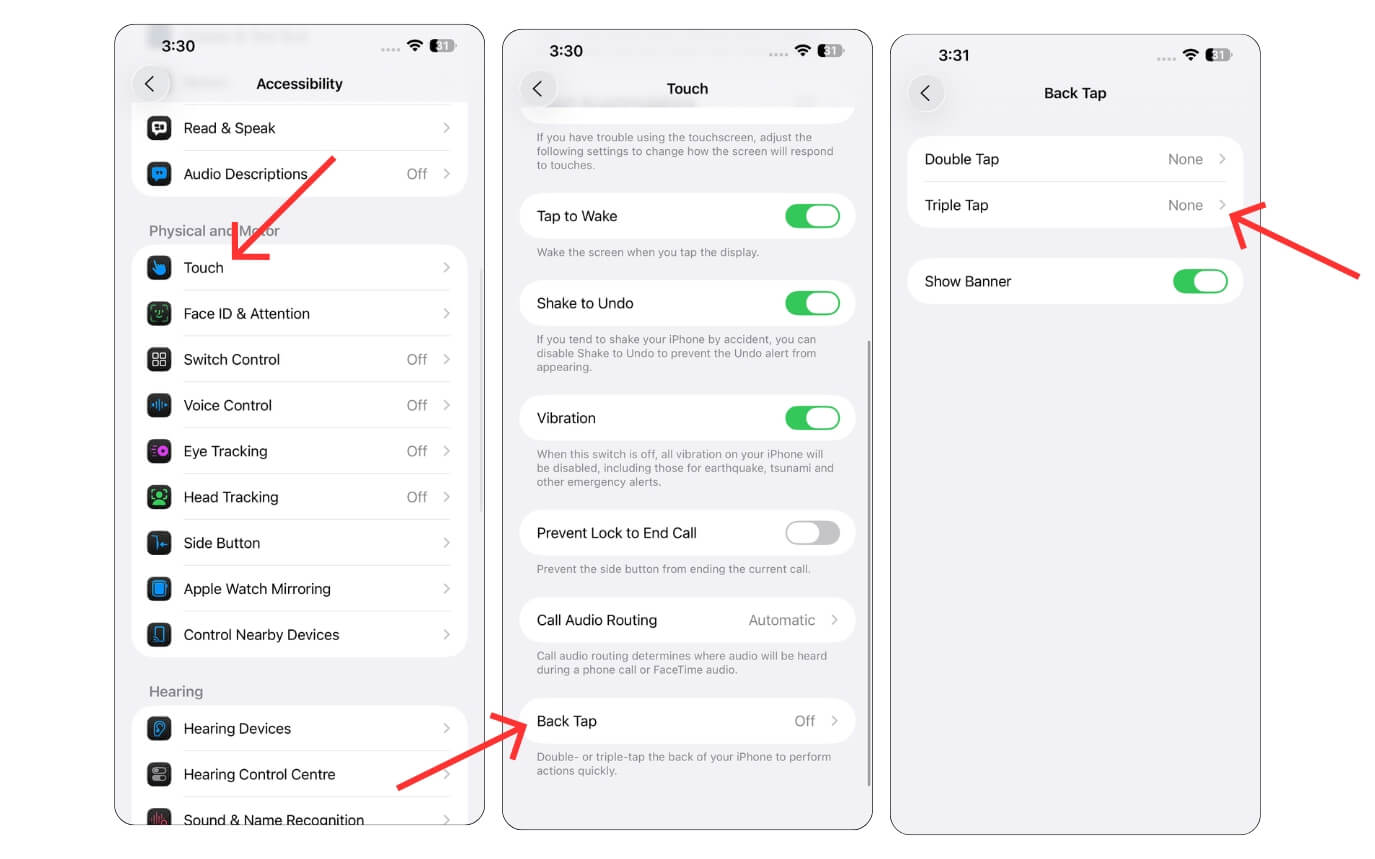
Open Settings on your iPhone, scroll down, tap on Touch, tap on Back Tap, and turn on the option that says Double or Triple-Tap.
Watch Any Video with Live Captions
I love watching movies or TV shows in all formats. But sometimes, the dubbing is not supported in my known languages, or it also doesn’t have subtitle support. I have been waiting for the VLC local AI subtitles support, which was also announced during MWC 2025, but it seems like VLC is still lagging behind in this feature.
But thanks to the iOS Live Captions. I can now enable the local captions on your iPhone for any show. Apple also allows you to customize the appearance; you can customize and adjust the text size as much as you want. Plus, you can also set the current Live Captions.
However, it only supports a limited number of languages now. However, it can be a game-changer in two ways: first, you can enable Live Captions on any audio playing on your iPhone.
For instance, if you want to play a movie or TV series and that doesn’t support captions, you enable Live Captions on your device and start watching the series. And another useful scenario is when you take meetings, especially if you are in a noisy environment and can’t recognize a voice from the other peers. You can enable Live Captions, and it will instantly translate it on your screen.
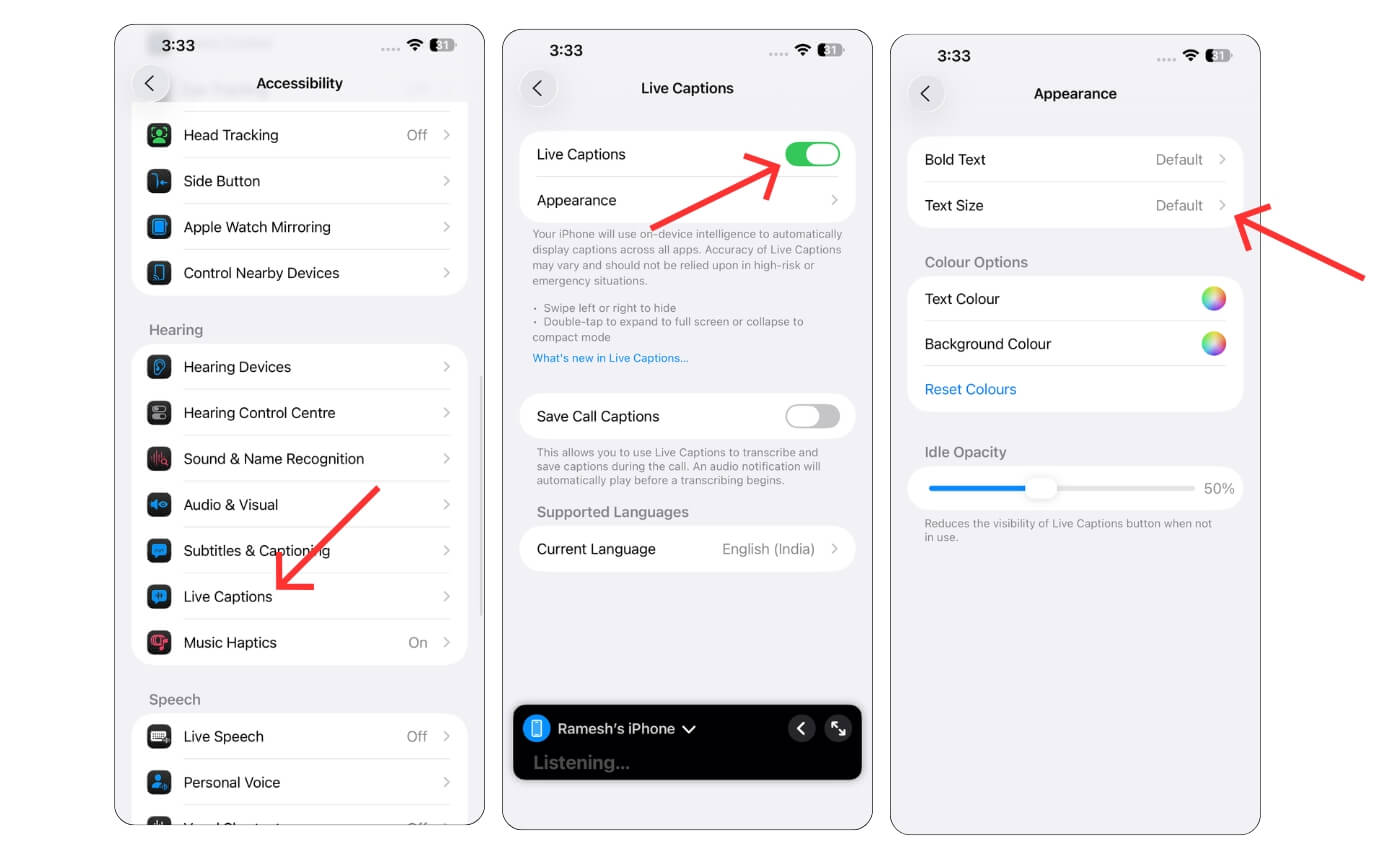
Open Settings on your iPhone, scroll down, tap on Accessibility, tap on Live captions, and turn on the option that says Live captions.
Change Text Size for Specific Apps Only
So if you want to increase the text on your smartphone, generally, you go to the system-wide text settings and increase the text. This results in changes in every app, which might ruin the experience of some apps. However, thanks to the per-app settings in the Apple accessibility settings, you can adjust the individual settings for one app, leaving the other apps unaffected.
It supports all the apps. For instance, here I selected Airbnb, where I selected and adjusted display and text, including bold text, larger text, button shapes on and off labels, and reduced transparency.
If the latest iOS 26 has ruined the app, you can also increase contrast, differentiate without color motion and more. For example, I want larger text in the Notes app so that I can easily read without affecting the text size of other apps. Similarly, you can also adjust the text sizes on your text messages where the text is really important, and you want an easy-to-read view without affecting the other apps.
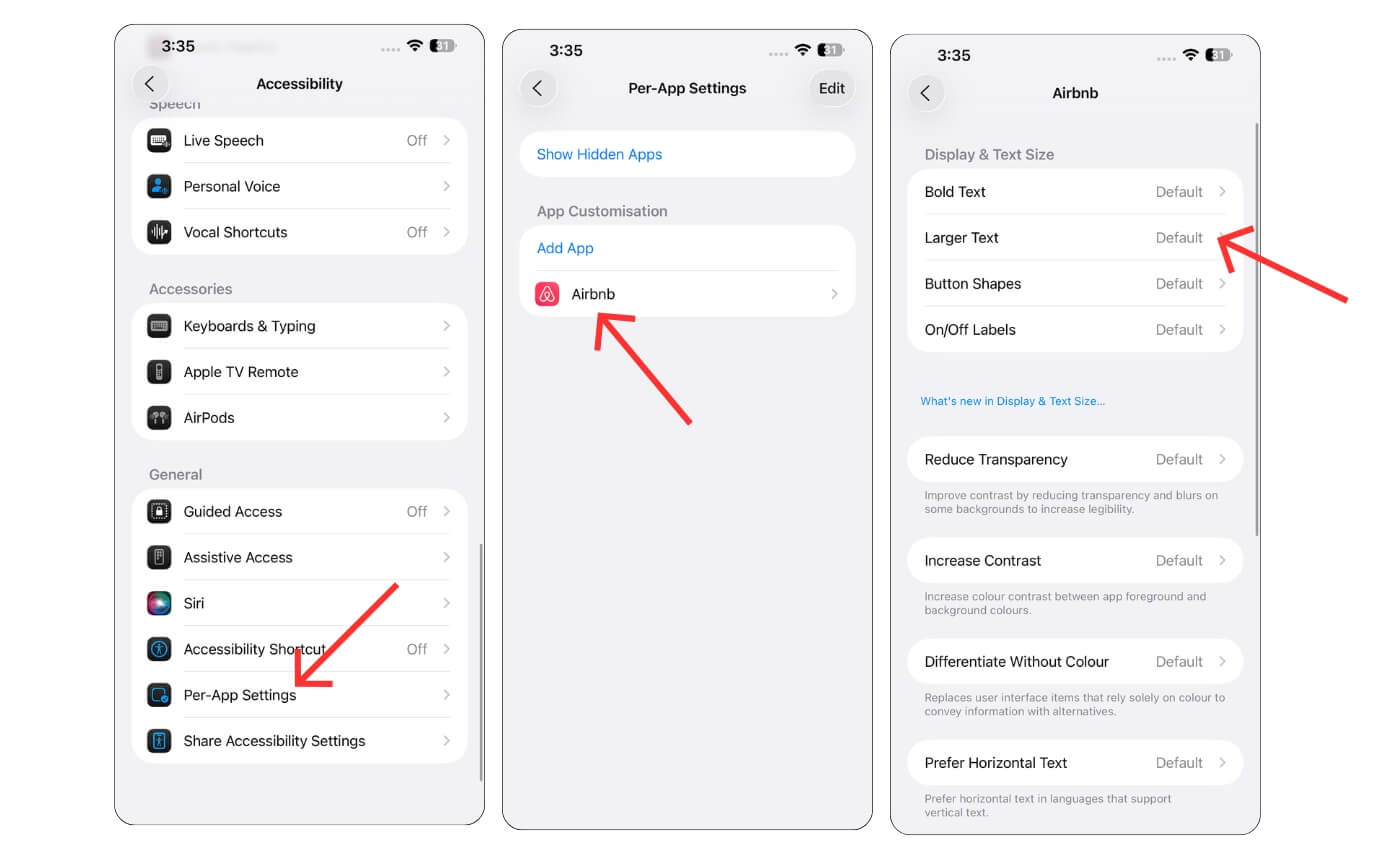
Open Settings on your iPhone, scroll down, tap on Accessibility, tap on Per-App Settings, select the app and customize the settings.
Save Time with Keyboard Shortcuts for Common Phrases
We recently made a short video on how you can set keyboard shortcuts on your iPhone, and many of you have loved this feature. So basically, you can set text shortcuts to any of the phrases.
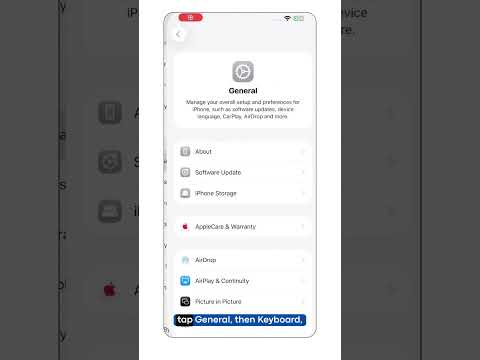
While this is not under accessibility settings, it can be very useful. For instance, if someone asks you to share the address, instead of typing your address every time, you can set a simple shortcut, such as AD1 for your address one and simply type the shortcut on the keyboard. It will automatically replace the shortcut with your original address.
You can also set up your email, phone number, and other frequently shared text that you don’t want to type often. This is a game-changer for me, and you might like it.
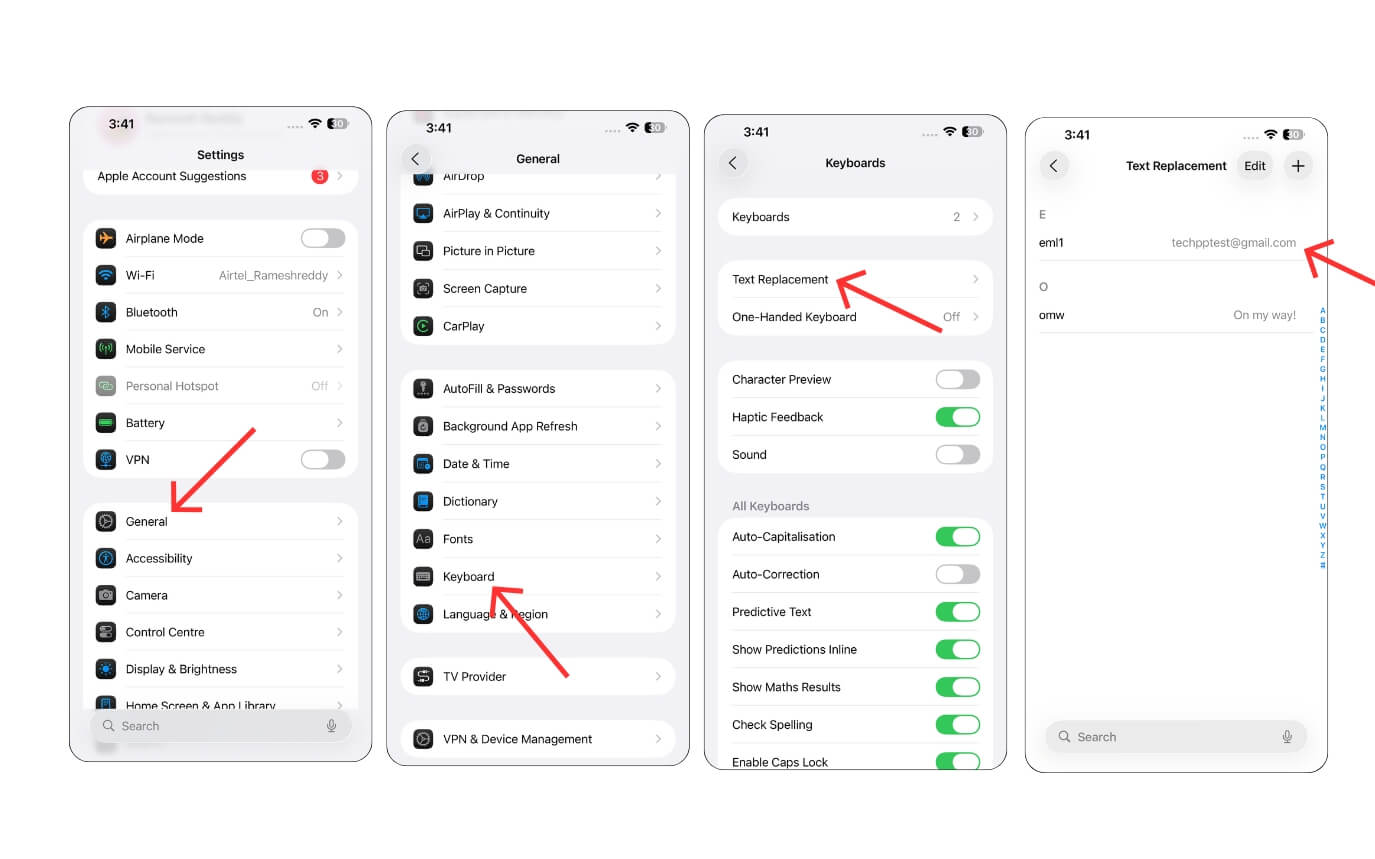
Open Settings on your iPhone, scroll down, tap on Keyboard, tap on Text Replacement, and add new Text shortcuts.
Make Your iPhone Easy to Use with One Hand
Phones are getting bigger and bigger, and it is becoming increasingly inconvenient to use them with one hand. While many Android smartphones already offer a simple gesture to bring one-handed use, Apple also offers a similar setting in the accessibility settings called Reachability.
Using this, you can simply swipe down from the bottom of the screen. This brings the screen content to the bottom, making it much easier to use the iPhone with one hand.
If you want to access a quick top setting from any app window, you can simply enable it from your accessibility settings. While you are there, you can also enable tap to wake to wake up your phone from sleep quickly.
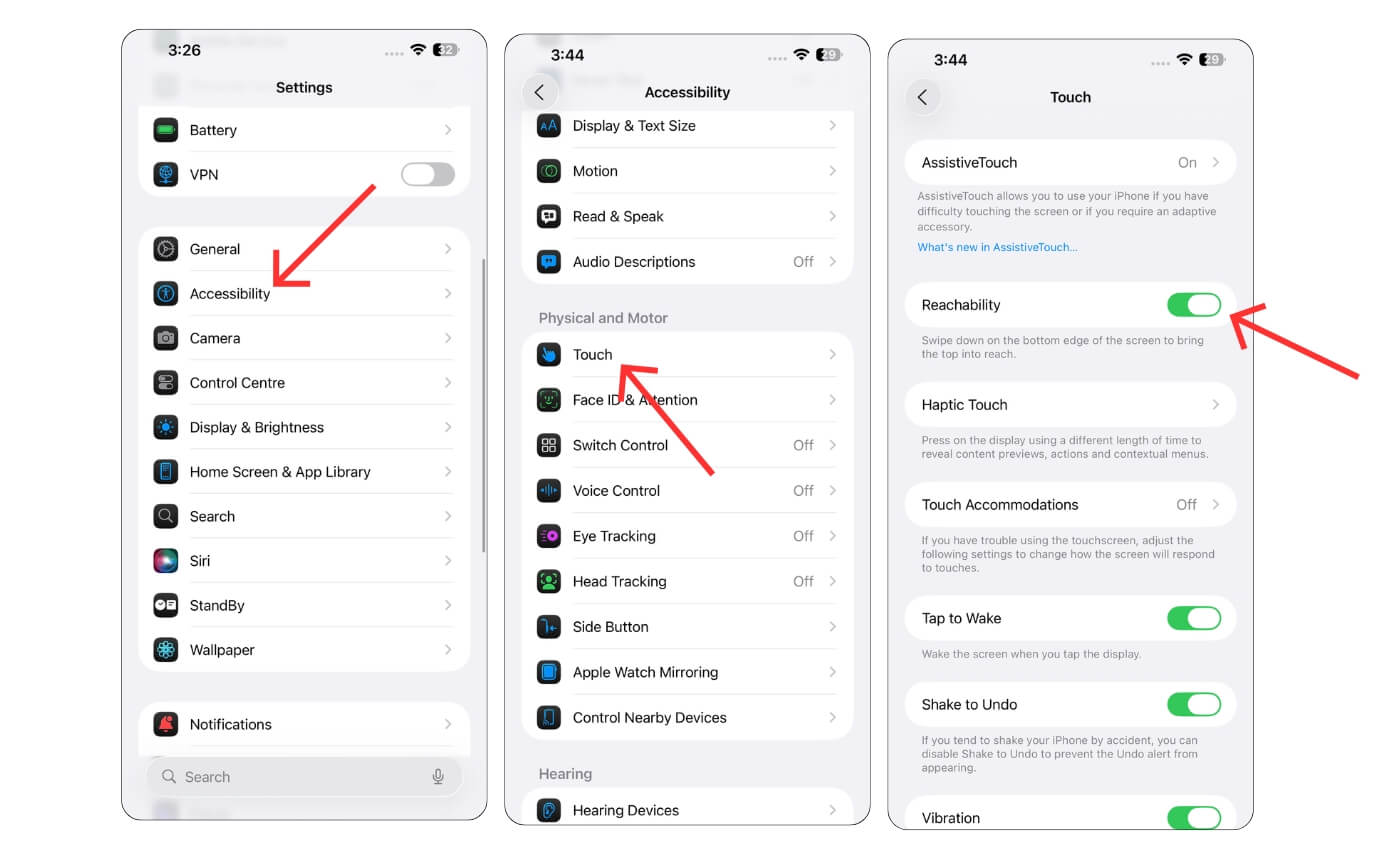
Open Settings on your iPhone, scroll down, tap on Accessibility, tap on Touch, and turn on the option that says Reachability.
Use Quick Shortcuts Using AssistiveTouch
Remember the iPhones with the home touch button? Apart from the nostalgic experience and handy fingerprint sensor, it also brings the AssistiveTouch button, which lets you easily access the quick settings on your iPhone.
You can also enable AssistiveTouch on the latest iPhones. Plus, you can also customize the menu.
Suppose you are like me and feel AssistiveTouch can be overwhelming and can be an obstruction to your screen. You can customize it to include only a few actions that you frequently use, from simple actions such as rotate and reachability, to restart, take a screenshot, bring Spotlight, volume down, and volume up and more.
Plus, you can also enable Apple Shortcuts. For instance, you can add a simple Instagram reels download shortcut to quick actions. Whenever you want to download an Instagram Reel that you want to save offline, you can simply use AssistiveTouch and the shortcut to save the reels locally on your device.
It is a very handy feature. Plus, you can also create your own custom actions through Shortcuts and access them easily using AssistiveTouch.

Open Settings on your iPhone, scroll down, tap on Accessibility, tap on Touch, and turn on the option that says AssitiveTouch.
Control Your iPhone Hands-Free
There are some situations where your hands are busy and you cannot access your iPhone. So there are two ways you can control your iPhone without using your hands. One is by giving voice control, which lets you perform actions based on your voice. Not just simple commands, Voice input also supports a deep level, including being able to control what is on your screen and also dictate and edit text based on your voice input.
It can be super handy, especially if your hands are busy with anything. And there is also an eye-tracking feature, which allows you to control your iPhone using your eyes. However, while it’s handy to use, to enable this feature, you need to go through the Apple tracking tutorial every time, which can be annoying and time-consuming to enable and use it instantly.
Compared to eye tracking, Voice control has been extremely useful in my past week of use, and it also supports multiple languages.
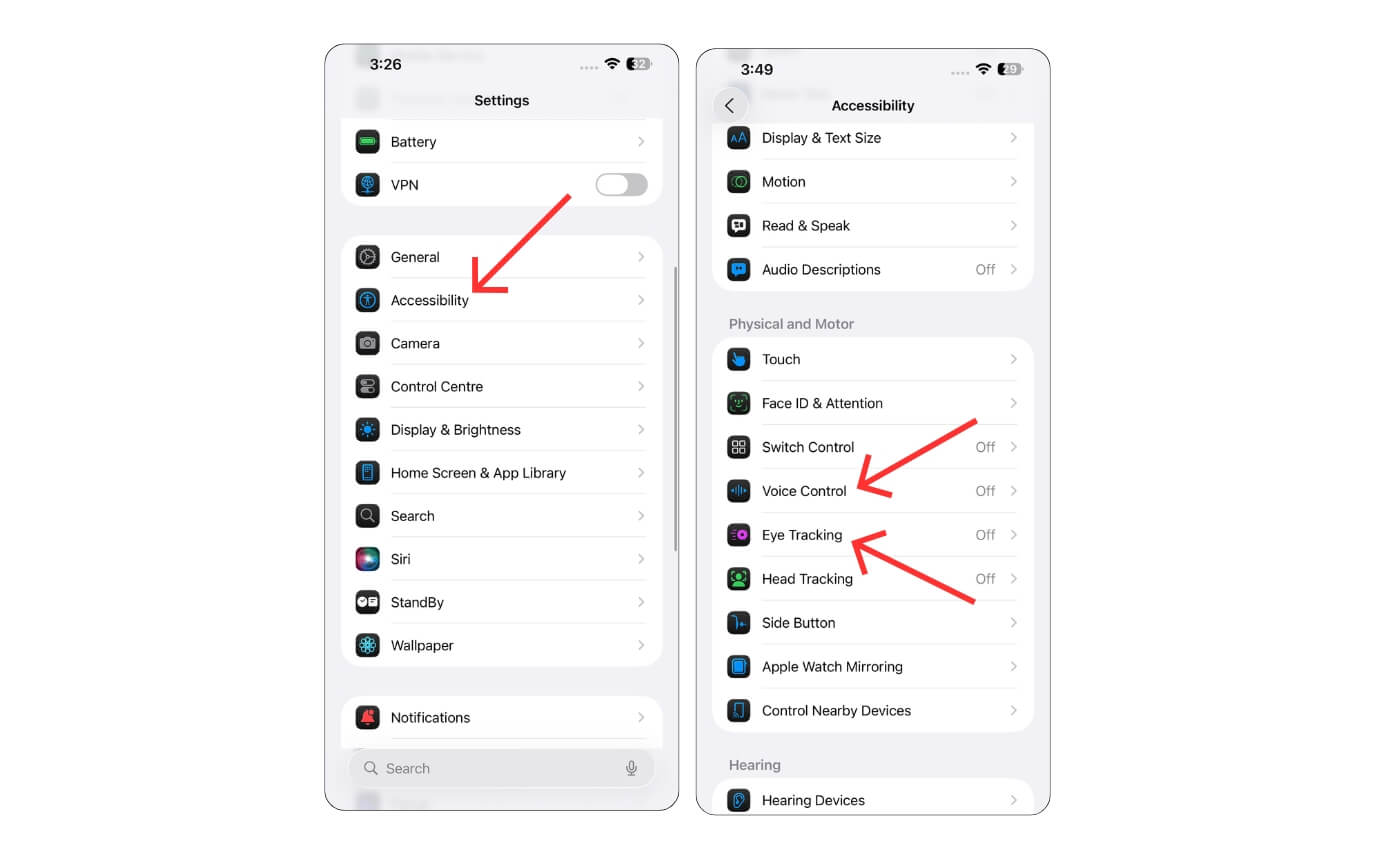
Open Settings on your iPhone, scroll down, tap on Voice control and Eye tracking and enable these features.
Control Your iPhone with Just Your Head
Along with voice control, another handy feature that the iPhone offers in real life is head tracking, which lets you control your iPhone using various head movements. For instance, you can enable open camera when you raise your eyebrows.
There are also plenty of actions, such as open mouth, smile, stick out your tongue, blink, scrunch your nose, pucker your lips, and more and set quick actions for each moment. I actually found it better than the eye tracking to perform quick and funny actions.
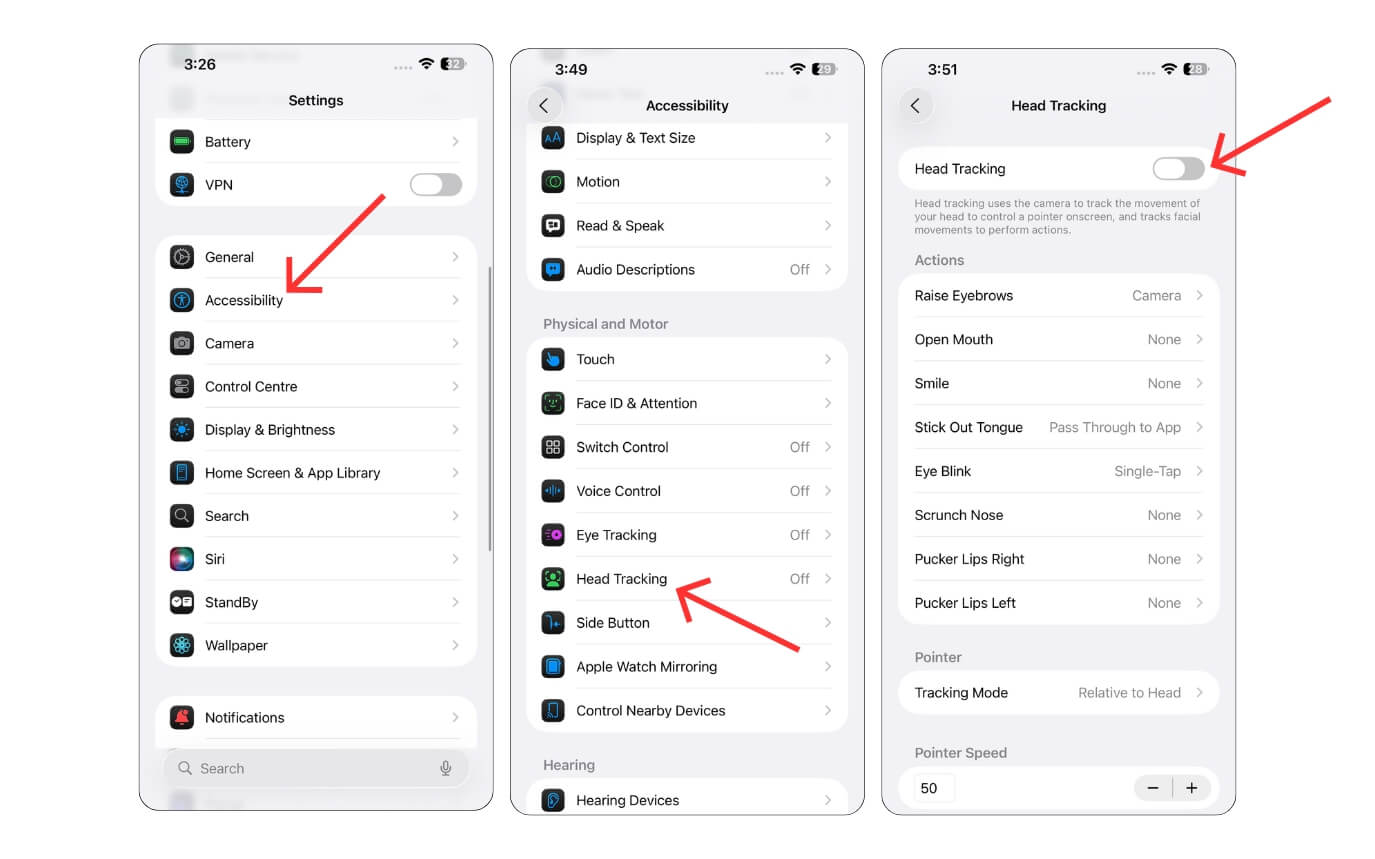
Open Settings on your iPhone, scroll down, tap on Accessibility, tap on Head Tracking, and turn on the option that says Head Tracking.
See and Control Your Apple Watch from Your iPhone
If you have an Apple Watch, you can control your Apple Watch from your phone directly, which is handy, especially if you keep your Apple Watch in another room or put it on the charger where you need to control the Apple Watch without needing to get out of your bed.
If your Apple Watch is connected to your smartphone, you can go to accessibility settings and turn on Apple Watch Mirroring. Now it will show the Apple Watch screen on your iPhone. Now you can control your Apple Watch screen by simply swiping it without needing to access your Apple Watch physically.
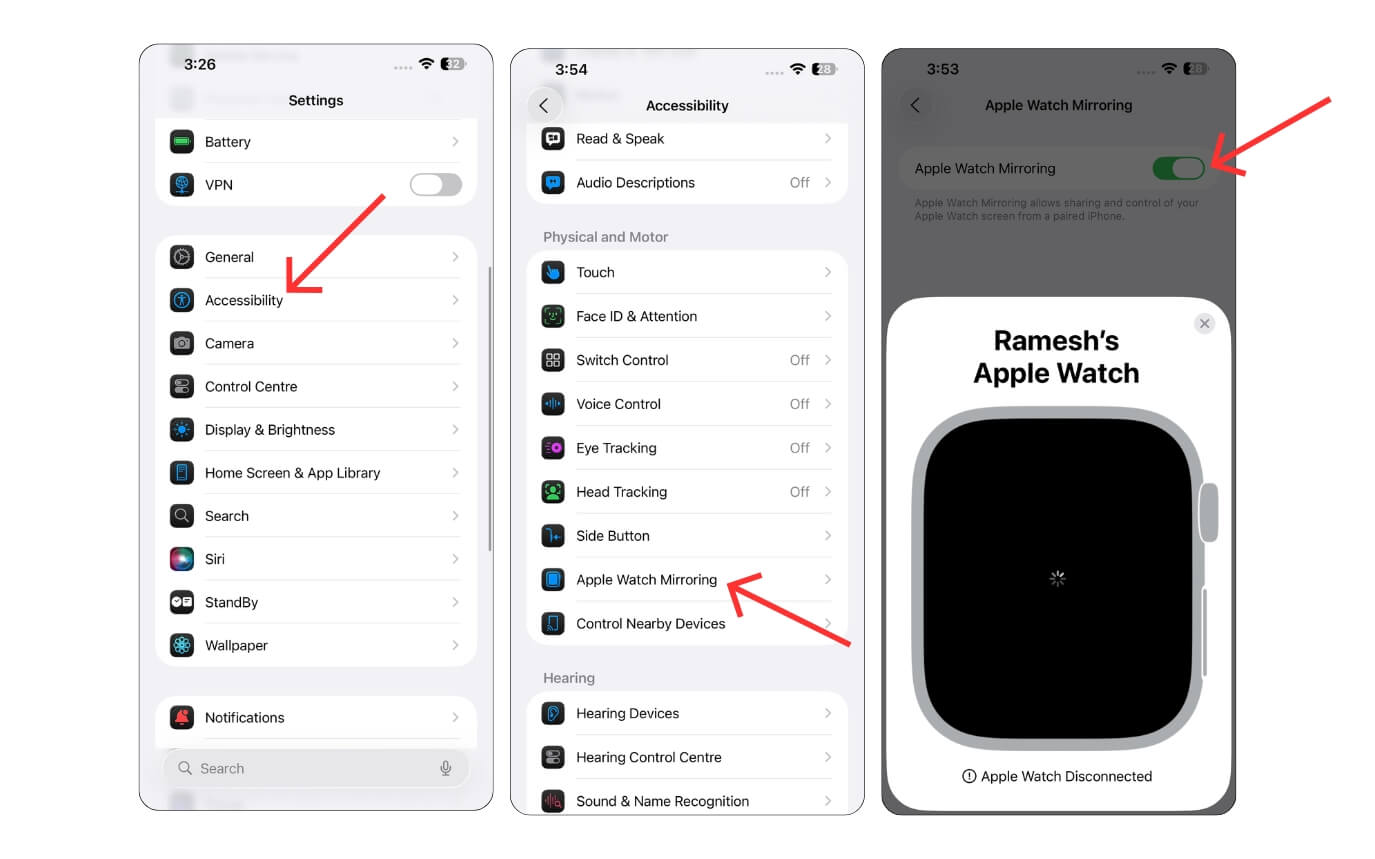
Open Settings on your iPhone, scroll down, tap on Accessibility, tap on Apple Watch Mirroring, and turn on the option that says Apple Watch Mirroring.
Control Other Apple Devices Nearby with Your iPhone
Another handy feature in the accessibility settings is the Control Nearby Devices accessibility setting, which lets you control other Apple devices, such as an iPad, Mac or Apple TV, using your iPhone without having to touch them physically.
This is especially useful sometimes, when the other devices are out of reach, you can simply enable the nearby devices and control them.
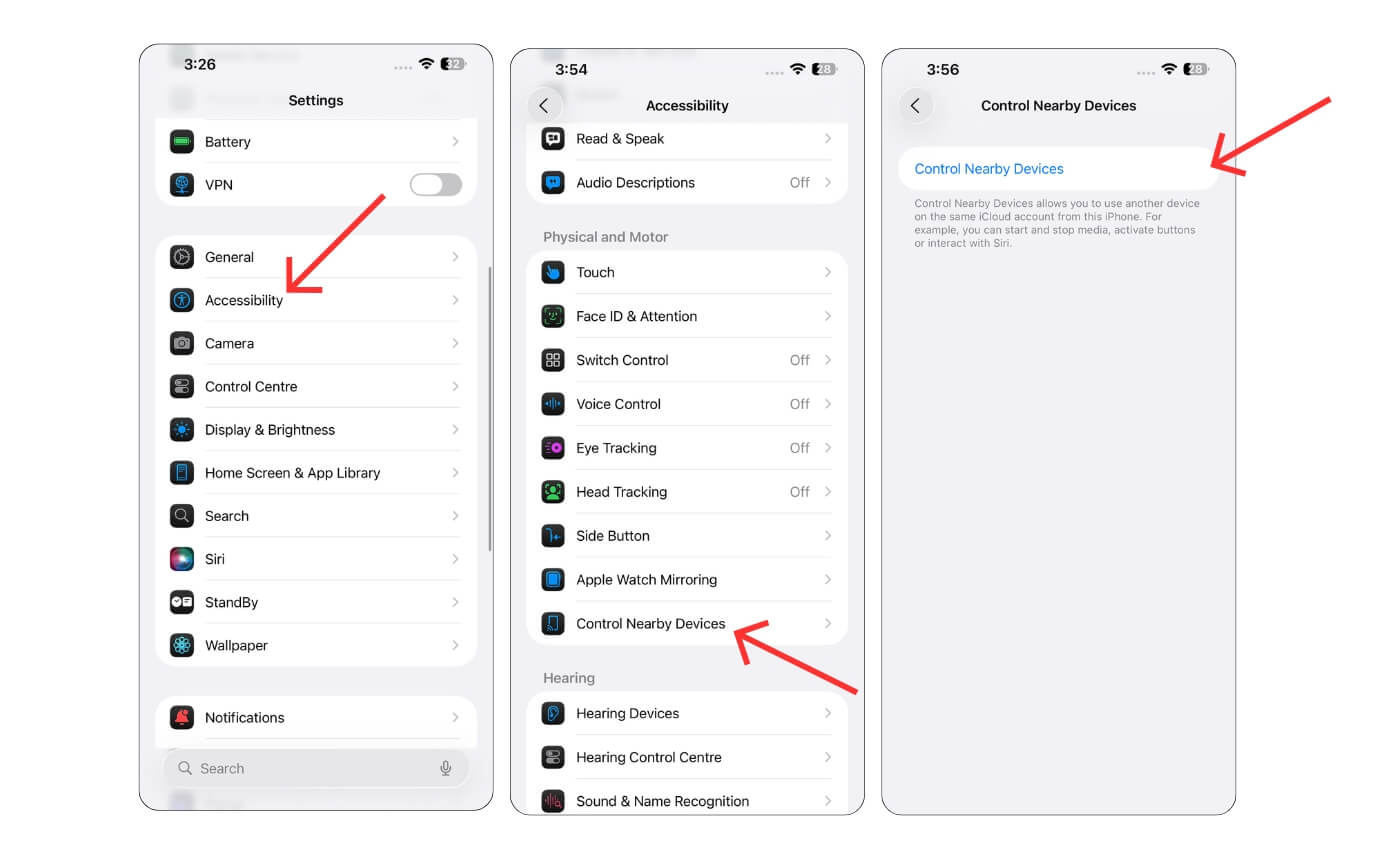
Open Settings on your iPhone, scroll down, tap on Accessibility, tap on Control Nearby Devices, and turn on the option that says Control Nearby Devices.
Best iPhone Accessibility Features
Those are the 11 best accessibility features you can enable on your iPhone. You can turn off these features at any time by following similar steps and disabling them. Some features might require the latest model or the latest version of iOS. You can also combine these settings to unlock even more ways to use your iPhone efficiently.

