

Quick Answer
With iOS 26, iPhone users can finally set custom ringtones natively—no GarageBand needed! Just save a trimmed audio file (30 sec or less) locally, open it in the Files app, tap “Share” > “Use as Ringtone,” and you’re done. Edit or delete it anytime via Settings > Sounds & Haptics > Ringtone.
After 16 years, iPhone users can now set custom ringtones directly from their iPhones without requiring third-party methods.
Android users might find it surprising since Android has supported custom ringtones for years, and even my grandma had her custom ringtone on her Android phone.
Table of Contents
How to Set Custom Ringtones on iPhone
Before going to the tutorial, here are the prerequisites that you need to set custom ringtones on your device. Your iPhone must be running on iOS 26 or later.
Apple iOS 26 is still in developer beta. However, if you have upgraded to the latest version, you can directly use the custom ringtones feature and set custom ringtones from your iPhone.
If you are running iOS 18 or lower, you can wait until you get the official iOS 26 update, or you can upgrade to the new developer beta if your iPhone supports it and get early access to this feature.
Next, the ringtone must be stored locally on your iPhone and should be 30 seconds or less to be applied.
Currently, Apple doesn’t allow you to trim the specific part of the ringtone for now. However, there are some easy workarounds, like MP3 cutter sites or even some free apps that let you trim a specific part of the audio you want to set as a ringtone.
You can visit mp3cut.net, upload the audio you want to trim and trim the file, and save it locally on your device. For easy access, you can create a new ringtones folder and store all your ringtones in this new folder.
Set Your Favorite Audio as iPhone Ringtone Easily
Step 1: Open the file in the Files app
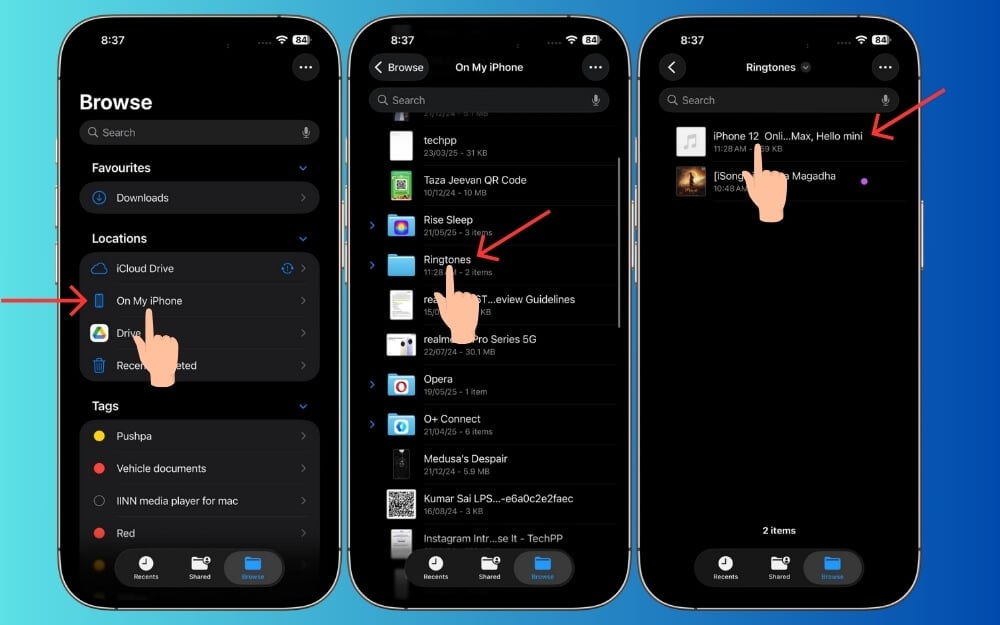
Open the Files app on your iPhone. You can also open the file from any app, including the Voice Memo app or any music app. In this case, I am using the Files app to open the audio file, go to the audio file, long-press on it, and click on the share icon.
Step 2: Set custom ringtone
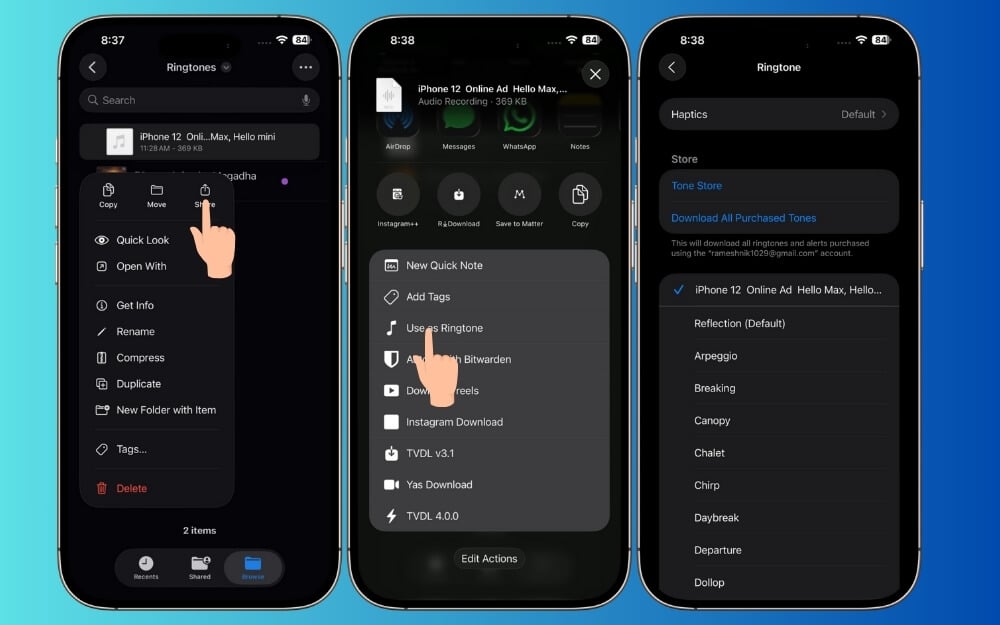
In the menu of options, you will see the Use as a ringtone option in the latest iOS 26. Tap on it, and the new ringtone will be set. To edit or remove it, follow the steps below.
Step 3: Delete or edit custom Ringtones

To edit or delete a ringtone, you can go to Settings> Sounds and Haptics > Ringtone, and here you can change or delete the ringtone. Select the custom ringtone, swipe left, and tap on Delete.
Set Any Song As Your iPhone Ringtone With iOS 26
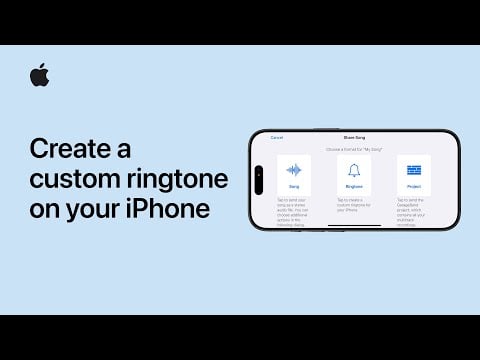
So this is how you can set custom ringtones on your iPhone after 16 years, while Android users have enjoyed this feature for years. If you are using an older iPhone, there are also previous methods like using GarageBand; however, that process is tedious for just setting a ringtone. I hope you found this guide helpful. You can watch the video below to set up a ringtone for iPhones running on iOS 18 or lower.
FAQs on Setting Up Custom Ringtones on iPhone
1. Can I use any music file or song from Apple Music as a ringtone?
Songs from Apple Music can’t be used directly as your iPhone ringtone since they are protected by DRM. However, you can download a copy of the song from a third-party website. Save it locally on your iPhone. As I recommend, it should be 30 seconds or less, and you can set it as a ringtone.
2. Is this feature available on all iPhones running iOS 26?
The custom ringtones feature is available for all iPhones running on the latest iOS 26 or later.
3. Can I set different ringtones for different contacts with this method?
Currently, you don’t have an option to set a custom ringtone for each contact.
4. Is there a limit on how many custom ringtones I can add?
There is no limit on how many custom ringtones you can add and set as a ringtone on your iPhone.
5. Can I edit or delete a custom ringtone later?
You can easily edit or delete a custom ringtone. Once you’ve assigned it, go to Settings > Sounds & Haptics > Ringtone, select the custom tone, and swipe left to delete it. Here you will see a delete option, and tap on it, your custom ringtone will be deleted.

