

Quick Answer
Windows accessibility features are not just for special needs users. Tools like inverted mouse cursor, mono audio, snap-to-default dialogs, hover-to-activate windows, and mouse keys can reduce effort, improve focus, and speed up everyday tasks on your PC.
Windows 11 brought in a breath of fresh air for users. It packs several hidden features that are often overlooked, as they are not easily accessible and buried under layers of options. In fact, the Windows PC Manager, a built-in tool, was hidden in plain sight, and frankly, not many know about this all-in-one Windows management tool. On top of it, there are several accessibility features that, although they are meant for people with special needs, can be helpful for normal users as well.
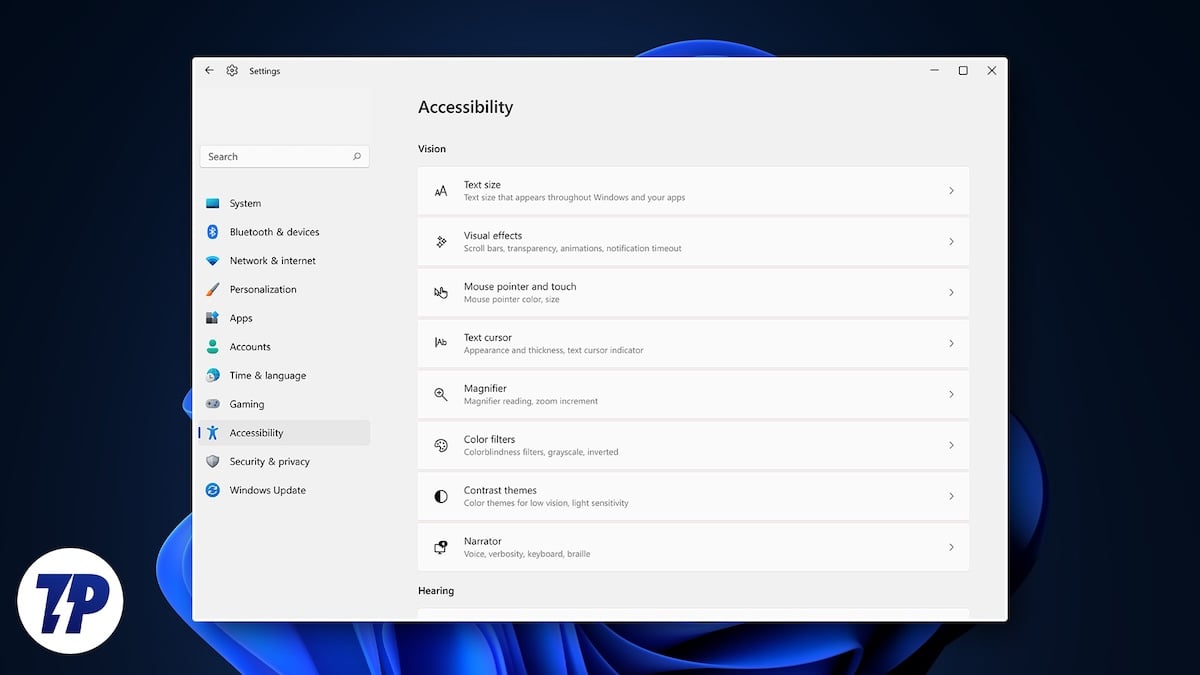
Accessibility features allow users to use their PCs with less effort, which normal users can use to their advantage to do routine tasks faster. In this guide, we will share with you some of the best Windows accessibility features that you should use on your PC.
Table of Contents
Make your mouse cursor more visible
Being in the content development field, I often take breaks to get some new ideas. For that, I either put my laptop to sleep or just shut the lid down. However, when I get back to my work desk, I often notice that the mouse cursor is nowhere to be seen. Strangely, even after turning on and using my wireless mouse, the mouse cursor doesn’t show up. I have to use the touchpad to know where the mouse cursor is.
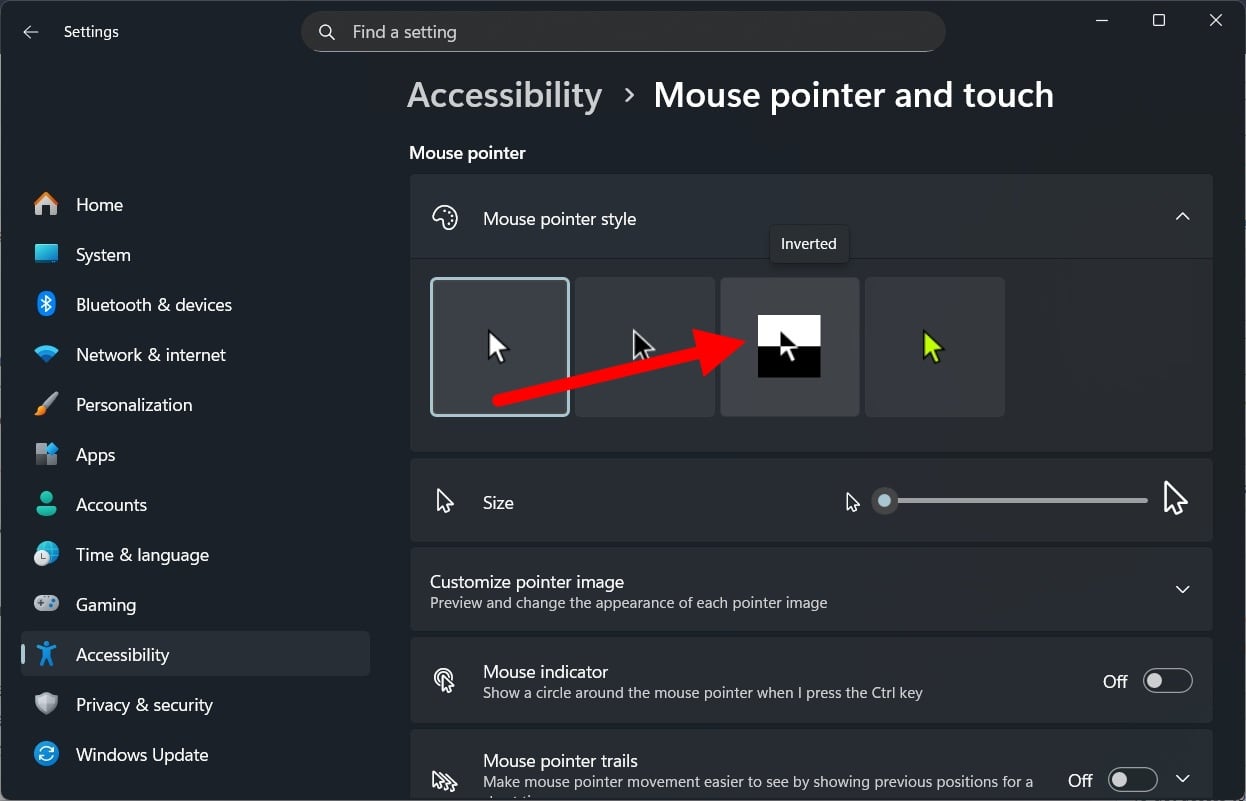
To fix this issue, I recently discovered this accessibility feature where you can invert the mouse cursor color. The difference is something that I noticed instantly. What this feature does is that it automatically changes the color in real-time according to the background. So, for instance, if there is a dark background, the cursor will change to a light color, and vice versa. It helps in locating your mouse cursor, especially if your home screen or the software that you are using uses a busy background.
Here’s how you can activate it:
- Press Win+I to open Windows Settings.
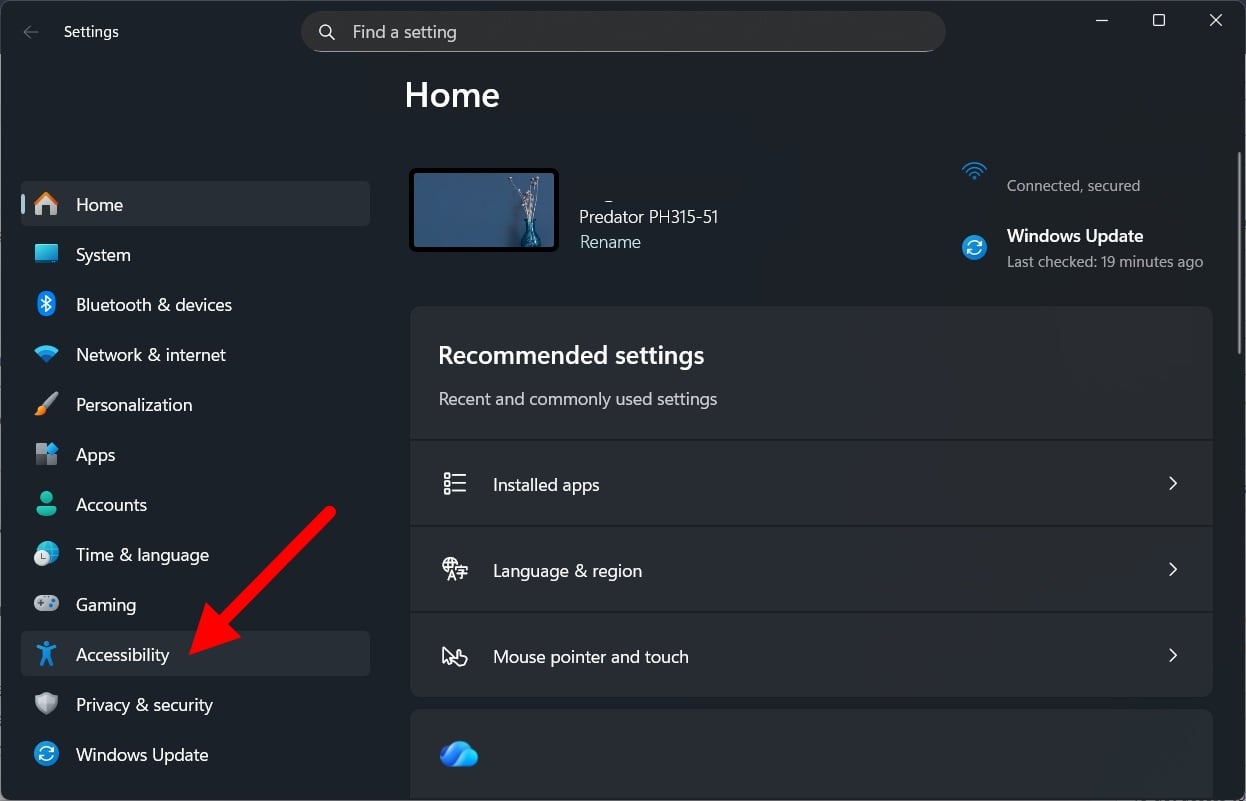
- Click on Accessibility.
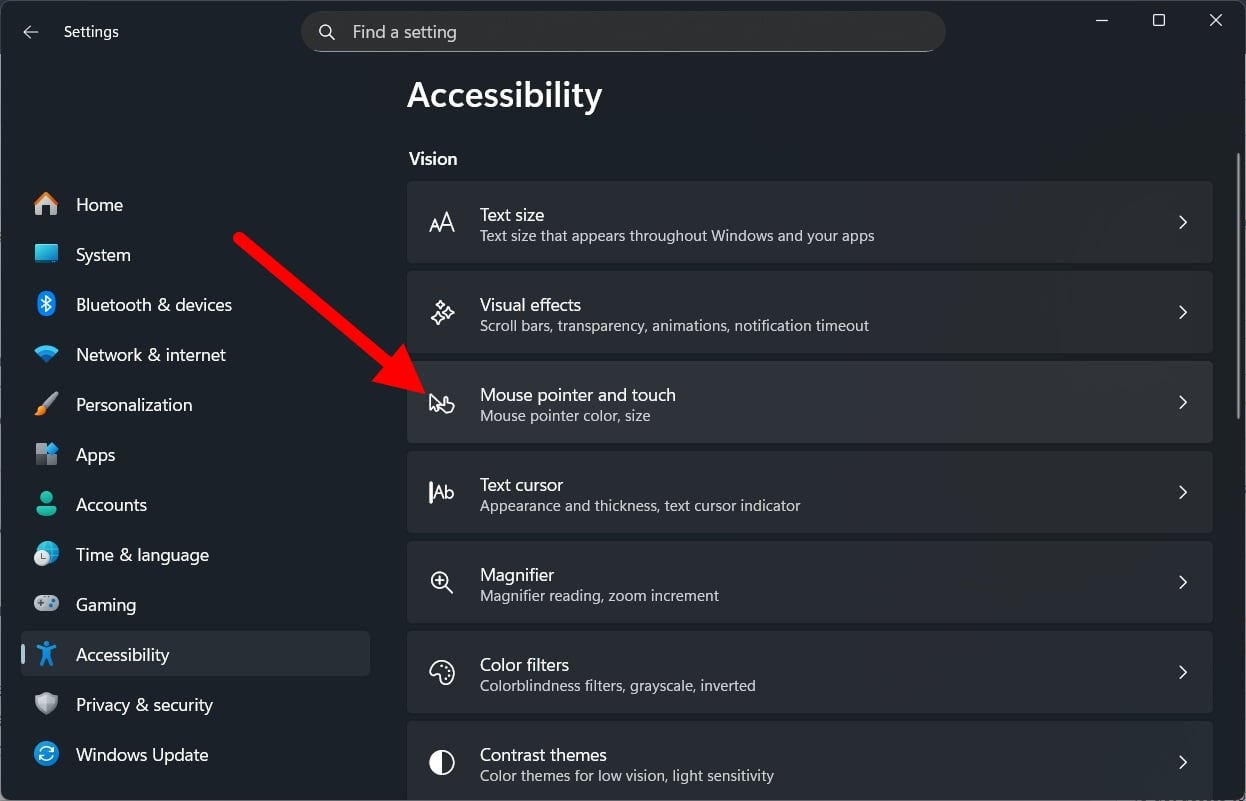
- Select Mouse pointer and touch.
- Choose the Inverted option under Mouse pointer style.
Be aware of your surroundings with mono audio
I always have an earphone plugged into one of my ears while I am working. This is because I want to stay aware of what is happening around me and to be present when someone calls me. Many people, in an office setting, also have earphones on their ears listening to their favorite tracks or some podcasts while they juggle through Excel sheets.
But the sound from one earpiece is often not that great, especially if you are listening to surround audio or Dolby Audio, which is meant for the pair of earphones. To fix this, you can turn on the mono audio setting. What this will do is combine audio from both channels into a single channel.
Here is how you can turn mono audio on:
- Press Win+I to open Windows Settings.
- Click on Accessibility.
- Choose Audio.
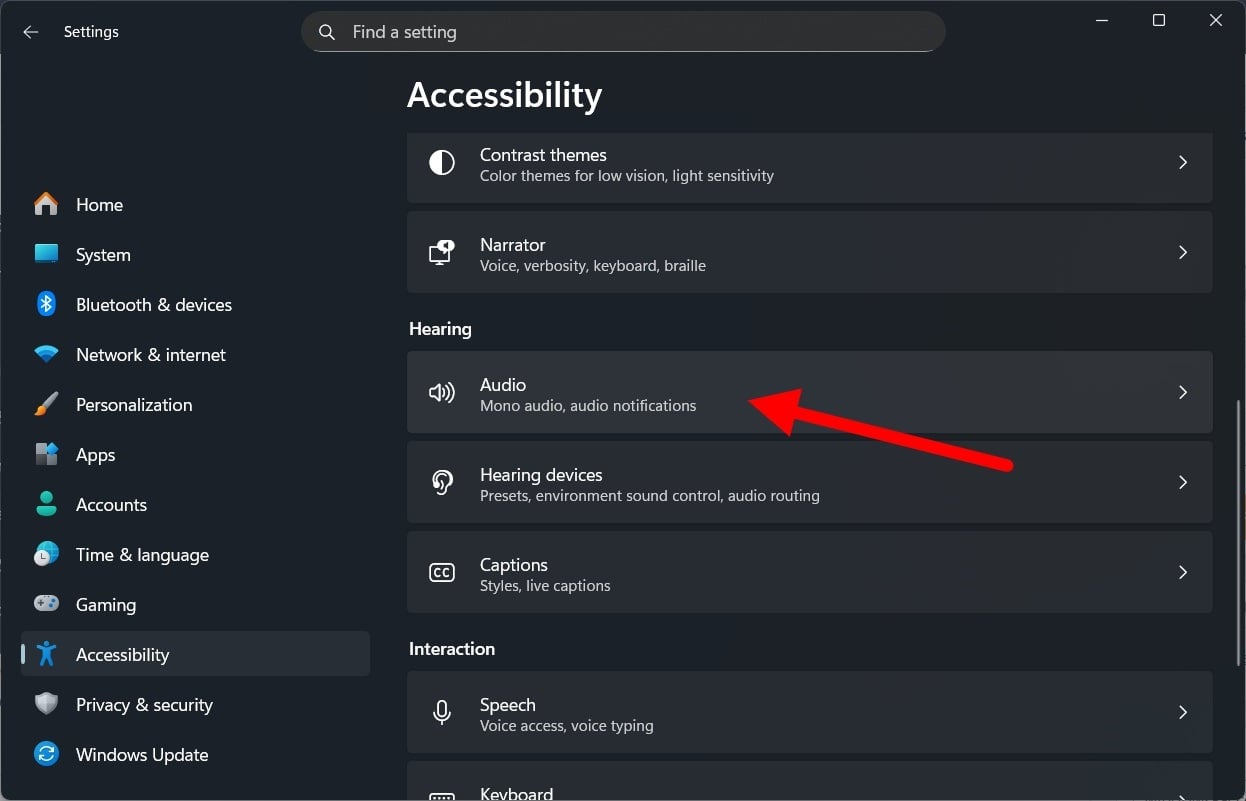
- Turn on the Mono audio toggle. If you decide to put on both earphones, then make sure to turn off this toggle.

Close dialog boxes quickly
As a power user of Windows, you can make use of all sorts of keyboard shortcuts to do your tasks. However, a normal user has to mouse the cursor and choose options. This is exhausting when you are bombarded with dialog boxes, where you have to click on Yes to proceed. Thankfully, Microsoft has thought of such an accessibility tool that selects the default choice on a Windows dialog box.
This not only saves your time, but also you don’t require manual input. Here’s how you can enable this option:
- Press Win+I to open Windows Settings.
- Click on Accessibility.
- Select Mouse from the right side.

- Toggle the Snap to default button.
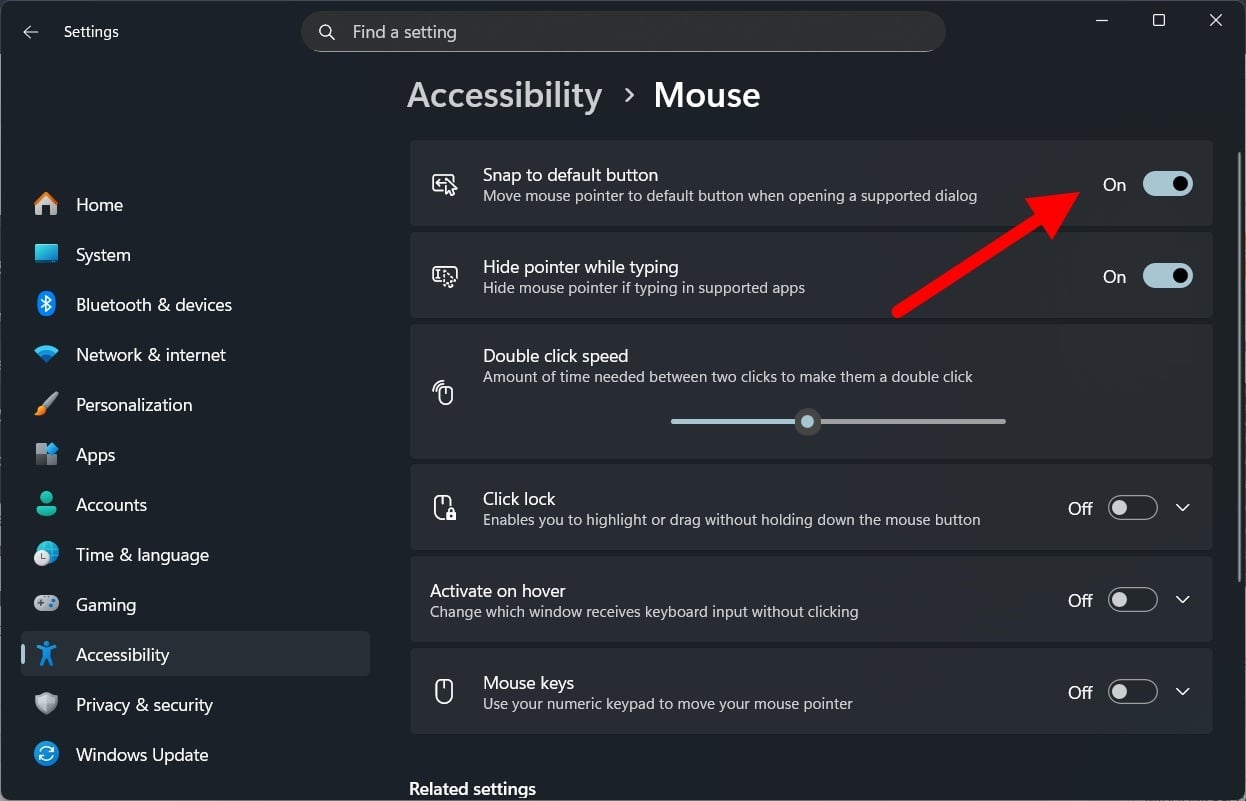
Now, this only works with Windows default dialog boxes. You won’t get its facilities on third-party dialog boxes. Also, while it automatically shifts to the default option, you have to click to continue or close the dialog box.
Work between two windows seamlessly
Content development requires extensive research, which translates to many open tabs. Often, I have to work with two open tabs, side by side. However, to activate the other window, you have to click on it. There is an accessibility feature that lets you change focus from one window to another by simply hovering over it.
This means as soon as the mouse cursor lands on the inactive window, it will become active. While this may be a simple thing, the seamlessness that you will experience is something people like me would notice as I work with multiple open tabs.
Here is how you can activate it:
- Press Win+I to open Windows Settings.
- Click on Accessibility.
- Select Mouse pointer and touch from the right-side.

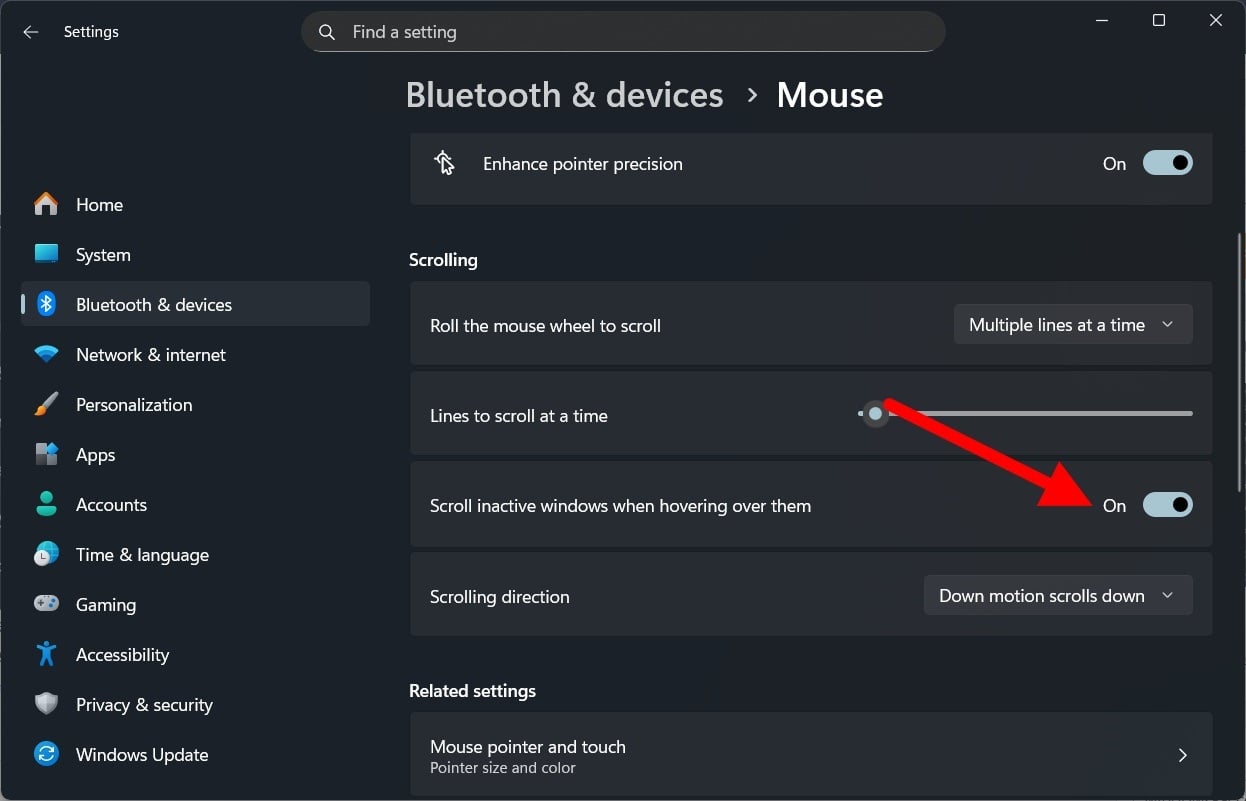
- Choose Mouse under Related settings.

- Toggle on the Scroll inactive windows when hovering over them option.
Improve your cursor precision
For those in the design field, you will know how important being pixel-perfect is. You have to ensure that every pixel is according to you; otherwise, you will mess up the big project. However, it is quite difficult to control your mouse with perfection, pixel-by-pixel. There are a few mouse accessibility features that you can make use of to improve your cursor’s precision. Here’s what you need to do:
- Press Win+I to open Windows Settings.
- Click on Accessibility.
- Select Mouse pointer and touch from the right-side.
- Choose Mouse under Related settings.
- Under Related Settings, click on Accessibility mouse settings.

- Toggle on the Mouse Keys option. What this does is it lets you move your cursor with the numpad, giving you more precision.
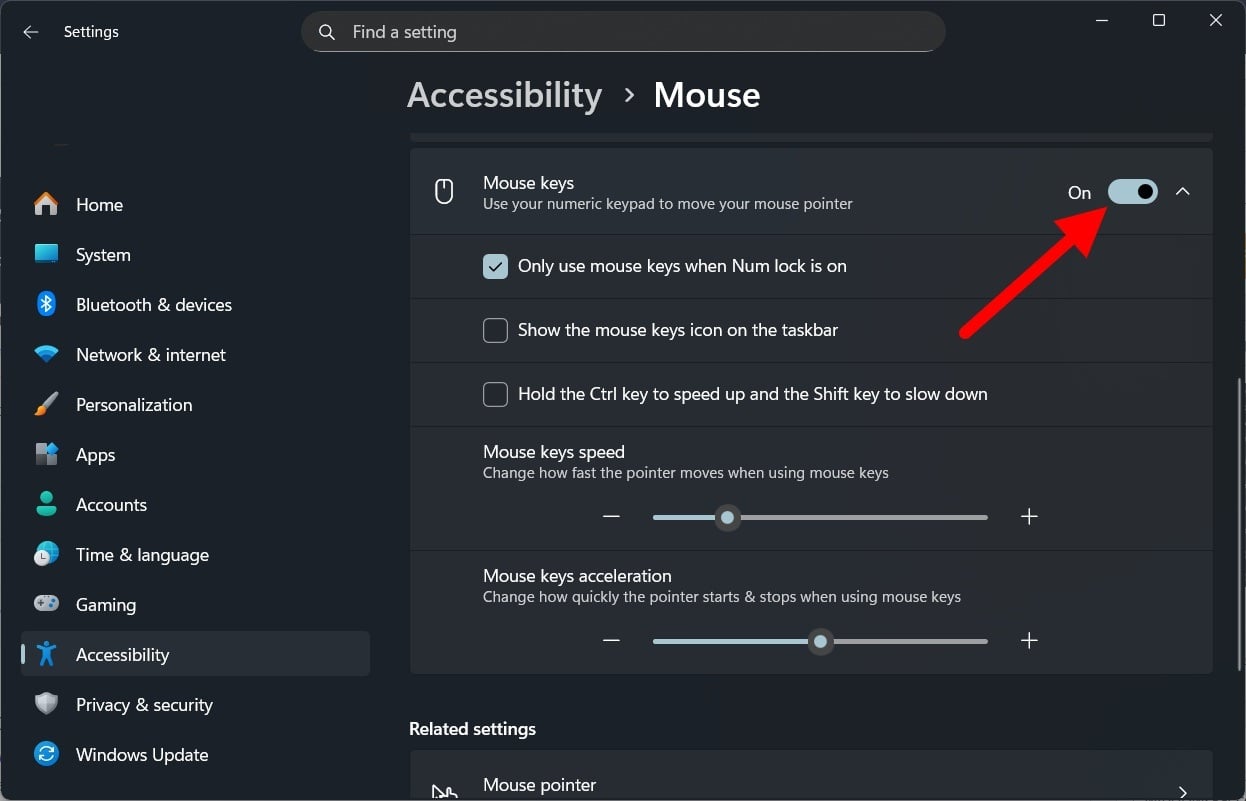
- Additionally, you can customize how fast or slow your cursor moves by adjusting the Mouse keys speed and Mouse keys acceleration sliders.
Windows Accessibility features make things easier
Of course, accessibility features are actually meant for people with special needs. But these accessibility features can also help normal people improve productivity if the right features are turned on. Please let us know in the comments below if you are using any of these features or are using something else to make things easier for yourself.

