

Quick Answer
iOS 26 introduces a major UI overhaul with a new “liquid glass” design, custom ringtones, dynamic wallpapers, call screening, live order tracking in Wallet, real-time lyrics translation, AirPods camera controls, smarter Reminders, polls in iMessage, custom snooze alarms, better parental controls, and more—now available as a public beta for iPhone 11 and later.
iOS 26 brings huge changes to your iPhone. From an entire design overhaul to long-requested features. It is currently available as a public beta, meaning if you are using an iPhone 11 or later, you can install the iOS 26 beta on your device and enjoy the latest changes. The stable rollout is expected to roll out along with the iPhone 17 series in September. If you are on iOS 26 or looking to install iOS 26 on your device, here are the 26 changes you need to know.
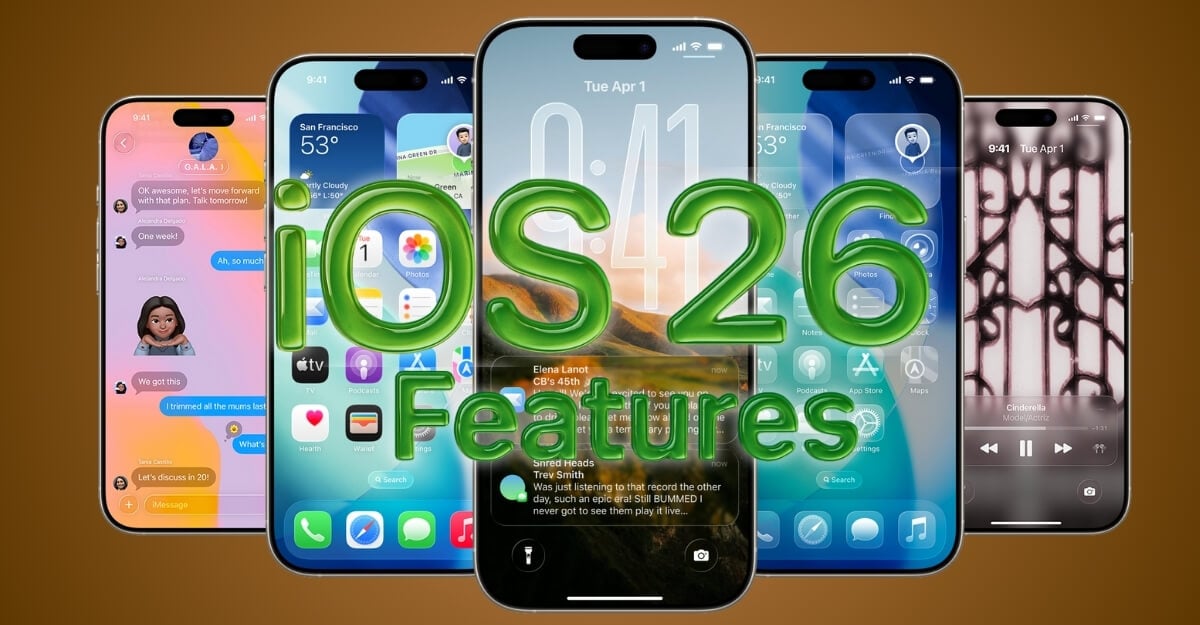
Table of Contents
Make Your Control Center Easier to See and Use With Extra Blur
If you have upgraded to iOS 26, the biggest change you will notice instantly is a new translucent design, which Apple calls liquid glass. It was part of Apple’s bigger UI overhaul, making the entire UI transparent and matching it with visionOS.
While it brings modern looks and a significant upgrade over previous iterations, this UI has also brought mixed feelings. Most people have been complaining about the readability issues and the low contrast, especially when reading text.
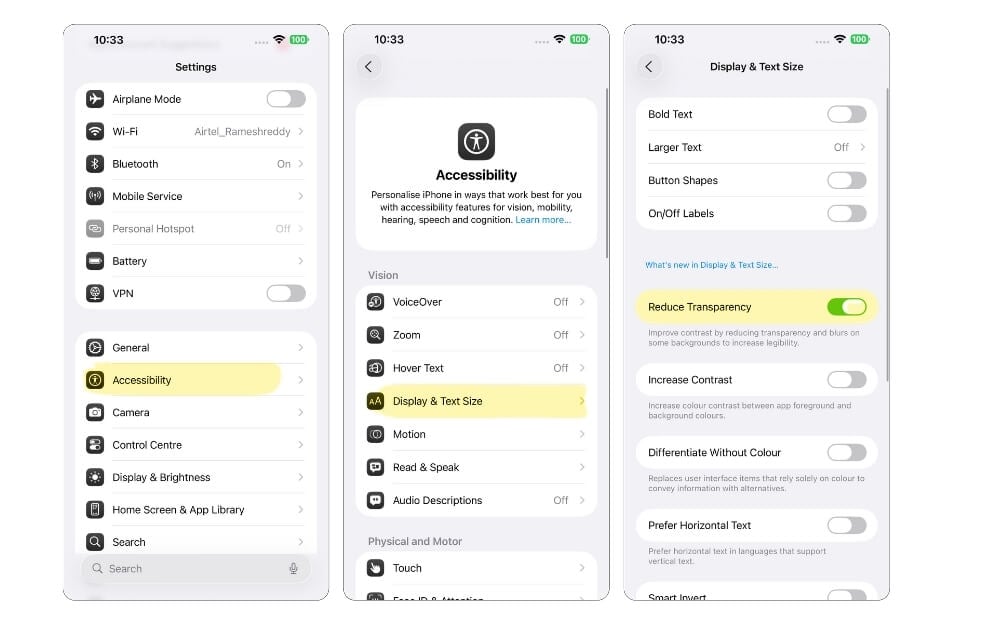
Control Center is where many people find it hard to distinguish between the background and the controls. Fortunately, Apple has improved the design, but still, if you are someone who is still finding it hard to access control buttons, you can add more blur to the Control Center in the accessibility settings.
It adds extra blur to the current Control Center screen, which makes controls more visible and easily distinguishable from the background, and also, honestly, it doesn’t affect the design in any way. It feels more polished than the original Apple design.
Here is how you can add: Go to Settings> Accessibility>Display and text size, and then enable the option that says Reduce Transparency.
Set Custom Ringtone on Your iPhone
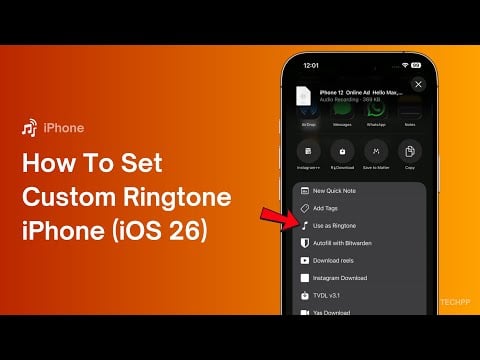
Finally, now you can set a custom ringtone on your iPhone without using any third-party apps. I have shared a detailed step-by-step process and video guide below. To set a custom ringtone, download the ringtone you want to set and ensure it is 30 seconds or below. Save it locally on your files app. Now open files and select the file, and long-press on it, and then select set as a ringtone option, and that’s it.
Set to Dynamic Wallpapers
Apple also added dynamic wallpaper support to iOS 26. Now you can select a dynamic wallpaper, and it changes colors based on the time of day. This is especially useful for users who want to customize their iPhone and change wallpapers often.
With this new setting, you don’t need to manually change wallpapers. It automatically adopts the new wallpaper style based on the time.
However, Unlike Android, this option is currently limited to only one dynamic option in iOS 26, and I hope Apple will add more in the future.
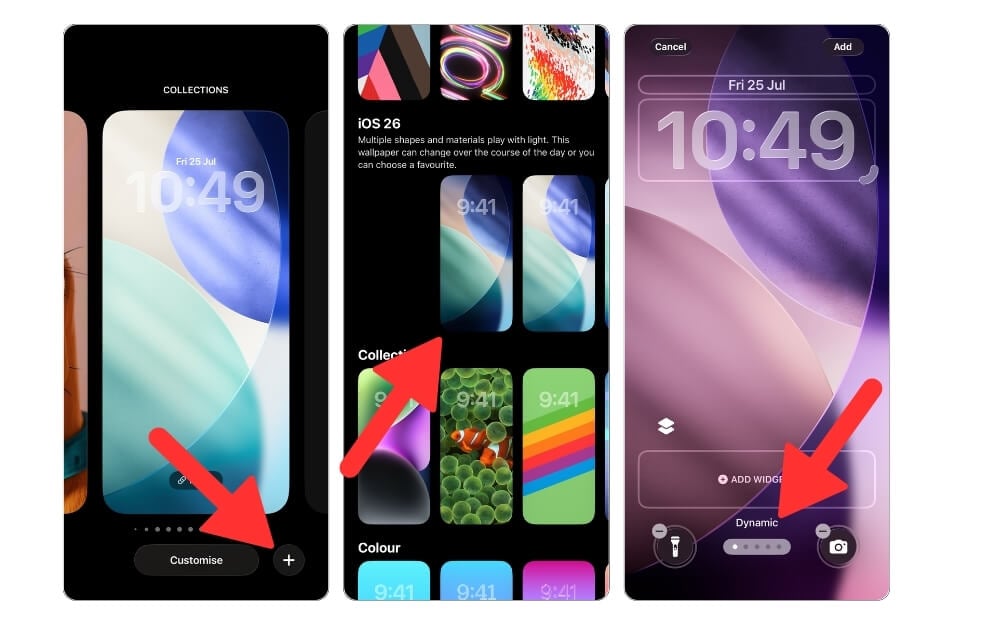
To set the dynamic wallpaper on your iPhone, go to your lock screen, press the wallpaper, and click on the plus icon. Now you’ll be taken to the wallpaper options, scroll down to the iOS 26 section. Select the first wallpaper that says dynamic, and you can apply it for both the home and lock screen, and it automatically changes based on the time on your smartphone.
However, if you want a different wallpaper with better options, you can dynamically change wallpapers using the Shortcuts on your iPhone. We have a detailed guide on automatically changing wallpaper on your iPhone. You can also apply this process if you have an Apple Watch.
New Transparent Icons
While Apple’s liquid glass design might not appeal to everyone, if you are a fan of this approach and want your iPhone to be more transparent, Apple has also added transparent icon support to iOS 26.
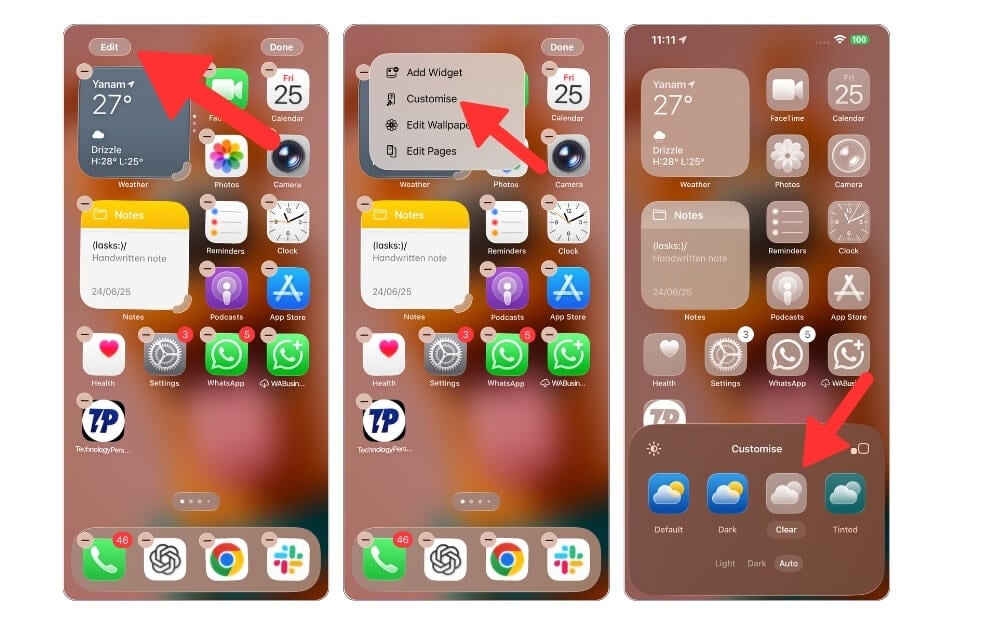
To use transparent icons, open your iPhone and go to the home screen, long-press anywhere on the screen, and from the top, tap the Edit option, then select Customize, and then select Clear Icons.
If you want to change it dynamically based on your time, you can also select the auto option, which will shift to the light and dark colors based on the time and your overall dark system settings.
Know Why Someone Is Calling Before You Pick Up
Apple has added two new useful features in iOS 26 that help you reduce interruptions from spam calls and also save time during customer support calls.
Spam and robotic calls are increasing around the world, and it has become an increasingly frustrating experience to deal with calls.
However, with the call screening now, you can decide whether to answer or deny a call based on your call data.
Call screening, which directly integrates into your phone app, gives you information about the incoming call. For example, if someone not in your contact list calls, instead of connecting to your smartphone immediately, your iPhone asks the caller to state their reason for the call, and you can see the reason, which is transcribed and displayed as text before you even pick up the call.
Based on the reason, you can either accept the call immediately, send the call to voicemail, or block/report it.
Keep Your iPhone on Hold During Support Calls
Another useful feature is a hold assist, which is useful, especially during long customer calls. When you are on your support call or if the support agent puts you on hold during the call, you can enable hold assist.
Your iPhone will detect and notify you when the real agent speaks to you. It also comes with the auto detection feature, where your phone monitors call audio, and when it switches from the hold back to the human agent, it will notify you.
However, this isn’t new. The Google Pixel phone has had this for a while now, but since iPhone adoption is higher compared to the Pixel.
Polls in iMessages
With iOS 26, iMessages gets useful upgrades, and one of the long-requested features is poll support. Now, with iOS 26, Apple has added native poll support to the Messages app. Now you can quickly create, share, and vote on polls inside your chats without requiring any third-party options. C
Currently, iMessages polls are available inside the group chat and also available for the individual one-on-one chat, and once you add the poll, the group members can select their options, and the results are updated live as each member votes.
If your iPhone supports Apple Intelligence based on your conversation status, it also suggests the call status, which makes it easy to create polls in your group messages.
However, there are also a few things that you should note. Once your poll has been sent, polls cannot be edited and also require all the participants to be on the latest iOS 26, and it works across all Apple devices, such as iPhone, iPad, and even macOS.
To create polls in your iMessage, go to the chat you want to create, whether a group or individual chat, click on the plus icon, select polls, select the options and click on send.
Keep Spam and Unknown Messages Out of Your Main Inbox.
Another useful addition to iMessage is the Unknown sender filter, where messages from senders that are not saved in your contact list will be moved to a separate folder called Unknown Senders.
By default, these messages are not shown in your main inbox to offer you a distraction-free experience. However, there is also a chance that you might miss important critical messages like delivery notifications and verification.
Apple has also added the ability to allow such critical notifications, where you can allow notifications for verification and other options. This feature is enabled by default as soon as you update to iOS 26; however, if you wish to turn off this feature, especially if most of your critical messages move to the unknown, you can enable or disable it from the settings.
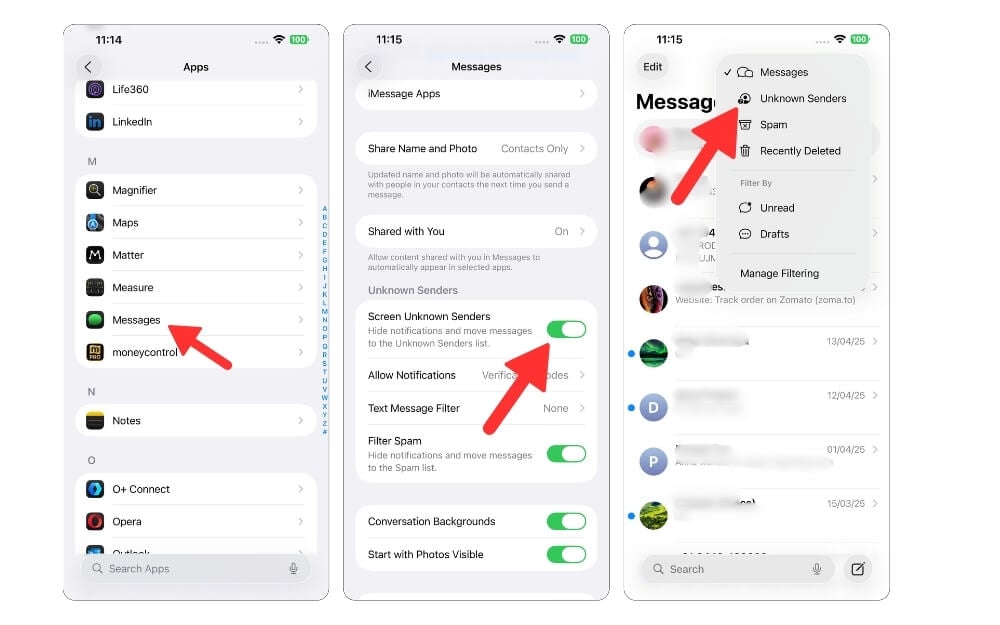
To enable, go to settings and search for iMessage, go to the apps, scroll down, and go to the new Unknown Sender section, and here disable or enable the option that says Screen Unknown Senders.
You can also use the filter spam messages to view messages from unknown senders.
To access unknown sender messages, open the iMessage app, click on the filter icon in the top right corner of the screen, and select the option that says unknown senders. Here you can see the list of messages that are not in your contact list.
Track Your Online Orders in Your Apple Wallet App
Apple has added automatic online order and order tracking capabilities to the Wallet app. Now, based on your online order, Wallet uses Apple Intelligence on supported iPhones to detect and add online orders directly to your Wallet with detailed shipment details and also live tracking status of your order.
So now, without depending on third-party tools or even websites of specific courier services, you can directly track packages inside your Apple Wallet app. Similar to the other cards, all your tracking details will appear as a card in your Apple Wallet app, and you will also receive real-time notifications based on your delivery status.
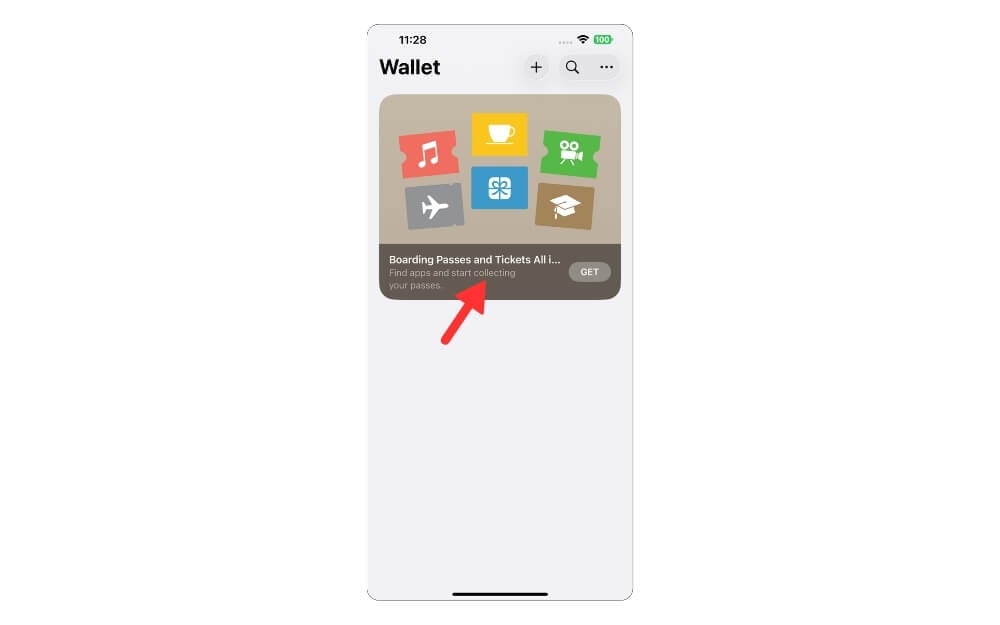
Currently, order tracking in the wallet app is automatic, with no option to add your order details manually in the Wallet app.
Note: Apple order tracking features aren’t new but are limited to Apple Pay purchases and participating merchants. However, in iOS 26, the Apple Wallet app uses AI to automatically scan your emails for orders and shipping notifications, and it extracts and displays them directly on your Apple Wallet.
Fix iPhone Boot Issues Without Needing a Mac or Cable
Another more useful addition to iOS 26 is a new recovery assistant mode in iOS 26. Previously, when your iPhone was stuck in boot mode or unable to boot, sometimes the device needed to be connected to a Mac to recover.
However, with the new recovery assistant mode in iOS 26, you don’t need your iPhone to connect with the Mac. It uses on-device recovery assistance and troubleshooting and directs this issue without connecting to any external devices.
For example, suppose your iPhone is stuck in a loop or unable to boot. In that case, it automatically enters recovery mode based on the available solutions with the diagnosis on your iPhone itself, and it attempts to fix the issue on its own.
Set the Custom Alarm Snooze Button
It might sound surprising to you, especially if you’re coming from an Android smartphone or if you never used an iOS alarm app; however, if you already are an Apple and iOS user, you know how annoying it is to have a clock app that can’t set custom snooze times. However, this is changing with iOS 26.

Apple has finally added custom snooze support in the alarm clock app. Now you can set a custom timer between 1 and 15 minutes, which is still limited but way better compared to the previous limit.
Previously, it was limited to only nine minutes between the intervals. After you have upgraded to iOS 26, you can directly go to the clock app and alarm settings. Here, you can create or edit existing alarm set points, snooze duration, select your interval, click on the Save, and finally, create a customized backup schedule for iOS users.
Prevent Audio Switching to Other Devices
Apple’s seamless audio switching is very handy, especially if you often switch between devices and don’t want to manually connect your AirPods to each device and listen to the audio.
However, it also comes with some downsides. For example, if you are attending a call or viewing something personal, or if you are listening to something personal, you can keep the audio on your AirPods instead of automatically switching to your CarPlay speakers, which can sometimes be embarrassing.
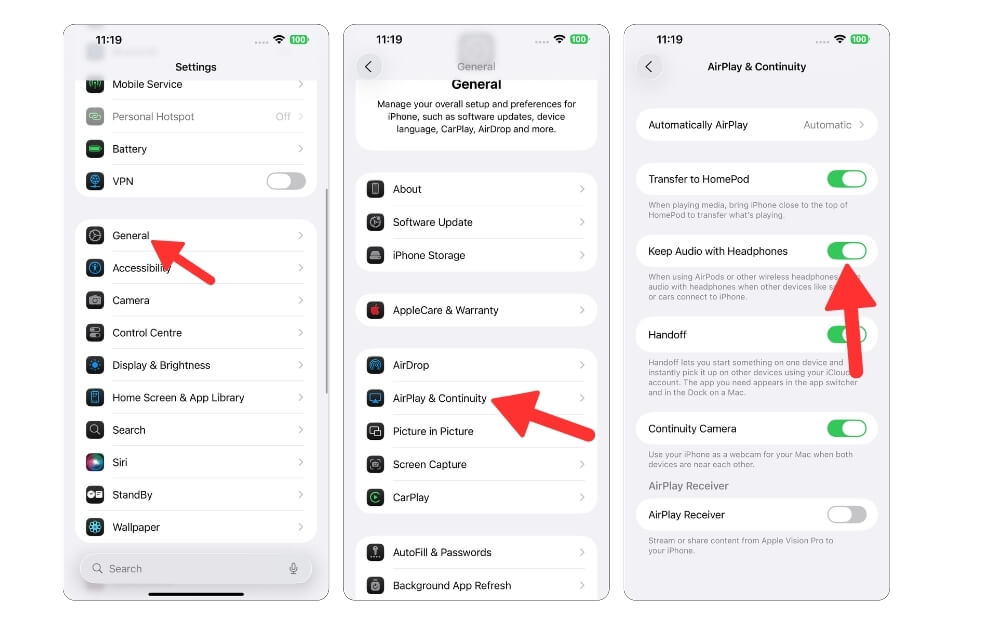
With iOS 26, Apple will ask whether to switch the audio to the external speakers, or if you often face this issue, you can also set the default option to keep your audio within your headphones, even if there are available Apple devices.
To do this, go to Settings, General, AirPlay & Continuity, and turn on the option that says Keep Audio with Headphones.
Mute Only One SIM While Keeping the Other Active
Apple has added another useful feature, especially for users who use dual SIM for work and personal use. Now you can silence a specific number instead of muting everything. For instance, if you use two SIM cards, one for work and the other for personal use, and don’t want to get disturbed by work calls or messages during off hours, you can silence your work and keep your personal active to be reachable by your friends and family.
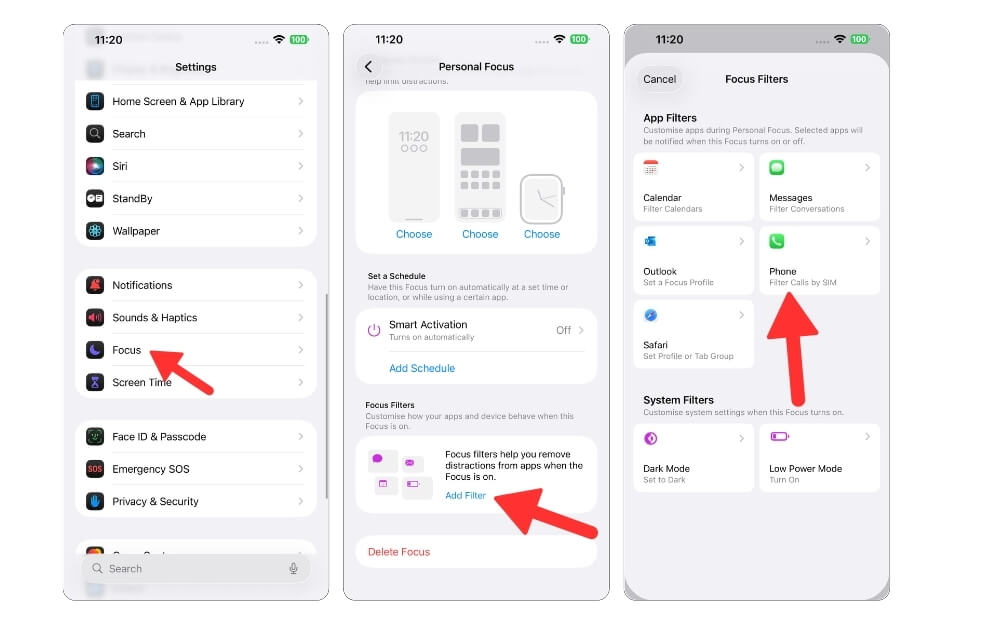
Currently, focus modes mute everything, which sometimes means you can often miss critical notifications, but thanks to the new use focus to silence SIM feature, now you can silence one SIM and keep the other SIM active, depending on your use.
To do this, go to settings and then click on the focus, and here you can select existing focus symbols or a new focus. Select the people and apps, scroll down, and click on Add Filter. Here, select Phone and choose the SIM you want to mute.
Automatically Turn Off Music When You Fall Asleep
While many apps have introduced a useful sleep timer to prevent music or a podcast from playing throughout the night, if you fall asleep without removing your headphones.
Thanks to the new iOS 26 automatic sleep detection, it automatically uses your motions and detects whether you have fallen asleep.
If your iPhone detects that you are asleep, it automatically pauses the video. This feature can be especially a lifesaver for people who often listen to music and podcasts to help them fall asleep, and don’t turn them off or remove the headphones before going to sleep. Also, now you can set a timer on the majority of apps; however, if you forget, the automatic turn-off feature can come in handy.
Now Estimate Your Charging Time
I get it, Android users have been enjoying these features for more than a year now. In iOS 26, Apple has added another simple feature that has been found on Android since the early days, and now you can estimate the time to charge your iPhone. Yes, finally, with iOS 26, Apple tells you how much time it takes to charge your iPhone based on your current charging level.
More Playback Speeds in Apple Podcasts
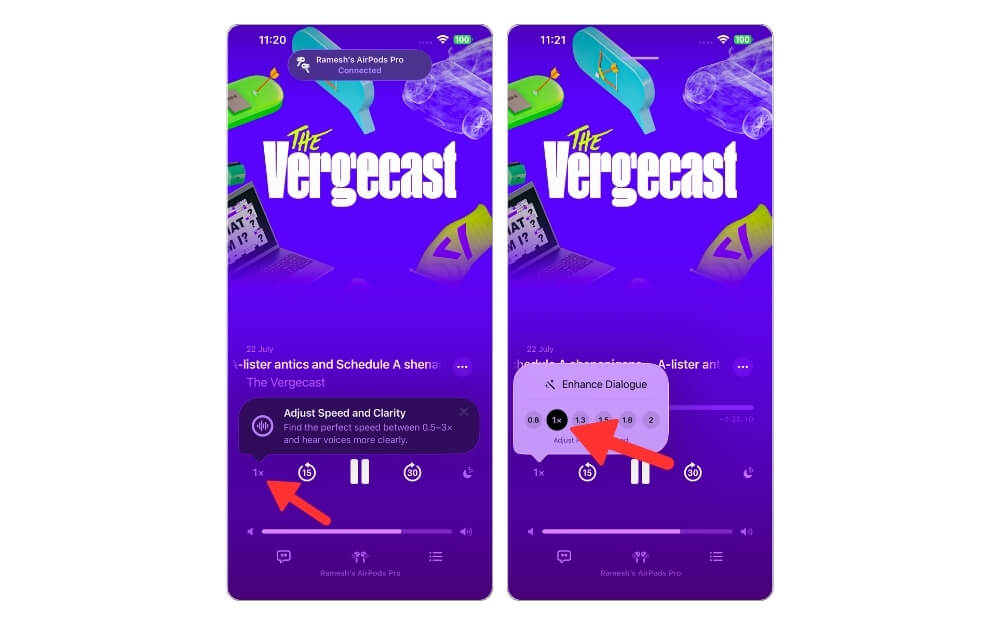
Google’s podcast app shutdown has left a void in my podcast listening experience. That’s why I have switched to Apple Podcasts, and I love the interface, and it is my default podcast app whenever I use my iPhone, but now with iOS 26, it is not getting even more playback speeds.
Now you can adjust more playback speed to help you enhance your listening experience. Since it is a native feature, it will be applied to all the podcasts you listen to on the podcast app.
Check Older Saved Passwords If You Forget Your Latest One.
With iOS 18, Apple has introduced a native password manager to manage and store all your passwords on all your Apple devices, which is free to use and also syncs your passwords across devices.
After using it for a while, I have felt that it lacks so many features and is very basic to replace a full-fledged password manager. You can see our full manager’s review.
With iOS 26, Apple has added password history, where you can keep track of every change to your passwords. For example, you can see the history of your passwords for your website and app, and the app now keeps a record of passwords you used in the past. You can tap on the history button in the Passwords app, and see that this is very useful, especially if you failed to update the new password on your website; it can be very handy.
Use Your AirPods as a Camera Remote
If you are a solo content creator or a vlogger, you know how helpful it is to control your smartphone camera remotely, whether it is by a Watch or a dedicated Bluetooth remote, which is offered alongside a mobile tripod.
Now, if you have an AirPod, you can control your iOS iPhone or iPad camera using your AirPods, but to use this feature, you need the AirPods Pro or use your AirPods with the H2 chip.
Using this feature, you can start and stop the video recordings by simply pressing the physical buttons on your AirPods.
To use this feature, you need to have a compatible AirPods, which Apple says includes AirPods second generation, AirPods Pro and the newer AirPod models with H2 chip, and your iPhone and iPad should run on iPadOS 26 and iOS 26 to use it. Apple also offers the ability to customize single press, press and hold, and double press controls on your AirPods.
New Upgrades to the Journal App
Apple has introduced the Journal app in iOS 18, and with iOS 26, it is now available for both iPad and Mac, and lets you sync all your journals with your Apple account.
Thanks to the dedicated iPad app. You can now handwrite your thoughts in the Journal app and sync them across your iPhone or Mac.
The iOS 26 Journal app also has plenty of features, including multiple journals. Now you can create and organize multiple journals with each entry and its own themes.
For example, you can create a separate journal and organize multiple work journals with separate entries and themes, and also, now, you have the ability to add text.
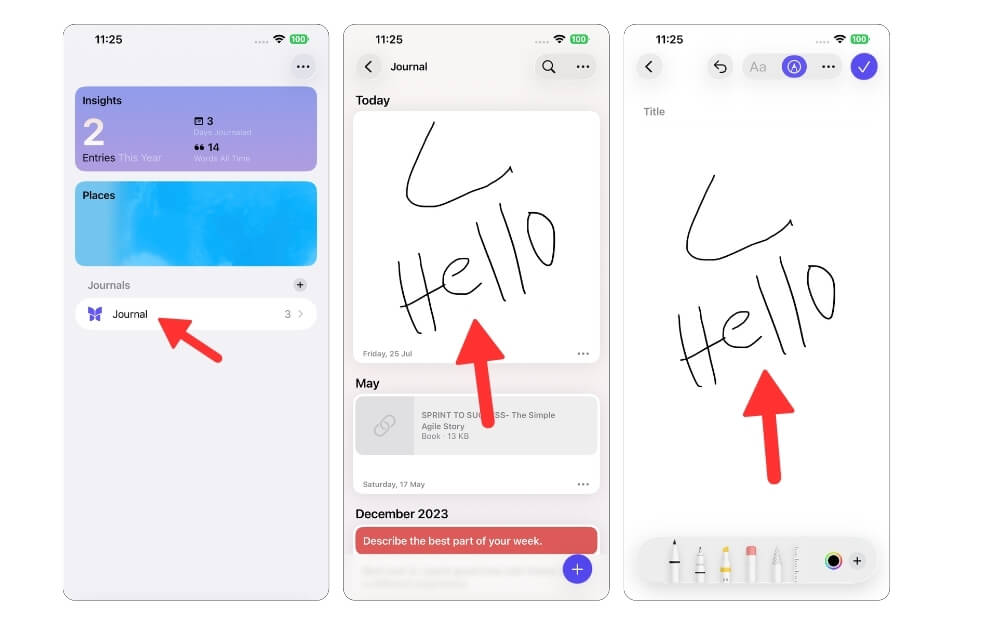
Now you can also insert images between the content, giving you a rich editor experience.
It also comes with a new map view that displays your entries based on your location to recall your memories, and you can now recover your accidentally deleted entries within a specific time.
New Apple Intelligence Features in the Reminder Apps
With iOS 26, the Apple Reminders app gets smarter suggestions and automatic categorization. Now, based on your emails and also analyzing your text and data from other apps. Apple’s Reminder app can automatically suggest new tasks, follow-ups, and grocery items by analyzing the data from your email messages and other apps.

If you are on iOS 26, you can open the reminders app and start typing, and you will see new suggestions.
New Updates to Motion Sickness
If you feel motion sickness when using your iPhone while traveling in a moving car, train, or bus, you know how inconvenient it is to use your device, especially if you want to read or stay entertained during the commute.
The Vehicle Motion Cue feature in iOS can help you significantly reduce motion sickness symptoms, and it has been a very helpful feature for someone facing it.
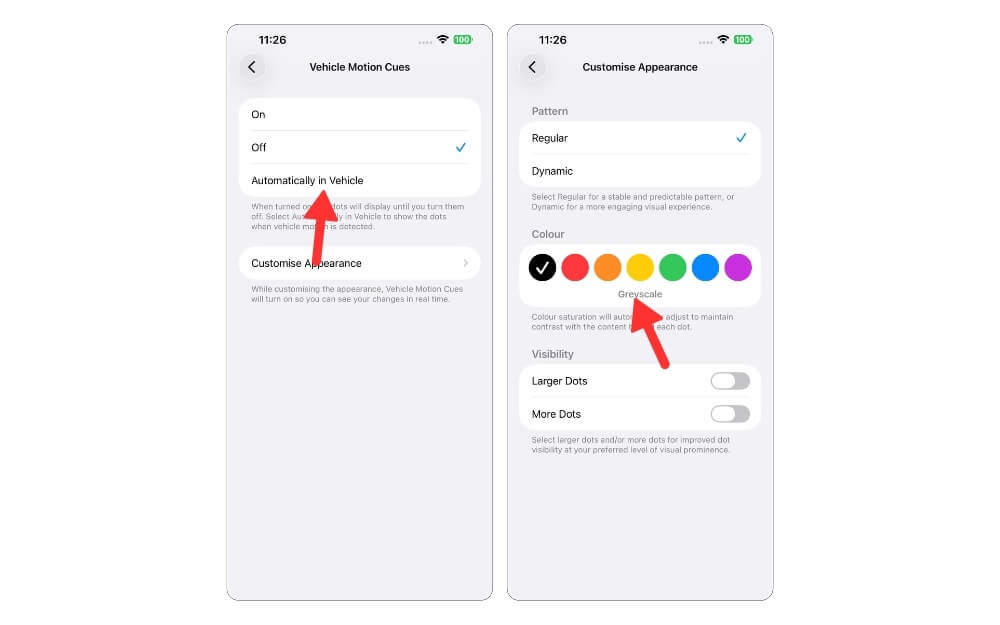
But with iOS 26, it also got a few useful upgrades. Now you can customize a visible style based on your comfort, and also control your intensity based on your personal sensitivity.
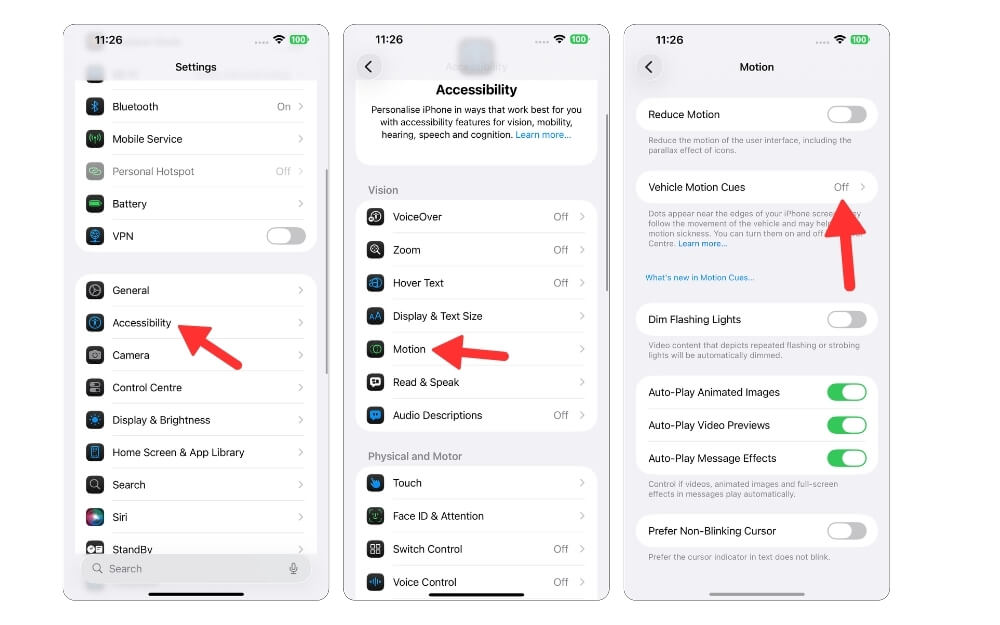
Also, you don’t have to manually enable this feature every time. Now you can automatically turn on this feature whenever you are in a vehicle and your iPhone automatically detects and enables Motion Cues.
To enable this, you can go to Settings, General, Accessibility, and select Motion and select Vehicle Motion Cues, select Automatically On, and also customize appearance, and here you can select color, number of icons, and their sizes, and more.
New Parental Controls
With iOS 26, Apple has added more upgrades to the Parental Controls to help you manage and protect your child’s digital footprint.
Now, Apple has made it easier to convert your child’s account from a regular account to a child account. If your child has already created an Apple account, you can now directly convert it to a child account and add it to your family sharing system, and even apply parent controls instantly.
Apple has added a couple of useful updates, including a communication limit where parents can now also control who their kids communicate with using phone, messages and even FaceTime, and it automatically detects and warns if they can send or receive explicit images or unsafe messages.
Record High-Quality Audio Using Your AirPods
Since many users now take calls and record audio, the regular iPhone mic isn’t that great, especially in a noisy environment, and also if you want to capture high-quality audio now,
Thanks to iOS 26, you can record voice directly from your AirPods since AirPods have a dedicated H2 chip, which also comes with advanced noise cancellation, beam-forming microphones, and audio processing.
The audio quality recorded from the AirPods is significantly better than that of your iPhone. The feature works across all your Apple devices with a compatible iPhone with the H2 chip, which is currently available on the Apple AirPods Pro 2. Also, AirPods 4 and Max are not compatible with studio-level audio recording.
New Preferred Routes and Smart Commute Alerts in Apple Maps
If you use Apple Maps for your daily navigation, it also gets useful upgrades with iOS 26. Since many of us travel in the same route style, like going to work or school, Apple Maps can now automatically track your routine and the route you take regularly and understand your preferences.
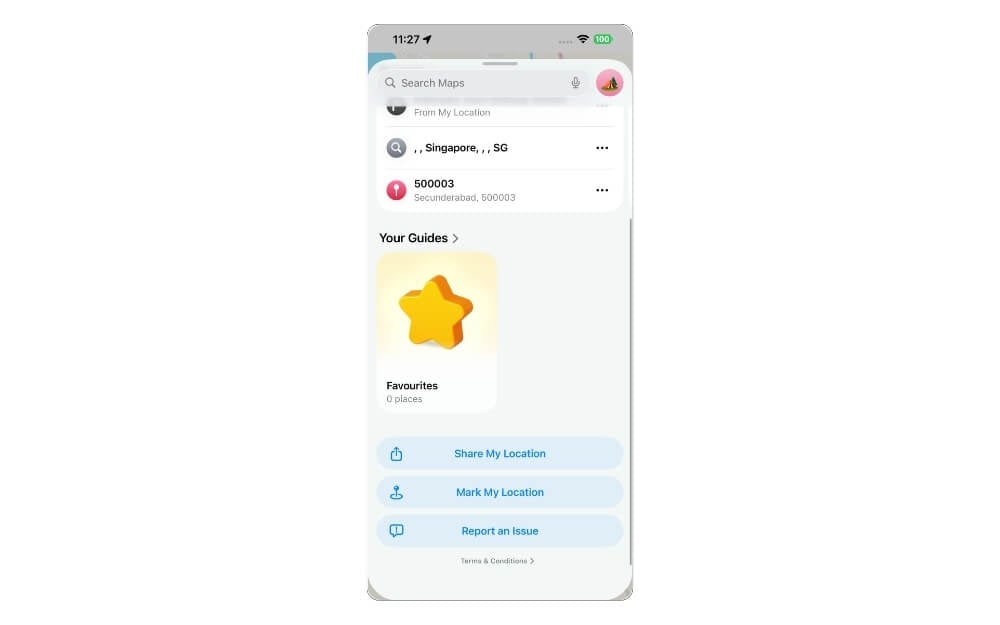
So even if you forgot to check the current traffic routes, now Apple Maps can notify you if the route has major traffic or accidents, or road closures in the form of alerts.
Plus, thanks to the new upgrades, it also suggests better alternative routes and transit options based on your real traffic data. Fortunately, this does not require any on-device intelligence. This feature is available for all iPhones, from the iPhone 11 to the latest iPhone 16 series.
Real-Time Lyrics Translations
Thanks to AI, you can now convert any song lyrics to any preferred language. In iOS 26, thanks to the real-time lyrics translation feature in Apple Music, you can instantly translate lyrics while playing the song on your smartphone. To get access to it, you must view your lyrics in Apple Music; however, this is currently only supported on select songs. After you upgrade to iOS 26, you can see a new translate button at the top of the lyrics.
You can select your preferred language while the song plays, and it will be automatically connected and translated into your preferred language. Unfortunately, Apple Live Translation in Apple Music in iOS 26 uses Apple Intelligence on-device models, so your iPhone should be on the supported list for this feature.
Apple Intelligent Actions in Shortcuts
And now this is one of my favorite additions to iOS 26, Apple Intelligence in Shortcuts, which now uses the on-device Apple Intelligence features in Shortcuts.
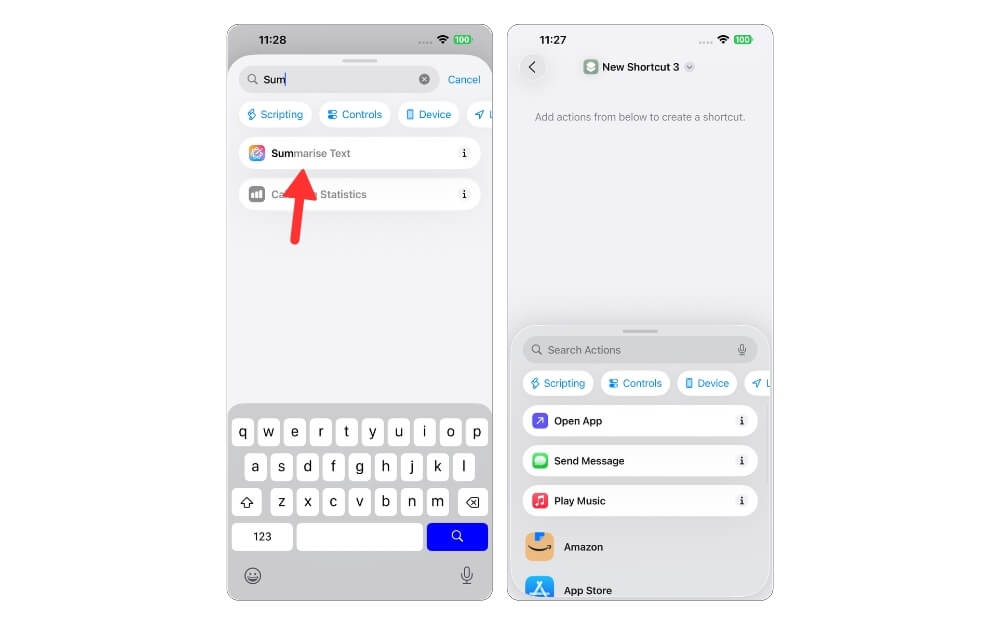
For instance, if you want a shortcut summarizing the text from your email, you can use the intelligent summarize text action inside your Shortcut and now summarize your text or email instantly using on-device. And also, not only that, you can also combine multiple smarter actions, such as image generation, into the flow, and you can also create a complete AI automation that works right from your iPhone.
Thanks to the Shortcuts app, you can also automate Shortcuts in the Shortcuts app, which brings a lot of options and possibilities. Since it uses on-device actions, your iPhone should be an Apple Intelligence-supported device.
Bonus: Apple Visual Intelligence
Circle to Search feature on Android has become my default option to search the content on the screen immediately, and now with iOS 26, Apple has added similar functionality with Apple Visual Intelligence. Now it can analyze your screen content and also helps you to search what is on the content, ask contextual questions, and understand more about what is happening on the screen. The only downside is that instead of long-pressing the home button, you need to take a screenshot.
Those are the 26 changes coming to iOS 26 that I really like. As I said before, iOS 26 is currently in beta, so you can install it on your device. However, I wouldn’t recommend using it if you are using a primary smartphone since iOS beta versions often have bugs and can lead to a frustrating experience. However, if you still want to try, you can go to Settings > General > Software Update. Here you can select public beta, install the update, and use it on your iPhone.

