

Quick Answer
iOS Shortcuts can turn your iPhone into a true productivity powerhouse. From downloading X or Spotify videos to sharing your ETA, logging water, ejecting water from speakers, or even automating birthday wishes, these 30 shortcuts simplify daily tasks, save time, and make your iPhone far more powerful.
iOS Shortcuts are one of the most underrated features that many people assume are only for power users. In most cases, these shortcuts are way more useful than fancy AI features on your phone. With the shortcuts, you can unlock new features, automate tasks, and more.

If you own an iPhone, here are the 30 most useful shortcuts you can add to your library and unlock new features. Remember, some of these shortcuts require iPhone 15 Pro or later with Apple Intelligence support. We have labelled the requirements to make it easy for you to find.
Table of Contents
30 Useful iOS Shortcuts You Should Start Using
Download X (Twitter) Videos in One Tap

If you often save Twitter (X) videos offline, this shortcut can come in super handy. Now you can directly share the post link to the app and start downloading Twitter videos without navigating to any Twitter downloader website and copying and pasting links between sites.
You can also add this to the quick share menu on your iOS device and start downloading videos.
Log water in one tap with reminders

I use a water reminder to keep track of water intake, and if you are using an iPhone, you can simply install this shortcut and keep track of your hydration. It is easy to forget water intake, especially in this busy world, which can lead to big health problems.
While most third-party apps allow you to log water intake, these often require multiple steps, which adds friction, making users less likely to use the app. I have faced this issue personally.
Fortunately, this iOS shortcut is simple to add to the home screen and tap on it to log your water intake. Further, you can also customize it to send you reminders and also adjust ML intake, and much more.
Make brushing fun with a 2-minute Spotify timer

If you have kids, this shortcut can help your kids properly brush their teeth and also provide fun engagement. The shortcut connects to your Spotify account and starts playing a 2-minute song.
You can ask your kids to start brushing their teeth when the song plays and stop when the song stops playing. This is not only fun but also keeps your kids engaged in forming a brushing routine. Here is how you can use it.
Share your ETA with family in one tap

If you often travel or if your kid goes from home to school, this simple shortcut can come in very handy. With a single tap, you can easily share your estimated time of arrival with your favorite contacts. The shortcut supports both email and messages.
Identify the song and quickly download it

No matter how many ways there are, finding songs using is one of the most accurate till now. If you want, with this shortcut, you can not only identify the song but also download it instantly and save it offline, and share it with your family or friends, or even use it for your Instagram post.
Save Spotify songs as MP3 for offline listening
If you often listen to Spotify and wish to have an offline playback without a premium subscription, you can easily download or convert Spotify songs into MP3 and save them on your device for offline listening.
The best part is that you don’t need to visit external websites or copy-paste between them. The shortcut will save the song offline for you. The best part is you can continue using Spotify and get song recommendations, and whenever you feel like saving a song, just send the link to the shortcut, and it saves it for you offline. You can use any offline music player app to organize your songs for offline listening.
Never miss a call with auto reminders (for older iPhones)
With iOS 20, Apple has finally rolled out the ability to set call reminders. However, if you are using an older version, you can get the same functionality using this shortcut. Whether you want to call an important person, friend, or family you can simply use the shortcut to remind you to take a call at the specific time.
You can also combine it with other shortcut apps, like sending an automatic reminder at a specific time, and also automatically sending to your specific phone number before taking a call.
Message on WhatsApp without saving the number
Now, after ages, you can finally send a message on WhatsApp without saving the number. Previously, we had to use third-party websites to do this, but now WhatsApp offers a native way to send messages without saving a number.
However, you still have to manually type the number and click on the chat to enter the chat interface and start messaging. However, with this iOS shortcut, you can directly send a message to a specific number from your phone’s recent screen. You can simply share the number to the shortcut, and it will instantly open WhatsApp with the same number interface that lets you send a text message without saving the contact or number.
Add more actions to your Action Button with volume keys

While the action button is designed to run multiple shortcuts however it can quickly get stuffed if you have multiple functions assigned to your action button on your iPhone, with this shortcut you can expand the shortcut possibilities, along with the action button you can use the extra volume buttons on your iPhone to assign different shortcuts, for instance you can use the action button + volume up button to run the specific action or the shortcut likewise you can use the action button + volume down button to run the specific shortcut, this way you can expand the possibilities.
Lock your iPhone instantly without pressing buttons
Few Android phones offer a simple way to double-tap your screen and lock it instantly. This is such a handy feature and also quick that you don’t need to reach out to the power button every time you want to turn off your mobile phone.
Fortunately, with the lock screen button shortcut, you can instantly lock your iPhone by tapping on the shortcut button. No,w with a single tap, similar to Android smartphones, you can lock your iPhone with a simple tap.
Fix slow internet without stopping downloads
If you are connected to the internet 24/7 at least once, you might have faced a network issue that required you to restart your smartphone or restart your network to make it work and fix the issue.
However, if you are in the middle of downloading any file, restarting your device or turning on and off the aeroplane mode can interrupt your downloads. This is where the network refresher auto shortcut can come in handy.
Now, when you experience slow internet, high ping, or even unstable connections, you can simply tap this extension or the shortcut. It automatically resets your internet connection without disconnecting from the internet.
Share Wi-Fi safely using a QR code
Sharing the Wi-Fi password with your guests or with your neighbors is often the most tedious task. Apart from complaining that the password is incorrect and not working, sharing passwords can also make them use your Wi-Fi permanently. So, because of this, now you can share your Wi-Fi passwords in the form of QR codes so that your Wi-Fi password won’t be visible to others while you are sharing with that specific guest.
This simple iOS shortcut lets you convert your existing Wi-Fi passwords to QR codes, and users can also quickly connect to your Wi-Fi by scanning the same QR code on their device, which makes the entire process easy without manually entering the Wi-Fi passwords.
Send an automatic birthday wish

If you are someone who has been complaining about not wishing birthdays, then the shortcut is the best option for you. The shortcut automatically sends birthday wishes to your contacts for whom you added birthdays. You can also send the same message on WhatsApp and even send a message as a text SMS.
It works for all contacts with a birthday reminder as an added feature. The shortcut notifies you after sending the message to the specific contact. You can also customize when to send a birthday reminder and add your default birthday reminder text.
Get your kid’s location when the battery is low

If you have kids with iPhones, the shortcut can be a lifesaver, especially if your kids are out playing and when the iPhone is about to die, the shortcut automatically sends your kids’ location with the battery level and coordinates, and also with the navigation links as soon as it detects the low battery percentage on your kids’ iPhones.
This way, you can keep track of their location and even get notified when there is a low battery percentage warning on your kids’ iPhones. To do this, you can simply install the shortcut on your kid’s iPhone and ensure it is running in the background, and as soon as the battery reaches a specific level, you will be notified via SMS, along with the current battery level percentage on your kid’s iPhone.
Save and manage all your places in one list

Location shortcut is like a personal location manager that lets you store, organize, share, and display all your locations in a single place with details such as name, coordinates, dates, and even notes.
You can also import locations from other photos, contacts, and events, and export them into GPX. It is a central place to save and balance all your important locations without using any map service, such as Apple Maps and Google Maps.
Quickly eject water when your iPhone falls into water
Water eject is the most popular shortcut on iPhone that lets you eject water spills from your speakers by playing vibrating music. It is a handy shortcut to have every time when your iPhone accidentally falls in the water.
You can add this extension to your home screen or add it to your shortcuts and use it every time there is water on your iPhone speaker.
Extend battery life with smarter low-power modes
Using low power mode can come in handy if you want to strictly preserve your battery life for a long time. Unlike the default low power mode, this further restricts the background access and also limits the apps in the background to give you better battery life.
If you want more flexibility, you can also use the ultra-low power mode shortcut, which gives you three levels to control your power output. For instance, it comes with low power, intelligent adjusting, and also supports dynamic adjustment to preserve your battery life on your iPhone.
Auto-change your Apple Watch wallpaper daily
If you use an Apple Watch, changing wallpaper can give it a fresh feel daily. However, Apple doesn’t offer this feature by default, and fortunately, you can install this shortcut to change wallpaper on your Apple Watch automatically. First, you need to select the wallpapers you want to apply.
You can store all Apple Watch wallpapers you want to shuffle in a folder and select the frequency, whether you want to change wallpaper every day or after certain hours. Once you set it up, based on the time you set, your iPhone runs the shortcut automatically and changes the wallpaper on your Apple Watch. Likewise, you can apply the same feature on your iPhone using this wallpaper change shortcut for iPhone.
Quickly summarize your documents using Apple devices

Apple Intelligence is still not as powerful as its peers, but it is, however, powerful enough to complete most of the daily tasks, such as summarising text, generating text or images, and more.
If you are using iPhone 15 Pro or later with Apple Intelligence support, you can use this shortcut to quickly summarize the documents with simple steps. You can use on-device models if you want more privacy, or use iCloud to summarize, or even use third-party models like ChatGPT to get this done.
Save all recipes to Notes

If you are like me, who instantly bookmarks a reel or a social media post whenever you see a new food recipe, then this shortcut can be very useful. The recipe takes the input of the video or the photo from the social media feed, extracts all the ingredients and steps, and saves it in your Notes app.
This way, you can turn all your video recipes into step-by-step tutorials that are easy to follow, and also, this quick extraction lets you see the full ingredients list at once. You can simply add this shortcut to your list and share the photos or the recipe videos to this shortcut. Using Apple Intelligence, it analyzes the video and converts all recipes into simple text.
Add Alarms to your Calendar Events

If you miss your important calendar events just because you missed a notification, then this shortcut can be a lifesaver. Whenever you add an event to the calendar, it automatically creates an alarm for that event so that you don’t miss the notification.
If you already have important events lined up, you can run this shortcut on your iPhone to automatically set up alarms for all the existing calendar events. This way, you don’t miss out on any important notifications.
Create a Smart To DO list using on-device AI
AI can be very useful to help you plan your day, with the help of different to-do list principles it can create better and actionable to-do list tasks for you, however the biggest friction is you need to follow multiple steps and copy and paste tasks between different tools, however if you use an iPhone with Apple Intelligence supported model you can just simply use this shortcut and record all your upcoming tasks.
It uses Apple Intelligence on the device and organizes them into to-do list tasks in the Apple Notes. The only requirement is that your device needs to have Apple Intelligence support, which is supported on iPhone 15 Pro and later series.
Download All iCloud Photos Instantly Using This Shortcut
Apple usually stores the high-quality photos in iCloud to save space on your device unless you manually asked to store original photos on your iPhone, however when you need it you have to manually go to each photo and download the original quality and save it locally on your device from iCloud, this process not only takes time but is almost impossible if you have thousands of photos to be saved locally on your device in original quality.
Fortunately, using this shortcut, you can automate this process, especially when you want to share photos or back up, or move all your photos to another cloud storage. You can simply run this shortcut, and it downloads the original quality of every photo and saves it locally on your device.
Wake Up Smarter Every Day Using This Shortcut

If you are a person like me who sets alarms based on the morning tasks you have, then the shortcut might be very useful. It automatically creates alarms for the right time based on your tasks using on-device Apple Intelligence.
For instance, if you have 5 different morning tasks, the shortcut analyzes your tasks and estimates the time it takes to finish each task, and based on this time, it automatically creates a specific alarm. In other words, it’s your personal alarm assistant that sets alarms based on your tasks and time availability.
Since it uses on-device Apple Intelligence, it requires an iPhone 15 Pro or any Apple Intelligence-supported model to use this shortcut. You can also optionally skip the alarm on weekends.
To use this Shortcut, you need to download and install two shortcuts. You can use the set alarm shortcut, and it automatically calls the other shortcut in the background.
Download the Morning Alarm AI model Shortcut
Open Any App’s Settings Instantly Using This Shortcut

One of the most annoying things in iOS is that you have to dig deep into the settings to find specific app settings; however, with a simple shortcut, you can instantly access any app settings right from the Control Centre.
You can add this shortcut to the Control Centre, open the app, and run this shortcut, and instantly you will be redirected to the specific app settings. It works for almost any app, including third-party apps, and makes app control and settings easy to access. Follow the guide below on how to add the shortcut to the Control Centre
Open the iPhone Shutdown Menu Without Pressing Any Buttons
You can use this Shortcut to instantly access the iPhone power menu option without using buttons. In general, to access the iPhone power menu, you need to long-press the power and volume buttons, and then access the power menu, but with this simple shortcut, you can simply press it to shut down your iPhone. You can add this shortcut to your home screen for easy access.
Make Your Screenshots Look Professional Using This Shortcut
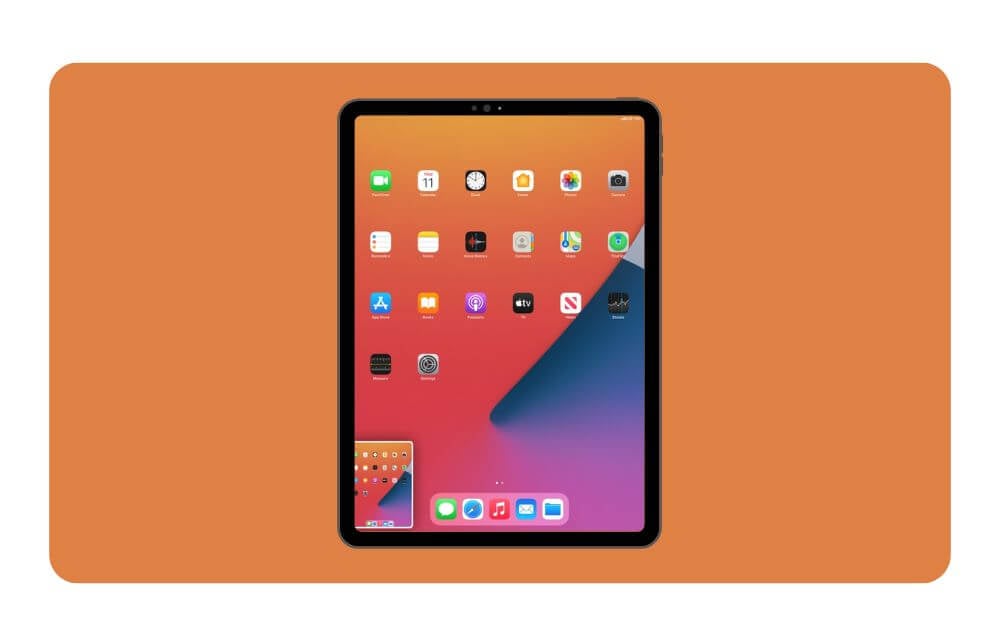
If you often share screenshots with others, this plugin lets your screenshots look professional by adding a frame around them. The best part is you don’t need to do anything; you can simply select the screen from your Photos app, and the shortcut automatically detects your device and the size, and it picks the correct frame and adds it to the screenshot.
You can also download the frame if no matching frame is found. Plus, you can also view, save, and share the final screenshot with the frame, and in addition to this, you can also delete the original screenshots to save space on your device. The shortcut is completely free to use and currently supports almost all iPhone, MacBook, Apple Watch, and iPad models.
Save and Access Your Clipboard History Instantly Using This Shortcut
The shortcut brings clipboard manager natively on your iPhone without any third-party apps, it comes in two shortcuts, the save to history shortcut lets you save any text you copied to the clipboard, since it cannot automatically copy the text on your iPhone, you have to manually trigger the shortcut to copy the text, for this you can use the action button on your iPhone or Back Tap on unsupported devices.
No matter when you use the shortcut, it saves whatever text you currently have in your clipboard and adds it to your history list. To help you differentiate, the shortcut also tags the date and location, so that you can know when you copied the text.
Next, the retrieve shortcut, which shows you the last 5 copied text items, which you can copy and paste whenever and wherever you need. And again, to trigger this, you need to use the action button or set the double-tap or triple-tap on your iPhone. You can also see your full list of copied clipboard items in the Notes app. This way, you can manage all your clipboard history on your iPhone.
Download Add to Clipboard Shortcut
Download View your Clipboard Shortcut
Set Reddit Top Wallpaper Every Week Using This Shortcut
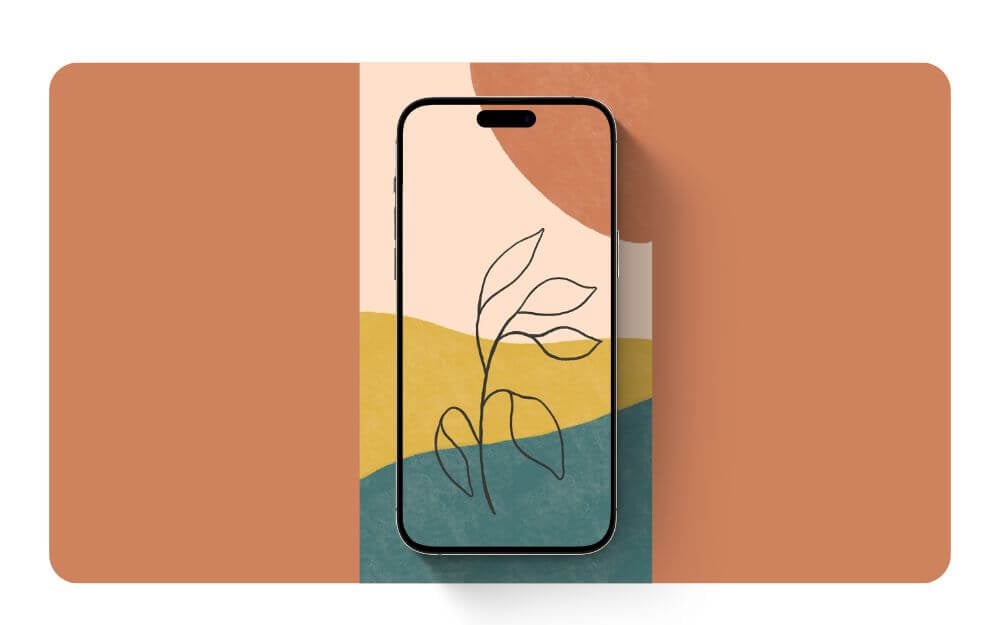
If you love changing wallpaper every week, then this shortcut can be very useful. With this shortcut, you can automatically set a new wallpaper every week from the /wallpapers subreddit. You can also manually run this wallpaper anytime you want to change and apply a new wallpaper on your iPhone.
The best part is that it automatically connects to the wallpaper subreddit and downloads in full resolution and automatically sets that image as your phone wallpaper. You can run this shortcut every week, and it automatically runs.
Save and Manage Warranty Details Easily Using This Shortcut
It’s strange that there is no single best app to track the warranty of your products at home and even get notified when the warranty ends, owing to I made my own warranty tracker using Notion, however it still requires external Notion app to manage all your warranties, however with this shortcut on your iPhone you can simply manage warranties of any product on your iPhone, you can trigger this iPhone shortcut and add the warranty information and save it on your iPhone, you can also view all your warranty information of the devices in one place and track their warranties easily.
Transform Your iPhone
Those are the useful free iOS shortcuts you can download and use on your iPhone. Adding shortcuts is easy. Click on the Download Shortcut button under the shortcut, and you will be redirected to the iCloud page. From there, tap on add shortcut, and that’s it. The shortcut will be added to your library. From there, you can customize or run the shortcut whenever you need it. To add a shortcut to the home screen, select the widget tab and from there select shortcut and add the required shortcuts to your iPhone home screen for easy access.

