

Quick Answer
Microsoft PC Manager replaces multiple Windows tools with one free, official console. It boosts performance, cleans storage, manages apps, handles security, and offers handy utilities, all without digging through settings or running commands.
I have been using a Windows PC for over two decades and could easily get rid of unnecessary files, fix temporary errors/glitches, and protect my computer against viruses using Windows’ built-in commands and antivirus tool. However, the downside was that I had to run each command and setting separately, which is not very convenient. With its latest versions of Windows, such as Windows 10 and 11, Microsoft has not only introduced some much-needed changes and upgrades, but they have also made it easier to manage your PC.
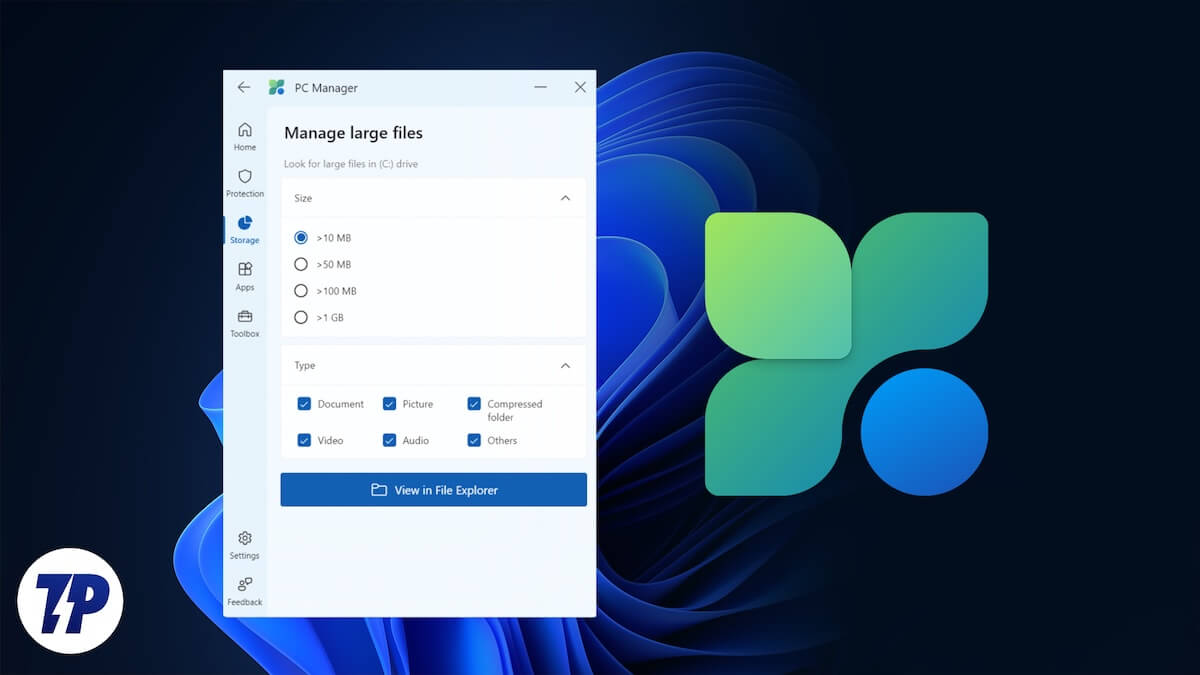
This is where I stumbled upon the Microsoft PC Manager. A one-stop shop for all your PC management needs. No running multiple commands or going through several layers of settings just to fix a few things. Microsoft PC Manager gives you everything in a single console. But there’s more to it. Let us go through it one by one.
Microsoft PC Manager is an all-in-one tool
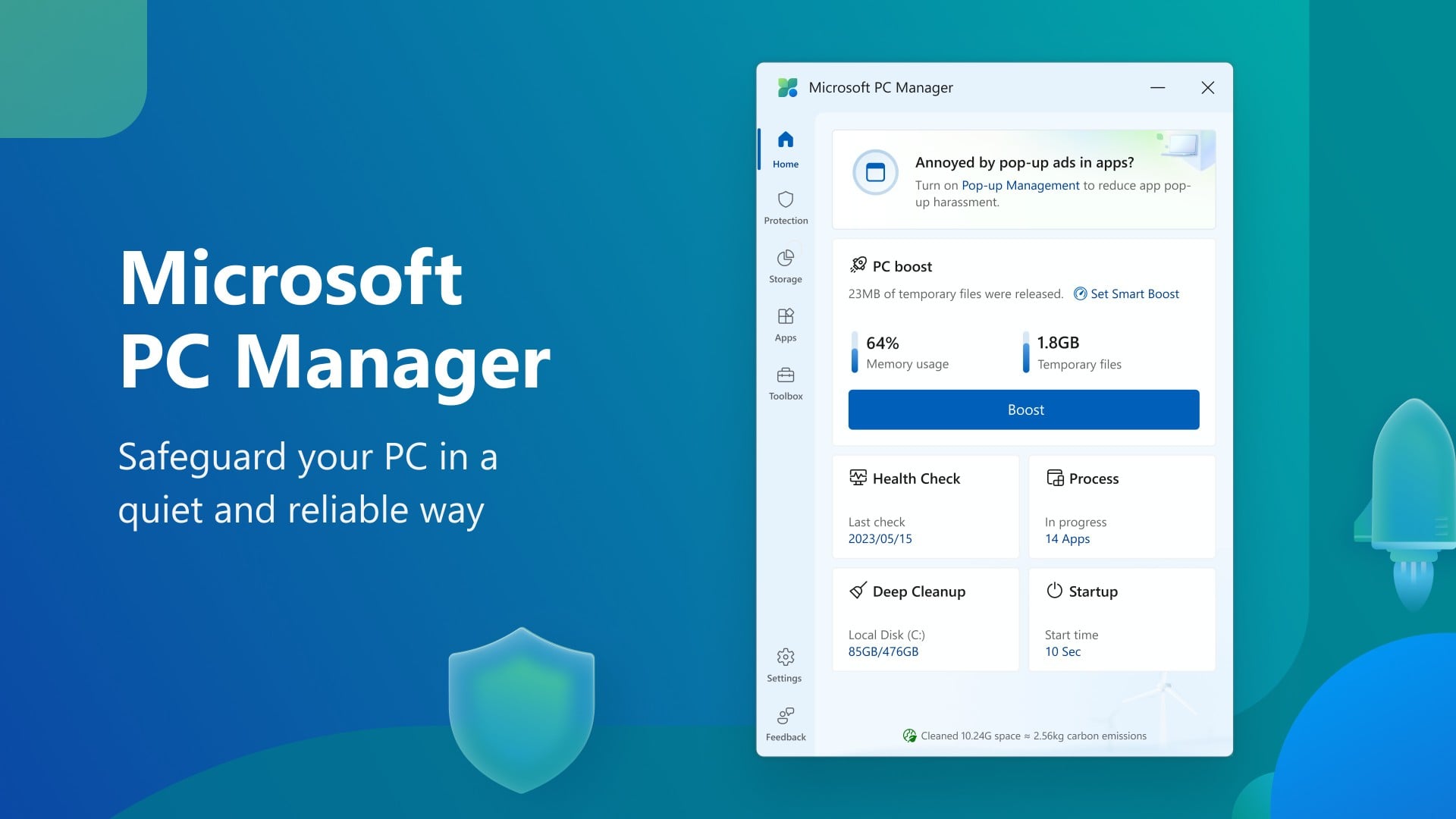
You might have heard about CCleaner, Revo Uninstaller, or Ashampoo WinOptimizer. But very few know about Microsoft PC Manager. It was introduced in 2022, and the official website reads, “Safeguard your PC in a quiet and reliable way.” One reason why it isn’t as popular as it should be is the fact that it doesn’t come preinstalled with Windows, which is a shame because you will find so many third-party apps and tools preinstalled.
Whatever the reason may be, the thing is that once I got to know about the Microsoft PC Manager, I have been using it almost every day. You can download the Microsoft PC Manager from the Microsoft Store, and thankfully, it is available for free. Just a click and you are all set to explore the world of Microsoft PC Manager. Now, what’s so good about this tool?
- PC Booster
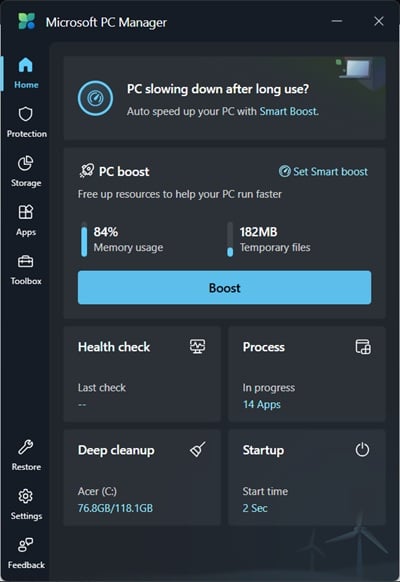
As soon as you open the tool after installation, you will see a big Boost button in the center. Pressing this button will clean your PC and remove unwanted temporary files, in turn giving your PC free space. You will notice a performance boost, which is visible in the Task Manager. The best part is that you can turn on the Smart Boost Settings, which will give you an automatic boost whenever the RAM needs a breather. - Storage management
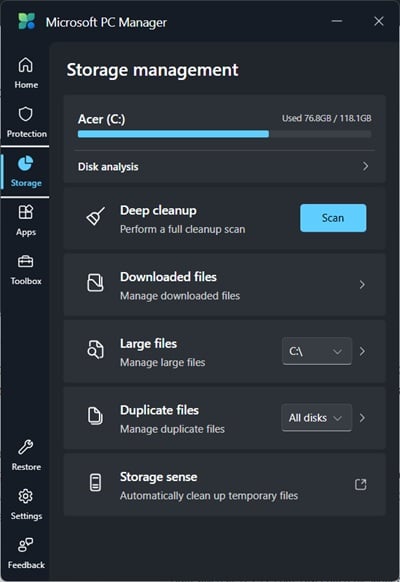
Prior to the Microsoft PC Manager, I used the terminal commands such as chkdsk, Cleanmgr, or the Disk Cleanup tool to get rid of the temporary and unwanted files. But the process was quite tedious. Thanks to the PC Manager, you can click on the Storage section on the left pane, tap on Scan for deep clean, select all the files that you want to remove from your PC, and hit the Proceed button. It is fast, easy, and quick to clean up all the mess and give your PC a breather. - System protection
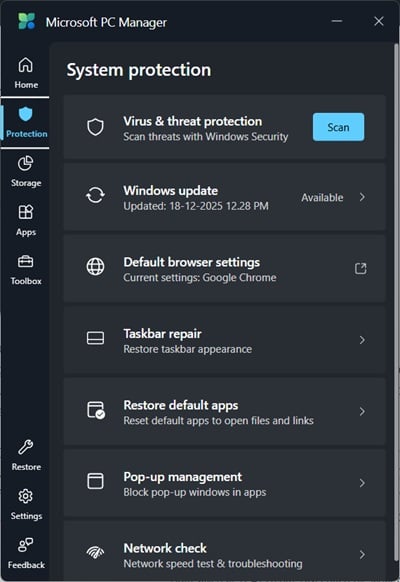
The Protection section of the Microsoft PC Manager is something that gives you a one-stop shop for all your system updates and security needs. Opening this section gives you the option to scan your PC, check for Windows updates, change default browser settings, Taskbar repair, restore apps to their default settings, block pop-ups, network speed test, and troubleshooting. You don’t have to fiddle around with the Settings menu to check for updates or change app settings. Blocking pop-ups also just got easier with this tool. - Manage apps
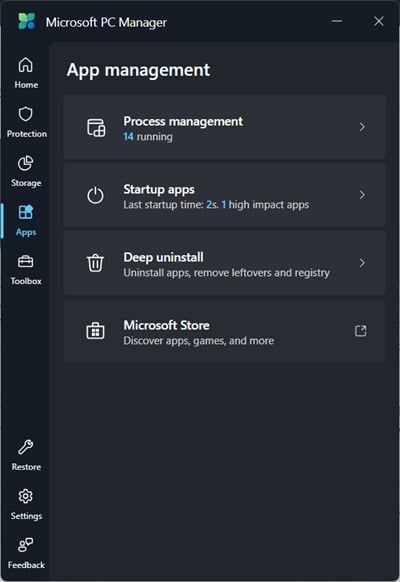
The apps management area is where things get interesting. You would no longer need the Task Manager to handle the processes on your PC. Under Process Management, you can manage which apps to run and which to end. Then Startup apps let you choose which apps should run as soon as your PC boots up, and which should stay idle. You can also uninstall unwanted apps from the Manage apps section and discover new ones from the Microsoft Store. - Useful Windows Tools
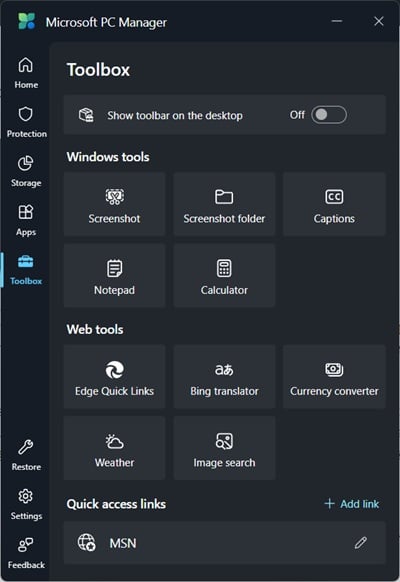
The Toolbox area is quite great for accessing the small, quick utilities that you would need in day-to-day life. It is a collection of all the tools, such as screenshot, recorder, captions, notepad, and calculator, which you can access quickly. The captions option is quite useful as it accurately gives you captions for any video that you are playing. You also get a currency converter, which is helpful for needs when you are traveling. You also get weather and image search, and the option to force your PC to open links in the Edge browser. If you use these tools often, then you can turn on the Show toolbar on desktop toggle. - Settings
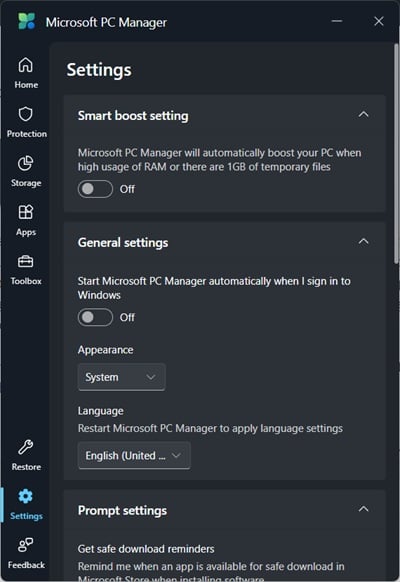
Under the Settings menu, you get the option to automatically boost your PC whenever 1GB of temporary files is detected, or your PC is operating with high RAM usage. Then there are a few other options, such as whether you would like to run this tool at startup or not.
A tool that should come preloaded
After reading the above list of features that the Microsoft PC Manager has on offer, you might also be wondering why this tool doesn’t come with Windows OS preinstalled. Anyway, you can get it for free from the Microsoft Store, and supercharge the way you use your Windows PC with quick tools all in one place.

