

Online safety and privacy are very crucial in the modern world, especially when your information is available on multiple social media platforms. Social media platforms are there for us to share moments from our lives, but there should be a line between what you can share and what you cannot. Sharing your intimate moments or things that you like to keep to yourself should be avoided, and if you have done it in the past on Snapchat, the platform gives you the option to lock such posts and keep them to yourself.
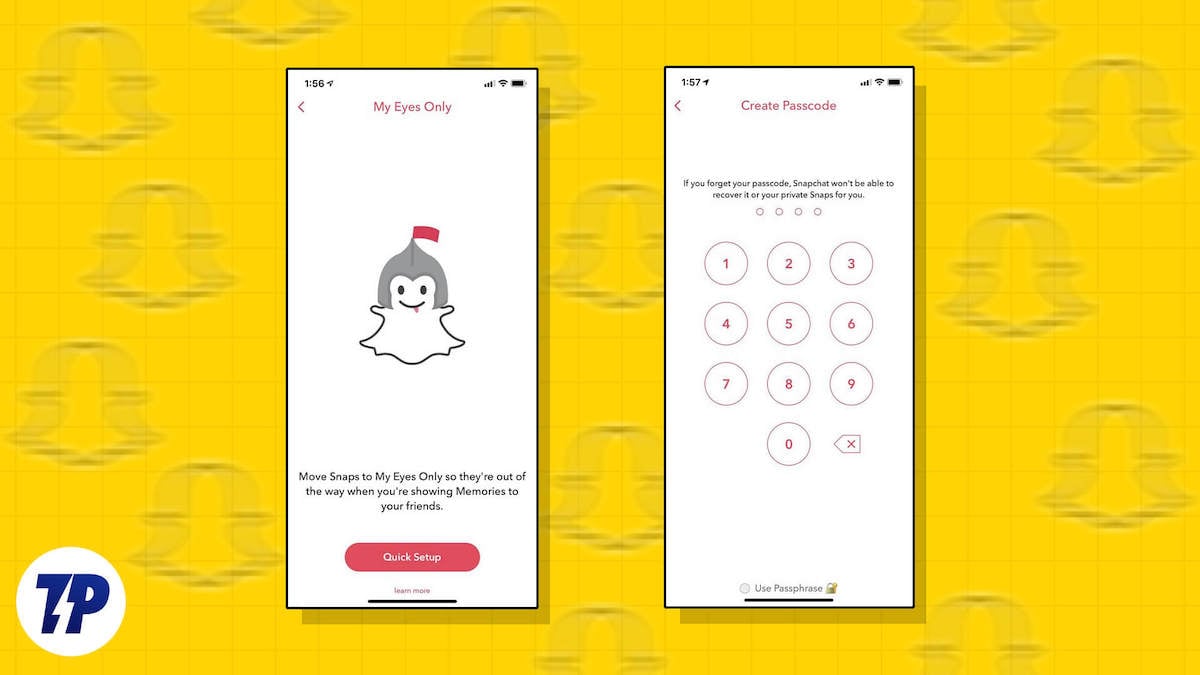
For those private moments, Snapchat offers a “My Eyes Only” feature that lets you keep your Snaps, Stories, and Memories away from the general public and is only accessible to you. In this guide, we will walk you through all the details that you need to know about Snapchat’s My Eyes Only feature and also explain how you can use it. Let’s jump right in.
Table of Contents
What is the Snapchat My Eyes Only feature?
Whatever you share online, either on social media platforms or otherwise, has a great tendency to land in the wrong hands. Hackers can easily gain access to your files, photos, or any other form of content. Snapchat is a place where you share your private moments with the world and your friends, and if hackers gain access to your account, all of your posts, even the past saved ones, get compromised.
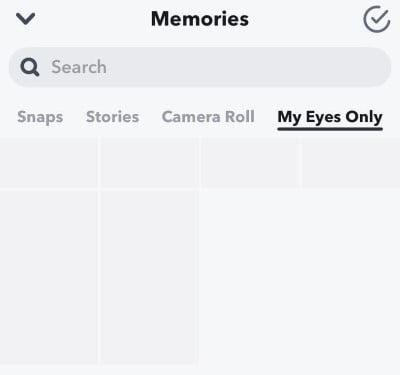
Thanks to the My Eyes Only feature, Snapchat offers an extra layer of safety for your posts on the platform. Third parties would be required to pass one extra layer of security if they wish to access your content on Snapchat with the My Eyes Only feature.
Notably, Snapchat My Eyes Only is a password-protected folder where you can store your private Snaps, Stories, and Memories, which can only be accessed using a user-created passcode. It is a part of the Memories feature in Snapchat and can be accessed by swiping up from the camera view page on the app.
How do I set up and use the Snapchat My Eyes Only feature?
If you are reading this, then you probably haven’t used the Snapchat My Eyes Only feature. So, if you are new to using this, then you need to perform a quick setup to choose your passcode for the My Eyes Only folder. First, you need to have at least one Snap or Story saved to Memories or share a picture from your gallery on Snapchat.
Here’s how you can use My Eyes Only:
- Launch Snapchat.
- Swipe up from the camera screen to open Memories.
- On the Memories page, scroll through the horizontal list of menus and tap on My Eyes Only.
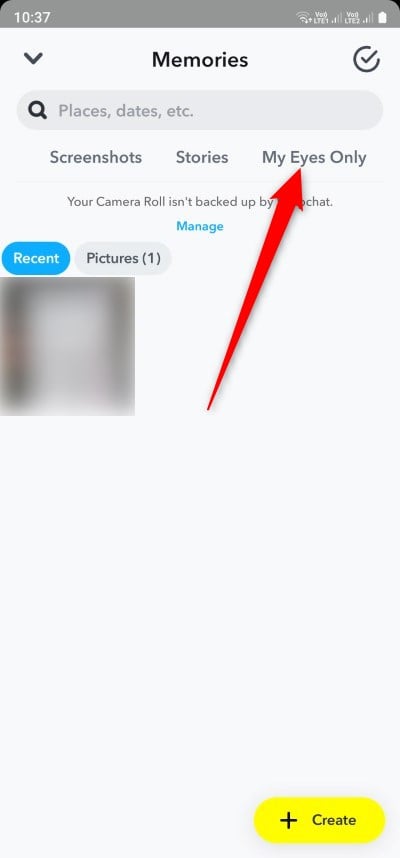
- Tap Set Up.

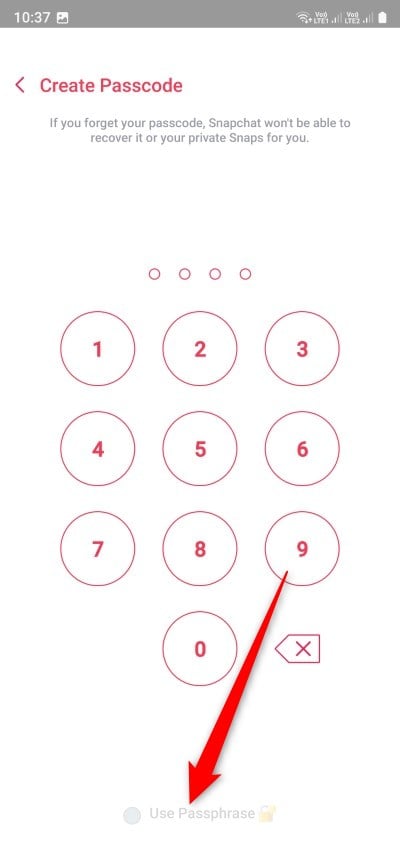
- Enter a 4-digit passcode to lock the My Eyes Only folder. Enter it again to confirm.
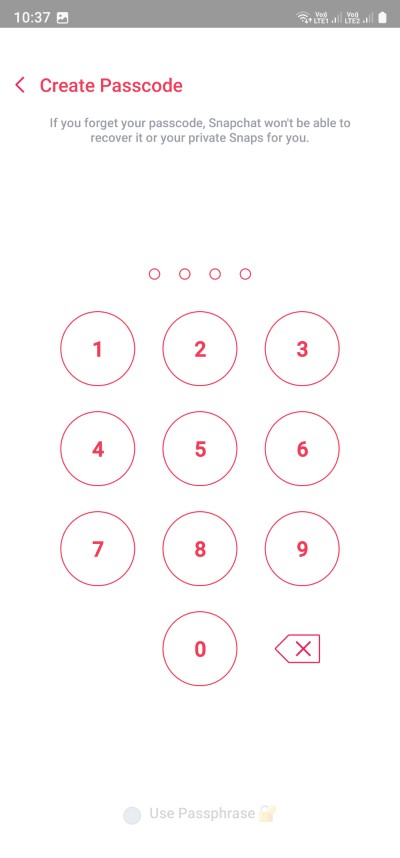
- If you don’t want to use a 4-digit passcode, then you can also use a combination of letters and numbers by selecting the Use Paraphrase option and selecting Continue.

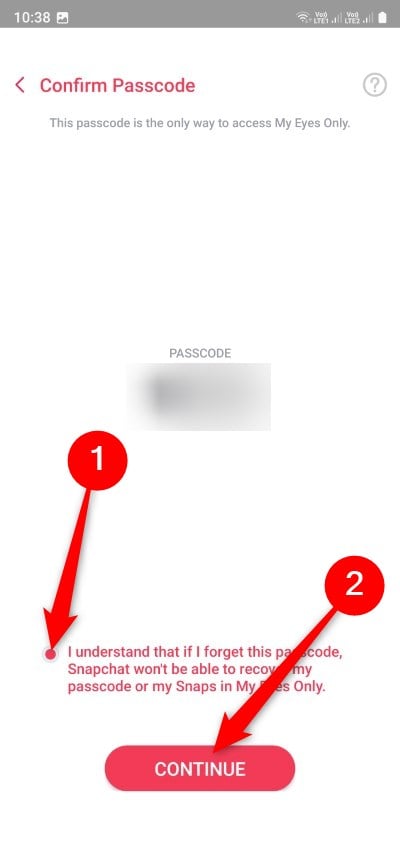
- Read the information and agree to it by tapping Continue.
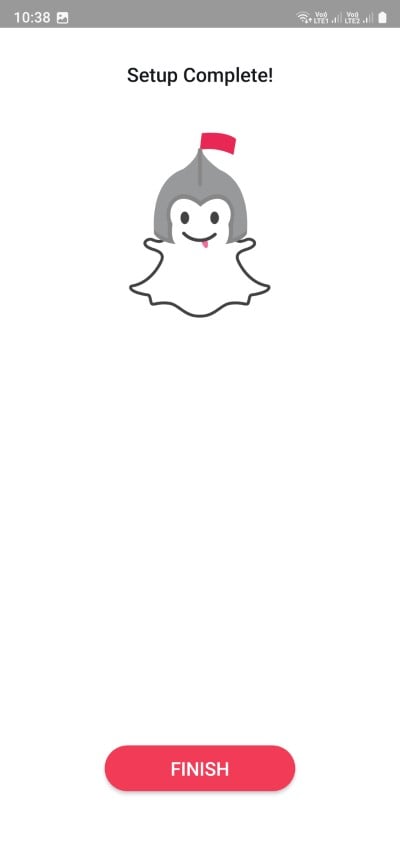
- Tap Finish to complete the setup.
It is important to note that whatever you have stored inside the My Eyes Only folder can only be accessed using the passcode or paraphrase that you have set up following the above steps. If you forget your passcode, the content stored inside the folder will be inaccessible, and the Snapchat team won’t be able to help you recover or gain access to your My Eyes Only folder. To avoid a messy situation, we would suggest you keep the passcode for your My Eyes Only folder secure and memorable.
How do I add content to the My Eyes Only folder?
Now that you have learned how to create the Snapchat My Eyes Only folder, here are the steps that you need to know to understand how you can add the content that you wish to keep away from public eyes to the secured My Eyes Only folder.
- Launch Snapchat.
- Swipe up from the camera screen to open Memories.
- Choose your content from the Home, Camera Roll, or Stories tab on the Memories page.
- After the content opens on the full screen, tap on the 3-dot menu icon at the top-right and choose Hide Snap (My Eyes Only).

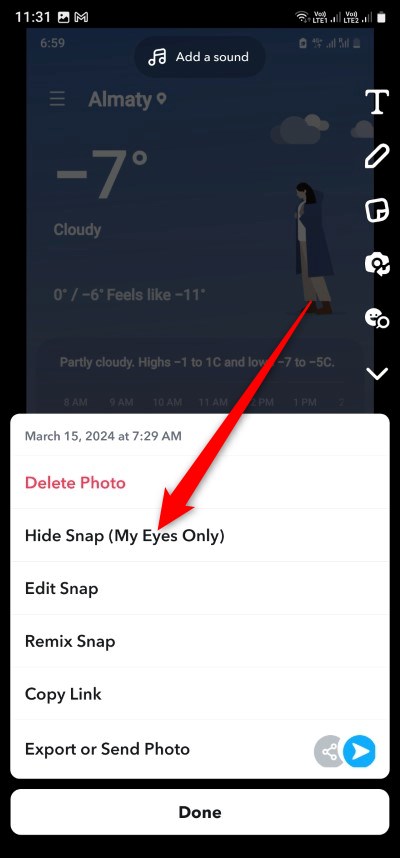
- Enter the passcode.
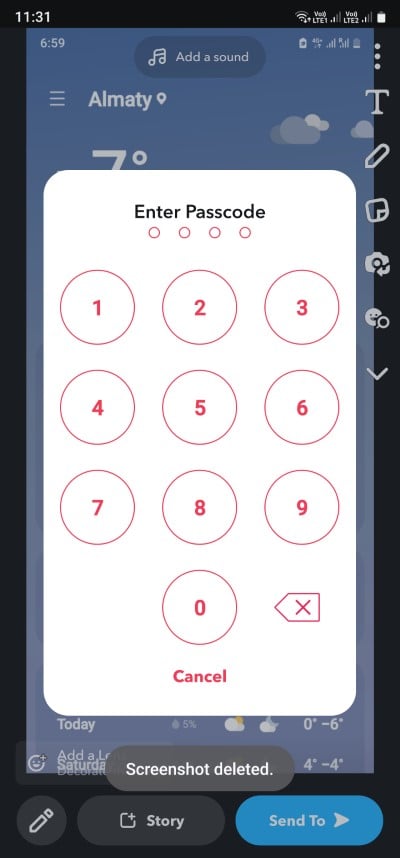
- A confirmation prompt will appear when you tap Move.

- Once the content is moved to the My Eyes Only folder, you can choose to delete the original snap.
How can I change the passcode for the My Eyes Only folder?
Changing the passcode of the Snapchat My Eyes Only folder is not a difficult task. However, you need to remember the old password when creating a new one and then remember the new one to access the folder. Here’s how you can change the passcode of the My Eyes Only folder.
- Open Snapchat.
- Access the Memories page by swiping up from the Camera section.
- Swipe right through the horizontal list and stop at the My Eyes Only section.
- Tap Options at the bottom.
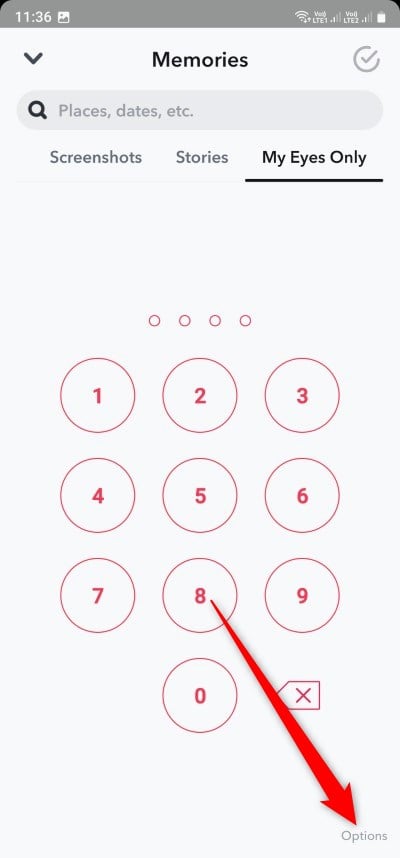
- Choose Change Passcode or Forgot Passcode option from the pop-up.
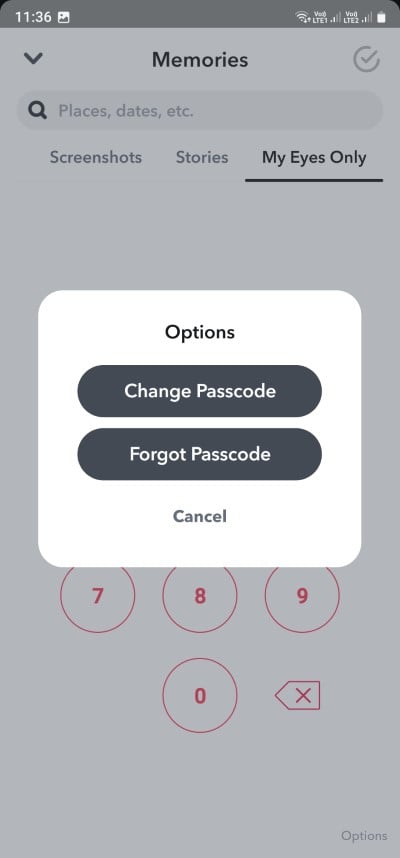
- Enter your current My Eyes Only passcode or the Snapchat account password if prompted.
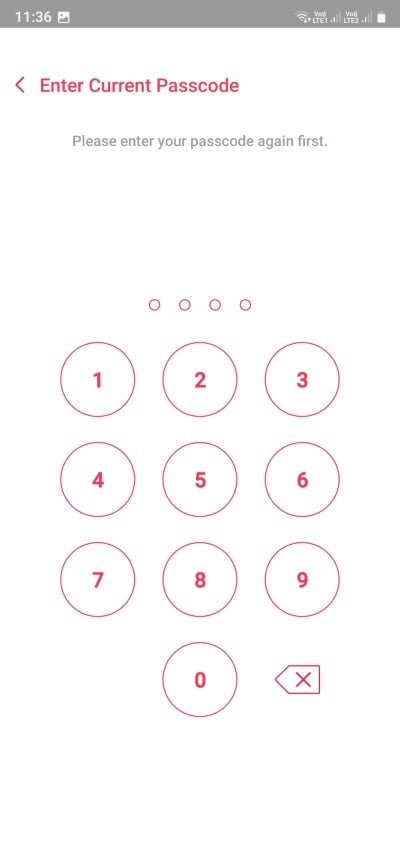
- Create a new passcode. Re-enter it again to confirm.
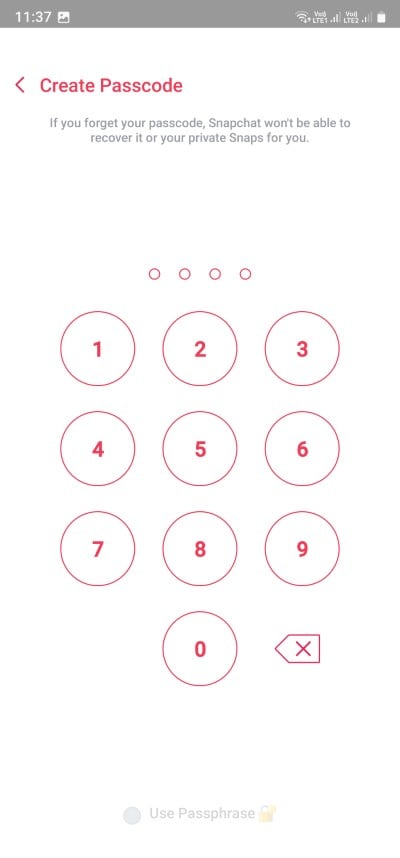
- Acknowledge the terms, tap Continue, and then Finish to confirm the changes.
How do I save Snaps to My Eyes Only by default?
You can enable the option to save Snaps and Stories automatically in the My Eyes Only folder. Here’s what you need to do:
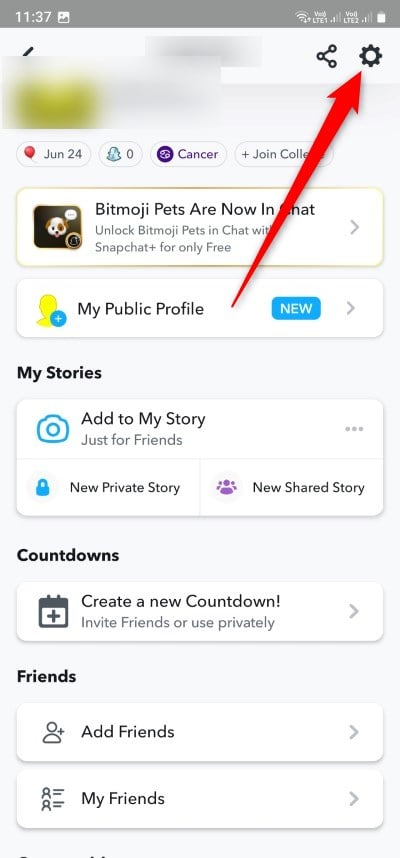
- Tap the Settings icon in My Profile.
- Scroll down and choose Memories.
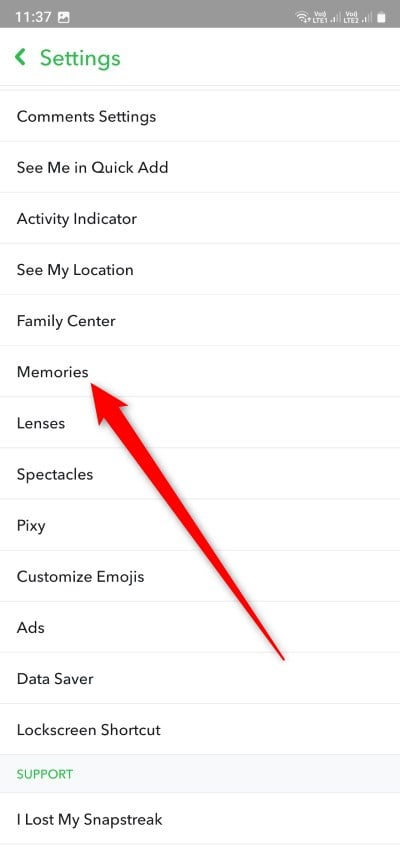
- Turn on the toggle for Save to My Eyes Only by Default.
FAQs about the Snapchat My Eyes Only feature
Does clearing the Snapchat cache delete My Eyes Only?
No. nothing gets deleted when you clear the Snapchat app cache. Your Memories and content inside the My Eyes Only folder remain intact.
Can I save videos inside the Snapchat My Eyes Only folder?
Yes, you can save any type of content that you wish to keep away from prying eyes inside the My Eyes Only folder, including videos.

