

Quick Answer
Bluetooth Remote (or BT Remote) turns your phone into a true smart TV remote using Bluetooth HID, so no Wi-Fi or TV app is needed. It works like a keyboard and mouse, offers an air mouse and full keyboard, has zero ads, minimal permissions, and even supports devices like Fire TV Stick and Windows PCs. Simple, free, and frustration-free.
Your TV may be smart, but searching for any app or website is a pain. You know the drill. You installed a new streaming app on your smart TV, and you click Sign In, then the on-screen keyboard appears. You have a daunting task of entering your registered email address and its password (which, in many cases, if wrong, has to be entered again). The only thing I can imagine is frustration and your thumb cramping. Of course, there is voice typing, but for complicated stuff, that is a no-go.
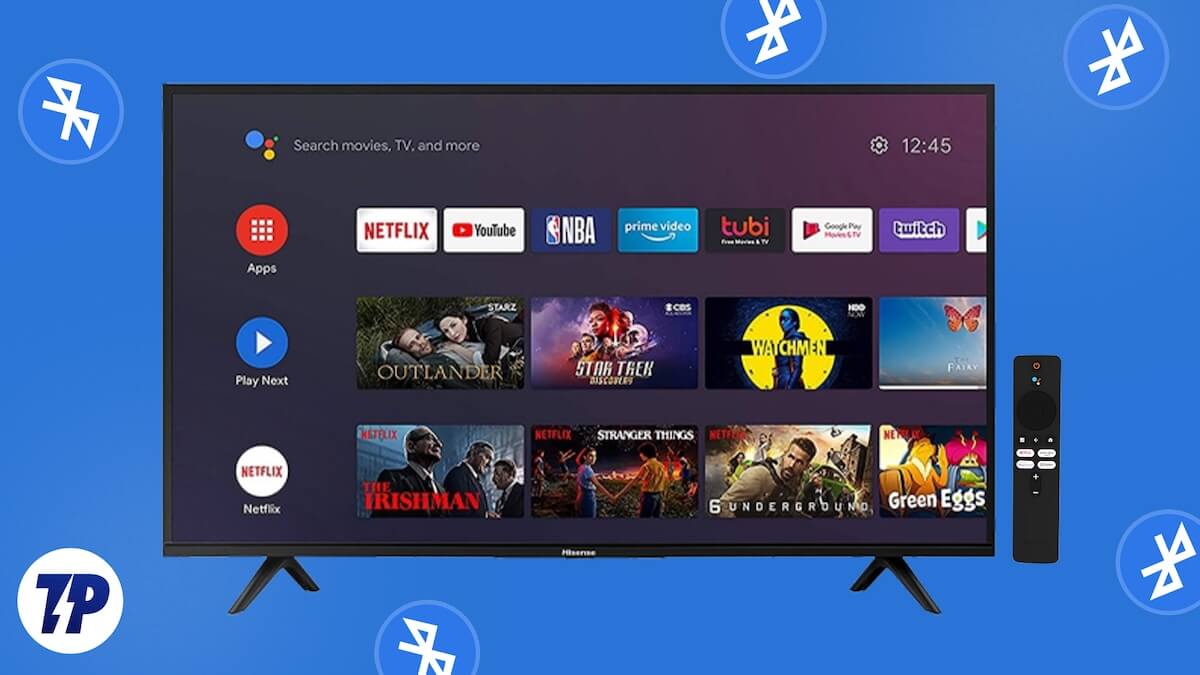
Buying a device that has a QWERTY keyboard is another way to spend your money. Things also get difficult when you have lost your remote, or it is sleeping between the crevices of your sofa. To fix this issue, we’ve found a free app called Bluetooth Remote, which sounds like it was named five minutes before launch, but surprisingly, it works. It does not care about Wi-Fi or fancy setups. Just you and your TV.
Bluetooth Remote: Your true smart TV companion
What should’ve been done with just a click requires multiple button presses on a smart TV. Of course, TVs aren’t meant to be just a big-screen smartphone; they are actually for entertainment. Enter Bluetooth Remote or BT Remote, an app created by developer Atharok. The aim of this app is simple: it turns your smartphone into a Bluetooth remote for your smart TV. It has a 4.1-star rating and over 500K downloads on the Play Store.
But why is Bluetooth Remote so special and better than other options? Most remote control apps are based on a client-server model. To serve this, you need a phone, an app running on your smart TV, and a Wi-Fi connection. You won’t be able to control your TV using your phone if you uninstall the app from your TV, or your Wi-Fi acts up.
Bluetooth Remote works differently. It makes use of Bluetooth HID (Human Interface Device) profile to connect to your TV. In simple words, it lies to your TV that it isn’t a smartphone but a Bluetooth keyboard and mouse. Another benefit is that you can control not only your Android-based TV, but also your Nvidia Shield, Fire TV Stick, and even a Windows PC. This negates the need to download an app on your TV, use Wi-Fi, and makes it a universal remote solution for different devices.
Features of Bluetooth Remote
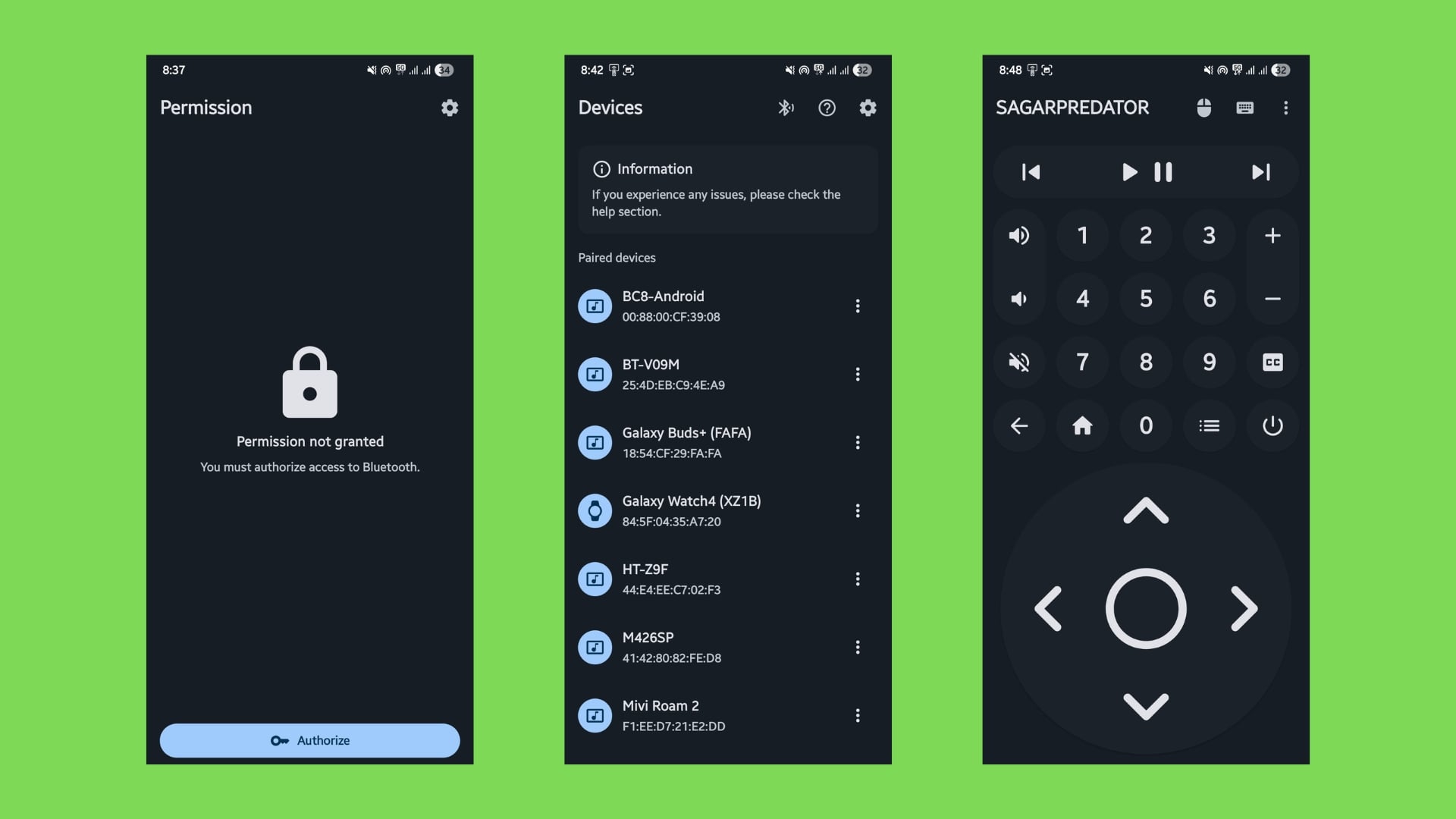
Setting up the app is quite easy. You install the app from the Play Store, open it, permit it to use Bluetooth, and select the device you wish to control.
The first thing, as soon as you are done pairing the app with your smart TV, is that the minimal interface. Unlike a bunch of other remote control apps that I tried, the Bluetooth Remote app doesn’t feature any ads, which is a big sigh of relief, because any accidental touch won’t take you to a shady website.
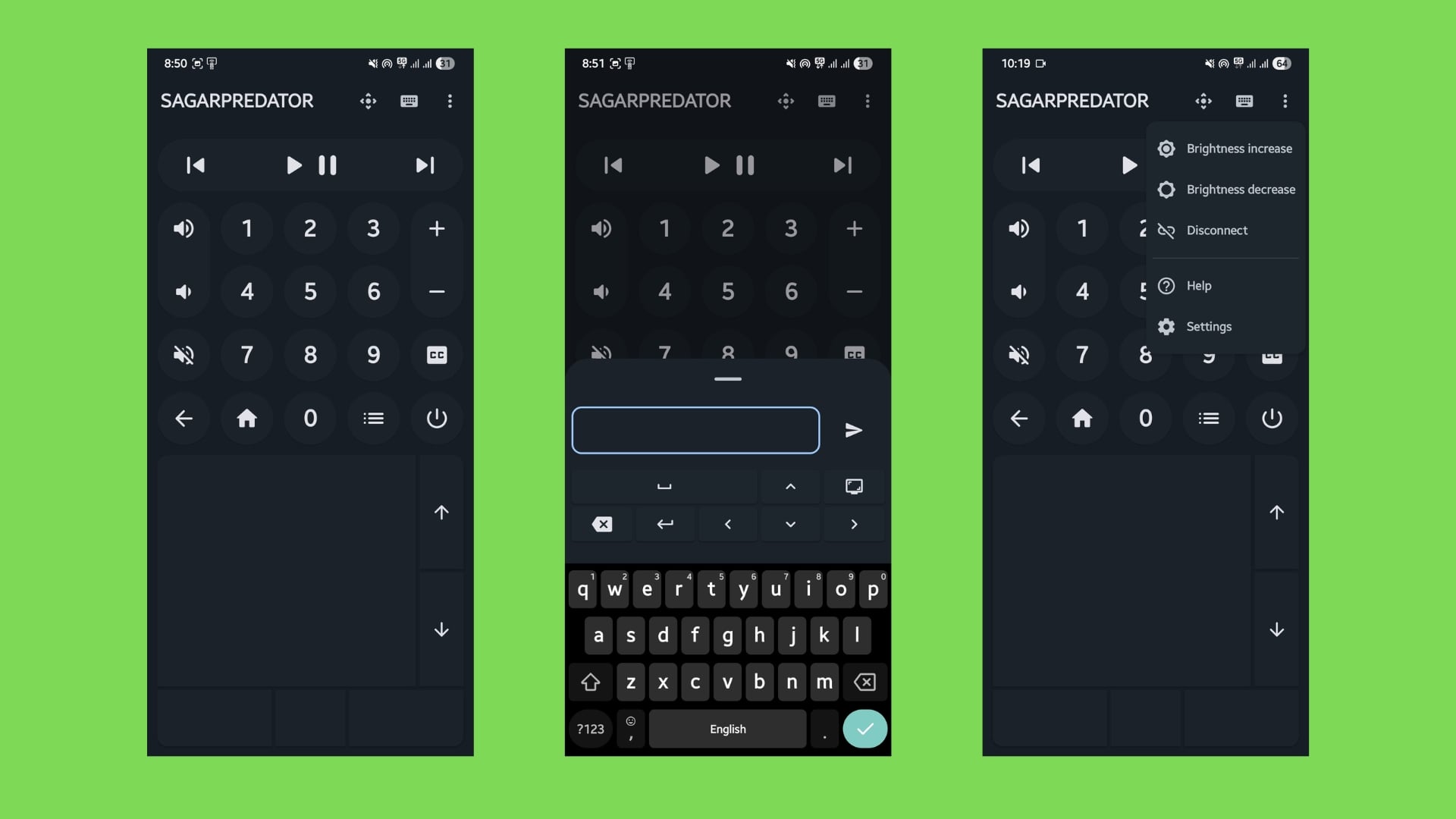
On the bottom half is the D-pad (up, down, left, right, and OK buttons). On the top half, you will see numbers, volume control, mute, go back, home button, power off, plus/minus, subtitles, play/pause, and forward/rewind. Aside from these general buttons, on the top there is a mouse and keyboard button, which, in my opinion are the USP of this app:
- Air mouse: The air mouse is one of the best features of the app. When you slide your thumb on the blank space, a cursor will appear on your TV. You can tap on it to select items on your TV. Then there is the up and down button, which acts as the scroll wheel on your mouse. You can also perform a two-finger swipe to scroll through web pages.
- Keyboard: When you type the keyboard icon, your phone’s keyboard pops up. You will see a blank text field to type anything. There are navigation buttons as well, then you get space, Enter, and send buttons as well.
I also use this app with my Windows PC, and it showed me options such as brightness increase/decrease and taking a screenshot. While the brightness slider did not work with my TV, the Screenshot option was not available when I connected the Bluetooth Remote to my TV. So that may be PC exclusive and quite handy to be honest.
All these features without invading your privacy
Most apps these days require so many permissions that they might make spyware feel shy. Bluetooth Remote, on the other hand, feels like a breath of fresh air. It doesn’t ask for any permission other than Bluetooth, which it needs to connect to the target device. The Bluetooth Remote app is open-source and available for free, with its code available on GitLab. If you know stuff, then you can audit the app and check if it is doing anything shady or not.
It doesn’t rely on an internet connection, which is another plus. Doesn’t matter if you have an internet connection or not; you can easily use this app to control your smart TV. Best when you only want to browse local media. No ads whatsoever make it more appealing. There are no pop-ups after pressing a button or when you try to pause a movie.
The verdict
To put in simple words, it is a must-have app if you want to make your smart TV experience better. But if we really had to nitpick things about Bluetooth Remote, it has to be the fact that it works on Bluetooth. The downside of this is that you won’t be able to control your smart TV from a different room. The question arises, why would you want to use it from a different room?
That’s about it, if we have to talk about the downsides of the app. For now, all I can think of are the positives of the app, and it is the best remote control app for your smart TV available on the Google Play Store. It turns your device into a peripheral that actually lets you control your smart TV, smartly.

