

Quick Answer
Canta makes debloating Android easy without root or a PC. Using Shizuku’s wireless debugging, it lets you safely remove preinstalled bloatware and even some system apps, shows clear warnings, offers a restore option, and frees storage and RAM in seconds, all directly from your phone.
Android as an operating system is superior to iOS because it lets you choose which apps you want to use on your phone and which not. You can install apps from any source and enjoy. However, Android phones are often filled with bloatware that takes up significant internal memory space even before you start using them. Bloatware refers to third-party apps and services that are preinstalled on your phone alongside the system apps.
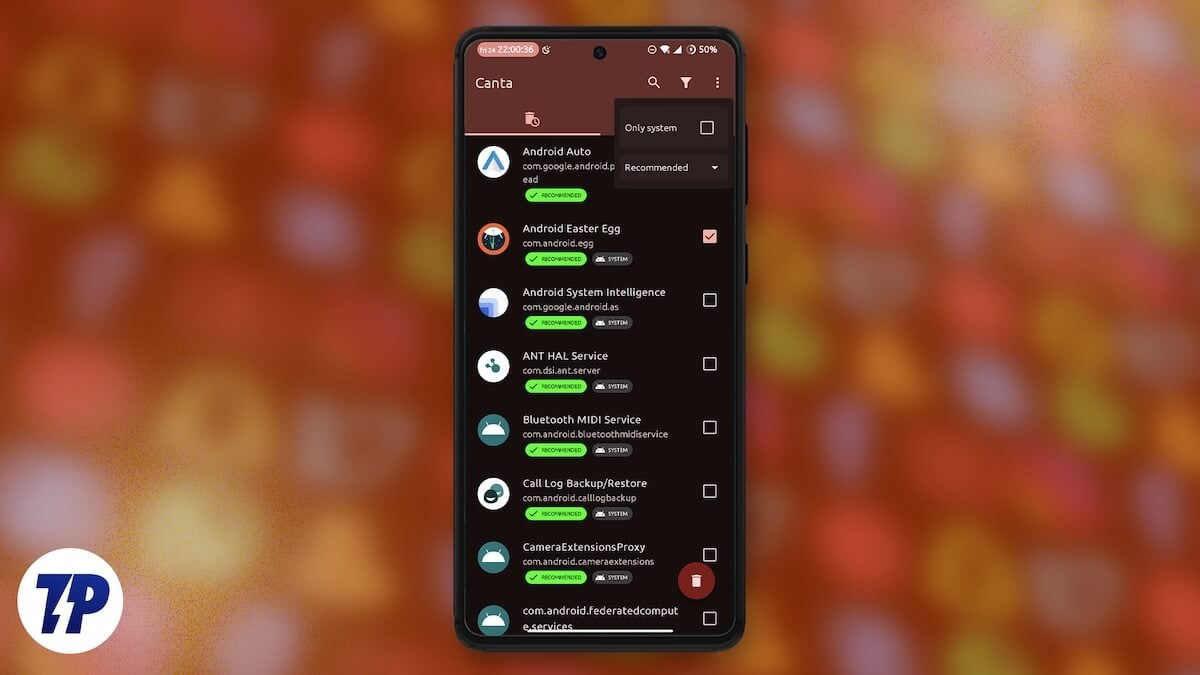
With new Android OS versions, Google has offered the option to uninstall all the bloatware and get your phone as clean as possible. But some apps cannot be uninstalled, and for that, until now, you had to use ADB. Thankfully, I’ve found a nifty app called Canta that will help you debloat your Android phone without requiring root access or any lengthy procedures. Here’s how to use Canta.
Table of Contents
Why does bloatware exist in our phones?
Before we go ahead and get rid of bloatware left, right, and center, let’s talk about the junk. Bloatware simply means money. App developers pay a certain amount of money to smartphone OEMs to pre-install their apps. This allows the company to earn money and also keep the cost of the phone down. While some flagships also come with bloatware, this is more evident on budget and midrange phones.
These apps just sit there, and often are of no use to the user. They not only eat up the storage, but sometimes also hog onto the memory while running in the background. There are many instances where I’ve found bloatware running in the background, eating up 15% of my battery every day for no reason.
The good thing is that some brands let you uninstall this crap from your phone, but most often, that is not possible. To get rid of the bloatware, you have to root your phone or gain system access. This is where Canta helps you by letting you remove bloatware without rooting your phone.
Shizuku and Canta: A perfect antidote for bloatware
To fix the bloatware issue on your phone, you need two tools: Shizuku and Canta. For those who don’t know, Android doesn’t let regular apps mess with the system apps. Shizuku uses a workaround called “Wireless Debugging” to get special permissions and give orders to the system. It is the bridge that lets us do root-like stuff without rooting the phone.
Canta, on the other hand, lets you interact with the apps. It requests Shizuku to uninstall apps, and Shizuku makes it happen. This combo is good enough for you to get rid of those pesky bloatware on your phone and even system apps. Canta also shows which apps are safe to uninstall and which ones are not, using color-coded warnings.
The best part is that with Canta, you can uninstall bloatware without a laptop. It sits right there on your phone, waiting for your command to clean up your phone.
Pre-requisites
To start debloating your phone, you need the following handy tools:
- Your Android phone should be running Android 11 or above.
- A Wi-Fi connection for the setup.
- A bit of time in your hands.
Steps to remove bloatware from your Android phone
Make sure that you follow the steps carefully and don’t skip anything.
- Download and install the Shizuku app from the Google Play Store.
- Now, you need to turn on Developer options on your phone, for which follow the steps below steps
- Open Settings.
- Scroll all the way to the bottom and tap on About Phone.
- Tap on Software information.
- Tap on Build Number multiple times until you see a toast saying “You are now a developer” or “Developer Options enabled.”
- Head back to Settings and tap on Developer options.
- Scroll down and locate Wireless Debugging. Toggle it ON.
- Open the Shizuku app.
- Tap on Pairing under the Start via Wireless Debugging section.
- It will ask for notifications permissions. Grant it.
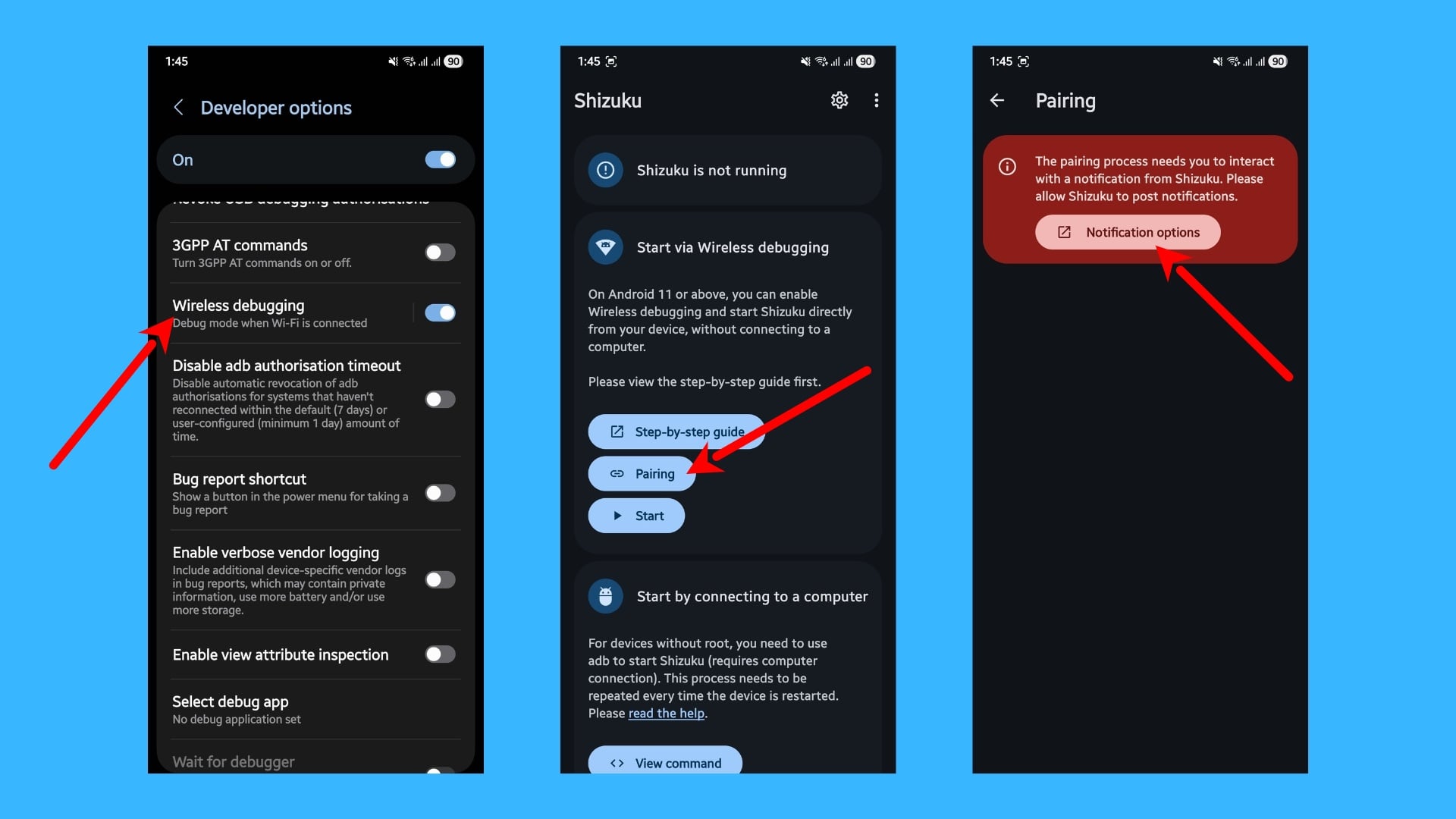
- Tap on Developer options inside the Shizuku pop-up to go back to Settings.
- Tap on Wireless Debugging.
- Select the Pair device with pairing code. A 6-digit code will be shown.
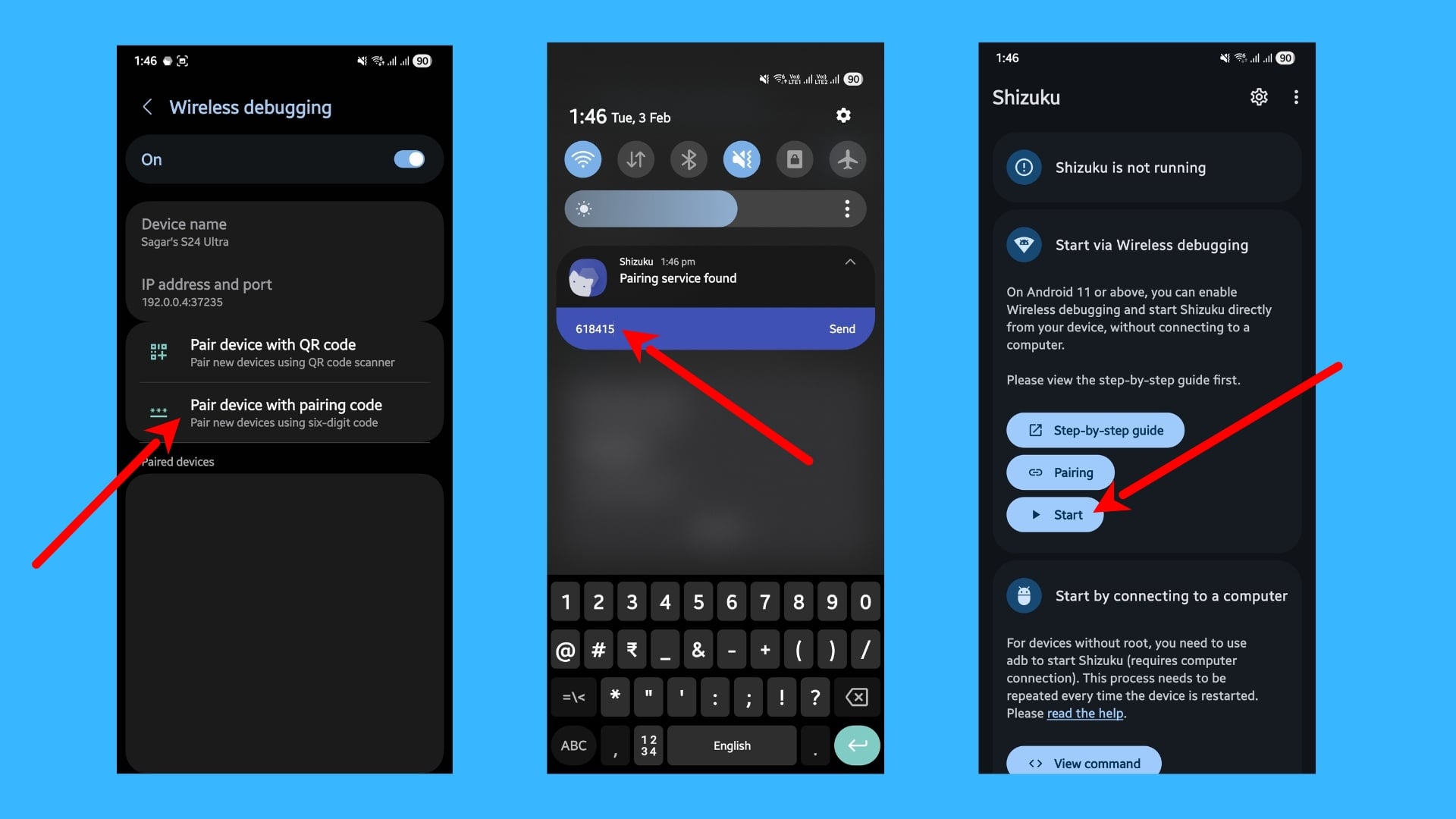 Pull down the notifications shade. Shizuku will ask for the code. Enter the code you got in step 10.
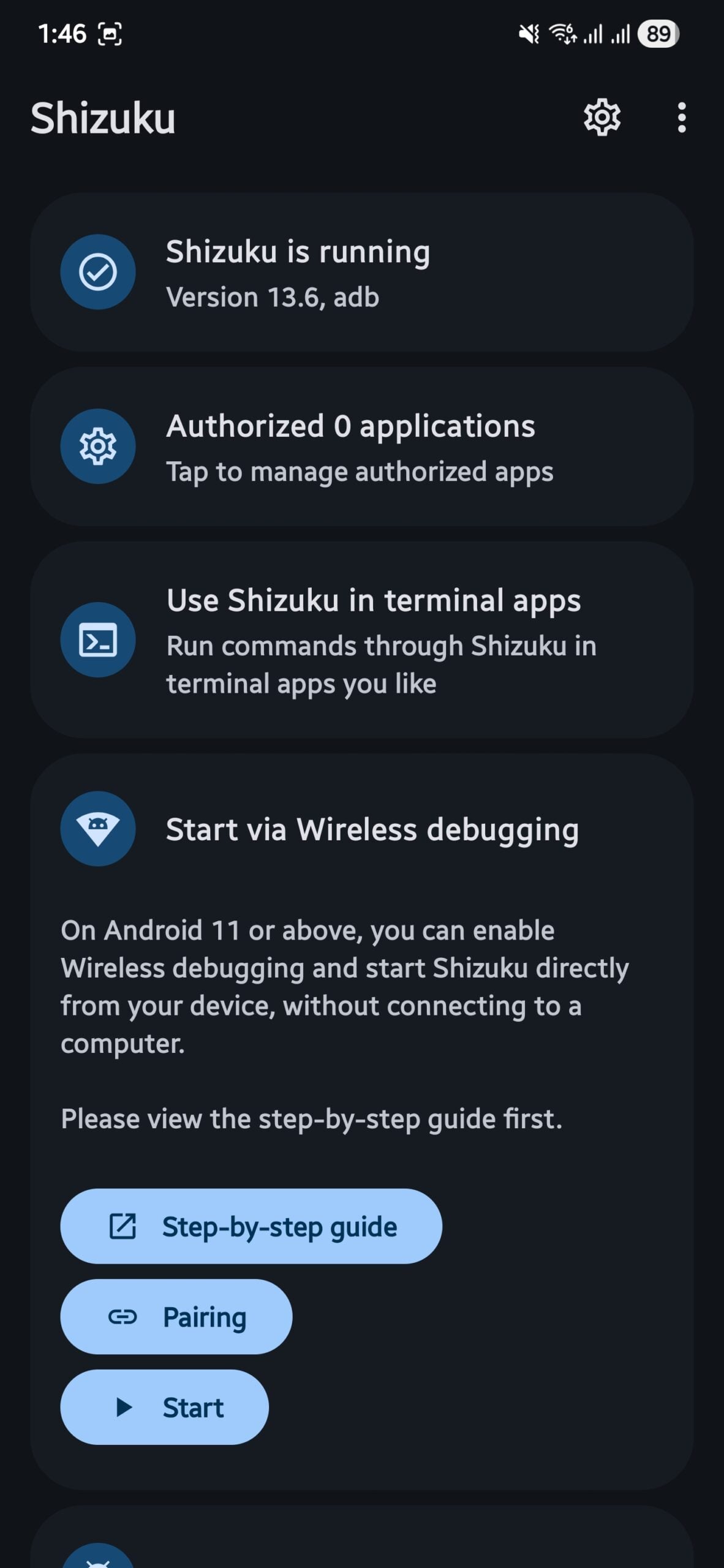
- Go back to the Shizuku app and tap Start. You will see a text saying “Shizuku is running.”
Now, will deal with Canta and uninstall the bloatware:
- Download and install the Canta Debloater app from the Google Play Store.
- Open Canta and grant access to everything it asks.
- You will see a list of apps that are on your phone. The list can be overwhelming, and you may find some apps that you did not even know were there.
- Now, you can tap on the app that you wish to uninstall by simply checking the boxes next to the app and tapping the Trash Can icon in the bottom right corner.
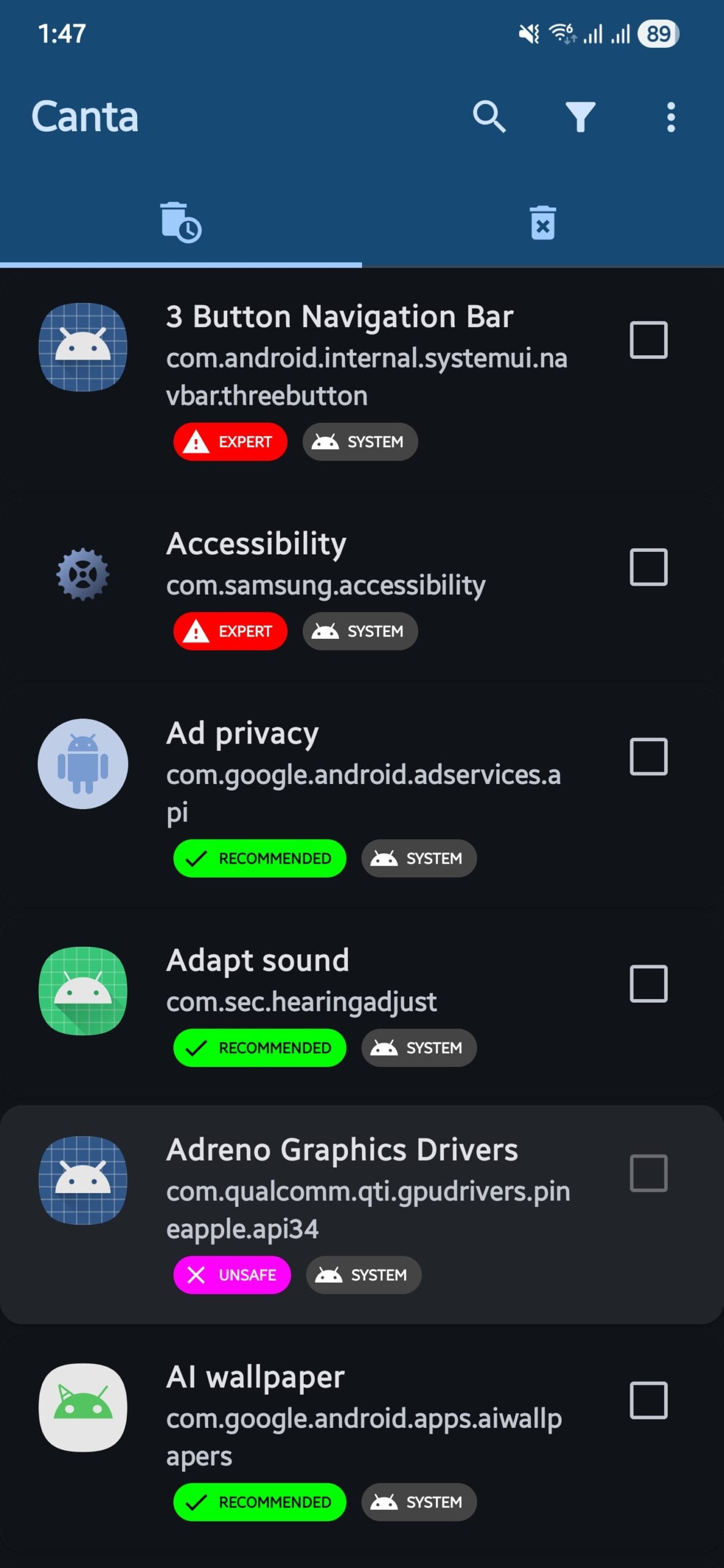
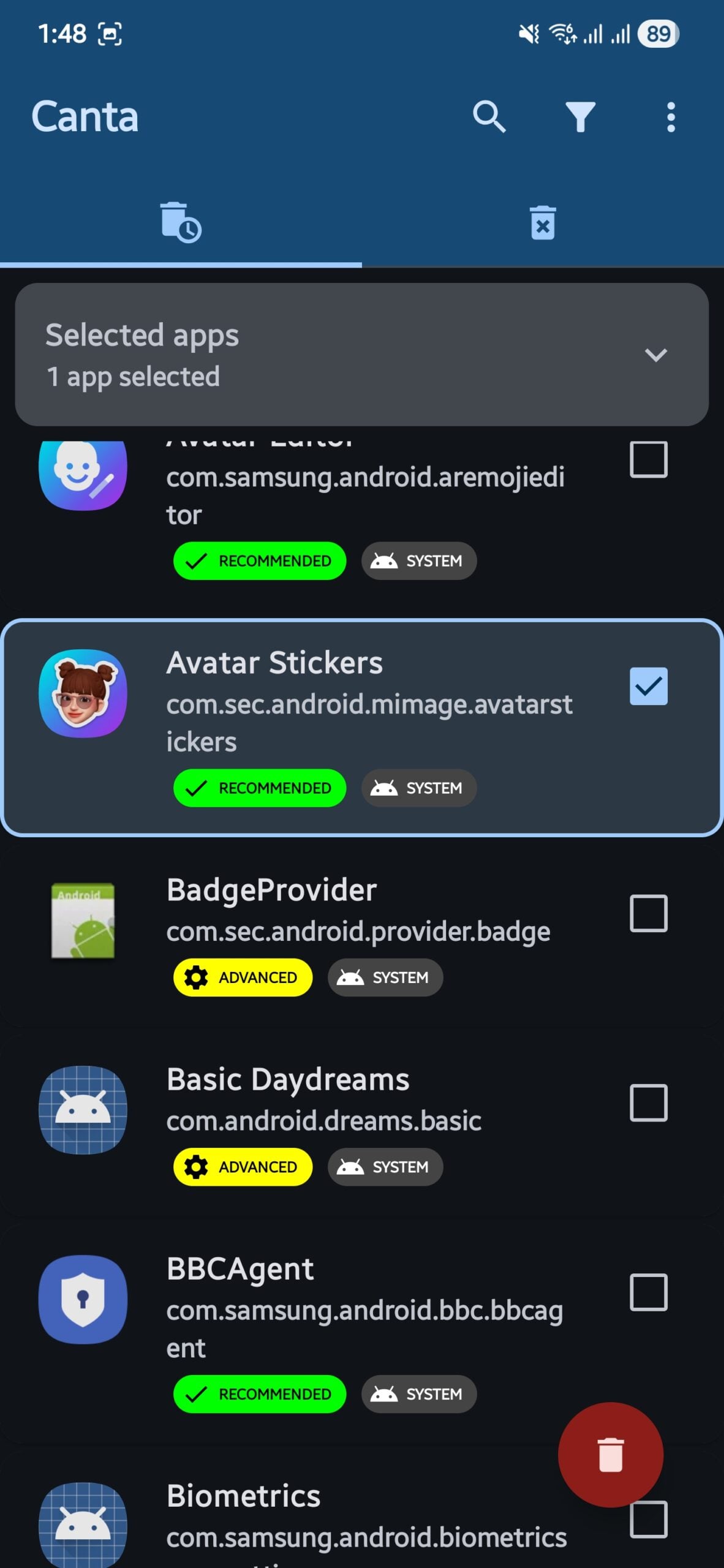
Canta is smart and fetches community information on telling you which app is safe to remove and which ones are not. Green ones are trash bin and safe to delete. With Orange and Yellow apps, you should be careful, as you may lose out on a few features. Red apps are the ones that you shouldn’t touch, unless you know what you are doing.
The best part is that when you uninstall the bloatware from your phone using Canta, you don’t need to wait for a loading bar to finish the process or go through a reboot process. They are gone, in a second, poof.
Why is Canta better than ADB commands?
The key difference between using Canta and ADB commands is that Canta deletes the system app from the phone’s read-only memory. ADB commands remove them completely from the phone, while Canta removes the app for the current user.
Also, with ADB Commands, if you accidentally delete the Clock app, you won’t be able to set the alarm. You are screwed. However, Canta offers you a Trash Can or a recycle bin from where accidentally deleted apps can be restored.
My phone, my way
After following the simple steps as mentioned above, I was able to regain over 4 GB of space on my Samsung phone. Not only did I get rid of 10+ apps that I wasn’t using, but I also made more space for RAM for important apps to consume. On top of it, though there wasn’t a drastic battery life improvement, I could see that I gained a few extra minutes. Give it a try and use your phone your way. If you wish, you can also try out the ADB method, which we have discussed here.

