

Google Play Store is the main source for downloading and installing apps for all Android users. It is the home for every developer so that their apps can reach millions of people, and all Android users depend on it for their different needs to have so many apps to choose from, but sometimes users are unable to download, install, and update their apps due to minor bugs or unknown errors, which affects the overall user experience.

In today’s blog, we will address one such issue where the Play Store gets stuck at the message “Google Play Authentication required” or “Authentication required, you need to sign in to your Google Account.” This might be confusing for many people since their Google account is already signed in on their Android devices.
We will explain several steps to fix the “Google Play authentication required” error so that by the end of this article, you will be able to use the Google Play Store without any issues. As with any troubleshooting guide, we will start with the most basic solutions and then gradually move on to more advanced solutions.
Table of Contents
Why the error “Google Play authentication required” occurs
There can be multiple error messages in the Google Play Store, such as “Google Play Services has stopped” or “Something went wrong on Google Play,” and each time, there can be multiple reasons for different problems, such as Google Play services behaving strangely or having an incorrect date and time.
In the case of the “Google Play authentication required” error, the Google account you are using is not syncing properly. A major reason why something can go wrong is a poor internet connection, or sometimes a faulty update in the Play Store can cause such a problem.
Checking the Internet Connection
Let’s start with the simplest solution to fix the error. Check your Android device’s internet connection because unsecured internet connections can cause the “Authentication required” error on Google Play Store. To check your internet connection, follow these steps:
- Check your device’s notification bar to see if you’re getting a connection via Wi-Fi or mobile data. If not, try enabling mobile data or Wi-Fi on your device at ON.
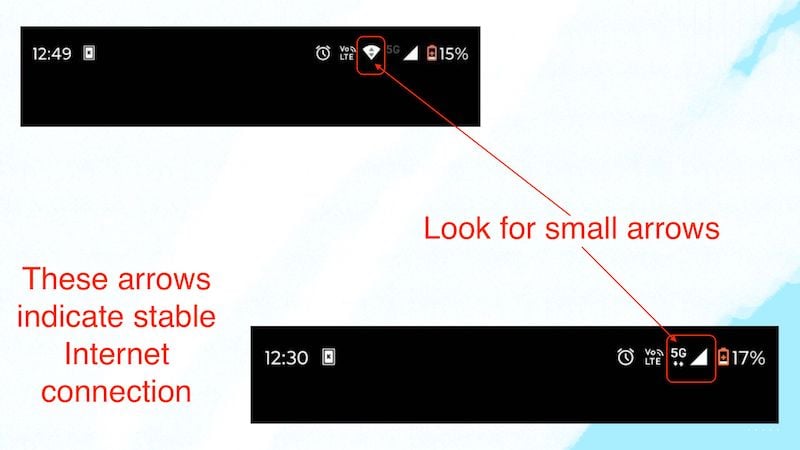
- To enable Wi-Fi or mobile data on your device, simply swipe down twice to access Quick Settings and enable either Wi-Fi or mobile data, or you can enable both if you prefer.

If the reason was unstable or no internet connection, the “Google Play authentication required” error should now be fixed, and you should be able to use the Google Play Store normally.
Restarting the Android Device
If the lack of Internet connection is not the main cause of the “Google Play authentication required” error, you should try restarting your Android device. Sometimes, a simple reboot can solve many problems. To restart your device, just follow these steps:
- Simply hold down the power button.
- Once the power menu appears, select the Restart option.
- And wait for the device to restart.

Once the device has restarted, just open the Play Store to see if the issue of Play Store authentication is fixed.
Clearing the Google Play cache
This step could fix the “Google Play authentication required” error because sometimes many apps collect cache data so that they can load various things into memory faster, but this can cause errors because it bloats the OS. Therefore, it is better to clear the Google Play Store cache. Follow these steps to clear the Google Play Store cache:
- Long press the Play Store icon, and click the small i button.
- Once the App info page opens, just click on Storage & cache.
- Then tap Clear cache button.

Once this is done, open the Play Store and check if it still asks for authentication. If yes, proceed to the next step.
Try syncing the Google Account Manually
One of the most common causes of the “Google Play authentication required” error is that your Google account is not syncing automatically, which can also lead to other issues in your Android account. This could fix the authentication error permanently. To sync your Google account manually, you need to follow the steps below:
- Open the Settings app on your device.
- then scroll down and click on Passwords & accounts.
- Then click on the main Google account you want to sync with manually.

- Then click on Account sync.
- Then click on the 3 dots at the top right-hand corner of the screen.
- Then tap Sync now.
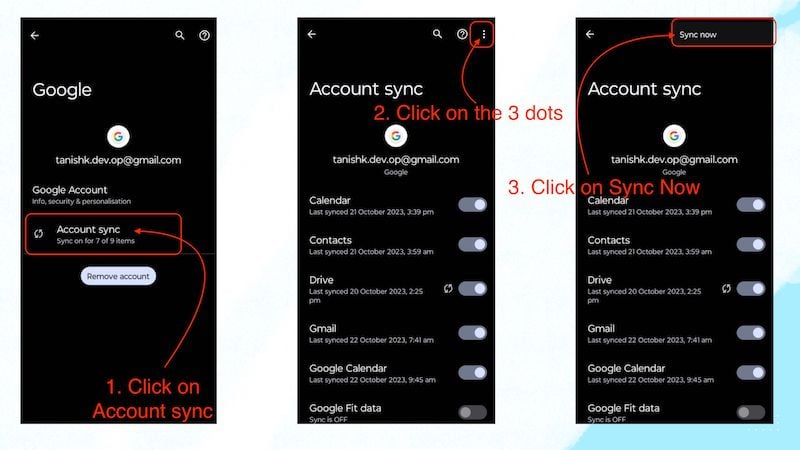
If you follow this step, you should be able to use the Play Store without any issues. However, if, for some reason, you are still having problems, you may need to move on to the next step.
Force Stop the Google Play Store App
If you are still facing the “Google Play authentication required” issue after manually syncing your Google account, you should try force quitting the Google Play Store and then see if the issue is fixed. To force quit the Google Play Store, just follow these steps:
- Just long press on the Google Play Store.
- Then click the i button.
- Once you enter the App info page, then click on Force Stop.
- Then click OK.

Follow the second step and try to restart your device.
Uninstalling Google Play Updates
Sometimes, small errors like this occur due to incorrect updates in the Google Play Store, as it is another app that is updated regularly. In this case, it is a good idea to remove the previous updates of the app to fix this kind of issue.
If you are running a newer Android version like Android 11 or later, follow these steps to uninstall updates from the Google Play Store:
- Long press on the Google Play Store icon.
- Then click on the i button.
- Once you have accessed the app info page, click on the 3 dots in the upper right corner of the page.
- Then click Uninstall updates.

Now, check if the authentication error is fixed. If not, you should move on to the next step to fix the issue.
Unristrict Data usage for Play Store
Just as an unstable Internet can cause the “Google Play authentication required” issue, limited Internet access to the Play Store can cause the same issue. Although unrestricted data usage is a feature that is supposed to help users save data, it can cause small issues like this.
- Tap and hold the Play Store icon.
- Then click on the i button.
- Then click on Mobile data & Wi-Fi.
- And disable the Unrestricted data usage.
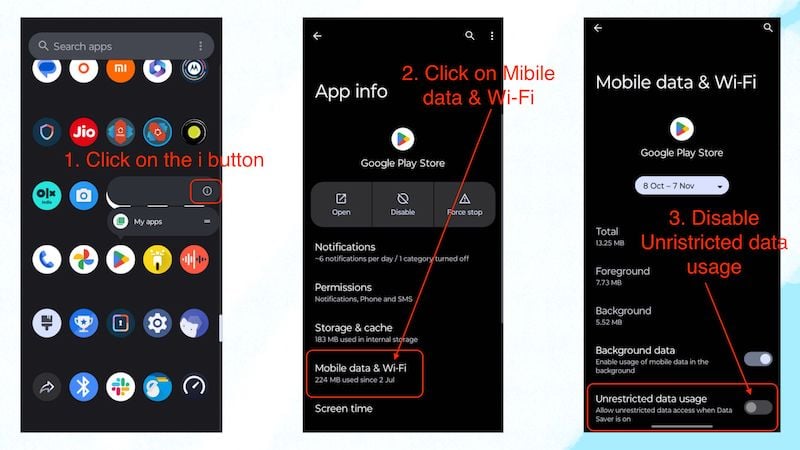
If you’ve turned off unrestricted data usage for the Play Store, keep in mind that the Play Store will now consume data as normal. If you have a limited internet plan, this may result in slightly higher internet usage. This trick should also work, and you should be able to use the Play Store normally again.
Disabling and Re-Enabling Google Play Services Framework
If you disable the Google Play Services Framework, you may experience issues, and some apps on your system may stop working, so it’s important that you enable it again. To understand how the Google Play Services Framework works, you can read it in the Google Play Help. If you disable the Google Play Services Framework and enable it again, the ” Google Play authentication required” error can be fixed. To disable and enable the Google Play Services Framework, you need to follow the steps below:
- Open your device’s Settings app.
- Then scroll down and click Apps.
- Then click on All Apps.
- Then scroll down until you find Google Play services.
- Click on Google Play services.

- Now click on Disable.
- Now click on Disable app.
- Once the app is disabled, you need to click on Enable to enable the app.

Once you have followed these steps, open the Play Store and check if you see the message “Google Play authentication required.” If you followed all the steps, the message should be gone, and you can use the Google Play Store normally.
Fix Authentication Issues to Get the Play Store Running Again
Google Play authentication is a very minor issue that mostly occurs because your Google account has stopped syncing automatically. To solve this issue, you need to sync it manually, which you can easily do by following the fourth step. If you followed all the steps correctly, the “Google Play authentication required” error should be fixed, and you can use the Google Play Store as usual. But if the error still persists for some reason, you should try resetting your device. But this is a very big fix for such a small problem. This issue should be fixed with the above steps.
FAQs about Fixing Google Play Authentication Issues
1. What will happen if I uninstall Google Play updates?
If you have a newer device with Android 10 or later, there won’t be any major issues. However, if you are using a device with older Android versions like Android 8 or Android 9 or even lower, you should not uninstall Google Play Updates as it might cause your other apps to stop working.
2. What should I do if following these steps do not fix the issue of Google Play Authentication required?
If the problem persists, it’s a good idea to remove your Google account from your device and sign in again. If, for some reason, you’re still facing the issue, make a full backup of your Android device and factory reset it as a last resort.
3. Is there any other way to install apps instead of the Play Store?
Yes, there are several ways to install apps instead of the Google Play Store. You can install APKs for most apps, and there are many other app stores similar to the Google Play Store that offer almost the same functionality and even include some of the best apps that are not available on the Play Store. You should try them out.

