

Quick Answer
Skip incognito and stay logged in while keeping select sites private. On Chrome, use HistoryGuard for keyword and domain-level blocking or Don’t Save to History for auto-deletion. On Firefox, try History AutoDelete for timed cleanup or HistoryBlock for simple domain blocking. Set rules once and browse normally.
Let’s be honest. We all have browsing habits that we would prefer to keep private. Perhaps you are planning a surprise party for a loved one and don’t want shopping websites to appear in the search bar (thanks, but no thanks, autocomplete!). Maybe you are searching for a medical question, or the elephant in the room, or you are having fun visiting those adult websites. The standard advice from anyone would be to use the good old incognito mode.

However, incognito mode just logs you out of everything. It doesn’t save cookies and doesn’t let you use any of the extensions. So, the browsing experience gets bad. What if you want to access and stay logged into all of your shopping websites or keep all of your YouTube recommendations intact? You don’t need a new browser, instead you need some extensions. Here are the best extensions for Google Chrome and Firefox that prevent you from saving history from certain websites.
Table of Contents
Why is clearing history manually not a good option?
You might be thinking why do I need an extension for just clearing up history. Well, most of the time, you perform a search, do your task, exit the browser, and that’s it. You usually forget about clearing the history manually. Depending solely on memory for clearing up the history isn’t the best option, especially when you have searched for something private, and you will realize that you will clear things up later.
If that happens, anyone who uses your laptop or PC next will have details of which sites you have visited and what you were doing, etc. Extensions eliminate this issue by automating the privacy process. This ensures that your privacy isn’t invaded even if you don’t pay attention to it.
For those who visit specific websites frequently, their browsers become a storage center for unnecessary links. Locating the insightful article or gift that you saw three days ago becomes a task. Automatically clearing these sites prevents them from hogging your history and keeps only items that are necessary to you on the history list.
Additionally, many platforms and browsers utilize user history to display ads and recommend websites tailored to individual users. In such situations, if you want to stop your browser from showing you ads for a pill, you can use these extensions to clear your history from specific websites. This way, the features won’t be able to track your information and target you with ads.
For Google Chrome users
Google Chrome’s native history deletion feature is all or nothing. You can completely remove your entire history or go through the list and manually delete them. Thankfully, I’ve found a couple of effective extensions that do the job for you.
HistoryGuard – Offers granular controls with keyword filtering
HistoryGuard is the first extension that I tried for Google Chrome, and I stayed with it. To put it in simple words, it doesn’t simply block websites but also acts as a guard for your history tab. If you are a power user, it gives you granular controls on how history remains on your history list.

One of the best features of HistoryGuard is that it offers keyword filtering. Using this feature, you can tell the extension to block any URL that contains a specific word. For example, if you want to stay anonymous while selecting a gift for your loved ones, then you can enter the keyword “gift.” Any URL that comes up with that word will be ignored and not stored in the history.
It also offers the option to choose if you want to block an exact URL, an entire subdomain, or the entire domain. All the rules that you create on HistoryGuard are stored locally, and there are simple toggle switches to enable/disable any rule. To block any site, simply open the extension, enter the URL (or paste it), click Add, and that’s it.
Don’t save to history – Simple and stays true to its name
For those who don’t want to do anything, being a “power user” with a simple extension and want one that does everything automatically, basically set it and forget it, then you can use Don’t save to history. It lets you create a list of websites that you wish never appear in your Google Chrome history.

All you need to do is add the keywords to the list, and the extension will do its job. It will automatically delete all the URLs that contain the keywords that you entered. So, if you are searching for a surprise vacation, then you can enter the name of the country or the city, and Don’t save to history extension will remove it from your history.
The interface is minimal, and there are no complicated settings. You get a list of the websites, a text box to enter the websites, and an Add button to add them to the list. That’s it! You can remove any website from the list by clicking the cross button corresponding to it.
Download Don’t save to history
For Mozilla Firefox
For those who prefer privacy and control over what data is being shared with third parties, Mozilla Firefox has always been the option. However, apart from incognito it lacks the native blacklist feature. There are two extensions that you can use to add that feature:
History AutoDelete – Let’s you manage spammy history entries
History AutoDelete is a unique extension that does what others don’t. It lets you set an expiry date for websites. You can tell the extension to keep the history for X.com for only 3 days. This is brilliant for social media and other sensitive websites that involve too much personal data.
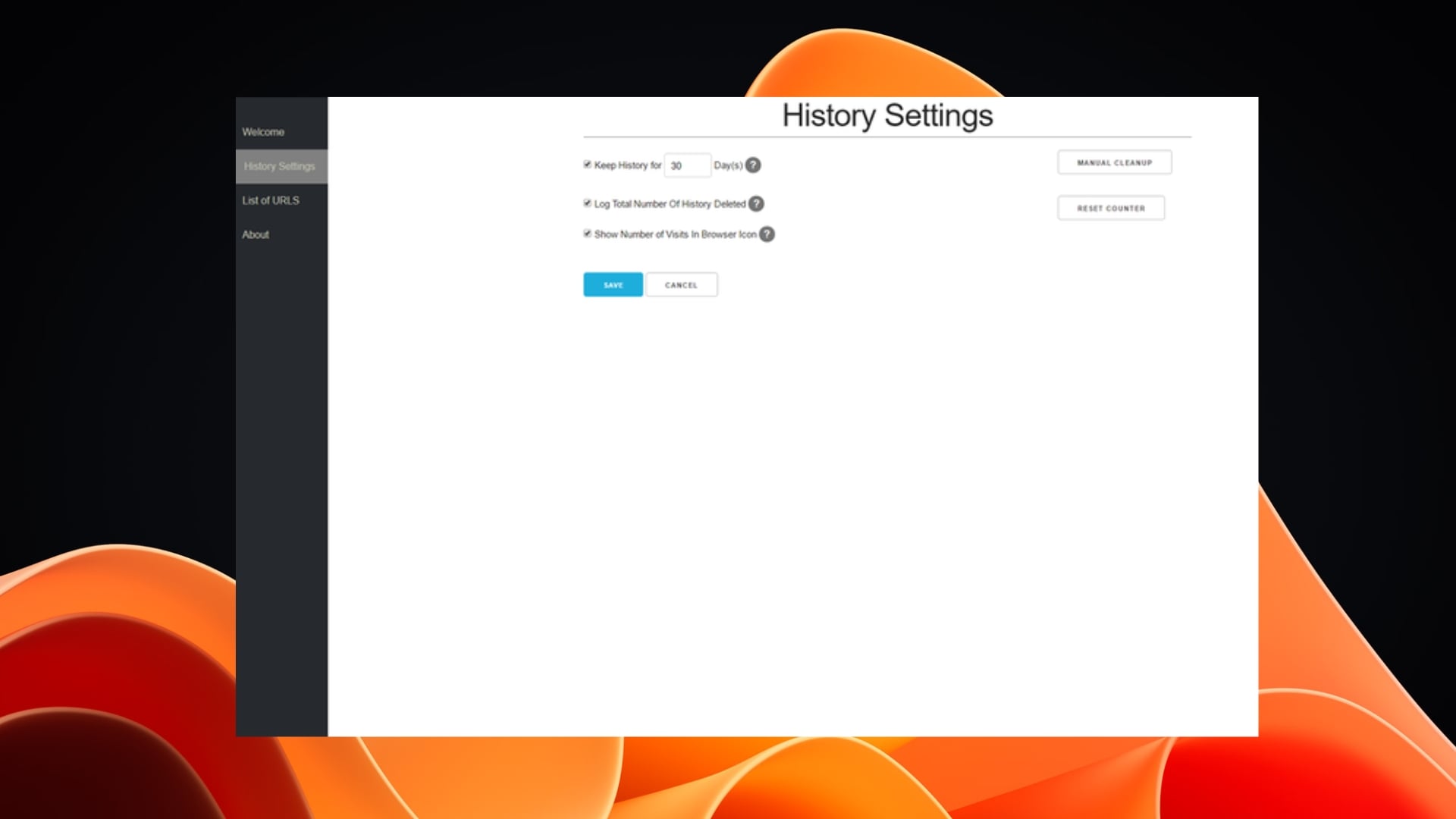
Additionally, it doesn’t just block history; it also helps manage it over time. Notably, you can set the autodelete feature for specific URLs that will get deleted automatically. I found that certain tools, such as Google Translate and Google Docs, create a new URL for every character that you type. History AutoDelete detects this and clears the garbage.
There is also an option to import or export your rules from one device to another. So, if you have moved to a new computer, then you can move your rules to it and enjoy the features. The interface is quite minimal, or should I say bare minimum.
HistoryBlock – Incredibly fast and simple
When I use Firefox, or someone is using Firefox and wants to block websites from appearing in their history, HistoryBlock is one of the best options. While other extensions try to be smart, meaning they offer a whole lot of features, HistoryBlock keeps it simple.
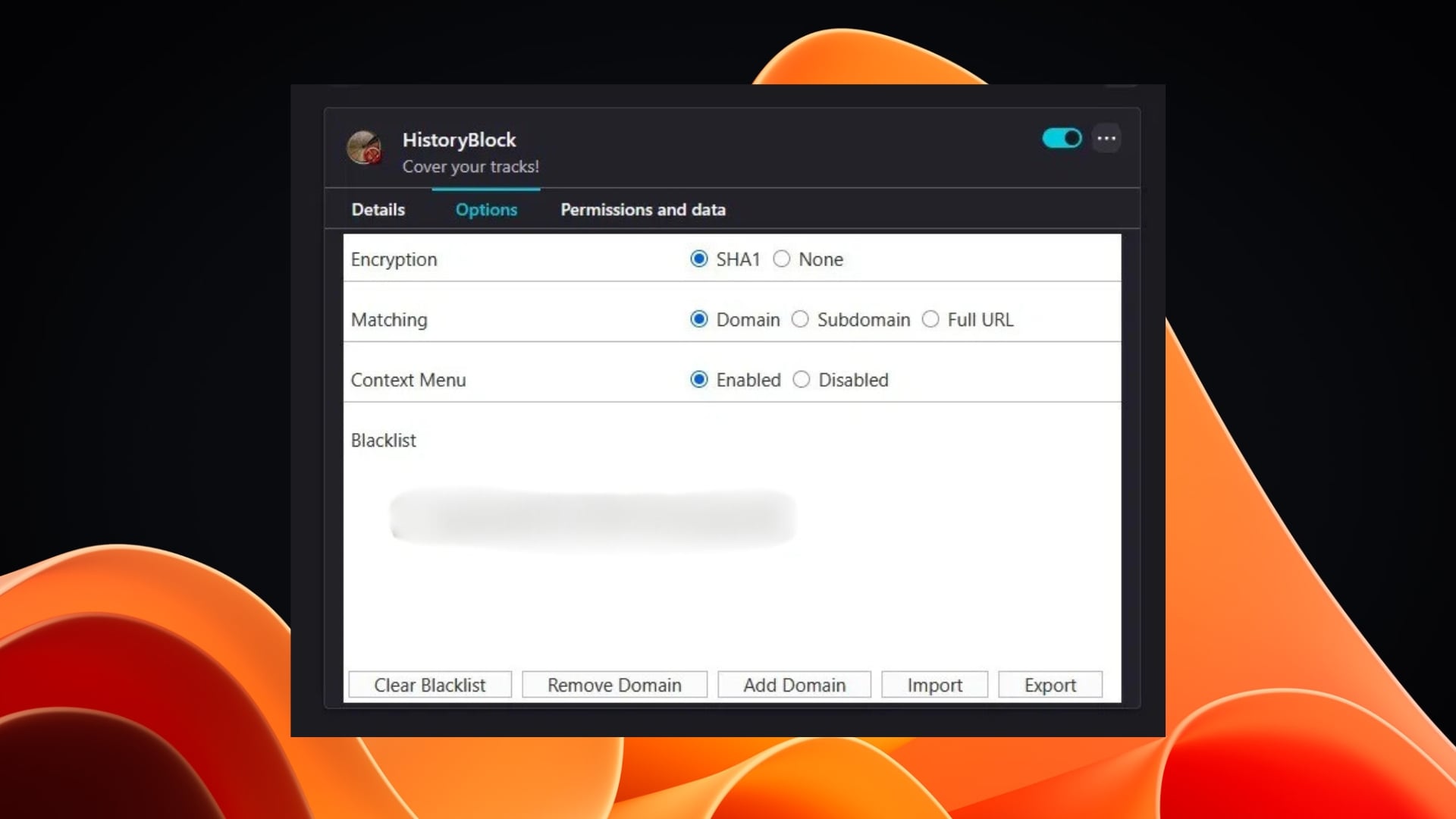
It lets you enter the URL you wish to block, and it’s done. The only thing is that you need to head over to Firefox’s extensions manager to add a domain. You have to go to Manage extension > Options > Add Domain. The domain remains encrypted so that anyone using the extension doesn’t reveal the sites you have blocked.
Your privacy, your way
The above extensions let you do a simple task, that is, keeping things private. Such a simple task should’ve been a part of the browsers themselves, but unfortunately, none of the popular browsers, like Google Chrome or Firefox, have this feature. Thankfully, developers are wise, and they know what features a good number of users want. To improve productivity, you can check out 10 Google Chrome extensions that you can use offline.

