

Many websites use pop-ups and overlays to get you to sign up for newsletters, request cookie access, or promote offers. Although some web browsers come with built-in pop-up blockers to deal with these pop-ups, they aren’t very effective, especially when there are too many overlays or other stick elements on websites. The same goes for third-party pop-up blockers, too.

This is where PopUpOff, a free pop-up and overlay blocker, comes in. Let’s check it out in detail and see how you can use it to block website pop-ups on Chrome, Firefox, and Edge on your computer.
Table of Contents
What is PopUpOff?
PopUpOff is a browser extension that automatically blocks newsletter and cookie pop-ups in addition to other overlays on websites, so you don’t have to go about closing them manually. It’s open-source, free to use, and promises to respect your privacy by not tracking you online.
PopUpOff is available for all major browsers, like Firefox, Opera, Edge, and Google Chrome (including some Chromium-based ones). Sadly, there’s no version for Safari. However, there are similar tools, like Hush, that you can use instead to block pop-ups in Safari on your Mac.
How Is PopUpOff Different From Other Pop-Up Blockers?
PopUpOff understands that not all website pop-ups and overlays are bad and that different people would want to deal with them differently. Hence, it offers three different blocking modes to put you in more control over what gets blocked on which website.
- Delicate Mode: It’s a passive PopUpOff mode that doesn’t block any website pop-ups or overlays. Instead, it simply moves them to the top or bottom of the webpage to reduce distraction while ensuring they’re accessible when you need them.
- Moderate Mode: Unlike Delicate, the Moderate mode does block website pop-ups and overlays. However, it does it moderately, meaning it leaves certain headers and other elements on the website on since they can sometimes be useful. This is the mode you should be using on most websites.
- Aggressive Mode: As the name implies, this is the most aggressive PopUpOff mode. When turned on, you can expect it to remove everything from pop-ups and overlays to other sticky elements from websites. It’s most useful when there are too many sticky elements on a website, such as pop-ups for promoting sale and deals.
How to Use PopUpOff to Block Pop-Ups and Overlays on Chrome, Firefox, and Edge
Using PopUpOff is easy enough. All the steps you need to follow are the same across all web browsers on both macOS and Windows.
Download and Install PopUpOff
A quick way to download and install PopUpOff on your browser is through PopUpOff’s website:
- Go to the PopUpOff website.
- Scroll down, and under Download, click on the browser you’re using, and it will redirect you to its store to download PopUpOff.
- Click Add to Chrome or similar button (depending on your browser) and follow the on-screen prompts to install the extension.

- Once installed, pin the PopUpOff extension to the toolbar by clicking the Extensions button in your browser and clicking the pin next to PopUpOff.

Enable PopUpOff for a Website
By default, PopUpOff is disabled for all websites. So, when you visit a website for the first time, it doesn’t block any pop-ups or overlays, and you have to enable it manually to put it into action. As mentioned earlier, PopUpOff gives you three blocking modes for this, and you need to select a mode based on your requirement.
Here’s how to enable PopUpOff:
- Visit the website with the pop-ups that you want to block.
- Click the PopUpOff icon in your browser’s toolbar to reveal all the PopUpOff options.
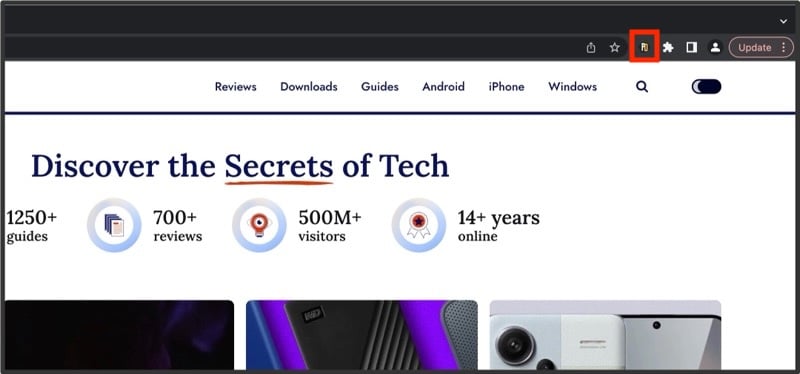
- Click the PopUpOff mode you want to use.

- Reload the webpage.
PopUpOff will now block the website’s elements based on your selected mode, and you’ll see the changes reflected on the website. The extension will add a little indicator on top of its icon in the toolbar, indicating the active mode.
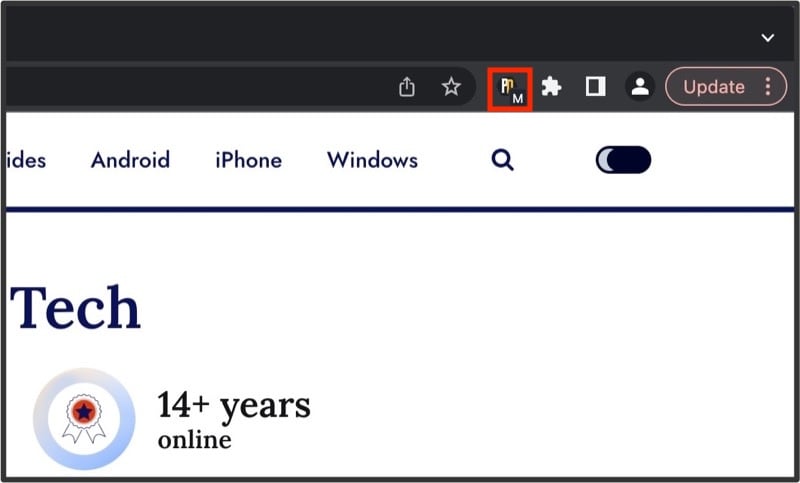
PopUpOff remembers your blocking preferences for different websites. So when you visit a website again, it automatically blocks the website’s elements based on that.
Change the PopUpOff Blocking Mode
At any point, if you find the mode passive or a little too aggressive, you can change it like this:
- Click the PopUpOff extension button in the toolbar.
- From the available modes, click on the one you want to use.
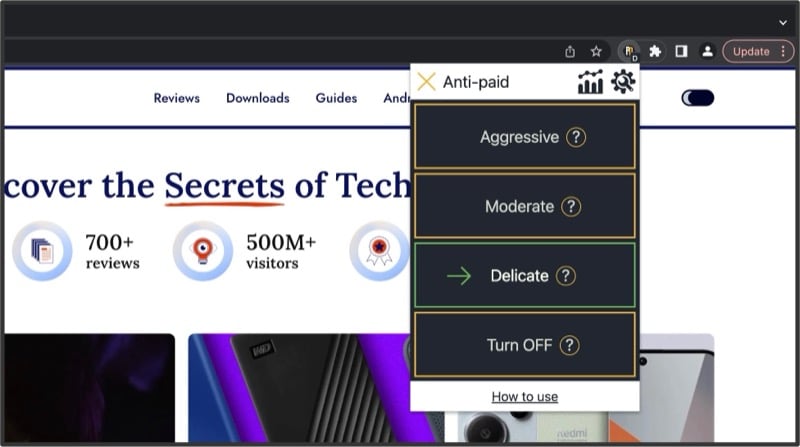
- Reload the page.
Disable PopUpOff for a Website
If you think PopUpOff is blocking off an essential pop-up or overlay from a website, or you simply don’t want to use it on a website anymore, you can disable it for that website. This is how you do it:
- Click the PopUpOff icon in the toolbar.
- Click the Turn Off option in the menu.
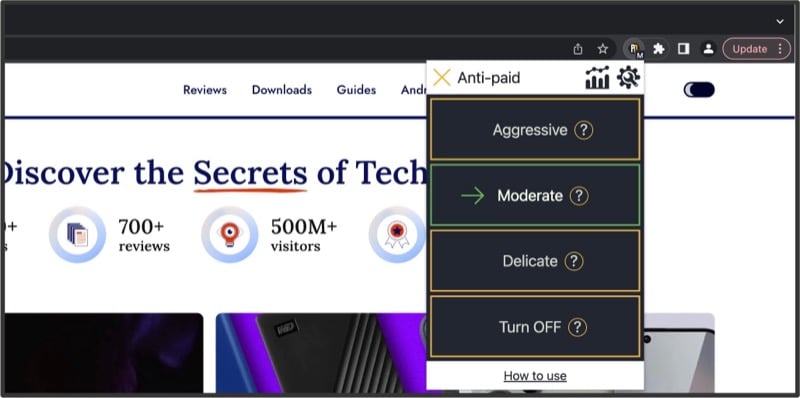
- Reload the webpage.
As soon as you do this, the blocked elements will reappear on the website.
What Else Does PopUpOff Offer?
Besides blocking website pop-ups and overlays, the PopUpOff extension offers a few other useful options. You can find these options on the PopUpOff page by clicking the extension icon in the toolbar and hitting the Settings button (with the gear icon).
Statistics
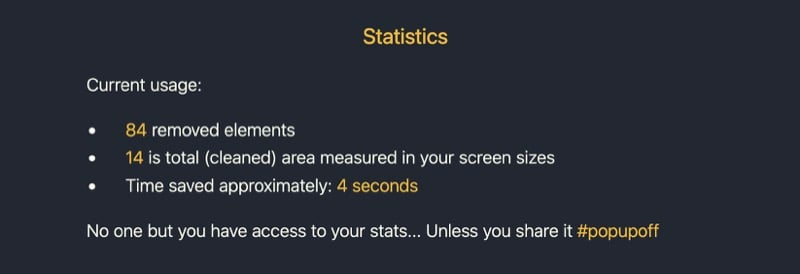
PopUpOff lets you view stats for all the pop-ups and overlays it has blocked till date to give you an idea about your usage and the extension’s effectiveness at dealing with them.
Anti-Paid Feature
Anti-Paid is a PopUpOff feature that removes website paywalls and lets you read paid articles for free. Mind you, this feature is in experimental phase and not very effective at bypassing paywalls at the time of writing.
Change Default Mode
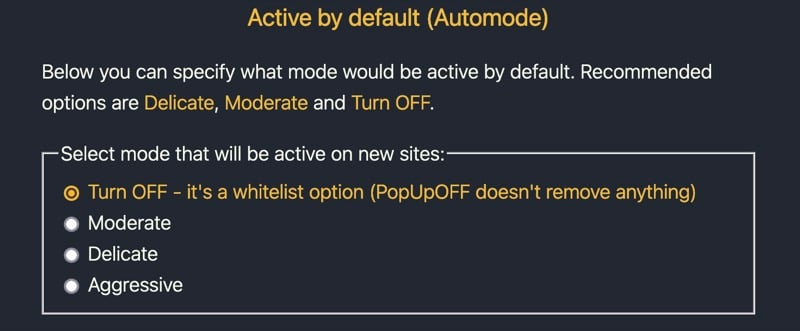
PopUpOff also gives you the option to customize some of its settings. Changing the default mode setting—from disabled to one of the three modes we’ve seen above—is a useful one, which sets the default state of the extension for all websites you visit in your browser.
Set Up a Keyboard Shortcut
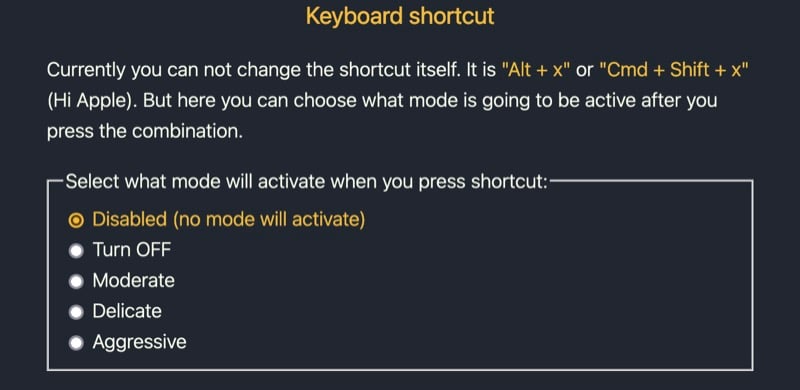
Another useful PopUpOff option is setting up a keyboard shortcut to trigger a blocking mode. While you can’t change the default shortcut as of writing, you can, however, select which mode is activated upon pressing it.
Miscellaneous
Lastly, PopUpOff also gives you the option to restore preferences to default. And for times when you want to switch browsers, you get the ability to back up and restore preferences. That way, you don’t have to set up your preferences in the PopUpOff settings again.
Create a Better Browsing Experience for Yourself
PopUpOff is a simple and effective way to block annoying pop-ups and overlays on websites and create a distraction-free and pleasant browsing experience across different browsers on your Mac or Windows PC. Just be mindful of the mode you choose for a website, as being in the wrong one can hide crucial prompts and hamper some of the website’s functionality.

