

Quick Answer
You can unlock many YouTube Premium-like features for free on desktop using browser extensions. Tools like Enhancer for YouTube, uBlock Origin Lite, Unhook, Volume Scroll, and Screenshot YouTube remove ads, enable background-style controls, block distractions, and improve playback without a subscription.
YouTube is the go-to video streaming platform that most of us use in our daily lives. Be it for listening to music, podcasts, movies, short movies, Shorts, and all other kinds of content. But for an ad-free experience, you have to go for YouTube Premium. Aside from no ads, you get offline playback, playback when the screen is off, and other perks. However, the subscription price is getting expensive.
While on Android, you can use ReVanced or NewPipe to get the YouTube Premium perks for free, but that is not possible on a desktop or PC. Thankfully, with modern browsers, you can install various extensions to unlock premium features for YouTube for free. Here is the list of 5 Google Chrome YouTube Premium extensions that will give you premium features for free.
Table of Contents
How to get YouTube Premium features for free
If you are tired of ads and want more granular control on YouTube, then you can use the extensions below and elevate your YouTube watching experience. You don’t need any monthly subscription or pay a penny. After testing these five extensions extensively, here is the list:
Enhancer for YouTube
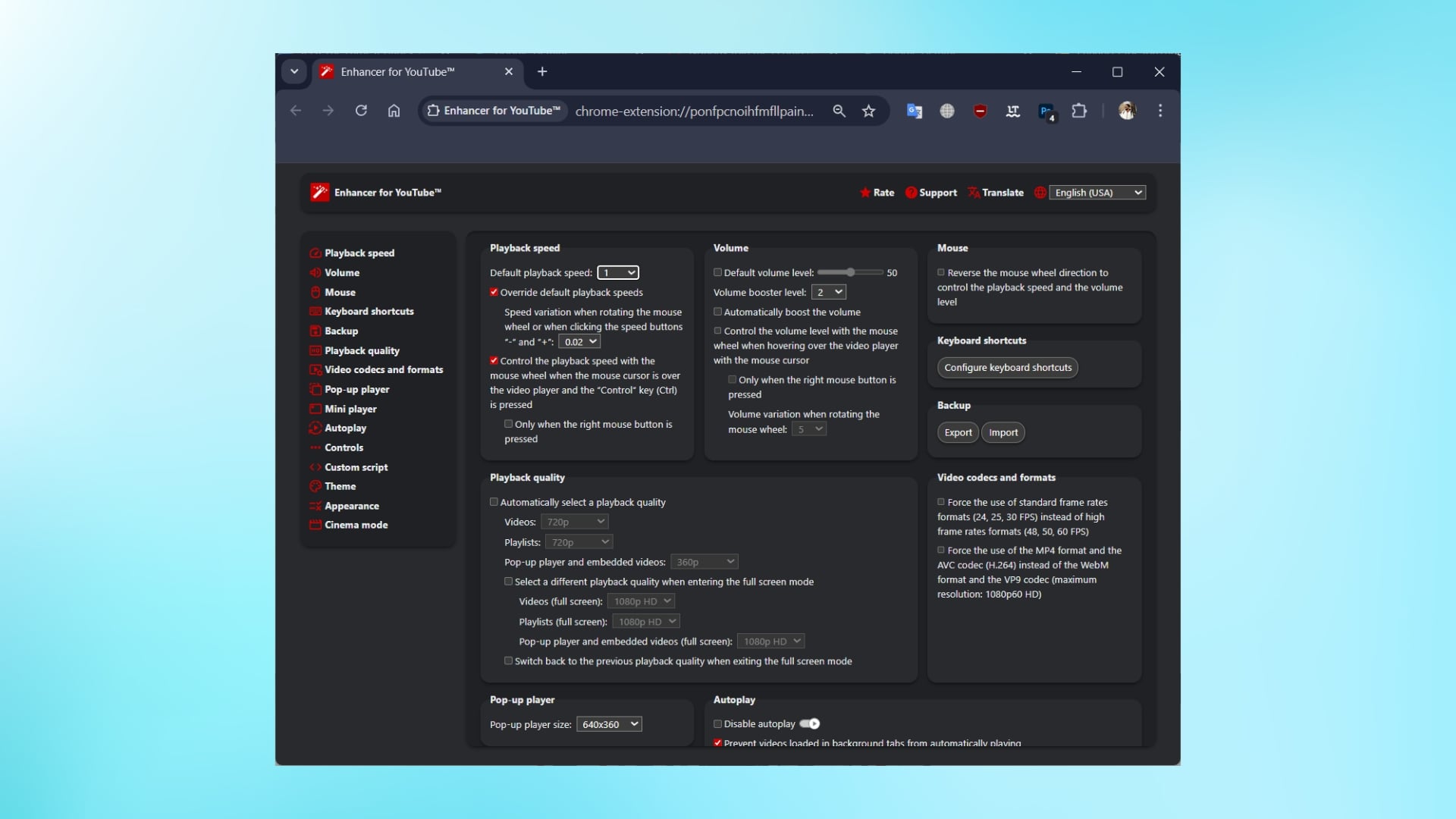
By paying for the YouTube Premium subscription, you get the ability of background play, playback speed, and much more. With the Enhancer for YouTube extension, you get a whole set of customizable options. This includes the ability to customize the user interface by tweaking the brightness, contrast, etc., enhanced dark mode, custom themes, cinema mode (dims everything around the player), force a particular video quality, use a mini-player that mimics PiP (Picture in Picture) of YouTube, pop-up player, wide player, and much more.
On top of it, you get the option to disable auto-play, change playback speed, block distractions such as end screens, info cards, recommendations, related videos, chats/comments, and even YouTube Shorts. It lets you take high-quality screenshots, set up keyboard shortcuts for easy controls, and even watch a playlist in reverse order. Overall, it is an all-rounder that you must install for a better YouTube experience.
Screenshot YouTube
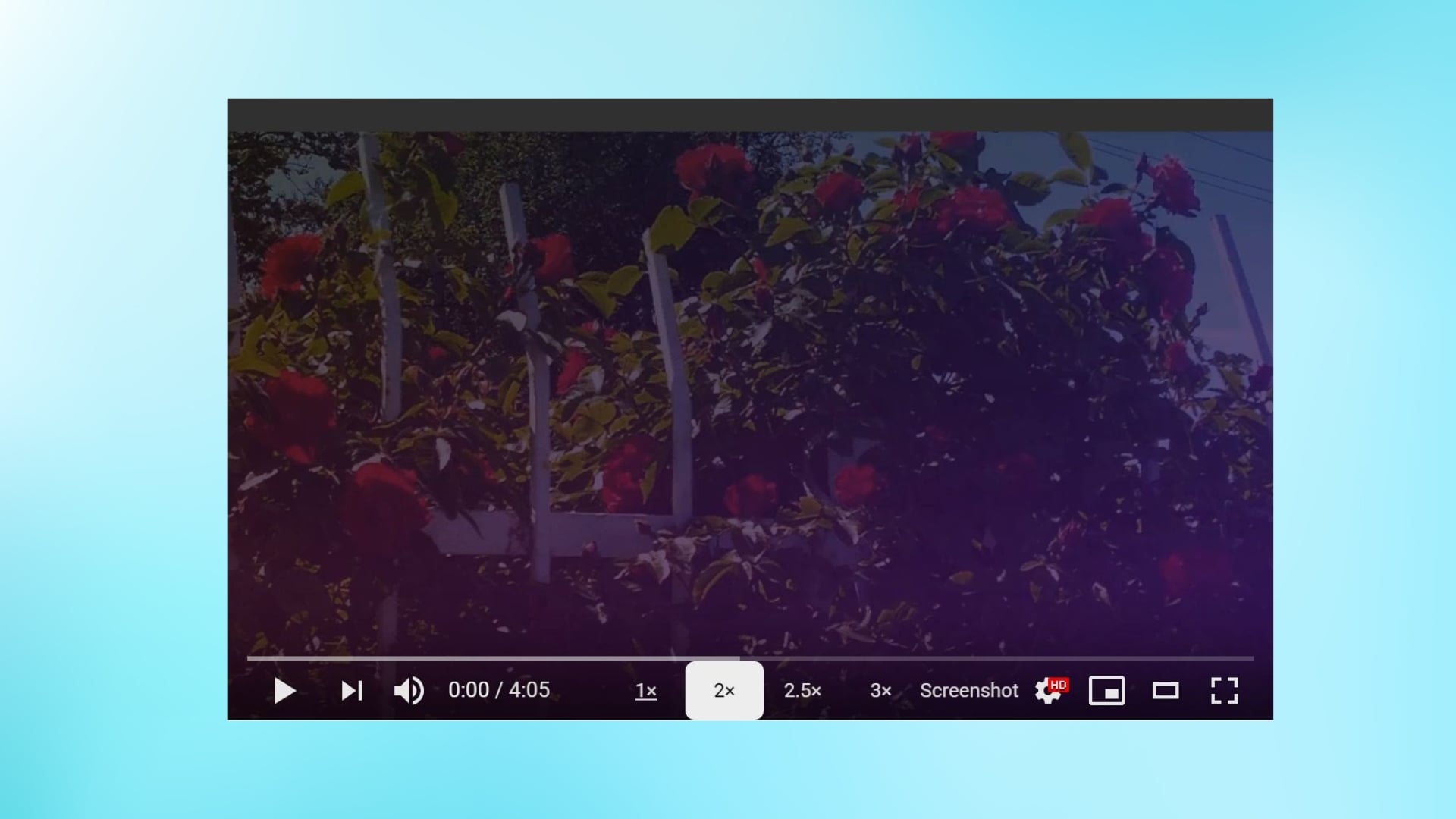
The above extension already gives you the ability to take screenshots from a YouTube video. But if you only specifically need an extension that serves the purpose of taking screenshots, then Screenshot YouTube is the best one. There are instances when the screenshot taken either requires manual cropping or has unnecessary buttons or distractions on it. With the Screenshot YouTube extension, you get a dedicated camera button to the player itself, avoiding the need to download a third-party screenshot app.
You can also assign a keyboard shortcut to the screenshot action to take a picture. Additionally, you can also control the playback speed of the video using keyboard buttons. It gives you a clear output by removing all the overlay items, such as the play bar, title, etc. Since I am a content writer, I regularly need screenshots from YouTube, and this is by far the best way to do that.
YouTube Volume Scroll
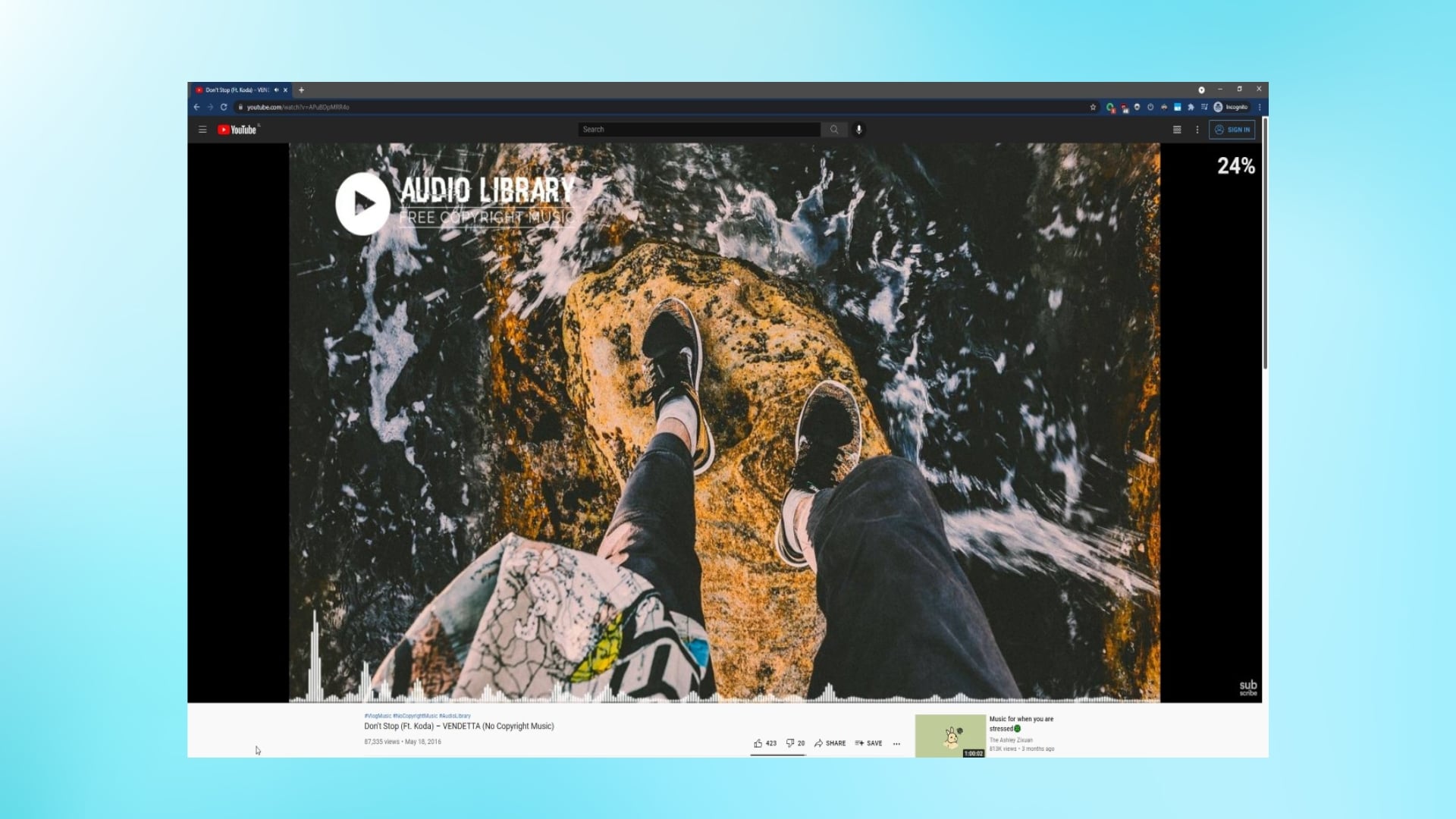
If you are fed up with using arrow buttons or the player itself to turn the volume up or down, you will appreciate how YouTube Volume Scroll helps to make it much easier. Many video players, such as VLC, allow users to scroll their mouse wheel to adjust the volume. YouTube doesn’t let you do that, but this extension fixes that issue. The best part is that it remembers the volume that you have set for the next session, and even in incognito mode as well.
It shows you a visual volume percentage on the video, like TV. To change the volume using the mouse wheel, you need to hover the mouse on top of the video and perform the action. Aside from YouTube, it also works with embedded videos on Reddit and WhatsApp. You can adjust the volume scroll steps to your liking, for instance, 5% increment. The overlay style can also be adjusted using the extension icon.
Unhook – Remove YouTube Recommended & Shorts
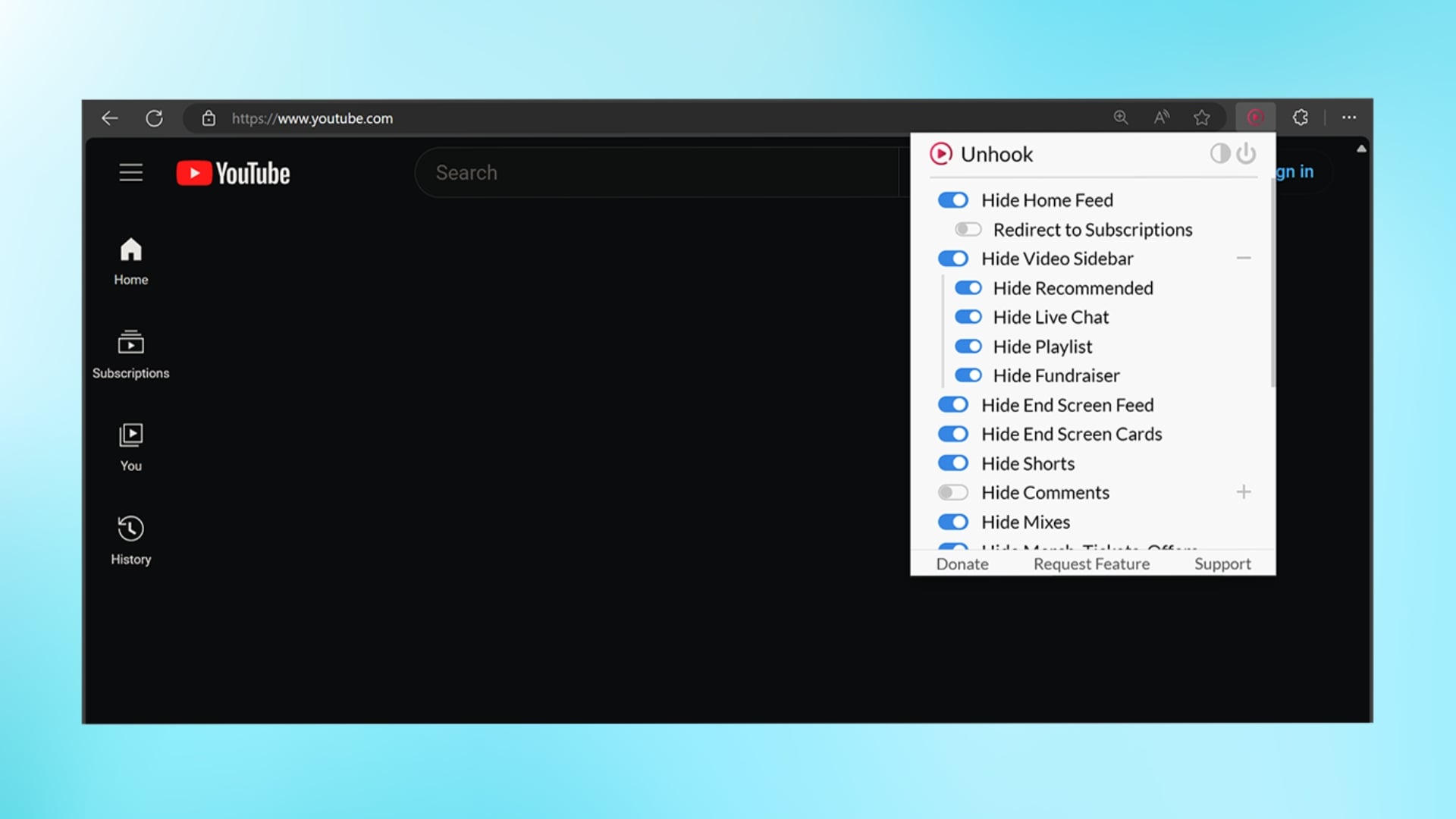
YouTube has grown into a platform that tries to keep you as long as possible on the platform by suggesting your videos, showing you Shorts, comments to engage with, and whatnot. Unhook extension is a solution to get out of it and only focus on the video that you wish to watch. It lets you hide the related videos, Shorts, comments, suggestions wall, homepage recommendations, trending, and other distractions.
I personally do not like watching Shorts, and this extension is the perfect antidote for that, especially on PC. After installing the Unhook extension, you head over to YouTube, watch a tutorial, exit, and that’s it. No distraction to watch another video. With this extension enabled, you will see a blank YouTube search bar on the home page, letting you search for the content that you want to watch.
uBlock Origin Lite
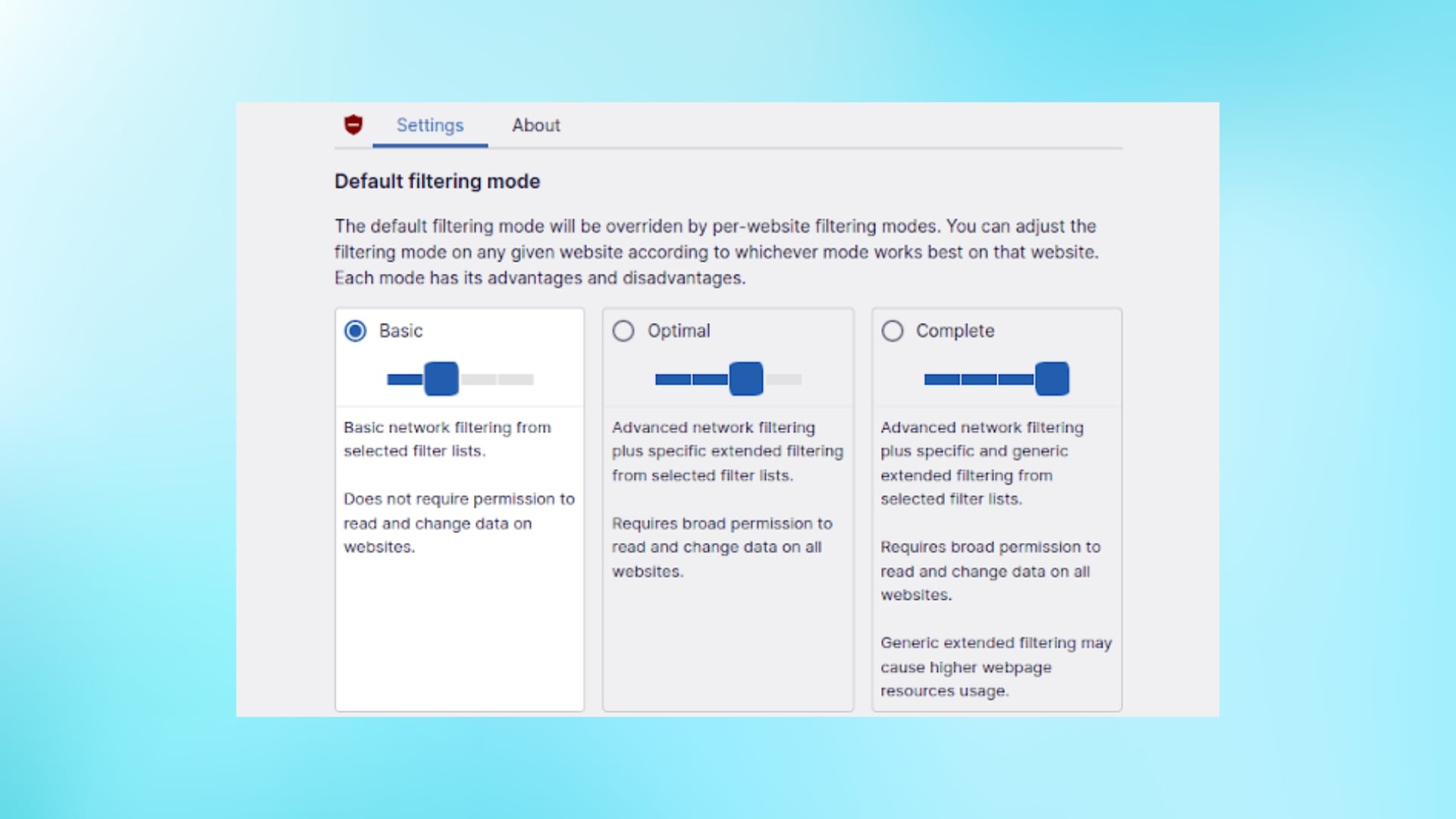
The beast when it comes to ad blocking on desktop, uBlock Origin Lite has to be on the list. Sadly, due to Google’s restriction, the main version of the uBlock Origin was blocked, but the lite version works perfectly fine. Aside from blocking ads, this extension blocks trackers, miners, and other privacy intrusions immediately upon installation.
It is built on Manifest V3, which is the latest Google extension rules, while filtering content. The uBlock Origin Lite extension doesn’t hog onto your CPU resources and uses zero memory while idle. The best thing about this extension is that it doesn’t require any manual input from the user’s side, as it automatically starts blocking ads as soon as you install it.
Enjoy premium perks for free
In the era of online streaming, what was once freely available is now slowly getting buried behind paywalls. Gone are the days when there was minimal intrusion or distractions on platforms like YouTube, and you could actually enjoy watching videos. Now they are filled with ads and unnecessary content that literally take you away from your point of focus.
For those who want to further enhance their viewing experience, you can check out our guide on how to disable YouTube auto-dub feature and undo the Not Interested videos on YouTube. There are also effective ways to hide YouTube Shorts, and fix YouTube recommendations.

